
1. Introduction
The OTTOCAST U2-AIR Pro is a wireless adapter designed to convert your vehicle's existing wired Apple CarPlay system into a wireless one. This device allows for seamless integration of your iPhone with your car's infotainment system, providing access to navigation, music, calls, and other CarPlay features without the need for a physical cable connection.
2. Safety Information
Always adhere to the manufacturer's guidelines for the proper use, handling, and disposal of this wireless audio adapter. Ensure the device is installed in a manner that does not obstruct your view or interfere with vehicle controls. Do not attempt to operate the device or your phone in a way that distracts you from driving.
3. Package Contents
Verify that your package contains the following items:
- OTTOCAST U2-AIR Pro Wireless CarPlay Adapter
- USB-A to USB-C Cable
- USB-C to USB-C Cable
- User Manual (this document)

Image: The OTTOCAST U2-AIR Pro adapter shown with its included USB-A to USB-C and USB-C to USB-C cables.
4. Setup Instructions
4.1 Compatibility Requirements
- Your vehicle must have a factory-installed wired Apple CarPlay system (model years 2016-2024).
- Your iPhone must be running iOS 10 or higher.
- Not compatible with BMW models.
- Does not support streaming video.

Image: A visual representation of car brands compatible with the U2-AIR Pro adapter, including Audi, Benz, Porsche, VW, Honda, Nissan, Ford, Lexus, Volvo, Cadillac, Chevrolet, Citroen, Kia, Toyota, Buick, Hyundai, Peugeot, Mazda, and Renault.
4.2 Initial Installation
- Ensure your vehicle's engine is running or in accessory mode.
- Locate the USB port in your vehicle that supports wired Apple CarPlay.
- Connect the OTTOCAST U2-AIR Pro adapter to this USB port using one of the provided USB cables.
- Wait for the adapter's indicator light to illuminate, indicating it is powered on.
4.3 Pairing with iPhone
- On your iPhone, enable Bluetooth and Wi-Fi.
- Go to your iPhone's Bluetooth settings and search for available devices.
- Select the OTTOCAST device (e.g., "AutoPlay-xxxx") from the list to pair.
- Follow any on-screen prompts on your iPhone and car's display to confirm the connection.
- Once paired, the adapter will automatically connect to your iPhone for wireless CarPlay functionality.

Image: The OTTOCAST U2-AIR Pro adapter positioned in a car, demonstrating its capability for automatic connection to CarPlay within approximately 8 seconds after initial setup.
5. Operating Instructions
5.1 Automatic Connection
After the initial setup, the U2-AIR Pro will automatically connect to your iPhone when you start your vehicle, typically within 14 seconds. This eliminates the need to manually plug in your phone for CarPlay access.
5.2 Using CarPlay Features
Once connected, your car's display will show the Apple CarPlay interface. You can use the car's controls (touchscreen, rotary knob, steering wheel buttons) or Siri voice commands to:
- Access navigation apps (Apple Maps, Google Maps, Waze).
- Play music and podcasts from your iPhone.
- Make and receive hands-free calls.
- Send and receive messages.
- Utilize Siri for various commands and information.
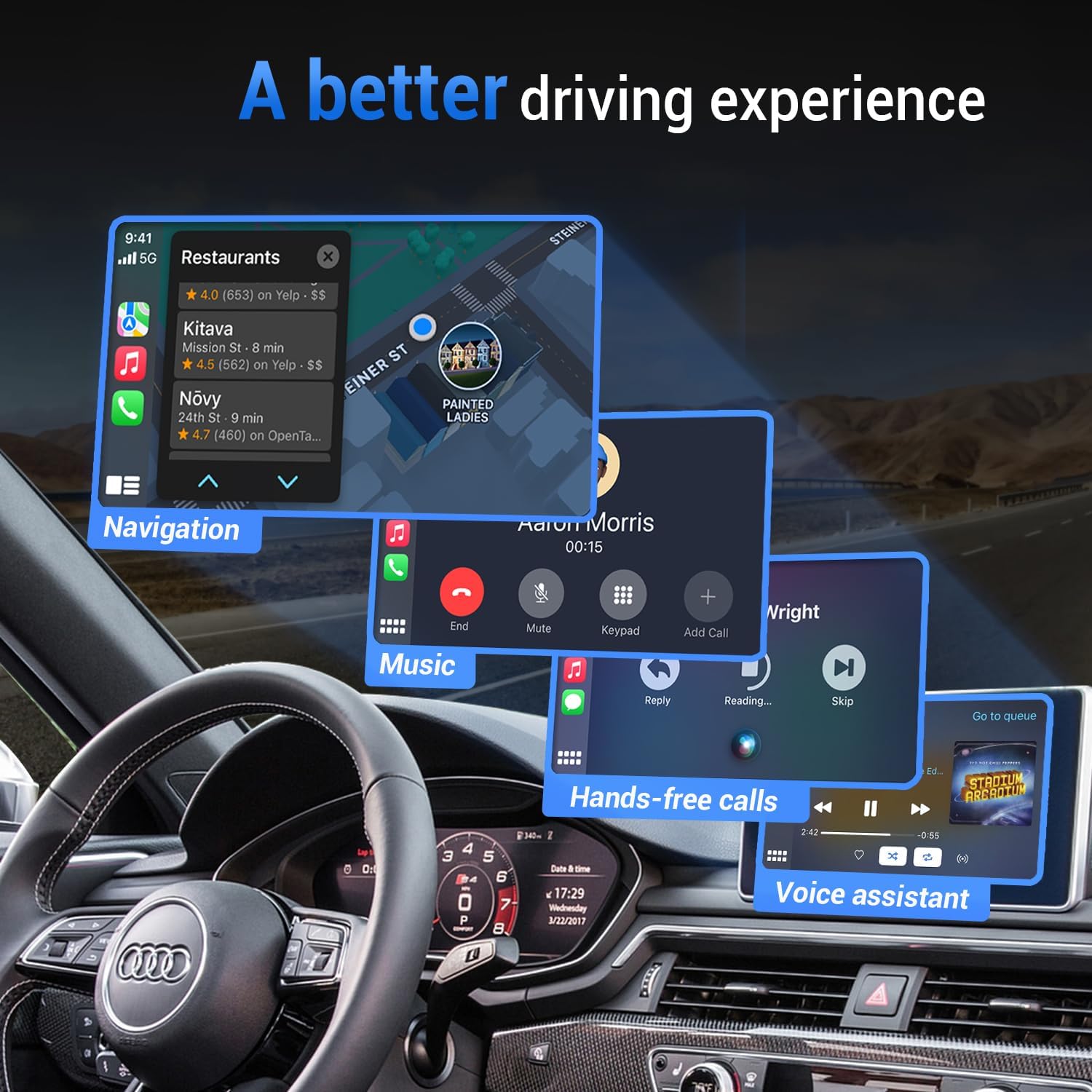
Image: A car's infotainment screen displaying various CarPlay functions, including navigation, music playback, and hands-free calling, illustrating an enhanced driving experience.
5.3 Smart Button Functionality
The U2-AIR Pro features a smart button for quick device management:
- Single Press (1 second): Disconnects the currently connected iPhone. This is useful for switching between multiple iPhones in the vehicle without re-installing the adapter.
- Long Press (10 seconds): Restores the adapter to factory settings. Use this if you encounter persistent connection issues or wish to clear all paired devices.

Image: A detailed view of the U2-AIR Pro adapter, emphasizing its smart button designed for quick disconnection and easy switching between connected phones.
6. Maintenance
To ensure the longevity and optimal performance of your OTTOCAST U2-AIR Pro adapter:
- Keep the device dry and away from extreme temperatures.
- Clean the exterior with a soft, dry cloth. Avoid using harsh chemicals or abrasive materials.
- Store the adapter in a safe place when not in use to prevent physical damage.
- Avoid leaving the adapter connected in the car for extended periods when the vehicle is off, as it may draw minimal power.
7. Troubleshooting
If you encounter issues with your U2-AIR Pro adapter, refer to the following common problems and solutions:
- No Connection / Failure to Connect Automatically:
- Ensure your car's wired CarPlay is active and functioning.
- Verify Bluetooth and Wi-Fi are enabled on your iPhone.
- Try unplugging the adapter and plugging it back in.
- If your iPhone is also connected to the car's native Bluetooth system, disconnect from the car's Bluetooth to prevent conflicts.
- Perform a factory reset on the adapter by holding the smart button for 10 seconds. - Audio Delay / Static during Calls:
- Ensure your iPhone is close to the adapter and there are no obstructions.
- Check for any software updates for the adapter via the 'ottopilot' app.
- If static persists during calls, temporarily switch to your phone's speaker. - Difficulty Switching Between iPhones:
- Use the smart button (single press) to disconnect the current phone before attempting to connect another.
- On the iPhone you do not wish to connect, go to Settings > General > CarPlay and toggle off CarPlay for your vehicle. - Adapter Not Recognized by Car:
- Confirm your vehicle model and year are compatible with the U2-AIR Pro.
- Ensure the USB cable is securely connected to both the adapter and the car's CarPlay USB port.
For further assistance, download the 'ottopilot' app for quick problem-solving guides, software updates, and online feedback.
8. Specifications
| Feature | Detail |
|---|---|
| Model Number | U2-AIR Pro |
| Brand | OTTOCAST |
| Connectivity Technology | Bluetooth, Wi-Fi (5GHz) |
| Power Source | Corded Electric |
| Color | Black |
| Item Weight | 4.6 ounces |
| Package Dimensions | 4.37 x 3.94 x 1.46 inches |
| Special Feature | Wireless CarPlay |

Image: An illustration of the internal ARM A7 chip, highlighting the adapter's excellent performance and stable 5GHz Wi-Fi connectivity.
9. Warranty and Support
OTTOCAST provides a 1-year warranty for the U2-AIR Pro Wireless CarPlay Adapter. For technical support, troubleshooting, and software updates, please utilize the exclusive 'ottopilot' app. This app offers guided solutions and direct online feedback channels to our professional technical team.
You can also visit the official OTTOCAST website for additional resources and contact information.


