
1. Introduction
This manual provides detailed instructions for the setup, operation, and maintenance of your TECURS 2.4G Wireless Gaming Keyboard. This keyboard is designed for versatile use across various operating systems and devices, featuring a comfortable ergonomic design, adjustable backlighting, and a built-in phone/tablet holder.

Figure 1: TECURS 2.4G Wireless Gaming Keyboard with integrated phone/tablet holder.
2. Package Contents
Please verify that all items are present in your package:
- 1 x TECURS 2.4G Wireless Gaming Keyboard
- 1 x USB-A/Type-C 2.4G Wireless Dongle (with Type-C adapter)
- 1 x USB Type-C Charging Cable
- 1 x User Manual (this document)
3. Setup
3.1. Charging the Keyboard
Before first use, fully charge the keyboard using the provided USB Type-C charging cable. Connect the Type-C end of the cable to the keyboard's charging port and the USB-A end to a compatible USB power source (e.g., computer USB port, USB wall adapter). The battery indicator light will show charging status.
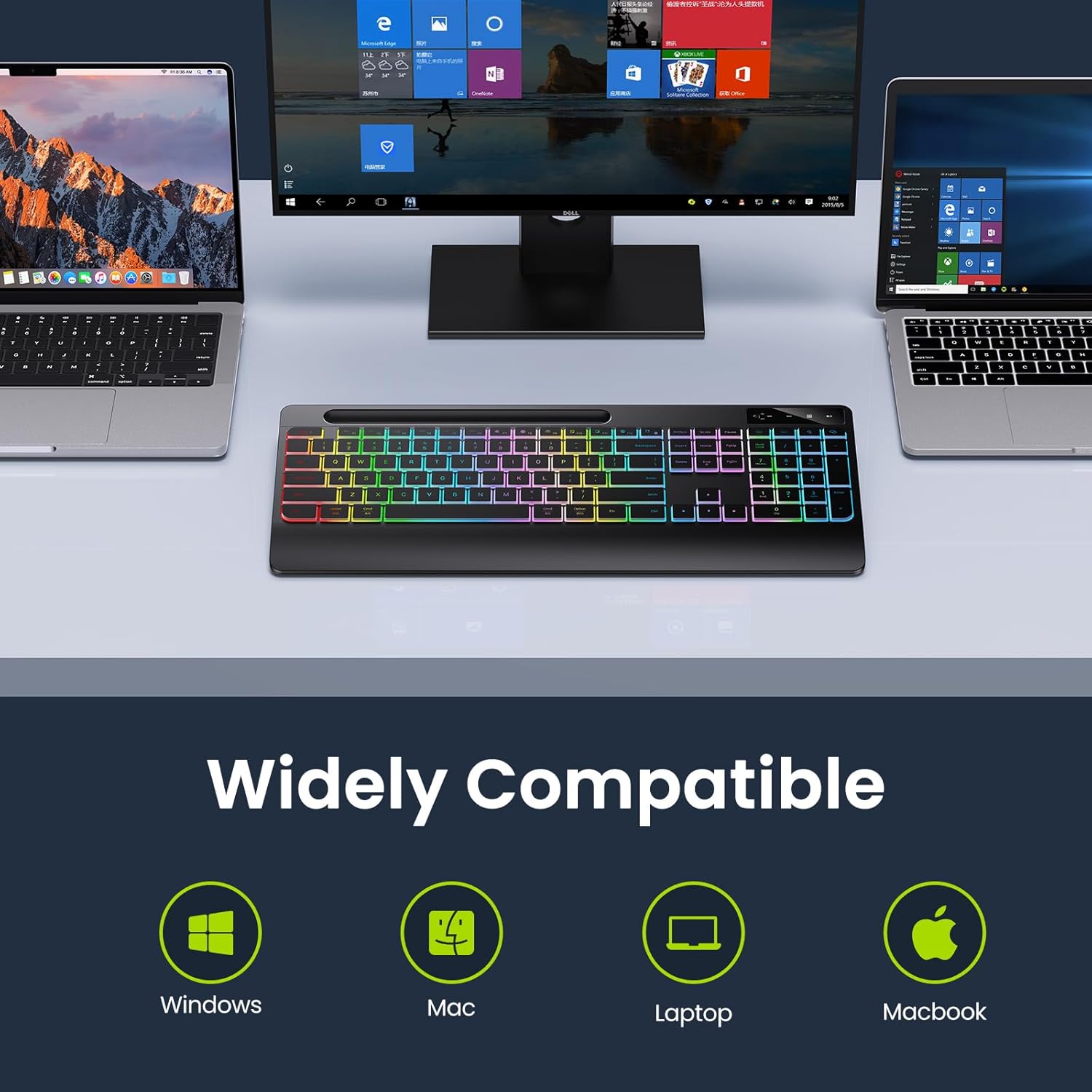
Figure 2: Connecting the USB Type-C charging cable to the keyboard.
3.2. Connecting to Your Device
The keyboard connects wirelessly via a 2.4 GHz USB dongle. No drivers are required for installation.
- Locate the 2.4 GHz USB dongle, typically stored in a compartment on the underside of the keyboard.
- If your device has a USB-A port, plug the dongle directly into it.
- If your device has a USB-C port, attach the included Type-C adapter to the USB-A dongle, then plug the assembly into the USB-C port.
- Turn on the keyboard using the ON/OFF switch located on the top right side of the keyboard.
- The keyboard should automatically connect to your device.

Figure 3: Wireless dongle and compatibility with USB-A and Type-C ports.
Video 1: Overview of the TECURS Wireless Keyboard features, including connectivity and ergonomic design.
4. Operating Instructions
4.1. Backlight Control
The keyboard features adjustable LED backlighting with multiple brightness levels.
- To turn on/off the backlight or adjust brightness: Press Fn + End repeatedly to cycle through brightness levels (Low, Medium, High, Off).
- To enable Always On Backlight: Press Fn + Esc.

Figure 4: Backlight brightness adjustment controls.
4.2. Phone/Tablet Holder
The integrated slot at the top of the keyboard serves as a convenient holder for your smartphone or tablet, allowing for easy viewing while typing.

Figure 5: Using the integrated phone/tablet holder.
4.3. System Switching
The keyboard supports both Windows and Mac operating systems. Use the dedicated system indicator buttons to switch between modes:
- Press the WIN button to activate Windows mode.
- Press the MAC button to activate Mac mode.
4.4. Ergonomic Design
The keyboard features an 8-degree tilt angle and a wrist rest to promote a more comfortable typing posture and reduce strain during extended use.

Figure 6: Ergonomic design with 8-degree tilt.
4.5. Silent Flat Keys
The keyboard is equipped with responsive low-profile keys designed to minimize typing noise, providing a quiet and comfortable input experience.

Figure 7: Silent flat keys for quiet operation.
5. Maintenance
To ensure the longevity and optimal performance of your keyboard, follow these maintenance guidelines:
- Cleaning: Use a soft, dry, lint-free cloth to wipe the surface of the keyboard. For stubborn dirt, slightly dampen the cloth with water or a mild, non-abrasive cleaner. Avoid excessive moisture.
- Dust Removal: Use compressed air to remove dust and debris from between the keys.
- Storage: When not in use for extended periods, store the keyboard in a cool, dry place away from direct sunlight and extreme temperatures.
- Battery Care: Avoid fully discharging the battery frequently. Recharge the keyboard when the low battery indicator appears.
6. Troubleshooting
If you encounter issues with your keyboard, please refer to the following common problems and solutions:
| Problem | Possible Cause | Solution |
|---|---|---|
| Keyboard not responding | Low battery; Dongle not properly connected; Keyboard OFF. | Charge the keyboard; Re-insert the USB dongle; Ensure keyboard is ON. |
| Backlight not working | Backlight turned off; Low battery. | Press Fn + End to cycle backlight modes; Charge the keyboard. |
| Input lag or intermittent connection | Interference; Dongle too far from keyboard. | Move closer to the dongle (within 33 feet); Avoid placing near other wireless devices. |
| Keys rubbing off | Normal wear and tear over time. | This is a cosmetic issue and does not affect functionality. Consider keycap stickers if desired. |
7. Specifications
- Model Number: TCK-2.4G-WRIST-PHONE-HLDR
- Connectivity Technology: 2.4 GHz Wireless (USB-A, USB-C compatible dongle)
- Keyboard Description: Membrane
- Number of Keys: 109
- Special Features: Backlit, Rechargeable, Wrist Rest, Phone Holder
- Keyboard Backlighting Color Support: Single Color (Rainbow effect)
- Power Source: 1 Lithium Ion battery (included)
- Battery Capacity: 1000 mAh (approximate, based on typical usage)
- Battery Life: Up to 15 days (no backlight), Up to 10 hours (with backlight)
- Compatible Devices: Laptop, PC, iPad, Smart TV, Tablet, Smartphone
- Operating Systems: Windows, Mac
- Color: Black
- Item Weight: 1.83 pounds (approx. 0.83 kg)
- Package Dimensions: 17.32 x 8.7 x 1.3 inches (approx. 44 x 22.1 x 3.3 cm)
8. Warranty and Support
For warranty information and customer support, please refer to the documentation included with your product packaging or visit the official TECURS website. You can also visit the TECURS store on Amazon for more product details and support resources: