
Cuifati Cuifatifmy6aqtcde
Cuifati X99 D8 DDR4 Motherboard User Manual
Model: Cuifatifmy6aqtcde
Introduction
This manual provides essential information for the installation, operation, and maintenance of your Cuifati X99 D8 DDR4 Motherboard. Please read this manual thoroughly before proceeding with installation to ensure proper setup and optimal performance.

Figure 1: Overview of the Cuifati X99 D8 DDR4 Motherboard. This image displays the full layout of the motherboard, including the CPU socket, memory slots, and various expansion slots and connectors.
Specifications
The Cuifati X99 D8 DDR4 Motherboard is designed for high-performance computing, supporting a range of modern components.
- Motherboard Model: X99 D8
- Form Factor: ATX
- CPU Socket Type: LGA2011 V3 / V4
- Memory Slots: 8 x DDR4 (Quad Channel)
- Max Memory Capacity: 256GB
- Storage Interfaces: 8 x SATA 3.0, M.2 NVME Interface (up to 32GB/s data transfer)
- Graphics Card Slots: 3 x PCIE 16X (configurable as X16/X8 for graphics cards)
- Network Interface: Gigabit Adaptive NIC
- USB Interfaces: 6 x USB 3.0 (2 front), 6 x USB 2.0 (2 front)
- PS/2 Interface: 1 x PS/2 Mouse/Keyboard Interface
- Power Connectors: 1 x 8-pin, 1 x 24-pin
- Expansion Interfaces: 1 x M.2 Wifi Interface, 2 x PCIE 1X
- Audio: 7.1 Channel Audio Interface
- Diagnostic Feature: Digital Diagnostic Card for hardware detection at power-on.
- PCB Construction: 10-layer PCB for durability and signal isolation.

Figure 2: Diagram illustrating the 10-layer PCB construction. This design enhances durability, signal isolation, and overall electrical performance for stable operation and longer lifespan.

Figure 3: Key features of the motherboard. This image highlights the high-powered heat dissipation, all-metal heatsink for stable CPU operation, and audio isolation for enhanced sound experience.
Setup and Installation
Follow these steps for proper installation of the Cuifati X99 D8 DDR4 Motherboard into your system.
- Prepare Your Workspace: Ensure your workspace is clean, well-lit, and static-free. Use an anti-static wrist strap if available.
- Install the CPU:

Figure 4: Close-up of the LGA2011 V3/V4 CPU socket. This socket is compatible with a range of high-performance processors for gaming and professional applications.
Carefully open the CPU socket lever. Align the CPU with the socket, ensuring the triangular mark on the CPU matches the mark on the socket. Gently place the CPU into the socket without forcing it. Close the lever to secure the CPU.
- Install Memory Modules:
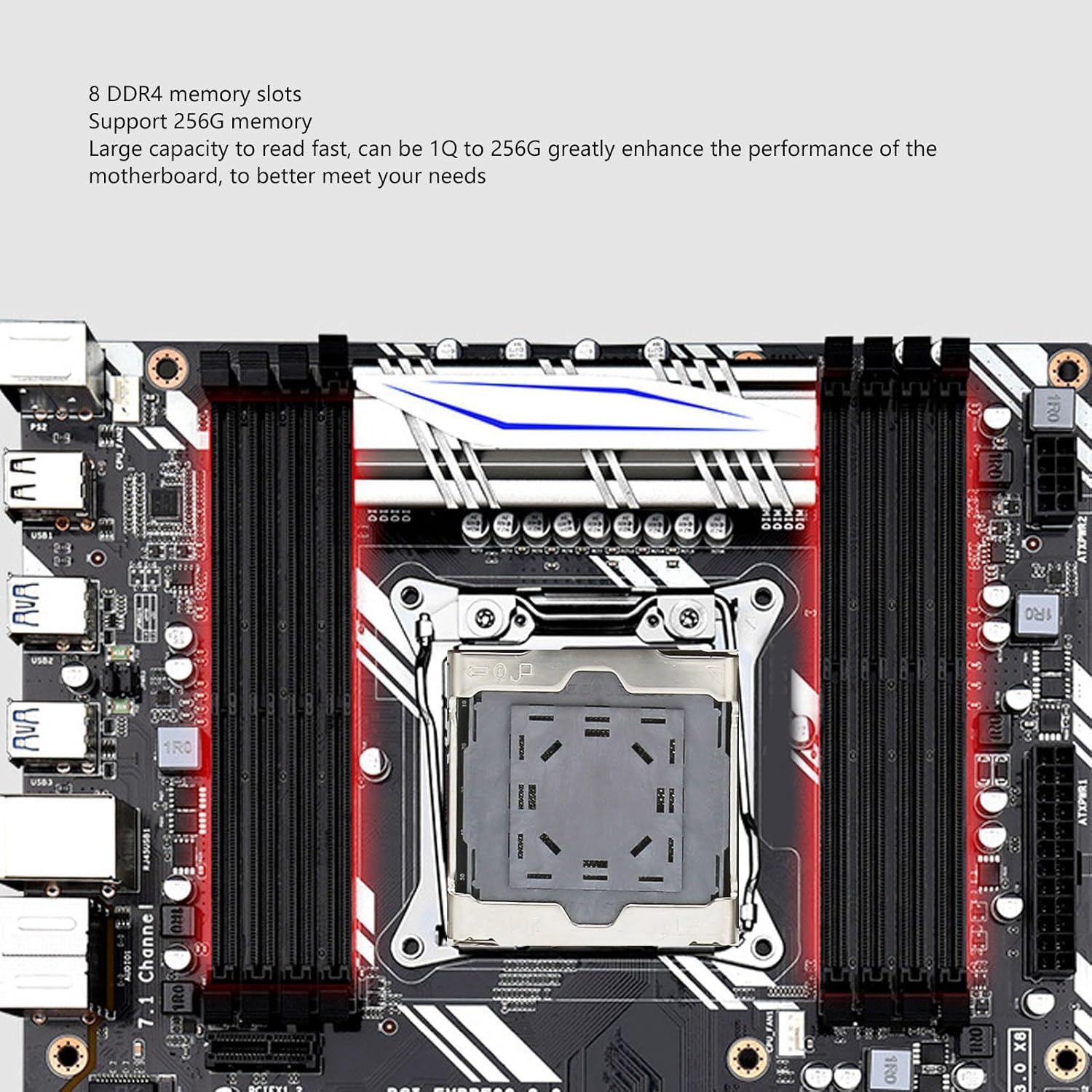
Figure 5: The 8 DDR4 memory slots on the motherboard. These slots support up to 256GB of RAM, significantly enhancing motherboard performance for demanding tasks.
Open the clips on both ends of the DDR4 memory slots. Align the memory modules with the slots, ensuring the notch on the module matches the key in the slot. Press down firmly on both ends until the clips snap into place.
- Install Storage Devices (M.2 NVME / SATA):

Figure 6: The M.2 and M.2 Wifi interfaces. The M.2 slot supports high-speed data transfer up to 32GB/s, ideal for operating systems and application drivers. The M.2 Wifi interface is designed for wireless connectivity.
For M.2 NVME SSDs, insert the module into the M.2 slot at an angle and secure it with the provided screw. For SATA drives, connect the SATA data cables to the SATA 3.0 ports on the motherboard and the power cables from your power supply.
- Install Graphics Card(s):
Insert your graphics card(s) into the PCIE 16X slots. Ensure the card is fully seated and secured with the case latch or screw.
- Connect Power Supply:
Connect the 24-pin ATX power connector and the 8-pin CPU power connector from your power supply to the corresponding ports on the motherboard.
- Connect Front Panel Cables:

Figure 7: Detailed diagram of the X99 D8 motherboard showing the location of various ports and connectors. This includes DDR4 memory slots, CPU power, ATX power, PCIE slots, SATA ports, M.2 interfaces, USB ports, PS/2 interface, and diagnostic card.
Refer to Figure 7 for the location of front panel headers. Connect the power switch, reset switch, HDD LED, power LED, USB, and audio cables from your computer case to the appropriate headers on the motherboard.
- Install Motherboard into Case: Carefully place the motherboard into your computer case, aligning the standoffs with the screw holes. Secure the motherboard with screws.
Operating Instructions
Once all components are installed and connected, you can power on your system.
- Initial Power On: Connect your monitor, keyboard, and mouse. Power on your system. The motherboard's digital diagnostic card will automatically detect hardware devices during startup to ensure stable operation.
- BIOS/UEFI Setup: Press the designated key (usually DEL or F2) during startup to enter the BIOS/UEFI setup. Here you can configure boot order, system time, and other advanced settings.
- Operating System Installation: Install your preferred operating system (e.g., Windows 10) from a bootable USB drive or DVD. Ensure all necessary drivers for the motherboard components are installed after the OS installation for optimal performance.

Figure 8: A summary of the motherboard's key features, including powerful performance with 8 DDR4 memory slots, full-speed M.2 hard drive interface, digital diagnostic card, LGA2011 V3/V4 support, SATA 3.0 interface, and graphics card crossfire support.
Maintenance
Regular maintenance helps ensure the longevity and stable operation of your motherboard.
- Dust Removal: Periodically clean dust from the motherboard and components using compressed air. Ensure the system is powered off and unplugged before cleaning.
- Component Checks: Ensure all cables and components are securely seated. Loose connections can lead to system instability.
- BIOS/Driver Updates: Check the manufacturer's website for the latest BIOS/UEFI updates and drivers. Updating these can improve compatibility and performance.
- Temperature Monitoring: Monitor system temperatures to prevent overheating, especially for the CPU and chipset. Ensure adequate airflow within your PC case.
Troubleshooting
This section provides solutions to common issues you might encounter.
- No Power/System Not Starting:
- Check all power connections (24-pin ATX, 8-pin CPU, graphics card power).
- Ensure the power supply is switched on.
- Verify front panel power switch connection to the motherboard.
- No Display Output:
- Ensure the monitor is connected to the graphics card (not the motherboard, as this board does not have integrated graphics output).
- Reseat the graphics card in its PCIE slot.
- Check monitor power and input source.
- System Instability/Crashes:
- Reseat RAM modules.
- Check CPU cooler installation and thermal paste.
- Run memory diagnostic tools.
- The digital diagnostic card can provide error codes; consult the motherboard's specific error code list if available (not provided in this manual).
- Device Not Detected:
- Ensure the device is properly connected.
- Check device drivers are installed and up to date.
- Verify settings in BIOS/UEFI.
Warranty and Support
For warranty information and technical support, please refer to the documentation provided with your purchase or contact the seller directly. Specific warranty details and software update guarantees are not available in this manual.
Ask a question about this manual
Ask about setup, troubleshooting, compatibility, parts, safety, or missing instructions. Manuals+ will review the question and use this page’s manual context to help answer it.