
LAMTTO RC09
LAMTTO 6.86" Portable Wireless Car Stereo Receiver User Manual
Comprehensive guide for your LAMTTO Car Stereo Receiver with Carplay & Android Auto, Dash Cam, and Backup Camera.
1. Introduction
Thank you for choosing the LAMTTO 6.86" Portable Wireless Car Stereo Receiver. This device is designed to enhance your driving experience by integrating advanced features such as wireless Apple Carplay and Android Auto, a high-resolution dash camera system, GPS navigation, and multiple audio output options. This manual provides detailed instructions for setup, operation, maintenance, and troubleshooting to ensure optimal performance and longevity of your device.
2. Product Overview
The LAMTTO 6.86" Portable Wireless Car Stereo Receiver is a versatile in-car entertainment and safety system. Its compact design and easy installation make it suitable for a wide range of vehicles. Key features include:
- Wireless Carplay & Android Auto: Seamlessly connect your smartphone for navigation, music, calls, and more.
- Dual Camera System: Equipped with a 2.5K front dash cam and a 1080P waterproof backup camera for comprehensive recording and enhanced safety.
- Multiple Audio Outputs: Enjoy high-quality audio through Bluetooth, FM transmission, AUX output, or the built-in speaker.
- Mirror Link Functionality: Stream content from your iOS (AirPlay) or Android device directly to the screen.
- Smart Voice Control: Utilize Siri or Google Assistant for hands-free operation.
- GPS Navigation: Access real-time navigation via Carplay or Android Auto.
- Universal Compatibility: Designed for 99% of 12-36V car models, including cars, trucks, caravans, vans, trailers, and campers.
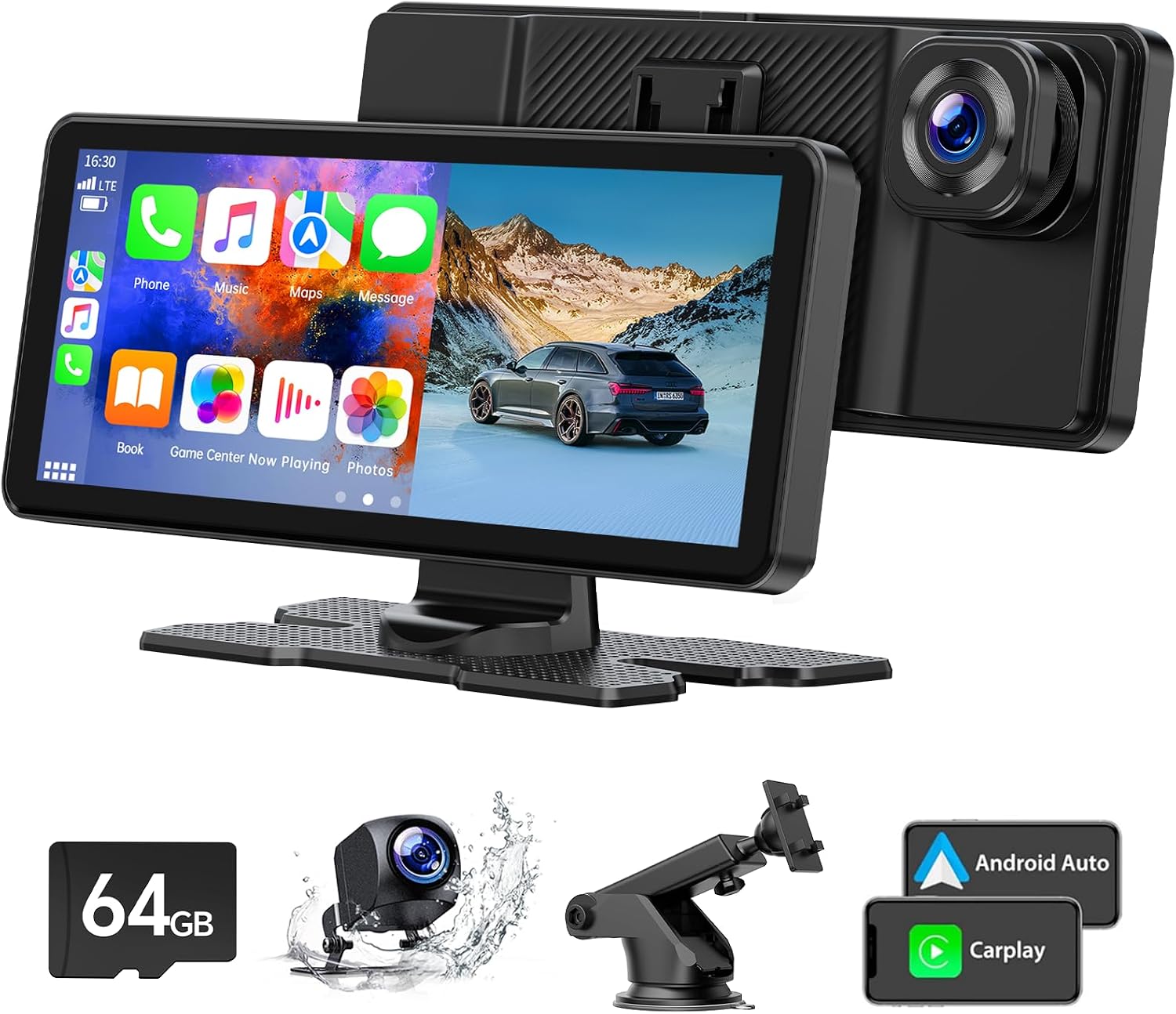
Figure 2.1: The LAMTTO 6.86" Portable Wireless Car Stereo Receiver, showcasing the main unit, 64GB SD card, backup camera, and mounting options.
3. What's in the Box
Upon unboxing your LAMTTO Car Stereo Receiver, please verify that all the following components are included:
- 1 x 6.86 Inch Carplay Screen (with pre-installed 64GB TF card)
- 1 x 1080P Waterproof Reverse Camera
- 1 x Desk Stand & Suction Cup Mount
- 1 x AUX Cable (4.9 FT)
- 1 x Car Charger (with 9.8 FT cable)
- 1 x Installation Tool
- 1 x User Manual

Figure 3.1: Visual representation of the complete packing list for the LAMTTO Car Stereo Receiver.
4. Setup and Installation
4.1 Mounting the Device
The LAMTTO car stereo offers flexible mounting options to suit your vehicle's interior:
- Suction Cup Mount: Attach the 360-degree rotatable suction cup mount to your windshield. Ensure the surface is clean and dry for optimal adhesion.
- Self-Adhesive Bracket: Use the self-adhesive bracket to secure the unit to your dashboard console. Clean the dashboard surface thoroughly before applying the adhesive.
Once mounted, adjust the screen angle for optimal viewing without obstructing your driving view. The unit can be easily removed from the mount for storage or security.
4.2 Power Connection
The device is powered by a cigarette lighter with 12-36V voltage, making it compatible with almost all types of vehicles. Connect the provided car charger to your vehicle's cigarette lighter socket and then to the USB Type-C port on the stereo receiver.
4.3 Backup Camera Installation
The included 1080P waterproof backup camera provides a clear rear view. For optimal functionality, it is recommended to professionally install the backup camera and connect it to your vehicle's reverse light circuit. This will allow the screen to automatically display the rear view when shifting into reverse.

Figure 4.1: The 170° wide viewing angle of the backup camera, providing extensive rear coverage for safer parking and reversing.
5. Operating Instructions
5.1 Wireless Carplay & Android Auto
This device supports wireless Apple Carplay and Android Auto. Once powered on, your smartphone will automatically connect to the car stereo screen after initial pairing. This allows you to access your phone's apps, maps, music, and other features directly on the 6.86" touch screen.
- Ensure Bluetooth and Wi-Fi are enabled on your smartphone.
- On the car stereo, select the Apple Carplay or Android Auto icon.
- Follow the on-screen prompts to pair your device.

Figure 5.1: Illustration of wireless connectivity for Apple Carplay and Android Auto, utilizing both Wi-Fi and Bluetooth for a stable connection.
5.2 Smart Voice Control (Siri & Google Assistant)
The built-in clear microphone enables hands-free control. You can activate Siri or Google Assistant by voice commands to perform various tasks, such as:
- "Play music"
- "GPS Navigation"
- "Send message"
- "Make phone calls"
- And more.

Figure 5.2: Examples of voice commands for Siri and Google Assistant, demonstrating hands-free operation for navigation, calls, and music.
5.3 GPS Navigation
Utilize the Carplay or Android Auto connection for real-time smart car navigation. This system does not require frequent map updates or additional fees, as it leverages your smartphone's navigation capabilities.

Figure 5.3: The car stereo screen displaying a detailed GPS navigation map, providing clear route guidance.
5.4 Audio Output Options
The device offers several methods for audio transmission to your car's speakers:
- Bluetooth: Connect wirelessly to your car's Bluetooth system for lossless audio experience.
- FM Wireless Transmission: Transmit audio to your car's FM radio by tuning to a blank frequency.
- AUX Output: Use the provided AUX cable to connect directly to your car's AUX input for a wired audio connection.
- Built-in Speaker: The unit has its own speaker for basic audio output.

Figure 5.4: Various audio output options available, including Bluetooth, built-in speaker, FM transmission, and AUX connection.
5.5 Mirror Link (Apple Airplay & Android Cast)
Connect your smartphone to the carplay screen using Apple Airplay or Android Cast to mirror your phone's display. This allows you to play videos from apps like YouTube (Netflix is not supported) and other content on the 1600*600 resolution screen, supporting 1080P videos.

Figure 5.5: The Mirror Link feature, enabling screen mirroring from both Apple (Airplay) and Android (Cast) devices to the car stereo.
5.6 Dual Camera Dash Cam Operation
The device features a 2.5K front camera and a 1080P rear camera, providing dual-screen recording capabilities with a 170° viewing angle. It supports night vision and loop recording, ensuring continuous coverage of your journeys.
- Recordings are saved to the included 64GB TF card.
- Access recorded footage directly on the screen or by removing the SD card and viewing on a computer.
- The loop recording function automatically overwrites the oldest files when the SD card is full.

Figure 5.6: The dual camera setup, featuring a 2.5K front camera and a 1080P backup camera for comprehensive video recording.
Video 5.1: Demonstration of the 6.86-inch car stereo screen in action, showcasing its Apple Carplay and Android Auto functionalities.
Video 5.2: A detailed overview of the 6.86" Car Stereo Screen, highlighting its features for Apple Carplay and Android Auto.
5.7 Split Screen Display
The device supports various split-screen display modes, allowing you to view multiple functions simultaneously, such as:
- Front + Rear Camera Split Screen
- Music + Navigation
- Desktop + Backup Camera
- And more, depending on the active applications.

Figure 5.7: Examples of split-screen display options, including simultaneous views of front and rear cameras, music and navigation, or desktop and backup camera.
6. Maintenance
- Cleaning: Use a soft, dry cloth to clean the screen and exterior. Avoid abrasive cleaners or solvents.
- SD Card Management: Regularly back up important footage from the 64GB TF card. Format the SD card periodically (e.g., monthly) to maintain optimal recording performance and prevent data corruption.
- Temperature: Avoid exposing the device to extreme temperatures for prolonged periods.
- Firmware Updates: Check the manufacturer's website periodically for any available firmware updates to ensure the device operates with the latest features and bug fixes.
7. Troubleshooting
| Problem | Possible Cause | Solution |
|---|---|---|
| Device does not power on. | No power from cigarette lighter; loose connection; faulty power cable. | Check cigarette lighter connection. Ensure the car charger is securely plugged in. Test the cigarette lighter with another device. Try a different power cable if available. |
| Wireless Carplay/Android Auto not connecting. | Bluetooth/Wi-Fi off on phone; incorrect pairing; interference. | Ensure Bluetooth and Wi-Fi are active on your phone. Forget the device in your phone's Bluetooth settings and re-pair. Move phone closer to the unit. Ensure no other devices are interfering with the connection. |
| Poor audio quality via FM transmitter. | Interference from other radio stations; car charger too close to dashboard. | Find a clear, unused FM frequency. Adjust the position of the car charger to minimize interference. Consider using AUX or Bluetooth output for better quality. |
| Dash cam records in short intervals (e.g., 60 seconds). | This is normal loop recording behavior. | This is the intended function of loop recording. The device records in segments to manage file size and overwrite older footage. Important events are typically locked and not overwritten. |
| Screen randomly turns off/reboots. | Unstable power supply; overheating; software glitch. | Ensure stable power connection. Check if the unit is overheating (e.g., direct sunlight). Try resetting the device (if a reset button is available, refer to Figure 2.1 for location on back of unit). If persistent, contact customer support. |
8. Specifications
| Feature | Detail |
|---|---|
| Model Number | RC09 |
| Screen Size | 6.86 inches (Visible screen diagonal: 7" / 18 cm) |
| Screen Resolution | 1600*600 (supports 1080P videos) |
| Front Camera | 2.5K Dash Cam |
| Rear Camera | 1080P Waterproof Backup Camera |
| Viewing Angle | 170° (Dual-screen recording) |
| Storage | 64GB TF Card (included) |
| Connectivity | Wireless Carplay, Android Auto, Bluetooth, AirPlay, AUX/FM, USB Type-C |
| Power Input | 12-36V (Cigarette Lighter) |
| Item Weight | 6.4 ounces |
| Package Dimensions | 8.98 x 5.55 x 4.33 inches |

Figure 8.1: Detailed dimensions of the LAMTTO 6.86" Carplay Screen for installation planning.
9. Warranty and Support
LAMTTO products are designed for reliability and performance. For specific warranty information, please refer to the warranty card included in your product packaging or visit the official LAMTTO website. If you encounter any issues or have questions not covered in this manual, please contact LAMTTO customer support for assistance.
For the latest information and support, please visit the LAMTTO Store on Amazon.
Related documentsRC09


Ask a question about this manual
Ask about setup, troubleshooting, compatibility, parts, safety, or missing instructions. Manuals+ will review the question and use this page’s manual context to help answer it.