
1. Introduction
This manual provides detailed instructions for the installation, operation, and maintenance of your LAMTTO Wireless Car Stereo. This portable touch screen device integrates Apple CarPlay, Android Auto, a 2.5K front dash camera, and a 1080P rear camera, offering advanced connectivity and recording capabilities for a safer and more convenient driving experience. Please read this manual thoroughly before using the product to ensure proper function and longevity.

Figure 1.1: LAMTTO Wireless Car Stereo and Included Components.
2. Product Features
- Wireless CarPlay & Android Auto: Seamless integration with your smartphone for navigation, music, calls, and more, accessible via the 6.86-inch touch screen. Supports Siri and Google Assistant voice control.
- Dual Camera Dash Cam: Features a 2.5K front camera and a 1080P waterproof rear camera with 170° viewing angle, night vision, and loop recording. Includes a 64GB TF card for immediate use.
- Upgraded Bluetooth Stereo Output: Transmit audio wirelessly to your car's stereo speakers for high-quality sound. Also supports FM wireless transmission and AUX output.
- Android/iOS Mirror Link (AirPlay/Android Cast): Display content from your smartphone, including videos (excluding Netflix), on the 1600*600 resolution screen.
- Smart Voice Control: Built-in microphone for hands-free calling and voice commands to Siri/Google Assistant for music, navigation, messages, and calls.
- Live GPS Navigation: Utilizes your smartphone's navigation through CarPlay or Android Auto for real-time, updated maps without additional fees.
- Universal Compatibility & Easy Installation: Designed for 99% of cars (12-36V), trucks, caravans, vans, trailers, and campers. Features a 360-degree rotatable suction cup mount and self-adhesive bracket for flexible placement and easy removal.

Figure 2.1: Wireless CarPlay and Android Auto Connectivity.
3. What's in the Box
Upon opening the package, please verify that all the following components are included:
- 1 x 6.86 Inch Carplay Screen (with 64G card included)
- 1 x 1080P Reverse Camera
- 1 x AUX Cable
- 1 x Installation Tool
- 1 x Desk Stand
- 1 x Suction Cup Mount
- 1 x User Manual
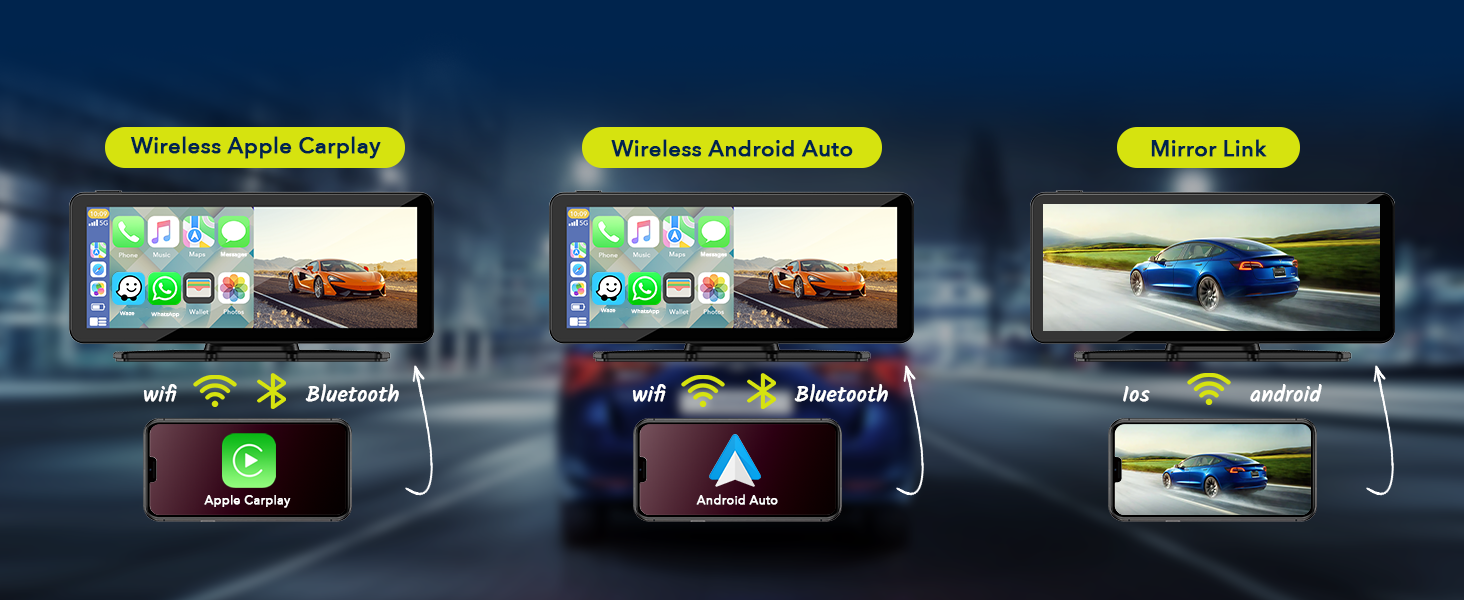
Figure 3.1: Package Contents.
4. Setup and Installation
The LAMTTO Wireless Car Stereo is designed for easy installation in most vehicles. Follow these steps for a successful setup:
- Choose Mounting Location: Select a suitable location on your dashboard or windshield that does not obstruct your view or interfere with driving controls. The 360-degree rotatable suction cup mount or the self-adhesive bracket can be used.
- Attach Mount: Securely attach the chosen mount to the desired surface. Ensure the surface is clean and dry for optimal adhesion.
- Attach Car Stereo: Slide the LAMTTO car stereo screen onto the mount until it clicks into place. Adjust the angle for optimal viewing.
- Power Connection: Connect the car stereo to your vehicle's cigarette lighter socket. The unit supports 12-36V voltage.
- Install Rear Camera (Optional): If using the 1080P waterproof rear camera, route its cable to the back of your vehicle and mount the camera in a suitable position (e.g., near the license plate). Connect the camera cable to the designated input on the main unit.
- Initial Power On: Once connected, the unit should power on automatically or by pressing the power button.

Figure 4.1: Example of Car Stereo Installation on Dashboard.
5. Operating Instructions
5.1 Wireless CarPlay & Android Auto
To connect your smartphone wirelessly:
- Ensure Bluetooth and Wi-Fi are enabled on your smartphone.
- On the car stereo screen, navigate to the CarPlay or Android Auto icon.
- Follow the on-screen prompts to pair your phone via Bluetooth. Once paired, the system will automatically connect via Wi-Fi for full CarPlay/Android Auto functionality.
- Your phone's compatible apps, navigation, and media will now be accessible on the car stereo screen.
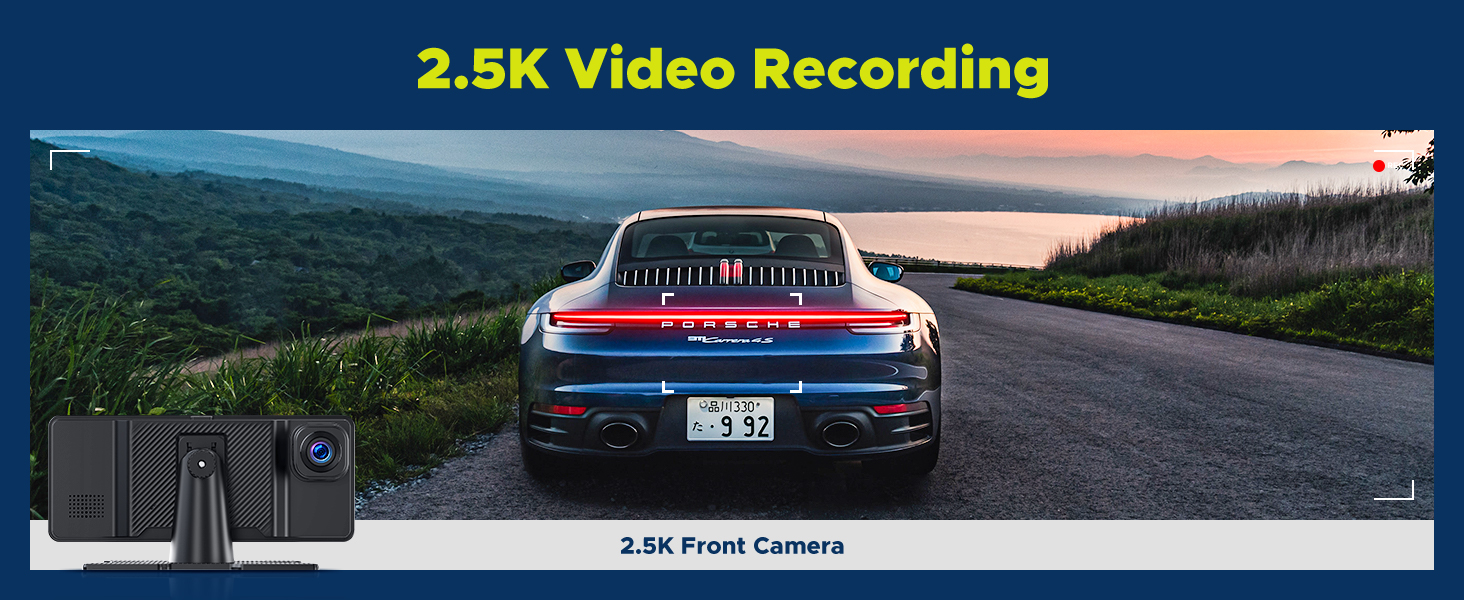
Figure 5.1: Wireless CarPlay and Android Auto Connection.
5.2 Dash Cam Operation (Front 2.5K & Rear 1080P)
The integrated dash cam automatically begins recording when the unit powers on. The included 64GB TF card stores footage.
- Recording: Both front (2.5K) and rear (1080P) cameras record simultaneously. Footage is saved in a loop recording format, overwriting the oldest files when the card is full.
- Viewing Footage: Access recorded videos directly on the screen through the dash cam interface.
- Night Vision: The cameras support night vision for clear recording in low-light conditions.
- G-Sensor: In case of sudden impact or collision, the G-sensor will automatically lock the current video file to prevent it from being overwritten.
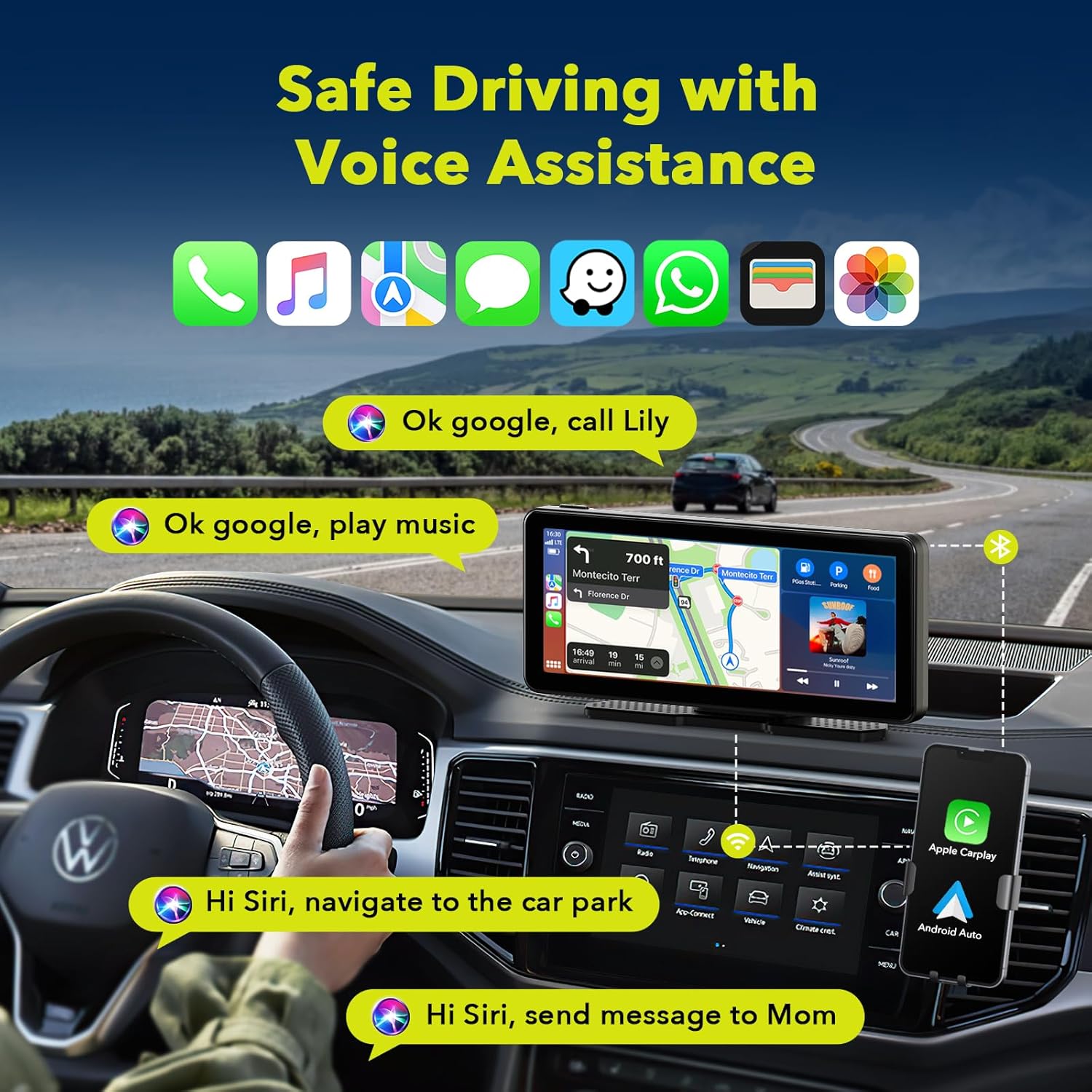
Figure 5.2: 2.5K Front Camera View.
5.3 Audio Output Options
The unit offers multiple ways to output audio to your car's sound system:
- Bluetooth: Connect wirelessly to your car's Bluetooth system for high-quality audio transmission.
- FM Transmission: Tune your car's FM radio to a specific frequency to receive audio from the car stereo.
- AUX Output: Use the provided AUX cable to connect the unit directly to your car's AUX input for a wired audio connection.
- Built-in Speaker: The unit has a built-in speaker for direct audio playback, useful for quick alerts or if external audio connection is not desired.

Figure 5.3: Audio Output Options.
5.4 Mirror Link (Apple AirPlay & Android Cast)
Mirror Link allows you to display your smartphone's screen directly onto the car stereo. This is useful for apps not natively supported by CarPlay/Android Auto.
- Select the "AirPlay" (for iOS) or "Android Cast" (for Android) option on the car stereo screen.
- Follow the on-screen instructions to connect your smartphone. This typically involves connecting to a specific Wi-Fi network broadcast by the car stereo.
- Once connected, your phone's screen will be mirrored. Note that certain streaming services like Netflix may not be supported due to content protection.

Figure 5.4: Apple AirPlay and Android Cast Functionality.
5.5 Voice Control (Siri & Google Assistant)
Utilize voice commands for hands-free operation:
- Ensure your smartphone is connected via CarPlay or Android Auto.
- Activate Siri or Google Assistant by saying "Hey Siri" or "Hey Google" (if enabled on your phone) or by tapping the voice assistant icon on the screen.
- Issue commands such as "Play music," "Navigate to [address]," "Send message to [contact]," or "Make phone calls."

Figure 5.5: Voice Assistant Interaction.
5.6 Split Screen Display
The unit supports split-screen functionality, allowing you to view multiple applications simultaneously.
- Access the split-screen option from the main menu or by dragging an app to the side of the screen (if supported by the interface).
- Common split-screen combinations include navigation and music, or the dash cam view alongside CarPlay/Android Auto.

Figure 5.6: Split Screen Display Options.
6. Maintenance
To ensure the longevity and optimal performance of your LAMTTO Wireless Car Stereo, follow these maintenance guidelines:
- Cleaning: Use a soft, dry, lint-free cloth to clean the screen and exterior. For stubborn smudges, slightly dampen the cloth with water. Avoid abrasive cleaners, solvents, or aerosol sprays.
- Temperature: Avoid exposing the unit to extreme temperatures (very hot or very cold) for extended periods, as this can affect performance and lifespan.
- Storage: If storing the unit for a long time, disconnect it from power and store it in a cool, dry place.
- Cable Management: Ensure all cables are properly routed and not pinched or strained to prevent damage.
7. Troubleshooting
If you encounter issues with your LAMTTO Wireless Car Stereo, refer to the following common troubleshooting steps:
| Problem | Possible Cause | Solution |
|---|---|---|
| Unit does not power on. | No power from cigarette lighter; loose connection. | Check cigarette lighter fuse. Ensure power cable is securely plugged into both the unit and the cigarette lighter socket. |
| CarPlay/Android Auto not connecting wirelessly. | Bluetooth/Wi-Fi off on phone; incorrect pairing. | Ensure Bluetooth and Wi-Fi are active on your phone. Forget previous pairings on both devices and re-pair. Ensure phone is compatible. |
| No audio output. | Incorrect audio output mode selected; volume too low. | Check if Bluetooth, FM, or AUX is correctly configured. Increase volume on both the unit and your car stereo. |
| Dash cam not recording or footage missing. | TF card full or corrupted; camera disconnected. | Format the TF card (backup important footage first). Ensure the camera cable is securely connected. Check camera settings. |
| Touch screen unresponsive. | Temporary software glitch. | Restart the unit by unplugging and replugging the power cable. If issue persists, contact customer support. |
If the problem persists after trying these solutions, please contact LAMTTO customer support for further assistance.
8. Specifications
| Feature | Detail |
|---|---|
| Model Number | RC09 |
| Screen Size | 6.86 inches (Visible screen diagonal: 7" / 18 cm) |
| Screen Resolution | 1600*600 |
| Front Camera Video Resolution | 2.5K |
| Rear Camera Video Resolution | 1080p |
| Field of View | 170 Degrees |
| Connectivity Technology | Bluetooth, Wi-Fi (for CarPlay/Android Auto) |
| Control Method | Touch, Voice |
| Power Input | 12-36V (Cigarette Lighter) |
| Mounting Type | Adhesive Mount, Suction Mount |
| Included Storage | 64GB TF Card |
| Item Weight | 1.87 pounds |
| Package Dimensions | 9.06 x 5.63 x 4.21 inches |

Figure 8.1: Rear View of the Unit with Model Information.

Figure 8.2: Product Dimensions.
9. Warranty and Support
LAMTTO is committed to providing quality products and excellent customer service.
- Return Policy: Enjoy a 90-day return or exchange policy without reason.
- Customer Service: Lifelong customer service is provided for products and accessories.
- Contact: For any inquiries or support, please refer to the contact information provided in the product packaging or on the official LAMTTO website.

Figure 9.1: LAMTTO Customer Service Commitment.
