
1. Introduction
This manual provides detailed instructions for the setup, operation, maintenance, and troubleshooting of your ASHATA 3D Hologram Fan, Model ASHATAwpm9xggst1. Please read this manual thoroughly before using the device to ensure proper function and safety.
2. Safety Information
- The 3D Hologram Fan features a transparent protective cover. Ensure this cover is always in place during operation to prevent contact with the rotating blade and to minimize noise.
- This device is primarily designed for indoor use. If used outdoors, appropriate waterproof measures must be taken to protect the unit from moisture and environmental elements.
- Keep the device away from water, heat sources, and direct sunlight.
- Do not attempt to disassemble or modify the device. Refer all servicing to qualified personnel.
- Ensure the device is placed on a stable, flat surface when using the table mount option.
3. Package Contents
Verify that all items listed below are present in your package:
- 1 x ASHATA 3D Hologram Fan Unit
- 2 x Base Brackets (for mounting)
- 1 x Memory Card (4GB, pre-installed or included separately)
- 1 x Remote Control
- 1 x Card Reader
- 1 x USB Power Cable
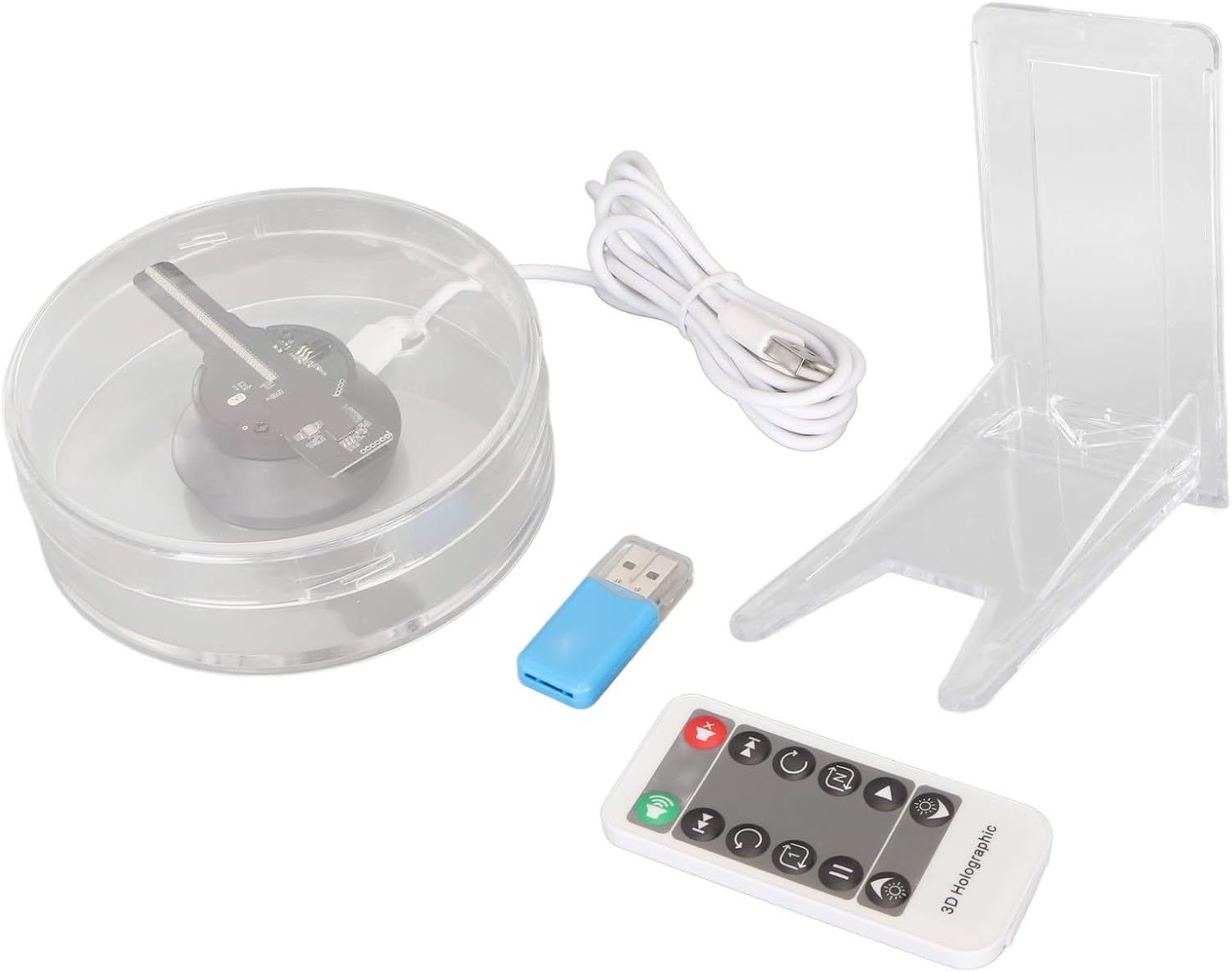
Image: Contents of the ASHATA 3D Hologram Fan package, showing the main unit, two base brackets, a remote control, and a USB card reader.
4. Setup Instructions
4.1 Unpacking
- Carefully remove all components from the packaging.
- Inspect all items for any signs of damage. If any damage is found, do not proceed with setup and contact customer support.
4.2 Mounting the Device
The ASHATA 3D Hologram Fan supports both floor mount and table mount configurations using the provided base brackets.
- Table Mount: Place the fan unit on a flat, stable surface. The transparent protective cover acts as a stable base.
- Floor Mount: Attach the two base brackets to the bottom of the fan unit as indicated in the diagram (refer to product diagrams for specific attachment points). Ensure the brackets are securely fastened before placing the unit on the floor.
4.3 Power Connection
- Connect the USB power cable to the designated port on the ASHATA 3D Hologram Fan unit.
- Plug the other end of the USB cable into a compatible USB power adapter (not included) or a powered USB port. The device requires 5 watts of power.
4.4 Initial Content Preparation
The device comes with a 4GB memory card. You can upload content directly to this card or use the mobile application.
- Memory Card Method:
- Insert the included memory card into the card reader.
- Connect the card reader to your computer.
- The memory card contains instructions for downloading the companion application software. Read these instructions using the card reader before proceeding.
- Transfer your desired 3D content (supported formats: mp4, avi, rmvb, mkv, gif, jpg, png) to the memory card.
- Safely eject the memory card from your computer and insert it into the memory card slot on the bottom of the ASHATA 3D Hologram Fan unit.
- Mobile App Method:
- Download the '5D Displayer' mobile application from your device's app store.
- Follow the in-app instructions to connect your mobile device to the ASHATA 3D Hologram Fan via WiFi.
- Use the app to transmit and load 3D displays directly to the fan. This method allows for fast data transfer and access to a 3D image database.

Image: A detailed view of the ASHATA 3D Hologram Fan, highlighting the internal circuitry and the transparent protective dome.

Image: The ASHATA 3D Hologram Fan in a setting, illustrating its WiFi compatibility for seamless content transfer from a mobile device or computer.
5. Operating Instructions
5.1 Powering On/Off
Once connected to power, the device will typically power on automatically. Use the remote control to turn the display on or off.
5.2 Playing Content
After content has been loaded onto the memory card or transmitted via the mobile app, the device will begin playing the 3D animation automatically. The built-in speakers will play accompanying audio if present in the content.
5.3 Using the Remote Control
The included remote control allows for convenient operation of the ASHATA 3D Hologram Fan.
- Power Button: Turns the display on or off.
- Volume Controls: Adjusts the audio output from the built-in speakers.
- Playback Controls: Play, pause, skip forward, skip backward for content navigation.
- Brightness/Mode: Adjusts display brightness or cycles through display modes (if applicable).

Image: The ASHATA 3D Hologram Fan alongside its remote control, which is used for managing playback and settings.
6. Maintenance
6.1 Cleaning the Device
- Ensure the device is powered off and unplugged before cleaning.
- Use a soft, dry cloth to wipe the exterior of the fan unit and the transparent protective cover.
- Do not use abrasive cleaners, solvents, or spray directly onto the device.
6.2 Remote Control Battery Replacement
The remote control uses a built-in 160mAh CR2025 button battery. When the remote control's performance degrades, replace the battery with a new CR2025 battery. Refer to the remote control's casing for instructions on accessing the battery compartment.
6.3 Storage
When not in use for extended periods, store the ASHATA 3D Hologram Fan in a cool, dry place, away from direct sunlight and extreme temperatures. Keep the protective cover in place to prevent dust accumulation.
7. Troubleshooting
If you encounter issues with your ASHATA 3D Hologram Fan, refer to the following common problems and solutions:
- No Display/Fan Not Spinning:
- Check if the power cable is securely connected and the power source is active.
- Ensure the remote control battery is not depleted and the device is powered on using the remote.
- Content Not Playing/Poor Quality Display:
- Verify that the content files are in a supported format (mp4, avi, rmvb, mkv, gif, jpg, png).
- Ensure the memory card is properly inserted into the fan unit.
- If using the app, confirm a stable WiFi connection.
- For optimal visual quality, ensure your video content has a suitable resolution for holographic display. Very low-resolution content may appear pixelated or unclear.
- Remote Control Not Responding:
- Check and replace the CR2025 button battery in the remote control.
- Ensure there are no obstructions between the remote control and the fan unit.
- Unusual Noise:
- Ensure the transparent protective cover is securely in place.
- Check for any foreign objects obstructing the fan's rotation.
If the problem persists after attempting these solutions, please contact customer support for further assistance.
8. Specifications
| Model | ASHATAwpm9xggst1 |
| Material | PMMA, PC, Hardware (Acrylic, Polycarbonate) |
| Power Source | Battery Powered (USB Power Cable) |
| Wattage | 5 watts |
| Control Method | Remote Control |
| Remote Control Battery | Built-in 160mAh CR2025 Button Battery |
| Memory Card Support | 4GB included, supports up to 16GB |
| Supported Content Formats | mp4, avi, rmvb, mkv, gif, jpg, png |
| Mobile App Name | 5D Displayer |
| Usage Environment | Indoor (Outdoor with waterproof measures) |
| Useful Life | 30,000 Hours |
| Mounting Type | Floor Mount/Table Mount |
| Parcel Dimensions | 12.6 x 12.4 x 7.1 cm |
| Weight | 300 g |
9. Warranty Information
Specific warranty details for the ASHATA 3D Hologram Fan are typically provided at the point of purchase or within separate documentation. Please retain your proof of purchase for any warranty claims. For information regarding warranty coverage, duration, and terms, please refer to the seller's policy or contact ASHATA customer support directly.
10. Support
For further assistance, technical support, or inquiries not covered in this manual, please contact ASHATA customer service through the following channels:
- Manufacturer Website: Refer to the official ASHATA website for support resources and contact information.
- Seller Support: Contact the seller from whom you purchased the product for direct assistance.