
LOGIS.ARGEN, J.O.L MicrophoneK9
Wirecast Wireless Lavalier Microphone K9 Dual Lapel Mic User Manual
Model: MicrophoneK9 | Brand: LOGIS.ARGEN, J.O.L
Introduction
The Wirecast Wireless Lavalier Microphone K9 Dual Lapel Mic system provides high-quality audio capture for various applications, including podcasts, broadcasting, karaoke, speeches, and conference calls. Designed for seamless connectivity with iPhone and Android devices, this plug-and-play system offers superior sound clarity and ease of use.
Key features include dual microphone functionality, intelligent noise reduction, and a portable design, making it an ideal solution for both professional and casual users seeking reliable wireless audio.
What's in the Box
- 2 x Wireless Lavalier Microphones
- 1 x Receiver (Lightning connector for iPhone)
- 1 x USB Charging Cable
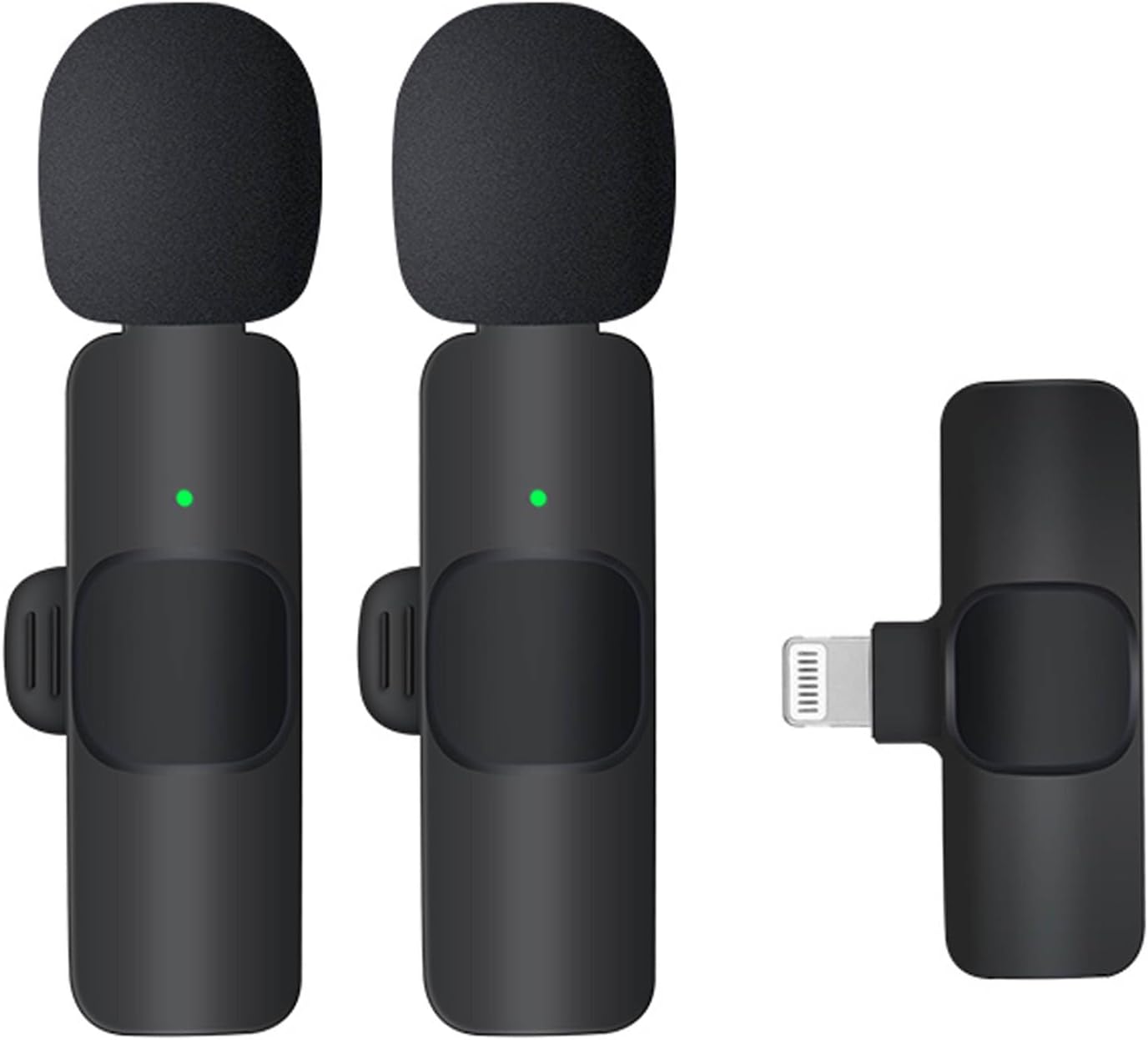
Figure 1: Components of the K9 Wireless Lavalier Microphone system.
Specifications
| Feature | Detail |
|---|---|
| Brand | LOGIS.ARGEN, J.O.L |
| Model Name | MicrophoneK9 |
| Microphone Form Factor | Lavalier |
| Power Source | Battery Powered |
| Material | Plastic |
| Signal-to-Noise Ratio | 80 dB |
| Hardware Platform | Camera, Smartphone |
| Number of Channels | 1 |
| Item Weight | 2.29 ounces |
| Connectivity Technology | Wi-Fi |
| Connector Type | Lightning |
| Special Feature | Noise Reduction |
| Polar Pattern | Omnidirectional |
Setup Guide
- Charge the Microphones: Before first use, ensure both lavalier microphones are fully charged using the provided USB charging cable. Connect the cable to the charging port on the side of each microphone and plug the USB-A end into a compatible power source (e.g., USB wall adapter, computer USB port). A full charge typically takes approximately 20 minutes.

Figure 2: Auto Pairing - Plug and Play setup.
- Connect the Receiver: Plug the Lightning connector of the receiver directly into the Lightning port of your iPhone. The receiver is self-powered by your device and does not require separate charging.
- Power On Microphones: Press and hold the power button on each lavalier microphone until the indicator light turns green, indicating they are powered on and ready to pair.
- Automatic Pairing: The microphones and receiver are designed for automatic plug-and-play pairing. Once the receiver is plugged into your phone and the microphones are powered on, they should automatically connect. The indicator light on the microphones will remain solid green when successfully paired.
Video 1: Demonstration of the K9 Wireless Microphone setup and basic functionality, including unboxing and connection to a smartphone.
Operating Instructions
- Wearing the Microphone: Clip the lavalier microphone onto your clothing, ideally near your chest area, to capture clear audio. The clip is designed for secure attachment.

Figure 3: Proper placement of the lavalier microphone for optimal sound capture.
- Recording Audio/Video: Once connected, open your preferred recording application (e.g., camera app, voice recorder, live streaming app) on your iPhone. The K9 microphones will automatically be recognized as the audio input source.
- Dual Microphone Use: The system supports two microphones simultaneously, allowing for interviews, dual-speaker podcasts, or other scenarios requiring multiple audio inputs. Both microphones will transmit audio to the single receiver.
- Noise Reduction: The K9 microphones feature intelligent noise reduction. This built-in algorithm helps to filter out background noise, ensuring clear and precise sound quality even in noisy environments.

Figure 4: Intelligent Noise Reduction for clear sound quality.
- Wireless Range: The system offers a wireless transmission range of up to 20 meters (approximately 65 feet), providing flexibility for movement during recording or live broadcasts.
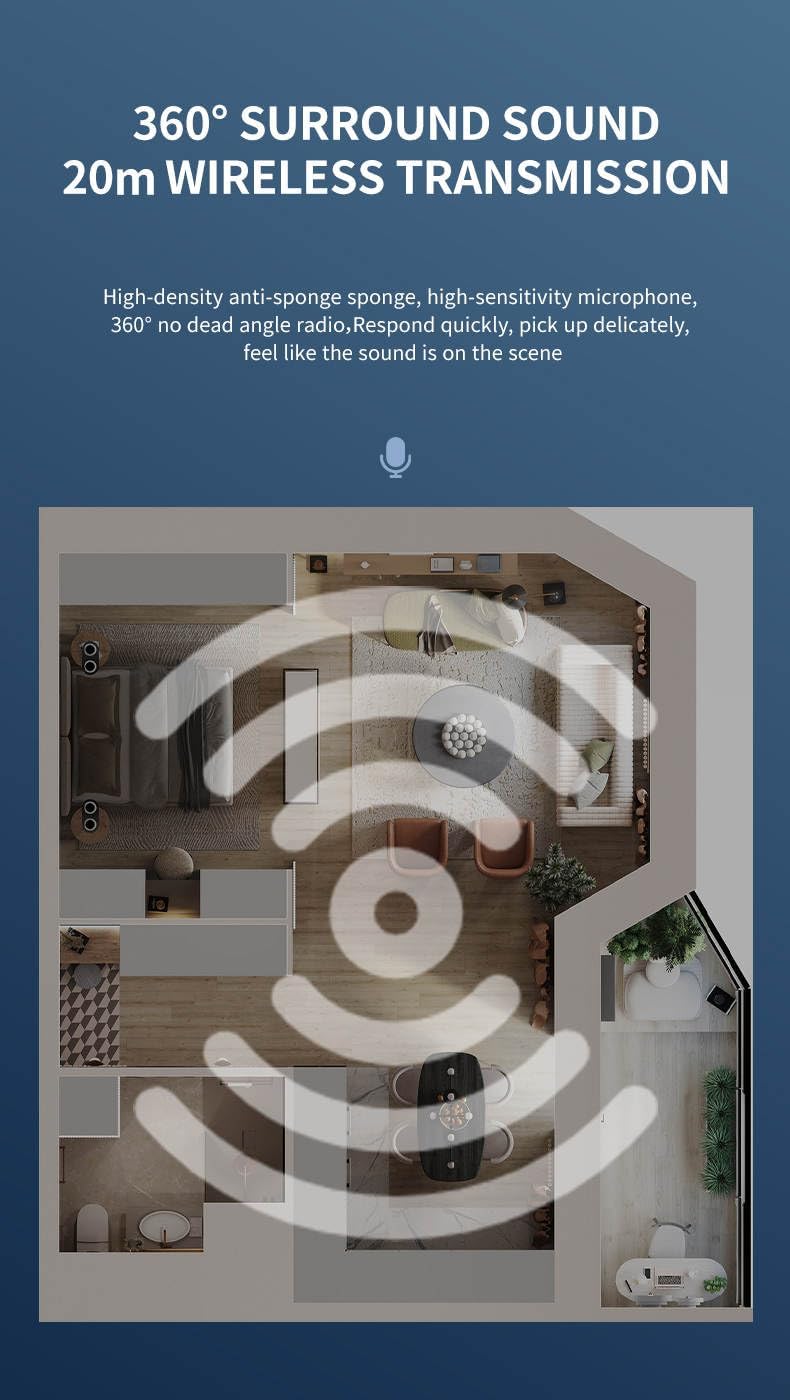
Figure 5: 360° Surround Sound and 20m Wireless Transmission.
Maintenance
- Keep the microphones and receiver clean by wiping them with a soft, dry cloth.
- Avoid exposing the devices to extreme temperatures, humidity, or direct sunlight.
- Store the system in a cool, dry place when not in use.
- Do not attempt to disassemble or repair the devices yourself, as this will void the warranty.
Troubleshooting
- Issue: Microphones not connecting/pairing.
- Ensure the receiver is securely plugged into your iPhone's Lightning port.
- Verify that both microphones are powered on (green indicator light).
- Check if the microphones are sufficiently charged. Recharge if necessary.
- Try unplugging and re-plugging the receiver, then power cycle the microphones.
- Issue: Poor audio quality or static.
- Ensure the microphones are within the 20-meter operating range of the receiver.
- Check for potential interference from other wireless devices or strong electromagnetic fields.
- Verify that the microphone is clipped securely and not rubbing against clothing.
- The built-in noise reduction should handle most background noise; however, very loud environments may still affect clarity.
- Issue: No sound recorded.
- Confirm that the microphones are paired (solid green light).
- Check your iPhone's audio input settings in the recording application to ensure the external microphone is selected.
- Ensure your iPhone's volume is not muted or too low during playback.
Warranty and Support
This product comes with a standard manufacturer's warranty. For detailed warranty information, technical support, or service inquiries, please refer to the contact information provided on the product packaging or visit the official LOGIS.ARGEN, J.O.L website.
Please retain your proof of purchase for warranty claims.
Ask a question about this manual
Ask about setup, troubleshooting, compatibility, parts, safety, or missing instructions. Manuals+ will review the question and use this page’s manual context to help answer it.