1. Introduction
This manual provides comprehensive instructions for the installation, setup, operation, and maintenance of your VIGOPKA Smart Lock F007. This smart deadbolt offers multiple unlocking methods including fingerprint, mobile application, passcode, key fob, and traditional physical key. Please read this manual carefully before installation and use to ensure proper function and security.

Image 1.1: VIGOPKA Smart Lock F007, showcasing the keypad, fingerprint sensor, and included key fobs.
2. Package Contents
Verify that all components are present in your package before beginning installation. If any parts are missing or damaged, please contact customer support.
- Front Lock Panel (with keypad and handle)
- Rear Lock Panel (with battery compartment and handle)
- Latch Mechanism
- Strike Plate and Strike Box
- Mounting Screws and Hardware
- Physical Keys (2x)
- Key Fobs (2x)
- 4x AA Alkaline Batteries
- Installation Template

Image 2.1: All components included with the VIGOPKA Smart Lock F007, laid out for inspection.
3. Product Specifications
| Model Number | F007 |
| Brand | VIGOPKA |
| Unlocking Methods | Fingerprint, App Control, Passcode, Key Fob, Physical Key |
| Material | Aluminum Alloy |
| Door Thickness Compatibility | 1-3/8" to 2" (35mm to 50mm) |
| Standard Door Hole Diameter | 2-1/8" (54mm) |
| Fingerprint Recognition Speed | 0.3 seconds |
| Fingerprint Recognition Rate | 99.99% |
| Max User Capacity | Up to 251 users |
| Power Supply | 4x AA Alkaline Batteries |
| Battery Life | Up to 1 year (typical use) |
| Emergency Power | USB-C Port |
| Operating Temperature | -13°F to 140°F |
| Dimensions (L x W x H) | 7 x 2.2 x 18.5 Centimetres |
| Item Weight | 1.59 kg |
4. Installation
The VIGOPKA Smart Lock F007 is designed for easy installation on most standard doors. A screwdriver is typically the only tool required. Refer to the detailed installation manual included in your package for step-by-step instructions and diagrams.
4.1 Door Compatibility
Ensure your door meets the following specifications:
- Door Thickness: 1-3/8 inches to 2 inches (35mm to 50mm)
- Standard Door Hole: 2-1/8 inches (54mm)

Image 4.1: Dimensional diagram illustrating the lock's size and compatible door specifications.
4.2 Reversible Handle
The smart lock handle is reversible, allowing it to be installed on both left-handed and right-handed doors. To reverse the handle direction, simply remove the handle's fixing screw and rotate the handle to the desired orientation before re-securing the screw.
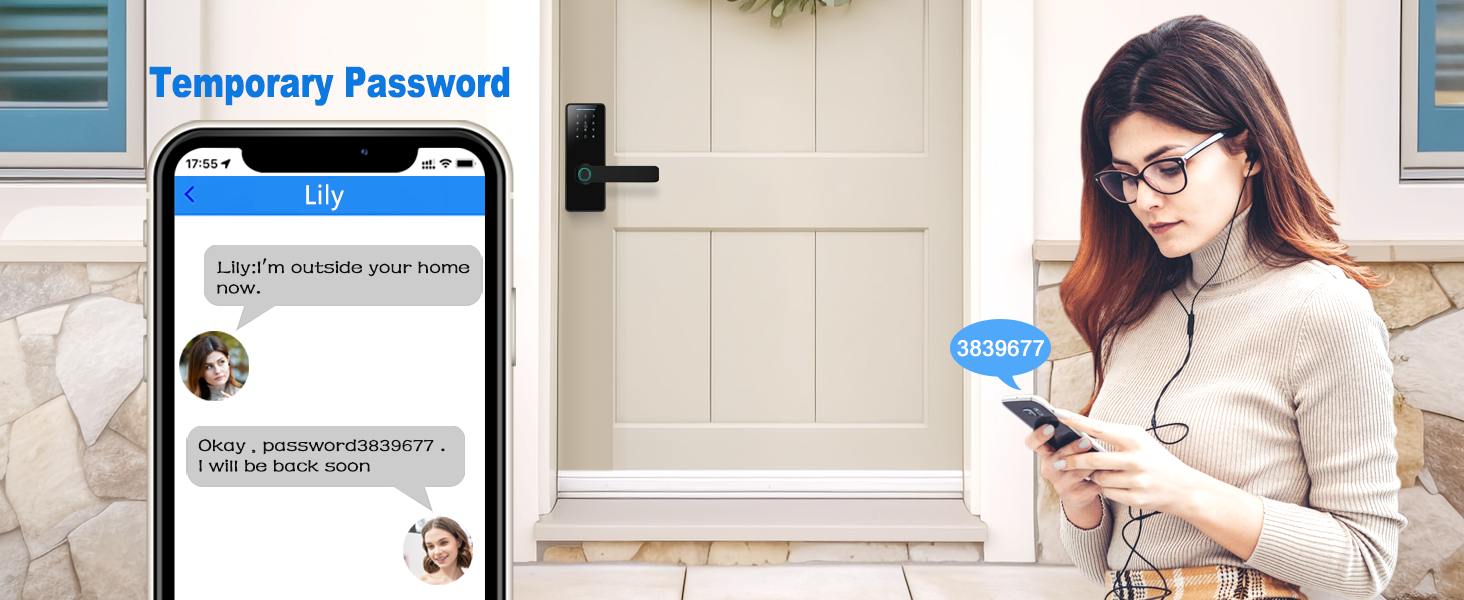
Image 4.2: Illustration of the reversible handle feature for left and right door configurations.
5. Initial Setup and Programming
After physical installation, the lock requires initial setup to register users and configure unlocking methods.
5.1 App Control (Tuya Smart App)
The VIGOPKA Smart Lock F007 can be controlled and managed via a mobile application, such as the Tuya Smart App. Download the app from your device's app store and follow the in-app instructions to pair your lock. The app allows for member management, viewing unlocking records, and generating temporary passwords.
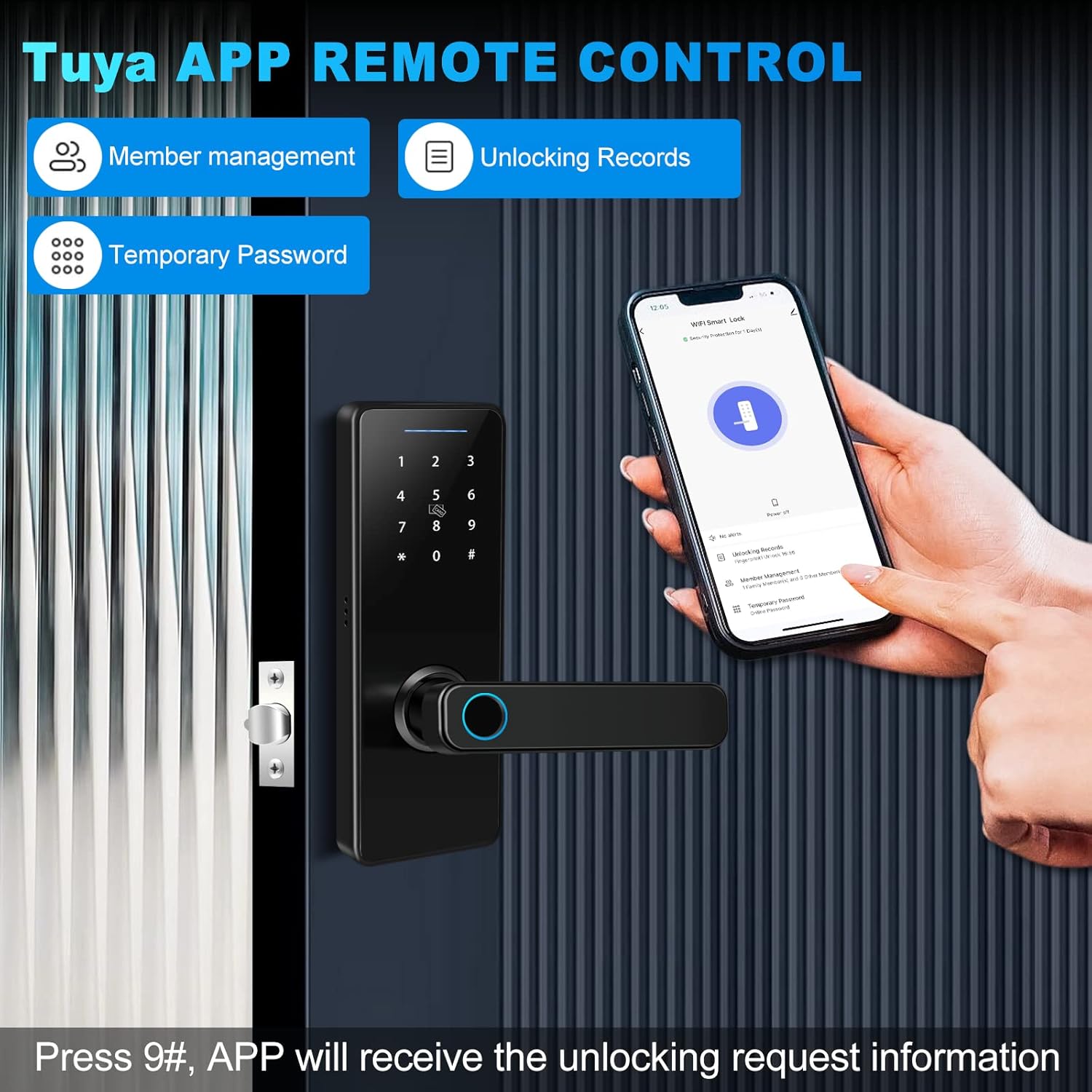
Image 5.1: The Tuya Smart App interface on a smartphone, demonstrating remote control capabilities for the smart lock.
5.2 Fingerprint Enrollment
The lock supports up to 100 unique fingerprints. Follow the instructions in the app or the lock's keypad interface to enroll new fingerprints. Ensure your finger covers the sensor completely during enrollment for optimal recognition.

Image 5.2: Visual representation of the fingerprint unlocking process, highlighting 360-degree recognition and fast unlock speed.
5.3 Passcode Setting
You can set multiple user passcodes. The lock features an anti-peeping function, allowing you to enter random digits before or after your actual passcode to prevent unauthorized viewing.

Image 5.3: The anti-peeping password function in use, showing how random digits can be added to a passcode for enhanced security.
5.4 Key Fob Pairing
Pair the included key fobs with your lock according to the instructions provided in the full manual or via the app. Key fobs offer a convenient tap-to-unlock option.
6. Operation
The VIGOPKA Smart Lock F007 offers several ways to unlock your door.
6.1 Unlocking Methods
- Fingerprint: Place your registered finger on the fingerprint sensor. The lock will unlock within 0.3 seconds upon successful recognition.
- Passcode: Enter your registered passcode on the touchscreen keypad, optionally adding random digits before or after for privacy, then press '#' to confirm.
- Key Fob: Present a paired key fob to the designated sensor area on the lock.
- App Control: Use the Tuya Smart App on your smartphone to remotely unlock the door.
- Physical Key: In case of emergency or battery depletion, use the provided physical keys to manually unlock the deadbolt.

Image 6.1: Overview of the multiple unlocking methods available with the VIGOPKA Smart Lock.
6.2 Auto-Lock Feature
The lock is equipped with an auto-lock function. After unlocking, the door will automatically re-lock after a set period (configurable via the app or lock settings), ensuring your home remains secure.

Image 6.2: Visual demonstration of the automatic locking feature of the smart lock.
6.3 Temporary Passwords
Generate temporary, time-sensitive passwords for guests or service providers directly from the mobile application. These passwords can be sent remotely and expire automatically.
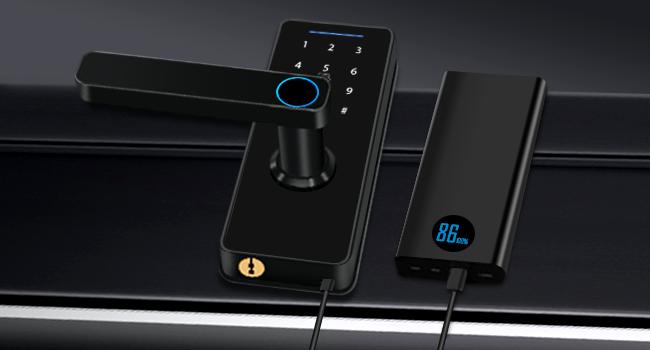
Image 6.3: A user receiving a temporary password on their smartphone for the smart lock.
7. Maintenance
7.1 Battery Replacement
The VIGOPKA Smart Lock F007 is powered by 4 AA alkaline batteries, providing up to one year of battery life under normal usage. The lock will provide a low-battery alert when replacement is needed. To replace batteries, open the battery compartment on the rear lock panel and insert new AA batteries, ensuring correct polarity.

Image 7.1: The battery compartment of the smart lock, illustrating the use of 4 AA batteries for extended battery life.
7.2 Emergency Power
If the batteries completely deplete before replacement, the lock can be temporarily powered via its USB-C port using an external power bank. This allows you to unlock the door and replace the batteries.

Image 7.2: The smart lock being powered by an external power bank through its USB-C port for emergency access.
7.3 Cleaning
Clean the lock's exterior with a soft, damp cloth. Avoid abrasive cleaners or solvents that could damage the finish or electronic components.
8. Troubleshooting
If you encounter issues with your VIGOPKA Smart Lock F007, refer to the following common problems and solutions:
- Lock not responding: Check battery levels. If low, replace batteries or use emergency USB-C power.
- Fingerprint not recognized: Ensure your finger is clean and dry. Re-enroll your fingerprint if recognition issues persist.
- Passcode not working: Verify the correct passcode is entered. Ensure the '#' key is pressed after the passcode.
- Lock does not engage/disengage properly: Check for any obstructions in the door frame or latch mechanism. Ensure the lock is correctly aligned and installed according to the manual.
- App connectivity issues: Ensure your smartphone's Bluetooth is enabled and the lock is within range. Check your home Wi-Fi connection if using Wi-Fi features.
For more complex issues or persistent problems, please contact VIGOPKA customer support.
9. Warranty and Support
Your VIGOPKA Smart Lock F007 comes with a one-year warranty from the date of purchase. This warranty covers manufacturing defects and ensures the product functions as intended under normal use.
Additionally, VIGOPKA offers lifetime technical support for this product. If you have any questions regarding installation, setup, operation, or troubleshooting, please do not hesitate to contact our customer service team. Refer to the contact information provided in your product packaging or on the official VIGOPKA website.