1. Introduction
Welcome to the UGREEN Mini DisplayPort to DisplayPort 1.4 Cable user manual. This document provides essential instructions for the proper setup, operation, and maintenance of your cable. Please read this manual thoroughly before use to ensure optimal performance and longevity of your product.
This high-performance cable is designed to connect Mini DisplayPort-enabled source devices to DisplayPort-enabled display devices, supporting advanced video and audio features for a superior visual experience.
2. Key Features
- Supports resolutions up to 8K (7680x4320) at 60Hz and 4K (3840x2160) at 240Hz.
- High Dynamic Range (HDR) support for enhanced color depth and contrast.
- Bi-directional transmission capability for versatile connectivity.
- DisplayPort 1.4 standard with a high 32.4 Gbps data transfer rate.
- Durable braided nylon cable jacket and premium aluminum alloy connectors for reliability.
- Wide compatibility with devices such as MacBook Pro/Air, Mac Mini, Surface Pro, and various monitors, projectors, and TVs.
3. Setup Instructions
3.1 Connecting the Cable
Follow these steps to properly connect your UGREEN Mini DisplayPort to DisplayPort 1.4 cable:
- Identify the Mini DisplayPort output on your source device (e.g., laptop, graphics card).
- Identify the DisplayPort input on your display device (e.g., monitor, TV, projector).
- Gently insert the Mini DisplayPort end of the cable into the Mini DisplayPort output of your source device.
- Gently insert the DisplayPort end of the cable into the DisplayPort input of your display device.
- Ensure both connectors are fully seated to establish a secure connection.
Note: For bi-directional use, if connecting a DisplayPort source to a Mini DisplayPort display, ensure your Mini DisplayPort display's port supports video transmission.

This image displays the UGREEN Mini DisplayPort to DisplayPort 1.4 cable, highlighting its Mini DisplayPort connector on one end and the standard DisplayPort connector on the other. Both connectors feature a durable aluminum shell, and the cable itself is covered in a braided nylon for enhanced durability.
4. Operating Instructions
4.1 Resolution and Refresh Rate
This cable supports high resolutions and refresh rates for an optimal viewing and gaming experience:
- Up to 8K (7680x4320) at 60Hz.
- Up to 4K (3840x2160) at 240Hz.
- Supports HDR for improved color depth and contrast.
Ensure your source device and display device both support the desired resolution and refresh rate for optimal performance. Adjust display settings in your operating system if necessary.
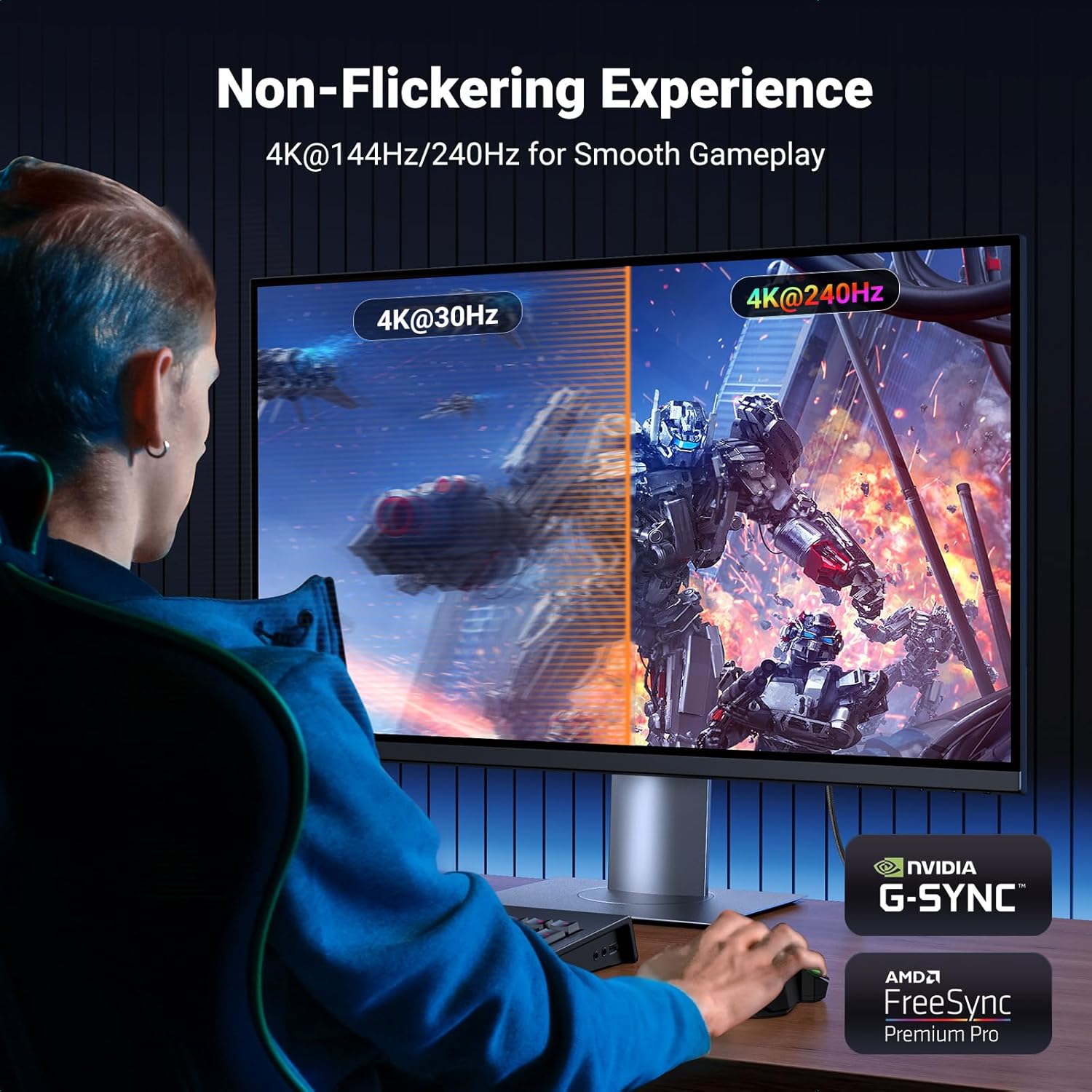
This image demonstrates the smooth, non-flickering experience provided by the cable, showing a gaming setup with a monitor displaying a high-refresh-rate game. A split screen visually compares 4K@30Hz (left) with 4K@240Hz (right), highlighting the significant improvement in fluidity and detail offered by the higher refresh rate.
4.2 Display Modes
The cable supports common display configurations to suit your needs:
- Mirror Mode: Duplicates your primary display onto the secondary display, showing the same content on both screens.
- Extend Mode: Extends your desktop across multiple displays, allowing for increased workspace and multitasking.
- Multi-Stream Transport (MST) Daisy Chain: Connect multiple monitors in a series from a single DisplayPort output (requires MST-compatible devices and displays).
- Clamshell Mode: Operate a closed laptop with an external monitor, keyboard, and mouse, ideal for desktop setups.

This image illustrates the Mirror Mode and Extend Mode functionalities. The top part shows a laptop connected to an external monitor in Mirror Mode, where the same content is displayed on both screens. The bottom part shows the laptop connected to the external monitor in Extend Mode, where the desktop is expanded across both screens, providing more workspace.

This image showcases the cable's ability to support advanced display configurations like MST Daisy Chain and Clamshell Mode. A laptop is shown connected to two external monitors, illustrating how the cable can expand workspace and boost efficiency. Icons below indicate compatibility with Mini DP to DP connections, while showing incompatibility with USB-C and HDMI for this specific cable.
5. Maintenance
To ensure the longevity and optimal performance of your UGREEN Mini DisplayPort to DisplayPort 1.4 cable, follow these simple maintenance guidelines:
- Storage: Store the cable in a cool, dry place away from direct sunlight and extreme temperatures.
- Cleaning: Use a soft, dry cloth to gently wipe the cable and connectors. Avoid using harsh chemicals or abrasive materials.
- Handling: Always grasp the connector housing when plugging or unplugging the cable. Avoid pulling directly on the cable itself to prevent damage to the internal wires.
- Avoid Sharp Bends: While the cable is designed with a braided nylon jacket for durability, avoid sharp bends or kinks that could stress the internal conductors and reduce lifespan.

This image is a collage illustrating the robust and durable construction of the UGREEN cable. It features close-ups of the aluminum case for heat dissipation, the tightly woven nylon braided jacket for protection, and the reinforced strain relief at the connector joints. A graphic indicates a 20,000 bend lifespan, emphasizing the cable's long-term reliability.
6. Troubleshooting
If you encounter issues with your UGREEN Mini DisplayPort to DisplayPort 1.4 cable, refer to the following common solutions:
6.1 No Signal or Intermittent Signal
- Check Connections: Ensure both the Mini DisplayPort and DisplayPort connectors are securely plugged into their respective ports on both the source and display devices.
- Verify Source/Display Settings: Confirm that your source device's display settings (e.g., resolution, refresh rate) are compatible with your display.
- Input Selection: On your display, ensure the correct input source (DisplayPort) is selected.
- Restart Devices: Try restarting both your source device (computer) and display.
- Test with Another Cable/Port: If possible, test the cable with another device or try a different DisplayPort on your display to rule out port or device issues.
6.2 Flickering or Distorted Image
- Reduce Resolution/Refresh Rate: Lower the resolution or refresh rate in your source device's display settings to see if the issue resolves.
- Update Graphics Drivers: Ensure your computer's graphics drivers are up to date.
- Cable Length: For very high resolutions and refresh rates, longer cables can sometimes be more susceptible to signal degradation. Ensure the cable length is appropriate for your setup.
6.3 Audio Issues
- Check Audio Output: Verify that your computer's audio output is set to the DisplayPort device.
- Display Audio Support: Confirm that your display device has built-in speakers or an audio output port and that its audio settings are correctly configured.
7. Specifications
| Feature | Detail |
|---|---|
| Brand | UGREEN |
| Model | Mini DisplayPort to DisplayPort 1.4 Cable |
| Connector Type | Mini DisplayPort (Male) to DisplayPort (Male) |
| Cable Type | DisplayPort 1.4 |
| Data Transfer Rate | 32.4 Gbps |
| Max Resolution | 8K@60Hz, 4K@240Hz |
| Special Features | HDR Support, Bi-Directional, Braided Nylon, Aluminum Shell |
| Compatible Devices | Laptop, Monitor, Projector, Television (with Mini DisplayPort/DisplayPort) |
| Color | Grey |

This image visually compares the data transmission speeds of DisplayPort 1.2 and DisplayPort 1.4. It highlights that DP 1.4 offers a faster and more stable transmission at 32.4 Gbps, a 33% improvement over DP 1.2's 21.6 Gbps, ensuring high-bandwidth content delivery.
8. Compatibility
The UGREEN Mini DisplayPort to DisplayPort 1.4 cable is widely compatible with devices featuring Mini DisplayPort outputs and DisplayPort inputs.
8.1 Compatible Source Devices (Mini DisplayPort Output)
- MacBook Pro (2012-2015 models)
- MacBook Air (2015-2017 models)
- iMac (2014-2015 models)
- Mac Mini (2014 model)
- Mac Pro (2013 model)
- Surface Pro (models 2-6)
- Surface Studio
- Surface Book / Dock
- Surface Laptop (models 1-2)
- Acer Predator Helios 300/500
- Alienware x17 R1/R2
- Dell Precision 7560 Workstation
- MSI TITAN GT7
- HP OMEN (2020-2021 models)
- NUC MiniPC (NUC11PAQi50WA, NUC11PAQi70QA, NUC11PHKi7CAA)
8.2 Compatible Display Devices (DisplayPort Input)
- Monitors with DisplayPort input
- Graphics Cards with DisplayPort input
- Projectors with DisplayPort input
- Televisions with DisplayPort input

This image provides a comprehensive overview of the cable's wide compatibility. It visually lists and depicts various devices that can be connected using the Mini DisplayPort to DisplayPort cable, including monitors, graphics cards, projectors, and TVs on the DisplayPort side, and specific models of MacBook Pro/Air, iMac, Mac Mini, Surface Pro/Studio/Book/Laptop, and NUC MiniPCs on the Mini DisplayPort side.
9. Warranty and Support
UGREEN products are designed for reliability and performance. For warranty information or technical support, please refer to the official UGREEN website or contact their customer service. Keep your purchase receipt for warranty claims.
For further assistance, please visit: www.ugreen.com


