
Introduction
The DriverGenius ViewX-Uni USB to HDMI Adapter is designed to expand your display capabilities by converting a USB video signal to an HDMI output. This adapter is ideal for creating multi-monitor setups for enhanced productivity in office, remote work, and educational environments. It supports resolutions up to 1080P at 60Hz and is compatible with both Windows and macOS operating systems. Please note that a dedicated driver installation is required for operation.
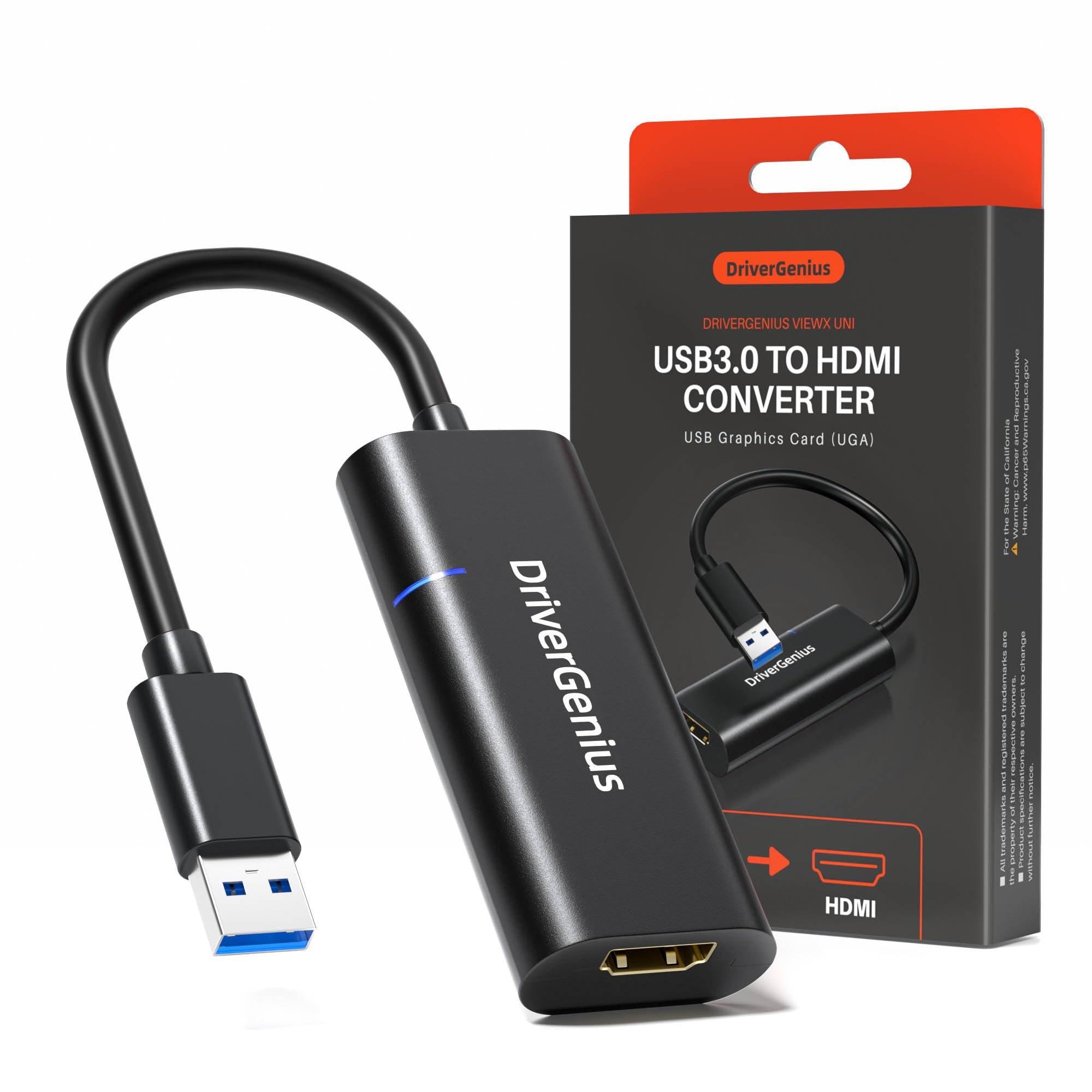
Image: The DriverGenius ViewX-Uni USB to HDMI Adapter connected to a laptop, illustrating its primary function.
Features
- Display Expansion: Easily add an external HDMI display to your laptop or desktop PC.
- High Resolution: Supports video output up to 1080P at 60Hz.
- Audio Output: Integrates audio output through the HDMI connection.
- USB Powered: Operates solely on USB bus power, eliminating the need for an external power adapter.
- Operating Modes: Supports both Mirror (duplicate) and Extend display modes for versatile use.
- Wide Compatibility: Compatible with Windows PCs and macOS systems.
- Professional Use: Optimized for professional applications such as presentations, spreadsheets, data analysis, and document creation.

Image: A detailed view of the adapter, highlighting its USB-A input and HDMI output ports.
Package Contents
- 1 x DriverGenius ViewX-Uni USB to HDMI Adapter
System Requirements
- Operating System: Windows (PC) or macOS
- CPU: 2.4GHz or higher quad-core CPU (Intel Core i5 or higher recommended)
- RAM: 4GB or more
- USB Port: Available USB 3.0 port (backward compatible with USB 2.0)
- Display: HDMI-enabled monitor, TV, or projector
Setup Instructions
1. Driver Installation
Before connecting the adapter, you must install the dedicated driver. The driver is essential for the adapter's functionality. Please visit the official DriverGenius website or refer to the included software disc (if applicable) for the latest driver download and installation instructions.
Note for macOS users: During the initial setup, permission settings may be required in "Security & Privacy" to allow the driver to function correctly.
2. Connecting the Adapter
- Ensure your computer is powered on and the driver has been successfully installed.
- Connect the USB-A connector of the DriverGenius ViewX-Uni adapter directly to an available USB port on your computer.
- Connect one end of an HDMI cable (not included) to the HDMI port on the adapter.
- Connect the other end of the HDMI cable to the HDMI input port on your external display (monitor, TV, or projector).
- Power on your external display and select the correct HDMI input source.
- Your computer should automatically detect the new display. You may need to adjust display settings in your operating system (e.g., Windows Display Settings or macOS System Preferences) to configure mirror or extend mode.

Image: Visual guide for connecting the adapter to your laptop and preparing for display connection.
Operating Modes
The DriverGenius ViewX-Uni adapter supports two primary display modes:
1. Mirror Mode (Duplicate)
In Mirror Mode, the external display shows the exact same content as your computer's primary screen. This is useful for presentations or sharing content with an audience.
2. Extend Mode
In Extend Mode, the external display acts as an additional workspace, allowing you to drag windows and applications between your computer's screen and the external display. This mode significantly enhances multitasking and productivity.

Image: An example of an extended desktop setup, where the adapter facilitates multiple displays for a larger workspace.

Image: A multi-display setup in extend mode, suitable for various professional tasks.

Image: The adapter enabling a laptop to project content onto a large screen for presentations or meetings.
Important Notes and Limitations
- Driver Required: This adapter requires a dedicated driver installation to function. It is not a plug-and-play device without the driver.
- Direct Connection: The adapter must be connected directly to a USB port on your computer. Connections via USB hubs or extended USB ports are not supported and may lead to unstable performance.
- Not for Gaming/Video Editing: This product is not suitable for video editing or 3D gaming purposes. It is optimized for office and productivity tasks.
- No BIOS Boot Support: This USB external graphics card relies on a USB video conversion protocol and does not support BIOS boot screen display.
- No HDCP Support: The adapter does not support HDCP (High-bandwidth Digital Content Protection). Therefore, copy-protected content (e.g., Blu-ray movies) cannot be output.
- Power Consumption: While USB bus-powered, connecting high-power consumption devices (e.g., external HDDs, DVD drives) to the same USB host controller may cause instability due to insufficient power.
Troubleshooting
- No Display Output:
- Ensure the driver is correctly installed.
- Verify the adapter is connected directly to a USB port on your computer, not through a hub.
- Check the HDMI cable connection between the adapter and the display.
- Confirm the external display is powered on and set to the correct HDMI input source.
- Try restarting your computer.
- Flickering or Unstable Display:
- Ensure you are using a USB 3.0 port for optimal performance.
- Disconnect any other high-power USB devices from your computer.
- Update your computer's graphics drivers and USB controller drivers.
- No Audio:
- Check your computer's sound settings to ensure the HDMI output is selected as the default playback device.
- Verify the external display's volume is not muted or too low.
- "Security & Privacy" Permissions (macOS): If the display is not detected on macOS, check "System Preferences" > "Security & Privacy" > "Privacy" > "Screen Recording" or "Accessibility" to ensure the DriverGenius driver has the necessary permissions.
Specifications
| Brand | DriverGenius |
| Model | ViewX-Uni |
| Connector Type | USB Type-A (Input), HDMI (Output) |
| Max Resolution | 1080P @ 60Hz |
| Color | Black |
| Number of Ports | 1 (HDMI output) |
| Power Source | USB Bus-Powered (No external power adapter required) |
| Compatible Devices | Monitors, TVs, Projectors |
| Product Use | Office work, remote work, educational use, presentations, spreadsheets, data analysis, document creation, dual display environment setup, sharing meeting materials, online classes, video playback, information display, report creation, multitasking. |
| Manufacturer | Shenzhen Vtop Electronic Co., Limited |
| Country of Origin | China |
Warranty and Support
DriverGenius is committed to providing comprehensive customer support for your product. We offer:
- 2-Year Dedicated Service: Your product is covered by a 2-year limited warranty.
- 24-Hour Weekday After-Sales Support: Our support team is available on weekdays to assist with any product-related questions, connection settings, driver installation, or troubleshooting.
For assistance, please visit the official DriverGenius website or contact our support team through the contact information provided with your purchase. We are here to ensure you have a smooth and reliable experience with your DriverGenius product.