
1. Introduction
The RGBlink ASKnano 4K Wireless HDMI Transmitter and Receiver Kit provides a convenient solution for wirelessly extending HDMI signals. This plug-and-play system supports 4K resolution output and is designed for various applications, including business meetings, live broadcasts, home entertainment, and online education. The kit eliminates the need for long HDMI cables, offering a clean and flexible setup.
This manual provides detailed instructions for setting up, operating, and maintaining your ASKnano 4K kit to ensure optimal performance and longevity.

Figure 1.1: The RGBlink ASKnano 4K Wireless HDMI Transmitter and Receiver Kit, showing the transmitter (TX) and receiver (RX) units, along with included cables and adapters.
2. Package Contents
Verify that all items are present in your package:
- 1 x ASK nano 4K Transmitter (TX)
- 1 x ASK nano 4K Receiver (RX)
- 2 x USB A-C Power Cables
- 2 x HDMI Male to Female Extender Cables
- 1 x Micro/Mini HDMI to HDMI Adapter
- 1 x User Manual (this document)

Figure 2.1: Visual representation of the items included in the ASKnano 4K Wireless HDMI Extender kit.
3. Setup Instructions
The ASKnano 4K kit is designed for plug-and-play operation, requiring no driver installation. Follow these steps for a quick setup:
3.1 Connecting the Receiver (RX)
- Locate the Receiver (RX) unit. This unit typically has an "RX" label or indicator.
- Connect the RX unit to the HDMI input port of your display device (e.g., TV, projector, monitor).
- Connect a USB A-C power cable to the Type-C power port on the RX unit. Plug the other end into a USB power source (5V/1A adapter, TV USB port, or computer USB 3.0 port). Ensure the RX receives sufficient power for stable operation.
3.2 Connecting the Transmitter (TX)
- Locate the Transmitter (TX) unit. This unit typically has a "TX" label or indicator.
- Connect the TX unit to the HDMI output port of your source device (e.g., PC, laptop, game console, camera).
- Connect a USB A-C power cable to the Type-C power port on the TX unit. Plug the other end into a USB power source (5V/1A adapter or a computer USB 3.0 port). Some computers may provide sufficient power directly through the HDMI port, but external power is recommended for reliability.
3.3 Initial Pairing and Operation
- Once both TX and RX units are powered on and connected, they will automatically attempt to pair.
- The system supports WIFI 5G transmission protocol and automatically selects the optimal channel.
- After successful pairing, the screen from your source device will be projected onto your display.
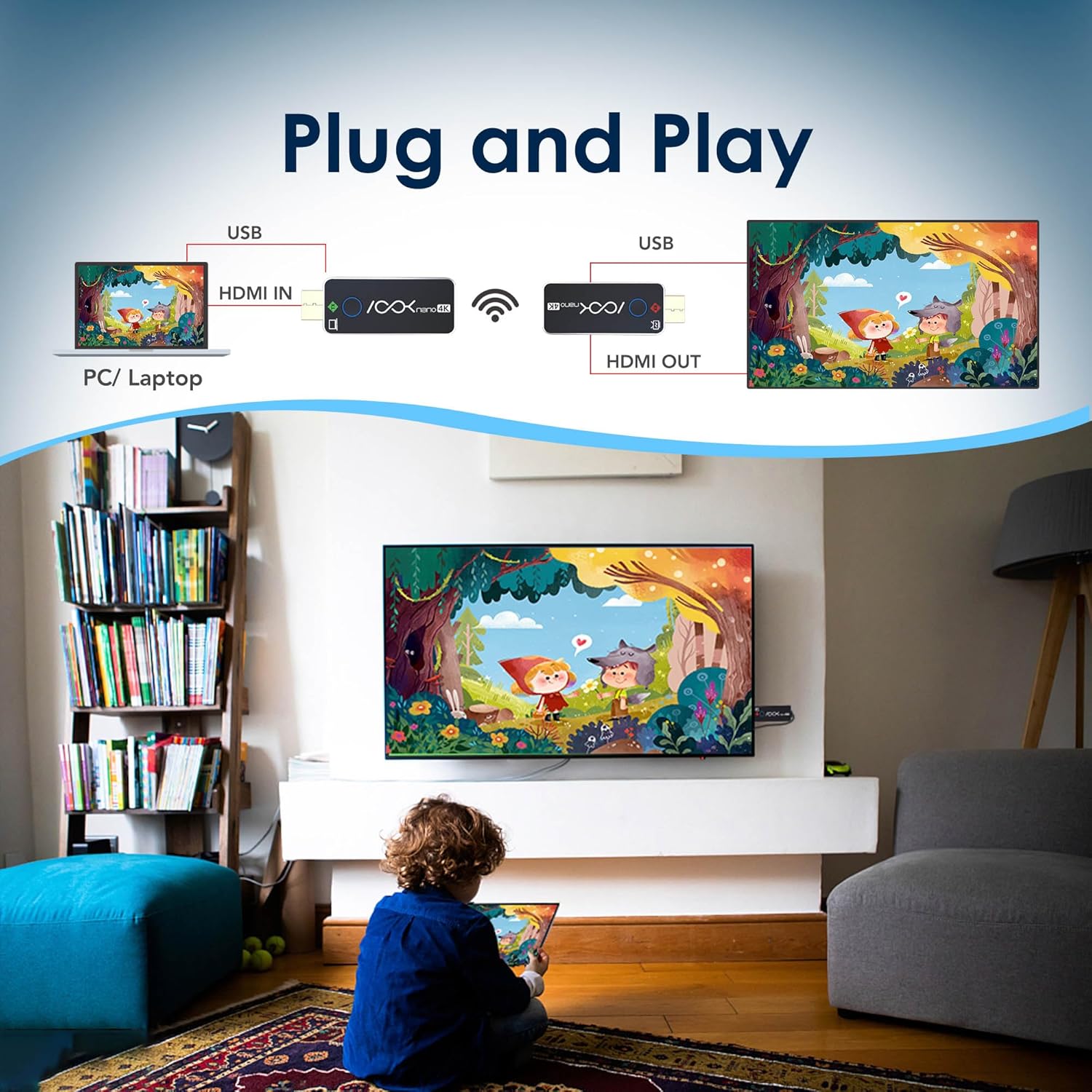
Figure 3.1: A visual guide to the plug-and-play setup, showing a laptop connected to the TX and a TV connected to the RX, wirelessly transmitting content.

Figure 3.2: Illustration of various compatible devices for the Transmitter (PC, laptop, camera, PS4) and Receiver (projector, TV, display).
4. Operating Instructions
4.1 Basic Operation
Once the TX and RX units are connected and powered, they will automatically establish a wireless connection and display the source content. No further user interaction is typically required for basic mirroring.
4.2 Multiple Receiver Setup (1 TX to up to 4 RXs)
The ASKnano 4K system supports connecting one Transmitter (TX) to multiple Receivers (RXs), up to a maximum of four RX units. This allows for simultaneous display on multiple screens.
- Ensure your primary TX unit is connected to your source device and powered.
- Connect each additional RX unit to its respective display device and power it on, following the steps in Section 3.1.
- The TX will automatically detect and pair with available RX units within range.
- The content from the TX will be mirrored across all connected RX displays.

Figure 4.1: Demonstration of one Transmitter (TX) broadcasting to multiple Receivers (RXs) in a conference room setting.
4.3 Transmission Range and Performance
The system offers a stable signal within a range of approximately 100 feet (30 meters) in open areas without obstructions. Performance may vary based on environmental factors such as walls, interference from other wireless devices, and physical obstructions.

Figure 4.2: Visual representation of the wireless transmission distance capability of the ASKnano 4K kit.
5. Maintenance
Proper maintenance ensures the longevity and optimal performance of your RGBlink ASKnano 4K kit.
- Cleaning: Use a soft, dry cloth to clean the exterior of the transmitter and receiver units. Avoid using liquid cleaners or abrasive materials, as these can damage the devices.
- Storage: When not in use for extended periods, store the units in a cool, dry place away from direct sunlight and extreme temperatures.
- Handling: Handle the units with care. Avoid dropping them or subjecting them to strong impacts.
- Ventilation: Ensure the units have adequate ventilation during operation. Do not place them in enclosed spaces like drawers or behind TVs where airflow is restricted, as this can affect signal transmission and lead to overheating.
6. Troubleshooting
If you encounter issues with your ASKnano 4K kit, refer to the following troubleshooting tips:
6.1 No Signal or Intermittent Connection
- Power Supply: Ensure both the TX and RX units are receiving adequate power (5V/1A). If using a computer or TV USB port, confirm it provides sufficient power. Try connecting to a dedicated USB power adapter if issues persist.
- Connections: Verify that the HDMI and USB-C power cables are securely connected to both the TX and RX units and their respective source/display devices.
- Obstructions: The wireless signal can be affected by physical obstructions (walls, furniture) and other wireless devices. Ensure a clear line of sight between the TX and RX units if possible, or minimize obstructions. Avoid placing units behind TVs or inside cabinets.
- Distance: While rated for 100 feet (30 meters) in open areas, effective range decreases with obstructions. Try reducing the distance between the TX and RX.
- Re-pairing: Power cycle both units (unplug and replug power) to force them to re-establish a connection.
6.2 Video Lag or Stuttering
- Interference: Other 5Ghz Wi-Fi devices or strong electromagnetic fields can cause interference. Try to minimize other wireless activity in the immediate vicinity.
- Distance/Obstructions: As with signal loss, excessive distance or obstructions can lead to increased latency. Optimize placement for a stronger signal.
- Power: Insufficient power can sometimes affect performance. Ensure both units are adequately powered.
- Source Resolution: While the system supports 4K, ensure your source device is outputting a stable signal.
6.3 No Audio
- Source Audio Settings: Check the audio output settings on your source device (PC, laptop) to ensure HDMI audio is enabled.
- Display Audio Settings: Verify the audio input selection on your TV or projector.
- Cables: Ensure all HDMI connections are secure.
7. Specifications

Figure 7.1: Detailed specifications for the ASKnano 4K Transmitter and Receiver units.
| Feature | Transmitter (TX) | Receiver (RX) |
|---|---|---|
| Power Input | USB-C, DC 5V/1A, Max 3.0W | USB-C, DC 5V/1A, Max 3.0W |
| HDMI Standard | HDMI 2.0 / HDCP 2.2 | HDMI 2.0 |
| Supported Input Resolution | 3840x2160@24/25/30 | 1920x1080@24/25/30/50/60 | 1280x720@50/60 | N/A (Output only) |
| Output Resolution | N/A (Input only) | Up to 3840x2160@60Hz |
| Connectivity Technology | Wireless (WIFI 5G transmission protocol) | |
| Transmission Range | Up to 100ft (30m) in open areas | |
| Latency | Approximately 0.1 seconds | |
| Dimensions | 4.76 x 4.72 x 2.01 inches (Product dimensions, individual unit dimensions may vary slightly) | |
| Item Weight | 9.1 ounces (Total kit weight) | |
8. Warranty and Support
RGBlink products are designed for reliability and performance. For specific warranty information regarding your ASKnano 4K Wireless HDMI Transmitter and Receiver Kit, please refer to the warranty card included in your product packaging or visit the official RGBlink website.
If you require technical assistance, have questions about product operation, or need to report an issue, please contact RGBlink customer support. You can often find support contact details on the official RGBlink website or through the retailer where you purchased the product.
Additional resources, including a PDF user manual, may be available online: Download User Manual (PDF)


