
Introduction
This manual provides detailed instructions for the safe and efficient operation of your Phomemo M08F Portable Thermal Printer. Please read this manual thoroughly before using the device and retain it for future reference. The Phomemo M08F is designed for convenient, inkless printing of documents up to 8.5" x 11" on thermal paper, compatible with various devices via Bluetooth and USB.
Product Overview
Package Contents
- M08F-Letter Portable Printer
- 10 Sheets Letter Thermal Paper
- USB-A to USB-C Charging Cable (80cm)
- Soft Storage Pouch
- Instructions, Quick Start Guide
Key Features
- Portable Design: Lightweight (1.58 lbs) and compact (12.2" x 2.6" x 1.6") for easy transport.
- Inkless Thermal Printing: Utilizes advanced thermal technology, eliminating the need for ink cartridges, toners, or ribbons.
- Wide Compatibility: Connects via Bluetooth to iOS and Android devices, and via USB to Laptops (PC, Mac, ChromeOS, Linux).
- US Letter Size Support: Prints on 8.5" x 11" thermal paper.
- High Resolution: 203 DPI for clear black and white printing.
- Multi-purpose: Supports various document types including PDF, Word, Excel, TXT, images, and web pages.

Image: The Phomemo M08F printer shown with its accessories: 10 sheets of US Letter thermal paper, a USB-C charging cable, a soft storage pouch, and a quick start guide.
Setup
1. Charging the Printer
Before initial use, fully charge the printer. Connect the provided USB-A to USB-C charging cable to the printer's USB-C port and a compatible USB power adapter (not included). The indicator light will show charging status.
2. Loading Thermal Paper
- Gently press the "PUSH" buttons on both sides of the printer to open the paper cover.
- Insert the 8.5" x 11" thermal paper with the printable side facing up. Ensure the paper is aligned straight.
- Close the paper cover until it clicks into place.

Image: The Phomemo M08F printer with US Letter thermal paper being fed into the paper slot, demonstrating the loading process.
3. App Installation (for Mobile Devices)
- Download the "Phomemo" app from the Apple App Store (for iOS) or Google Play Store (for Android).
- Install the app on your smartphone or tablet.

Image: A visual guide showing how to download the Phomemo app from app stores and connect the printer via Bluetooth for mobile printing.
4. Driver Installation (for PC/Laptop)
For printing from a computer, you need to install the appropriate driver.
- Visit the official Phomemo driver download page: m08f.phomemo.com
- Download the driver compatible with your operating system (Windows, macOS, Linux).
- Follow the on-screen instructions to complete the driver installation.

Image: A screenshot showing the Phomemo driver download page for the M08F printer, with options for Windows, Mac, and other operating systems.
Operating Instructions
1. Power On/Off
- To power on, press and hold the power button until the indicator light illuminates.
- To power off, press and hold the power button again until the indicator light turns off.
2. Connecting via Bluetooth (Mobile Devices)
- Ensure the printer is powered on and within Bluetooth range of your mobile device.
- Open the "Phomemo" app on your device.
- Within the app, navigate to the device connection section and select your M08F printer from the list of available devices. The app will guide you through the pairing process.
3. Connecting via USB (PC/Laptop)
- Ensure the printer is powered on.
- Connect the printer to your PC or laptop using the provided USB-A to USB-C cable.
- Your computer should recognize the printer after the drivers are installed.
4. Printing from the Phomemo App
- After connecting the printer via Bluetooth, open the document or image you wish to print within the Phomemo app.
- Adjust print settings such as density, size, and orientation as needed.
- Tap the print button to initiate printing.
5. Printing from PC/Laptop
- Ensure the printer is connected via USB and drivers are installed.
- Open the document you wish to print in your preferred application (e.g., Word, PDF viewer).
- Select "Print" from the application's menu.
- Choose "Phomemo M08F" as your printer.
- Adjust any necessary print settings and click "Print".
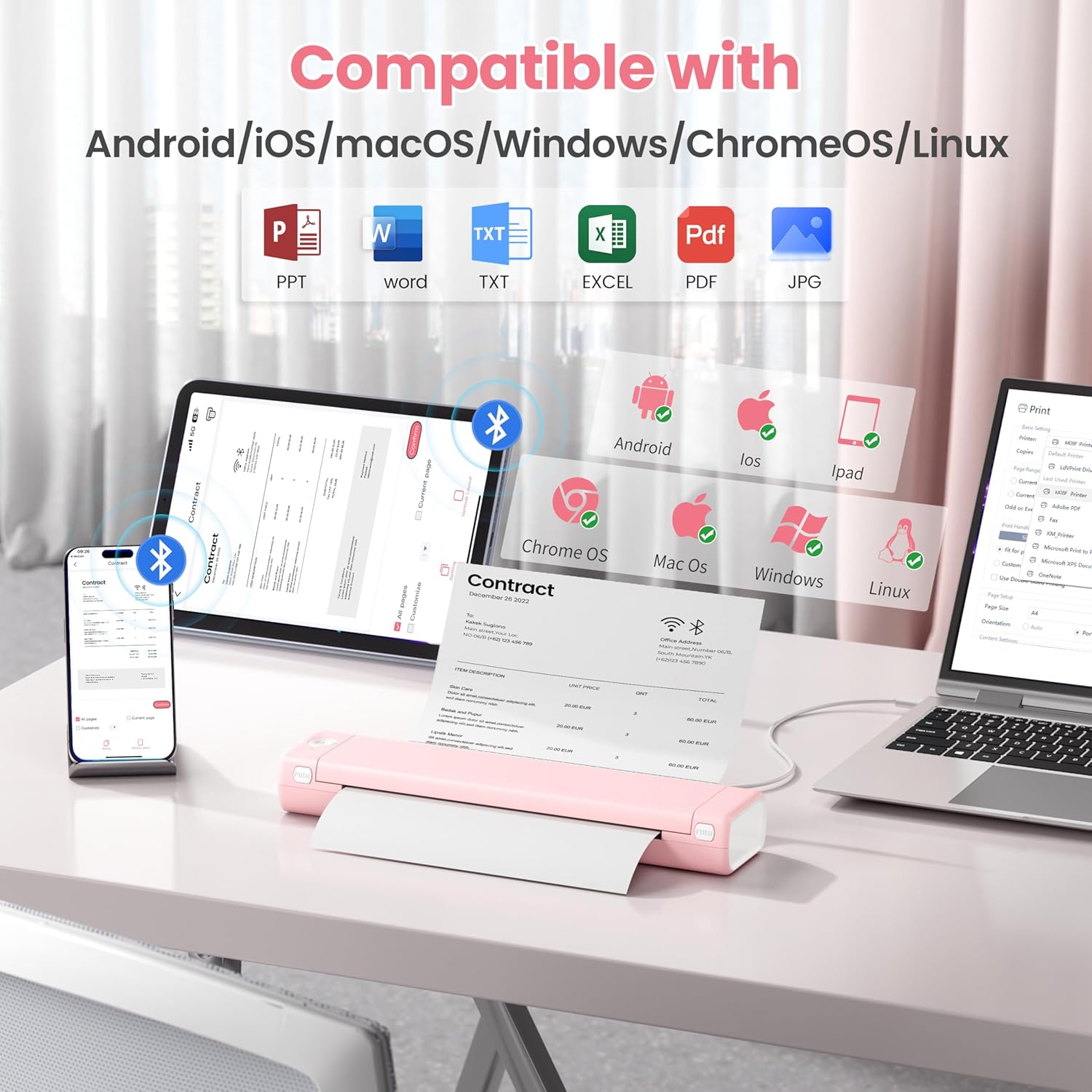
Image: An illustration showing the Phomemo M08F printer connected to various devices like smartphones, tablets, and laptops, highlighting its compatibility with Android, iOS, macOS, Windows, ChromeOS, and Linux.
Maintenance
Cleaning the Print Head
To ensure optimal print quality, regularly clean the print head. Use a soft, lint-free cloth lightly dampened with isopropyl alcohol. Gently wipe the print head surface. Allow it to dry completely before use.
Paper Storage
Store thermal paper in a cool, dry place away from direct sunlight and heat to prevent discoloration and maintain print quality.
Troubleshooting
| Problem | Possible Cause | Solution |
|---|---|---|
| Printer not powering on. | Low battery or power issue. | Charge the printer using the provided USB cable. Ensure the power adapter is working. |
| Cannot connect via Bluetooth. | Bluetooth is off, printer is out of range, or not in pairing mode. | Ensure Bluetooth is enabled on your device. Move the printer closer. Restart both the printer and your device. Re-pair through the Phomemo app. |
| Poor print quality / Faded prints. | Print head is dirty, incorrect paper type, or low battery. | Clean the print head. Ensure you are using genuine thermal paper. Charge the printer. |
| Paper jam. | Paper loaded incorrectly or foreign object. | Open the paper cover, carefully remove any jammed paper. Ensure paper is loaded straight. |
| Printer not recognized by PC. | Drivers not installed or USB cable issue. | Install drivers from m08f.phomemo.com. Try a different USB port or cable. |
Specifications
| Feature | Detail |
|---|---|
| Model Name | M08F-Letter Portable Printer |
| Printing Technology | Thermal |
| Connectivity | Bluetooth, USB Type C |
| Maximum Media Size | 8.5 x 11 inches (US Letter) |
| Print Resolution | 203 dpi (Black & White) |
| Max Print Speed (Monochrome) | 3 ppm |
| Compatible Devices | Laptops, PC, Smartphones, Tablets (iOS, Android, macOS, Windows, ChromeOS, Linux) |
| Item Weight | 1.58 pounds |
| Product Dimensions | 12.2 x 2.6 x 1.6 inches |
| Battery | 1 Lithium Ion battery (included) |
| Memory Storage Capacity | 64 MB |
Warranty and Support
For warranty information, technical support, or further assistance, please refer to the official Phomemo website or contact Phomemo customer service. Details can typically be found in the Quick Start Guide included with your product or on the manufacturer's website.
Official Phomemo Website: www.phomemo.com


