
Introduction
This manual provides detailed instructions for the setup, operation, and maintenance of your Easyfone Prime-A1 Pro 4G Flip Phone. Please read this guide thoroughly to ensure proper use and to maximize the device's functionality.
Product Overview
The Easyfone Prime-A1 Pro is a 4G flip phone designed for ease of use, featuring a classic flip design, a 2.4-inch HD screen, and a dedicated SOS button. It is equipped with a silicone keyboard with large buttons for comfortable dialing and navigation.
Key Features:
- Classic Flip Design: Compact and protective.
- 4G Connectivity: Supports modern network standards.
- 2.4" HD Screen: Clear and easy-to-read display.
- Dedicated SOS Button: For emergency calls.
- Large Silicone Keyboard: User-friendly buttons.
- 1500 mAh Battery: Provides extended standby time and talk time.
- Charging Dock: Convenient charging solution.

The Easyfone Prime-A1 Pro flip phone shown with its charging dock. The phone is in a closed position, displaying the external screen with time and date.
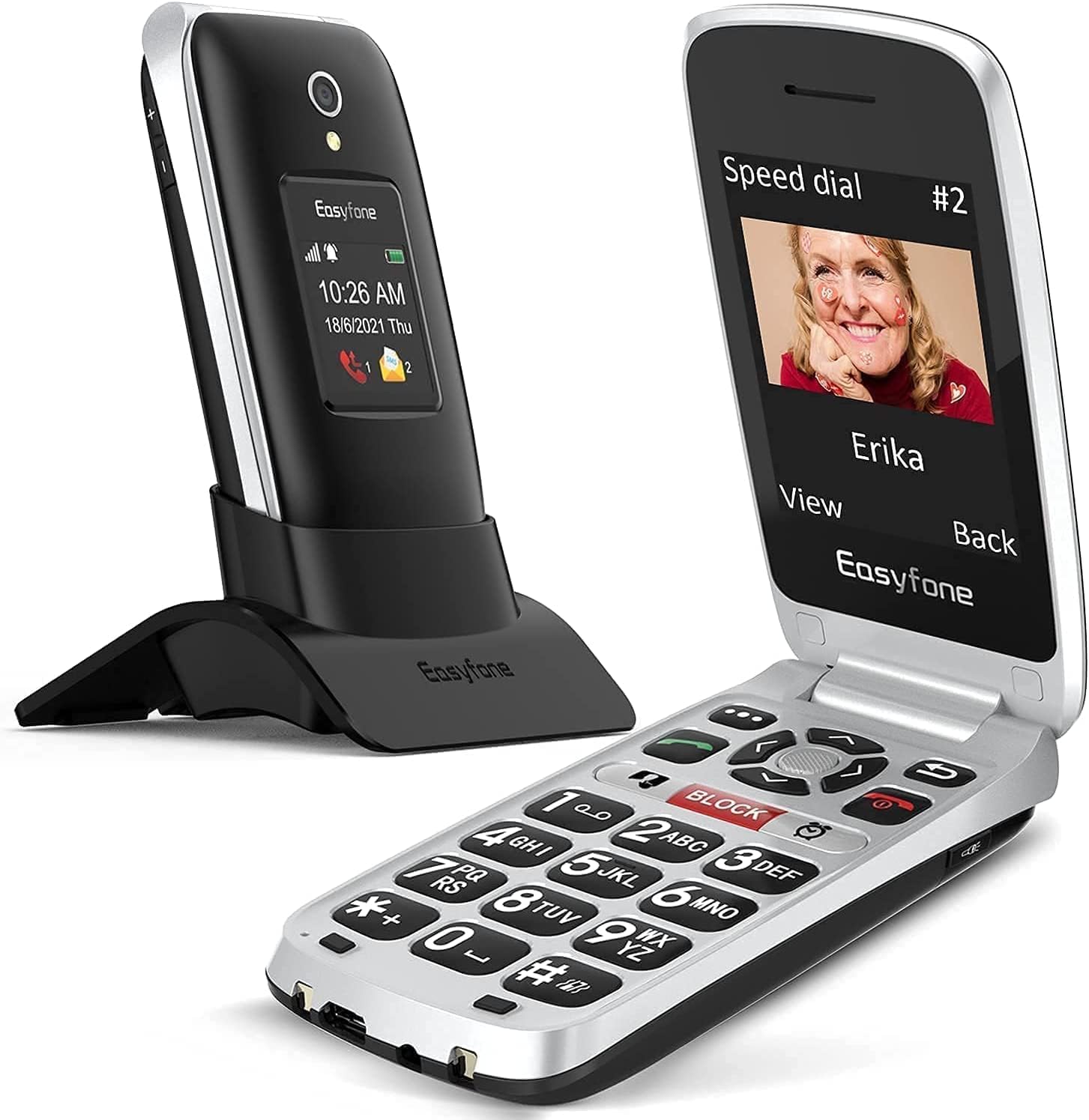
The Easyfone Prime-A1 Pro flip phone in an open position, revealing the large button keypad and the internal display screen.

A close-up view of the Easyfone Prime-A1 Pro's silicone keyboard, highlighting the large, easy-to-press buttons for improved usability.

The Easyfone Prime-A1 Pro's 2.4-inch HD IPS screen displaying a messaging icon, demonstrating its clear and readable interface.

The Easyfone Prime-A1 Pro charging in its dock, illustrating the 1500 mAh battery capacity and easy charging feature.

Features of the Easyfone Prime-A1 Pro designed for the elderly and hard of hearing, including a loud and clear receiver and a powerful loudspeaker.
Setup
1. Unboxing and Initial Inspection
Carefully remove all components from the packaging. Verify that the phone, battery, USB cable, and charging dock are present. Inspect the phone for any visible damage.
2. Battery Installation
- Locate the battery compartment cover on the back of the phone.
- Gently slide or lift the cover to open it.
- Insert the provided Lithium-ion battery, ensuring the gold contacts align with the phone's terminals.
- Replace the battery compartment cover until it clicks into place.
3. SIM Card Installation
The Easyfone Prime-A1 Pro uses a Nano SIM card.
- With the battery removed, locate the SIM card slot.
- Insert your Nano SIM card into the slot with the gold contacts facing down and the cut corner aligned as indicated.
- Ensure the SIM card is securely seated.
4. Initial Charging
Before first use, fully charge the phone's battery.
- Connect the USB cable to the charging dock and then to a power adapter.
- Place the phone into the charging dock, ensuring it is properly seated. The charging indicator on the phone's screen will activate.
- Alternatively, connect the USB cable directly to the phone's charging port.
- Allow the phone to charge until the battery indicator shows a full charge.
Operating Instructions
1. Powering On/Off
- To Power On: Press and hold the Power/End Call button (usually red) until the screen lights up.
- To Power Off: Press and hold the Power/End Call button until a power-off option appears on the screen, then confirm.
2. Making and Receiving Calls
- To Make a Call: Dial the number using the keypad and press the Call button (usually green).
- To Receive a Call: When the phone rings, press the Call button to answer.
- To End a Call: Press the Power/End Call button.
3. Using the SOS Button
The dedicated SOS button is located on the back of the phone. It is designed for emergency situations.
- Setup: Before using, configure emergency contacts in the phone's settings. Refer to the phone's menu for "SOS Settings" or "Emergency Contacts."
- Activation: In an emergency, press and hold the SOS button for a few seconds. The phone will automatically call and send an emergency SMS to your pre-set contacts.
4. Messaging (SMS)
- Navigate to the "Messaging" menu from the main screen.
- Select "New Message" or "Create Message."
- Enter the recipient's number or select from contacts.
- Type your message using the keypad.
- Press "Send."
5. Volume Adjustment
Use the volume buttons located on the side of the phone to adjust call volume, ringtone volume, and media volume.
Maintenance
1. Cleaning Your Phone
- Use a soft, dry, lint-free cloth to clean the phone's screen and body.
- Avoid using harsh chemicals, cleaning solvents, or strong detergents, as these can damage the phone's surface.
- Do not expose the phone to excessive moisture during cleaning.
2. Battery Care
- To prolong battery life, avoid extreme temperatures.
- Charge the battery regularly, but avoid leaving it fully discharged for extended periods.
- Use only the original charger and battery provided with the phone.
3. Water Resistance
This device is not waterproof. Avoid exposing it to water, rain, or high humidity to prevent damage.
Troubleshooting
| Problem | Possible Cause | Solution |
|---|---|---|
| Phone does not power on. | Battery is discharged or not properly installed. | Charge the battery. Ensure the battery is correctly inserted. |
| Cannot make or receive calls. | No network signal, SIM card issue, or account problem. | Check network coverage. Reinsert SIM card. Contact your service provider. |
| SOS button not working. | Emergency contacts not set up or incorrect. | Verify and configure emergency contacts in the phone settings. |
| Screen is unresponsive or frozen. | Software glitch. | Remove and reinsert the battery to perform a hard reset. |
Specifications
| Feature | Detail |
|---|---|
| Model Name | Prime-A1 Pro |
| Brand | Easyfone |
| Operating System | Nucleus OS |
| Cellular Technology | 4G LTE |
| Screen Size | 2.4 Inches |
| Display Type | LCD |
| Max Display Resolution | 320 x 240 Pixels |
| RAM Memory Installed Size | 64 MB |
| Storage Capacity | 1 GB |
| SIM Card Slot Count | Single SIM |
| SIM Card Size | Nano |
| Battery Capacity | 1500 mAh Lithium-ion |
| Talk Time | 6 Hours |
| Rear Camera Resolution | 2 Megapixels |
| Headphone Jack | 3.5 mm |
| Water Resistance Level | Not waterproof |
| Dimensions | 10.4 x 5.2 x 2.3 cm |
| Included Components | USB Cable, Prime-A1 Pro phone |
Warranty and Support
For warranty information and technical support, please contact Easyfone directly. Details regarding specific warranty periods or service procedures are typically provided with your purchase documentation or on the manufacturer's official website.
Ensure you retain your proof of purchase for any warranty claims.


