

Image: The Cuifati Smart WiFi Video Doorbell unit and its accompanying indoor chime.
1. Introduction
This manual provides detailed instructions for the installation, operation, and maintenance of your Cuifati Smart WiFi Video Doorbell. Please read this manual thoroughly before using the product to ensure proper functionality and safety.
The Cuifati Smart WiFi Video Doorbell offers enhanced home security and convenience. It features a 2.4 GHz WiFi connection for live video feeds to your smartphone, HD night vision for clear visibility in low light, and a two-way talk function for communication with visitors. Its IP65 waterproof design ensures durability for outdoor installation, and it is powered by a rechargeable battery for ease of use.
2. Package Contents
Verify that all items listed below are included in your package. If any items are missing or damaged, please contact customer support.
- 1 x Visual Doorbell Unit
- 1 x Indoor Speaker (Chime Unit)
- 1 x Self-adhesive Tape
- 1 x Charging Cable
- 1 x User Manual

Image: Contents of the Cuifati Smart WiFi Video Doorbell package, including the doorbell unit, indoor chime, charging cable, and adhesive tape.
3. Specifications
| Feature | Description |
|---|---|
| Main Control Model | BK7252 |
| Voice Input | High-sensitivity microphone |
| Voice Output | Integrated speaker |
| Battery Type | Built-in 400mAh rechargeable lithium battery |
| Connectivity | 2.4 GHz WiFi (up to 20 meters range) |
| Weather Resistance | IP65 waterproof and dustproof |
| Night Vision | Automatic HD night vision mode |
| Dimensions | 12 x 10 x 5 cm (Package) |

Image: Overview of the Smart Video Doorbell highlighting features such as real-time monitoring by APP, 2.4GHz Wi-Fi Network, Infrared Night Vision, and Two-Way Audio.
4. Setup
4.1 Charging the Doorbell
Before initial use, fully charge the visual doorbell unit using the provided charging cable. Connect the cable to the doorbell's charging port and a standard USB power adapter (not included). The charging indicator will show the charging status.
4.2 App Installation and Pairing
- Download the App: Search for the designated smart home app (e.g., "Smart Life" or similar, as typically used for such devices) on your smartphone's app store (iOS or Android) and install it.
- Create an Account: Open the app and register for a new account or log in if you already have one.
- Add Device: Follow the in-app instructions to add a new device. Typically, this involves selecting "Add Device" or a "+" icon, then choosing "Video Doorbell" or "Smart Camera".
- Power On Doorbell: Ensure the doorbell unit is powered on. It may enter pairing mode automatically, indicated by a flashing light.
- Connect to WiFi: The app will guide you to connect the doorbell to your 2.4 GHz WiFi network. Ensure your phone is also connected to the same 2.4 GHz network during setup.
- Pairing: The app might require you to scan a QR code displayed on your phone with the doorbell camera, or listen for a pairing sound. Follow the specific instructions provided by the app.
- Connect Indoor Speaker (Chime): The indoor speaker usually pairs automatically with the doorbell once the doorbell is connected to the app. If not, refer to the chime's specific pairing instructions (often a button press sequence).
The doorbell is ready for use once successfully connected to the app.

Image: A user interacting with the Cuifati Smart WiFi Video Doorbell and its corresponding mobile application, demonstrating the app's interface and connection to the doorbell.
4.3 Mounting the Doorbell
- Choose Location: Select a suitable location near your door, ensuring a clear view and good WiFi signal strength. The doorbell is IP65 rated for outdoor use.
- Clean Surface: Clean the mounting surface thoroughly to ensure proper adhesion if using the self-adhesive tape.
- Attach: Apply the self-adhesive tape to the back of the doorbell unit and firmly press it onto the desired surface. For a more secure installation, you may use screws (not included) if the surface allows.
5. Operating Instructions
5.1 Answering the Doorbell
When a visitor presses the doorbell button:
- The indoor speaker (chime) will ring.
- You will receive an instant notification on your smartphone via the app.
- Tap the notification to open the app and view a live video feed of your visitor.
- Use the two-way talk function (microphone and speaker icons in the app) to communicate with the visitor.
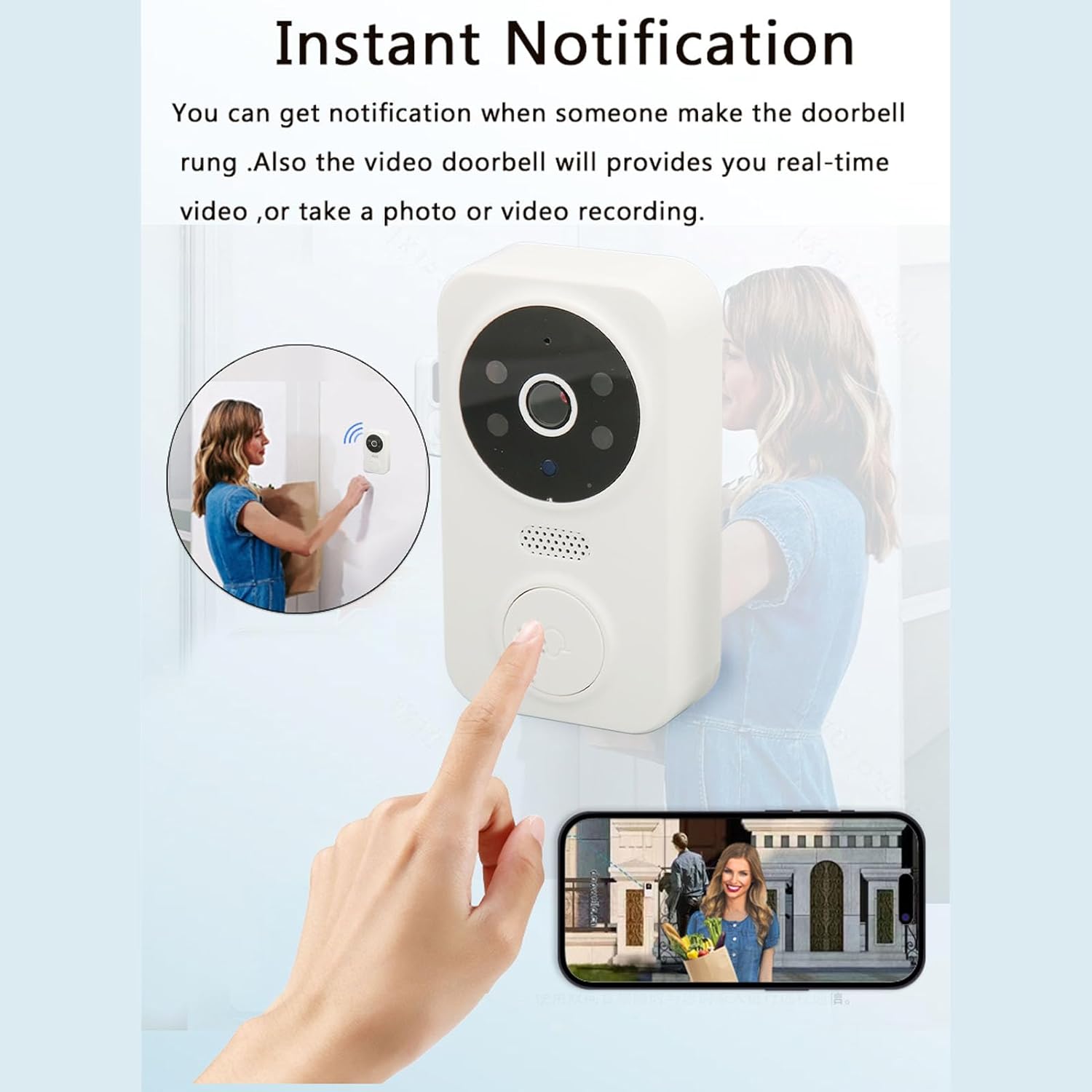
Image: A person pressing the Cuifati Smart WiFi Video Doorbell button, triggering an instant notification and live video feed on a smartphone, showing a visitor at the door.
5.2 Live View and Monitoring
You can access the live video feed from your doorbell at any time through the app, even if no one has pressed the doorbell. This allows for real-time monitoring of your doorstep.

Image: A smartphone displaying a live video feed from the Cuifati Smart WiFi Video Doorbell, illustrating its monitoring capabilities beyond just a doorbell function.
5.3 Night Vision
The doorbell automatically switches to HD night vision mode in low-light conditions, providing clear video footage even in complete darkness. This ensures continuous security monitoring around the clock.

Image: A split image demonstrating the Cuifati Smart WiFi Video Doorbell's infrared night vision, showing a clear view of a house at night compared to a daytime view.
5.4 Video Recording and Snapshots
Depending on the app's features and your subscription (if applicable), you may be able to record video or take snapshots of live events. Refer to the app's interface for these options.
6. Maintenance
6.1 Cleaning
Periodically clean the doorbell's camera lens and body with a soft, damp cloth to remove dust and dirt. Avoid using harsh chemicals or abrasive cleaners, as these can damage the device.
6.2 Battery Management
The doorbell is powered by a rechargeable battery. When the battery level is low, the app will typically notify you. Recharge the doorbell using the provided USB cable. For optimal battery life, avoid extreme temperatures.
6.3 Software Updates
Ensure your doorbell's firmware and the companion app are kept up-to-date. Check the app regularly for available updates, which often include performance improvements and security enhancements.
7. Troubleshooting
- No Power/Not Turning On:
Ensure the doorbell is fully charged. Connect it to the charging cable and allow it to charge for several hours.
- Cannot Connect to WiFi:
Verify that your WiFi network is 2.4 GHz. The doorbell does not support 5 GHz networks. Ensure the doorbell is within range of your WiFi router. Restart your router and try the pairing process again.
- No Notifications on Phone:
Check your phone's app notification settings to ensure notifications for the doorbell app are enabled. Also, verify that the app is running in the background or has necessary permissions.
- Poor Video Quality:
Ensure the camera lens is clean. Check your WiFi signal strength at the doorbell's location; a weak signal can affect video streaming quality. Move the router closer or consider a WiFi extender.
- Two-Way Audio Not Working:
Check the microphone and speaker settings within the app. Ensure your phone's volume is up. There might be a slight delay in audio transmission due to network conditions.
- Indoor Chime Not Ringing:
Ensure the indoor speaker is powered on and properly paired with the doorbell. Refer to the chime's specific instructions for re-pairing if necessary.
8. Warranty and Support
For warranty information, please refer to the purchase documentation or contact your retailer. If you encounter any issues not covered in this manual or require further assistance, please contact Cuifati customer support through the retailer's platform or the contact information provided with your purchase.
Please visit the Cuifati Store for more product information and support resources.