Introduction
This manual provides comprehensive instructions for the operation, maintenance, and troubleshooting of the FCAR F804 Heavy Duty Truck Diagnostic Tool. The F804 is designed for professional diagnostics of construction machinery and heavy-duty trucks, offering features such as DPF regeneration, full system scanning, and OBDII/Diesel OBD capabilities. Please read this manual thoroughly before using the device to ensure proper and safe operation.
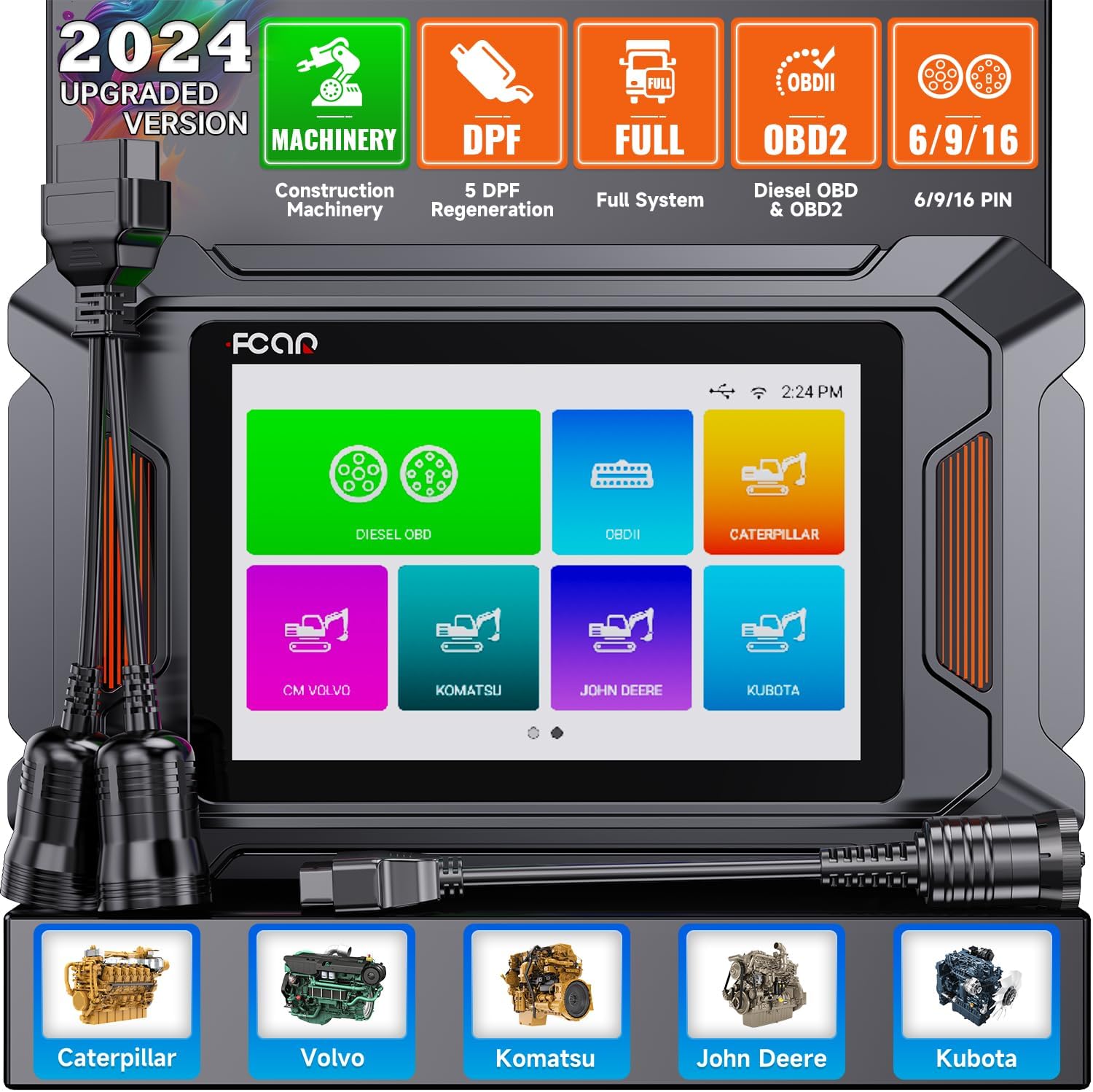
Figure 1: FCAR F804 Diagnostic Tool and included cables.
Product Overview and Key Features
The FCAR F804 is an advanced diagnostic scanner equipped with a 5-inch LCD display, 1GB RAM, and 8GB flash memory. It supports a wide range of diagnostic functions for various construction machinery and heavy-duty trucks.
Comprehensive Diagnostic Capabilities
- DPF Regeneration & Reset: Supports 5 DPF regeneration functions for Caterpillar, Volvo, Komatsu, John Deere, and Kubota construction machinery.
- Full System Diagnostics: Capable of scanning all major systems including Engine, ABS, Transmission, SRS, Hydraulic System, Steering Control, and more.
- OBDII & Diesel OBD Support: Compatible with standard OBDII protocols and private Diesel OBD protocols for comprehensive engine diagnostics.
- Read/Clear Trouble Codes: Quickly identify and clear diagnostic trouble codes (DTCs).
- Live Data Stream: View real-time data parameters in text or graph format.
- ECU Information: Retrieve Electronic Control Unit information.
- I/M Readiness: Check emission system readiness.
- O2 Monitor Test & On-Board Monitor Test: Perform specific monitor tests.
- Component Test: Test specific components of the vehicle.
- Vehicle Information: Access vehicle identification details.
- Driving Test: Conduct specific driving cycle tests.
- DTC Lookup: Built-in library for quick code definitions.

Figure 2: Overview of supported diagnostic systems.

Figure 3: Professional DPF Regeneration and Reset Functionality.

Figure 4: Supported OBD II and Diesel OBD Standard Protocols & Private Protocols.
Compatibility
The F804 is highly compatible with a wide range of construction machinery and heavy-duty trucks, including but not limited to:
- Caterpillar
- Volvo
- Komatsu
- John Deere
- Kubota
- Case
- Hitachi
- Yanmar
- And other major construction and heavy-duty vehicle brands.

Figure 5: Extensive compatibility with construction machinery.
Setup and Initial Use
Before first use, ensure the device is fully charged and connected to a stable Wi-Fi network for updates.
- Unpacking: Carefully remove all components from the packaging. Verify all items listed in the "Packing List" section are present.
- Power On: Press and hold the power button to turn on the device.
- Language Selection: Follow the on-screen prompts to select your preferred language.
- Wi-Fi Connection: Navigate to the settings menu and connect the device to a stable Wi-Fi network. This is crucial for software updates and online features.
- Software Update: After connecting to Wi-Fi, check for available software updates. It is highly recommended to update the software to the latest version for optimal performance and compatibility.
- Connecting to Vehicle:
- Locate the diagnostic port on your vehicle (typically a 6-pin, 9-pin, or 16-pin OBDII connector).
- Select the appropriate diagnostic cable (Main cable, Diesel 6 & 9 pin connector, or CAT-9 connector) and connect it to the F804 and the vehicle's diagnostic port.
- Ensure a secure connection.

Figure 6: Wi-Fi connection and advanced features for setup and operation.
Operating Instructions
Once connected to the vehicle, the F804 will automatically detect the vehicle's system. Follow these steps for common diagnostic operations:
Performing a Diagnostic Scan
- Vehicle Identification: The tool will attempt to automatically identify the vehicle. If unsuccessful, you may need to manually select the vehicle make, model, and year.
- System Selection: From the main menu, select the desired diagnostic function (e.g., "Diesel OBD", "OBDII", "Caterpillar", "Volvo", "Komatsu", "John Deere", "Kubota").
- Function Selection: Choose the specific function you wish to perform, such as "Read Fault Code", "Erase Fault Code", "Live Data", or "DPF Regeneration".
- Executing Function: Follow the on-screen prompts to execute the selected function.

Figure 7: Full System Diagnostic Scanner interface.

Figure 8: OBD-Level Diagnostic on Engine functions.
DPF Regeneration Procedure (Example: Volvo)
The DPF regeneration process may vary slightly between vehicle models. Always refer to the vehicle's specific service manual for detailed instructions. The following is a general guide:
- From the main menu, select the vehicle brand (e.g., "Volvo").
- Navigate to the "DPF" function.
- Select "Start Test" or similar option.
- Confirm vehicle details if prompted.
- Choose "Diesel Particulate Filter Service Regeneration" or equivalent.
- Follow all on-screen instructions and safety warnings. Ensure the vehicle is in a well-ventilated area and meets all conditions for regeneration (e.g., engine temperature, fuel level).

Figure 9: Step-by-step guide for DPF function usage.
Data Management and Reporting
The F804 allows for efficient management of diagnostic data:
- Report Generation: Create and view diagnostic reports directly on the device. These reports can be saved and reviewed later.
- Screenshot Function: Capture screenshots of diagnostic results or live data for documentation.
- Feedback: Submit feedback directly through the device.
- CodeScan Manager: Manage and review scanned codes.

Figure 10: Data Management and Pin Detect features.

Figure 11: Data Management and Report generation capabilities.
Troubleshooting
This section addresses common issues you might encounter with the FCAR F804 diagnostic tool.
| Problem | Possible Cause | Solution |
|---|---|---|
| Device does not power on. | Low battery or faulty power adapter. | Charge the device using the provided power adapter. If issue persists, contact support. |
| No communication with vehicle. | Incorrect cable connection, faulty vehicle diagnostic port, or incorrect vehicle selection. |
|
| Wi-Fi connection failed. | Incorrect password, weak signal, or network issue. |
|
| Software update failure. | Unstable Wi-Fi connection or insufficient storage. |
|

Figure 12: Humanized Pin Detect Function for connection troubleshooting.
Specifications
| Feature | Detail |
|---|---|
| Brand | AUTOPHIX |
| Model Number | F804 |
| Product Dimensions | 11.02 x 5.91 x 3.94 inches |
| Screen Size | 5 Inches |
| RAM | 1GB |
| Flash Memory | 8GB |
| Connectivity | 2.4GHz Wi-Fi, Type-C interface |
| Diagnostic Ports | OBDII, Diesel 6/9 pin, CAT-9 |
Maintenance
Proper maintenance ensures the longevity and optimal performance of your FCAR F804 diagnostic tool.
- Cleaning: Use a soft, dry cloth to clean the device. Avoid using abrasive cleaners or solvents.
- Storage: Store the device in a cool, dry place away from direct sunlight and extreme temperatures. Keep it in its original case or a protective pouch when not in use.
- Cable Care: Inspect diagnostic cables regularly for any signs of wear, cuts, or damage. Replace damaged cables immediately to prevent electrical hazards or communication issues. The F804 features reinforced cables for durability.
- Software Updates: Regularly check for and install software updates to ensure compatibility with new vehicle models and to benefit from performance enhancements and bug fixes.
- Battery Care: If the device has a built-in rechargeable battery, avoid fully discharging it frequently. Charge it regularly, even if not in active use, to maintain battery health.

Figure 13: Reinforced diagnostic cables for enhanced durability.
Packing List
The following items are included in the FCAR F804 package:
- FCAR F804 Diagnostic Tool Unit
- Main Diagnostic Cable
- Diesel 6 & 9 Pin Connector
- CAT-9 Connector
- User Manual
- Storage Case (if applicable, not explicitly listed but implied by images)

Figure 14: Contents of the FCAR F804 Packing List.
Warranty and Support
AUTOPHIX is committed to providing excellent customer service and support for the FCAR F804 diagnostic tool.
- Warranty: The product comes with a 36-month worry-free warranty.
- Technical Support: Enjoy 7*24h professional technical support.
- Software Updates: Benefit from lifetime free software updates, ensuring your tool remains current with the latest vehicle data and diagnostic capabilities.
For any questions, technical assistance, or warranty claims, please contact AUTOPHIX customer service through their official channels.

Figure 15: Professional team for satisfied service.


