1. Introduction
Thank you for choosing the TITAN ARMY C32C1S 32-inch Curved Gaming Monitor. This monitor is designed to provide an immersive and high-performance gaming and viewing experience with its 2K QHD resolution, 240Hz refresh rate, and 1ms response time. Its 1500R curvature enhances visual comfort and immersion, while features like Adaptive-Sync, HDR400 support, and Low Blue Light technology ensure a superior and eye-friendly display.

Image: Front view of the TITAN ARMY C32C1S 32-inch Curved Gaming Monitor, highlighting its 31.5-inch size, 240Hz refresh rate, 2K resolution (2560x1440), 1500R curvature, and HDR400 support.
2. What's in the Box
Please check the contents of your package. If any items are missing or damaged, contact your retailer.
- Monitor x 1
- Stand x 1
- DP Cable x 1 (1.5m)
3. Setup
3.1. Monitor Assembly
Follow these steps to assemble your monitor stand:
- Carefully remove the monitor and stand components from the packaging.
- Attach the stand base to the stand neck, securing it with the provided screw.
- Align the assembled stand with the mounting slot on the back of the monitor and gently push until it clicks into place. Ensure it is securely fastened.
Alternatively, the monitor supports VESA 75x75mm mounting for wall or arm installation. Ensure to use appropriate VESA screws and mounting hardware (not included) and follow the instructions provided with your VESA mount.
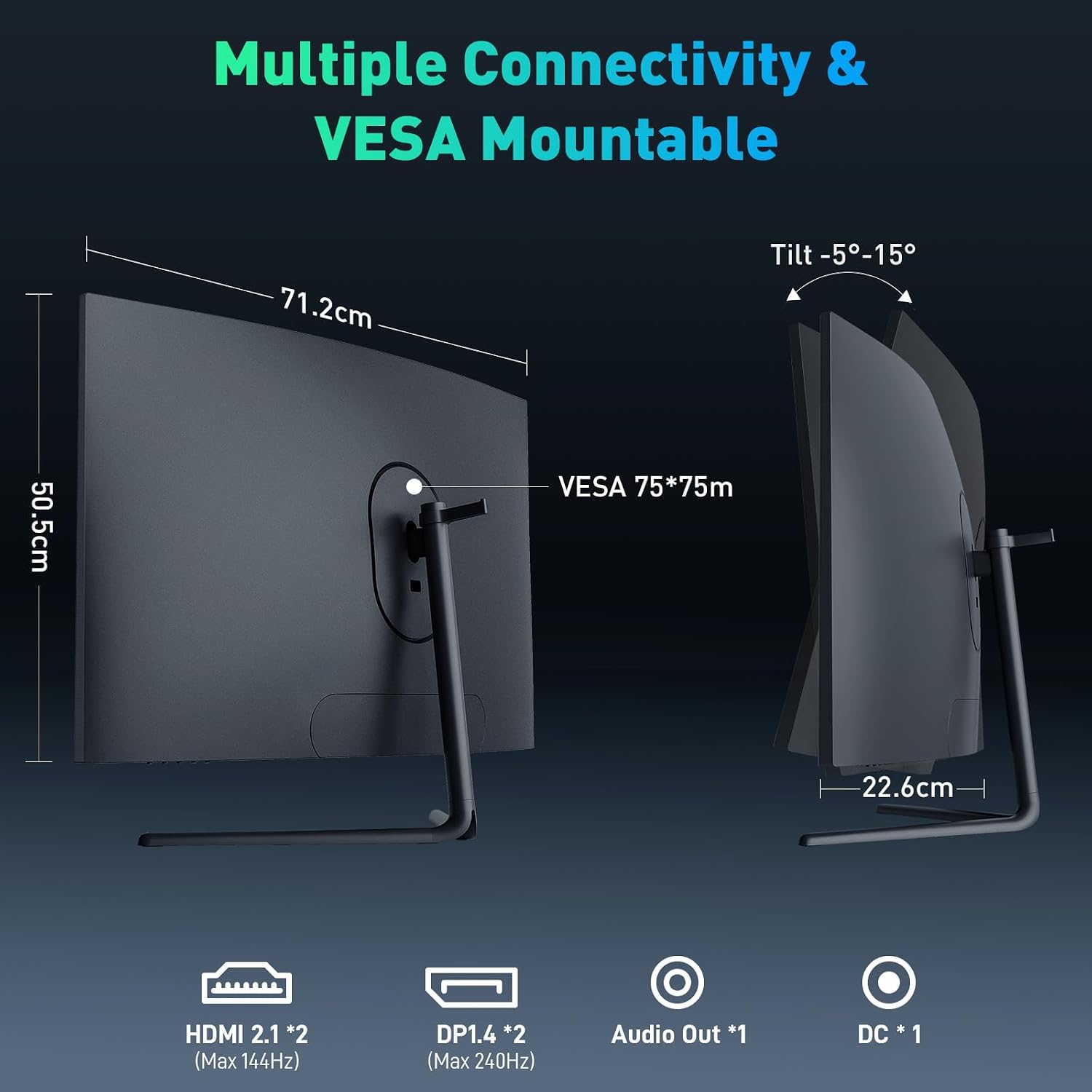
Image: Diagram showing the monitor's dimensions (71.2cm width, 50.5cm height, 22.6cm depth with stand) and the VESA 75x75mm mounting points on the back. It also illustrates the tilt adjustment range of -5° to 15°.
3.2. Connecting to Devices
The TITAN ARMY C32C1S monitor offers multiple connectivity options:
- HDMI 2.1 (x2): Connect to devices such as PCs, gaming consoles (PS5, Xbox Series X), or media players. Supports up to 144Hz refresh rate.
- DisplayPort 1.4 (x2): Connect to PCs for optimal performance, supporting up to 240Hz refresh rate.
- Audio Out (x1): Connect headphones or external speakers.
- DC In (x1): Connect the power adapter.
Ensure your device's output resolution and refresh rate are compatible with the monitor's capabilities for the best experience.

Image: Illustration showing the monitor's connectivity options including two HDMI 2.1 ports, two DisplayPort 1.4 ports, an Audio Out port, and a DC power input. Various devices like laptops, gaming consoles, and headphones are shown connected.
4. Operating the Monitor
4.1. Power On/Off
Press the power button located on the monitor to turn it on or off. The power indicator light will illuminate when the monitor is active.
4.2. On-Screen Display (OSD) Menu
The OSD menu allows you to adjust various monitor settings. Use the joystick or buttons (refer to your monitor's physical layout) to navigate the menu.
- Picture Settings: Adjust brightness, contrast, sharpness, and gamma.
- Color Settings: Modify color temperature, hue, and saturation.
- Input Source: Manually select between HDMI 1, HDMI 2, DisplayPort 1, or DisplayPort 2.
- OSD Settings: Adjust OSD language, transparency, and timeout.
- Other Settings: Reset to factory defaults, enable/disable DCR, etc.
4.3. Gaming Features
The C32C1S monitor is equipped with features to enhance your gaming experience:
- 240Hz Refresh Rate: Provides ultra-smooth motion, reducing motion blur and ghosting for a competitive edge.
- 1ms MPRT Response Time: Minimizes input lag and ensures quick pixel transitions for crisp, clear images during fast-moving scenes.
- Adaptive-Sync Technology: Synchronizes the monitor's refresh rate with your graphics card's frame rate (compatible with AMD and NVIDIA) to eliminate screen tearing and stuttering.
- 1500R Curvature: The aggressive curve matches the natural field of view of the human eye, providing a more immersive and comfortable viewing experience, especially for gaming and movies.
- HDR400 Support: Enhances contrast and color accuracy, revealing more detail in both bright and dark areas of the screen.
- Game Plus Mode: Provides on-screen crosshairs for improved aiming in FPS games and preset FPS/RTS modes for optimized display settings.
- Low Blue Light Mode: Reduces harmful blue light emissions to minimize eye strain during extended use.
- 99% sRGB Coverage: Ensures accurate and vibrant color reproduction for lifelike visuals.
- PIP/PBP Split Screen Function: Allows displaying content from two different sources simultaneously on the screen, enhancing multitasking efficiency.

Image: Side-by-side comparison illustrating the difference between 60Hz (left, blurry) and 240Hz (right, clear) refresh rates in a fast-paced gaming scene, demonstrating smoother visuals at higher refresh rates.

Image: Comparison showing the benefit of 1ms response time versus 14ms, with a clear target reticle at 1ms and a blurry, ghosted reticle at 14ms, indicating faster aiming without ghosting.

Image: A split image demonstrating the effect of Adaptive-Sync. The left side shows a smooth image with Adaptive-Sync ON, while the right side shows a tearing effect with Adaptive-Sync OFF, highlighting the technology's benefit.

Image: Diagram illustrating different curvature radii (3000R, 1900R, 1800R, 1500R) and showing how the 1500R curvature aligns more closely with human eye vision for an immersive experience.

Image: Side-by-side comparison of a scene rendered with HDR400 (left) and SDR (right), demonstrating the improved detail and dynamic range with HDR400, especially in shadows and highlights.

Image: A gaming scene showing a monitor with a built-in crosshair overlay, illustrating the Game Plus feature that assists FPS players with aiming.

Image: A split screen showing a scene with Low Blue Light Mode ON (left, warmer tones, no flickering) and OFF (right, cooler tones, flickering), demonstrating the eye protection feature.

Image: A vibrant abstract image displayed on the monitor, with text indicating "99% sRGB Coverage," emphasizing the monitor's ability to display rich and lifelike colors.

Image: A monitor displaying two different inputs side-by-side (Picture-by-Picture) and Picture-in-Picture, demonstrating the split-screen functionality for increased efficiency.
5. Maintenance
To ensure the longevity and optimal performance of your monitor, follow these maintenance guidelines:
- Cleaning the Screen: Gently wipe the screen with a soft, lint-free cloth. For stubborn marks, dampen the cloth slightly with water or a non-ammonia, non-alcohol based screen cleaner. Never spray liquid directly onto the screen.
- Cleaning the Casing: Use a soft, dry cloth to clean the monitor casing. Avoid abrasive cleaners or solvents.
- Ventilation: Ensure the monitor's ventilation openings are not blocked to prevent overheating.
- Power Off When Not in Use: Turn off the monitor when not in use for extended periods to save energy and prolong its lifespan.
6. Troubleshooting
If you encounter issues with your monitor, refer to the following common problems and solutions:
| Problem | Possible Cause | Solution |
|---|---|---|
| No image on screen | Power cable disconnected, video cable disconnected, incorrect input source selected. | Ensure power cable is securely connected. Check video cable (DP/HDMI) connections. Select the correct input source via the OSD menu. |
| Image is blurry or distorted | Incorrect resolution, refresh rate, or cable quality. | Set the display resolution to 2560x1440. Ensure refresh rate is set to 240Hz (via DisplayPort) or 144Hz (via HDMI). Use the provided DP cable. |
| Screen flickering | Adaptive-Sync issue, cable issue, or graphics driver. | Ensure Adaptive-Sync is enabled in both monitor OSD and graphics card settings. Try a different video cable. Update graphics drivers. |
| No sound from audio out | Volume too low, incorrect audio output device selected on PC. | Increase monitor volume via OSD. Check PC sound settings to ensure monitor's audio output is selected. |
| Dead or stuck pixels | Manufacturing defect. | Refer to the warranty policy for pixel defect guidelines. Contact customer support if within warranty specifications. |
7. Specifications
| Feature | Detail |
|---|---|
| Screen Size | 32 Inches (31.5-inch VA panel) |
| Resolution | 2560 x 1440 (2K QHD) |
| Refresh Rate | 240Hz (DisplayPort), 144Hz (HDMI) |
| Response Time | 1ms MPRT |
| Curvature | 1500R |
| Panel Type | VA |
| Color Gamut | 99% sRGB |
| Contrast Ratio | 3000:1 |
| HDR Support | HDR400 |
| Adaptive Sync | Yes |
| Connectivity | 2x HDMI 2.1, 2x DisplayPort 1.4, 1x Audio Out, 1x DC In |
| VESA Mount | 75 x 75mm |
| Tilt Adjustment | -5° to 15° |
| Dimensions (LxWxH) | 28.05 x 16.65 x 4.46 inches (without stand) |
| Weight | 19.53 pounds |
| Color | Black |
8. Warranty and Support
For warranty information and technical support, please refer to the warranty card included with your product or visit the official TITAN ARMY website. You may also contact your retailer for assistance.
For general inquiries or troubleshooting not covered in this manual, please reach out to TITAN ARMY customer service.
Online Resources:
- TITAN ARMY Official Store: Visit Store


