
1. Introduction
This manual provides detailed instructions for the setup, operation, and maintenance of your ABOOLON P6 4K+ Projector. Please read this guide thoroughly before using the product to ensure optimal performance and longevity. The ABOOLON P6 projector features Android TV, auto-focus, 6D keystone correction, 6G WiFi, Bluetooth 5.1, and supports 4K content with 1200 ANSI lumens brightness.

Image 1.1: The ABOOLON P6 4K+ Projector, showcasing its compact design and lens.
2. Package Contents
Verify that all items are present in the package:
- ABOOLON P6 Projector
- Remote Control
- Package Case
- Power Cable (not explicitly listed but implied)
- User Manual (this document)
3. Setup
3.1 Initial Placement
Place the projector on a stable, flat surface or mount it on a tripod or ceiling. Ensure there is adequate ventilation around the device. Position the projector to face your desired projection surface (screen or wall).
3.2 Power Connection
- Connect the power cable to the projector's power input port.
- Plug the other end of the power cable into a suitable electrical outlet.
- Press the power button on the projector or remote control to turn on the device.
3.3 Auto Focus and Keystone Correction
The ABOOLON P6 projector features automatic focus and 6D keystone correction. Upon powering on, the projector will automatically adjust the image for clarity and correct geometric distortion. This process typically takes approximately 5 seconds.
- Auto Focus: The projector automatically detects the projection distance and adjusts the lens for a sharp image.
- 6D Keystone Correction: This feature automatically corrects vertical and horizontal image distortion up to ±50°, allowing for flexible placement and side projection.
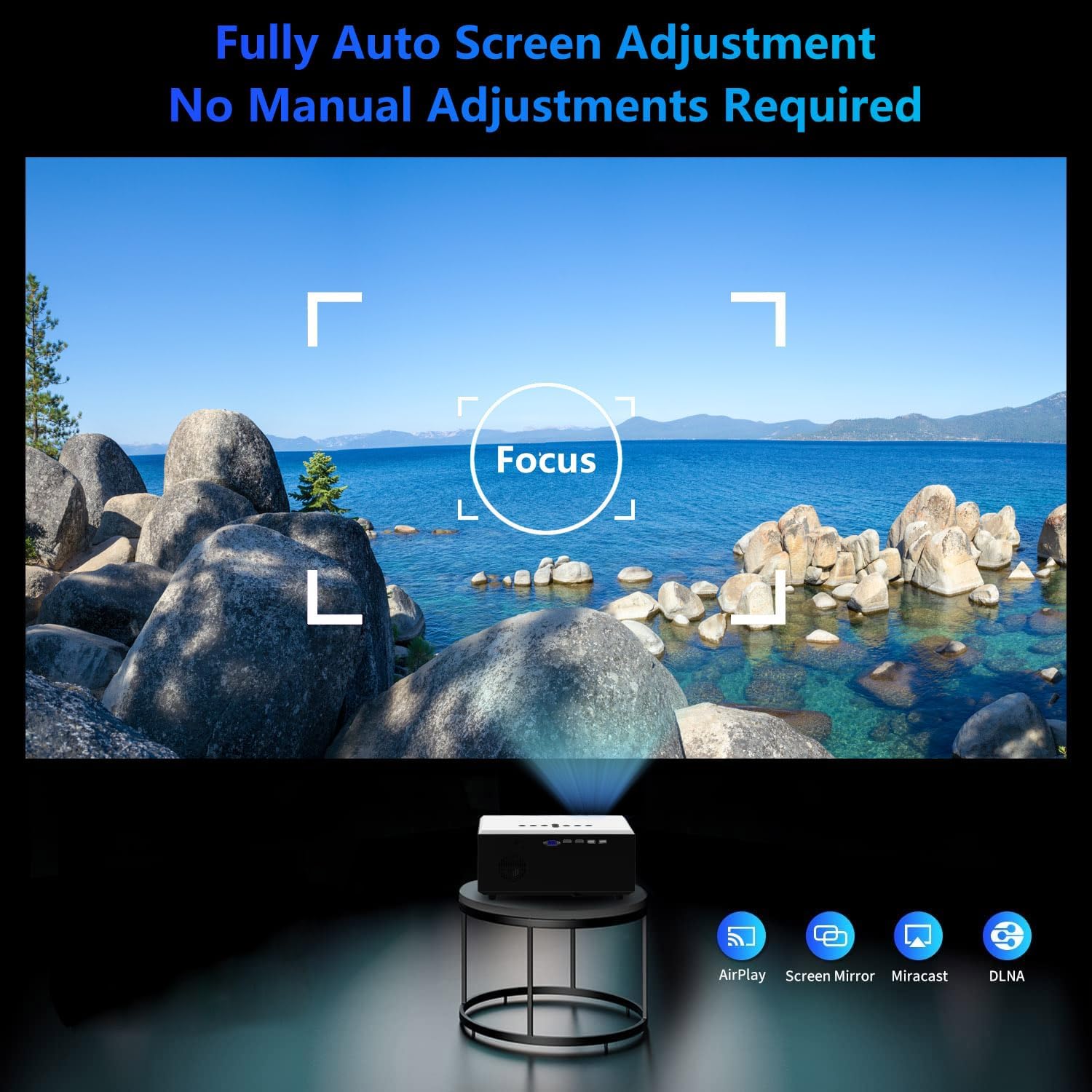
Image 3.1: The projector's auto-focus function in action, ensuring a clear image without manual adjustment.
3.4 Network Connection (Wi-Fi)
To access online content and smart features, connect the projector to a Wi-Fi network:
- Navigate to the 'Settings' menu on the projector's interface.
- Select 'Network' or 'Wi-Fi Settings'.
- Choose your desired 6G Wi-Fi network from the list.
- Enter the Wi-Fi password if prompted and confirm the connection.
4. Operation
4.1 Basic Navigation and Android TV
The ABOOLON P6 runs on Android TV OS, providing access to a wide range of applications. Use the remote control to navigate the interface.
- Home Screen: Access installed applications, settings, and input sources.
- App Store: Download additional applications such as Netflix, YouTube, Prime Video, and more.

Image 4.1: The Android TV interface on the ABOOLON P6 projector, showing popular streaming applications.
4.2 Screen Mirroring
The projector supports screen mirroring from iOS, Android, and laptop devices via 6G Wi-Fi.
- Ensure your mobile device or laptop is connected to the same Wi-Fi network as the projector.
- On the projector, select the 'Screen Mirroring' or 'AirPlay/Miracast' option.
- On your mobile device/laptop, activate the screen mirroring function (e.g., 'Screen Mirroring' for iOS, 'Smart View'/'Cast' for Android, or 'Project' for Windows).
- Select the ABOOLON P6 projector from the list of available devices.

Image 4.2: Wireless screen mirroring from a smartphone and tablet to the ABOOLON P6 projector.
4.3 External Device Connection
The projector offers multiple input ports for connecting various external devices:
- HDMI: Connect Blu-ray players, gaming consoles, laptops, or TV sticks.
- USB: Play media files (Excel, Word, PDF, video, audio, images) directly from a USB drive.
- VGA: Connect older computers or laptops.
- AV: Connect legacy devices using composite video and stereo audio.
- SD Card: (If available, check specifications) Insert an SD card for media playback.
To switch input sources, press the 'Source' button on the remote control and select the desired input.

Image 4.3: Using the USB input for business presentations with the ABOOLON P6 projector.
4.4 Audio Output (Bluetooth 5.1)
The projector features built-in 10W HiFi stereo speakers and supports bidirectional Bluetooth 5.1 for external audio devices.
- Connecting Bluetooth Speakers/Headphones: Navigate to 'Settings' > 'Bluetooth' on the projector. Enable Bluetooth and pair with your desired audio device (e.g., Bluetooth headphones, external speakers).
- Dolby Audio Support: The projector supports Dolby Audio for an enhanced sound experience.

Image 4.4: Connecting the ABOOLON P6 projector to external Bluetooth audio devices for an immersive sound experience.
5. Maintenance
5.1 Cleaning the Lens
Gently wipe the projector lens with a soft, lint-free cloth specifically designed for optical surfaces. Avoid using abrasive materials or harsh chemicals.
5.2 Dust-proof Optic Engine
The ABOOLON P6 features an upgraded air-purifying dust-proof optic engine designed to minimize dust accumulation and maintain image quality over time. Regular external cleaning is still recommended.

Image 5.1: Illustration of the dust-proof optic engine, designed for long-term clarity and performance.
5.3 General Cleaning
Wipe the exterior of the projector with a soft, dry cloth. Do not use liquid cleaners directly on the device.
6. Troubleshooting
| Problem | Possible Cause | Solution |
|---|---|---|
| No image or blurry image | Power issue, focus not adjusted, lens cap on. | Ensure power is connected. Allow auto-focus to complete. Remove lens cap. |
| Image distorted (trapezoid shape) | Projector not perpendicular to screen. | Allow 6D keystone correction to adjust automatically. Reposition projector if necessary. |
| No sound | Volume too low, external audio device not connected, incorrect audio output selected. | Increase volume. Check Bluetooth connection to external speakers/headphones. Ensure correct audio output is selected in settings. |
| Cannot connect to Wi-Fi | Incorrect password, out of range, network issue. | Verify Wi-Fi password. Move projector closer to router. Restart router and projector. |
| Screen mirroring not working | Devices not on same network, feature not enabled. | Ensure both devices are on the same Wi-Fi network. Enable screen mirroring on both devices. |
7. Specifications
| Feature | Detail |
|---|---|
| Brand | ABOOLON |
| Model Number | P6 |
| Display Resolution | Native 1920 x 1080 (Supports 4K UHD) |
| Brightness | 1200 ANSI Lumens |
| Operating System | Android TV |
| Connectivity Technology | HDMI, USB, VGA, AV, 6G Wi-Fi, Bluetooth 5.1 |
| Special Features | Auto Focus, 6D Keystone Correction (±50°), Dolby Digital, 10W HiFi Stereo Speakers, 500-inch Max Screen, USB Presentation (Excel/Word/PDF), Dust-proof Optic Engine |
| Product Dimensions | 10 x 6 x 13 inches |
| Item Weight | 6.8 pounds |
| Recommended Use | Indoor |

Image 7.1: Visual comparison demonstrating the superior color gamut and clarity of the ABOOLON P6's 5-inch LCD display.
8. Warranty Information
Please refer to the warranty card included in your product packaging for specific warranty terms and conditions. Typically, ABOOLON products come with a limited manufacturer's warranty covering defects in materials and workmanship from the date of purchase. Keep your purchase receipt as proof of purchase for warranty claims.
9. Customer Support
For technical assistance, troubleshooting not covered in this manual, or warranty inquiries, please contact ABOOLON customer support. Contact information can typically be found on the official ABOOLON website or on the product packaging.
When contacting support, please have your product model (P6) and purchase information ready.