
1. Introduction
This manual provides detailed instructions for the setup, operation, maintenance, and troubleshooting of your HUIOP MHT-P8001 Portable Thermal Printer. Please read this manual thoroughly before using the device to ensure proper functionality and to extend its lifespan.
2. Package Contents
Verify that all items listed below are included in your package:
- 1 x HUIOP MHT-P8001 Portable Thermal Printer
- 1 x USB Cable
- 3 x Rolls of Thermal Paper (one roll pre-installed in the printer)
- 1 x Power Adapter (US Plug)
- 1 x Protective Case
- 1 x User Manual (this document)
3. Product Overview
The HUIOP MHT-P8001 is a compact and portable 80mm thermal printer designed for various printing needs. It supports both USB wired and Bluetooth wireless connections, offering flexibility in its use.
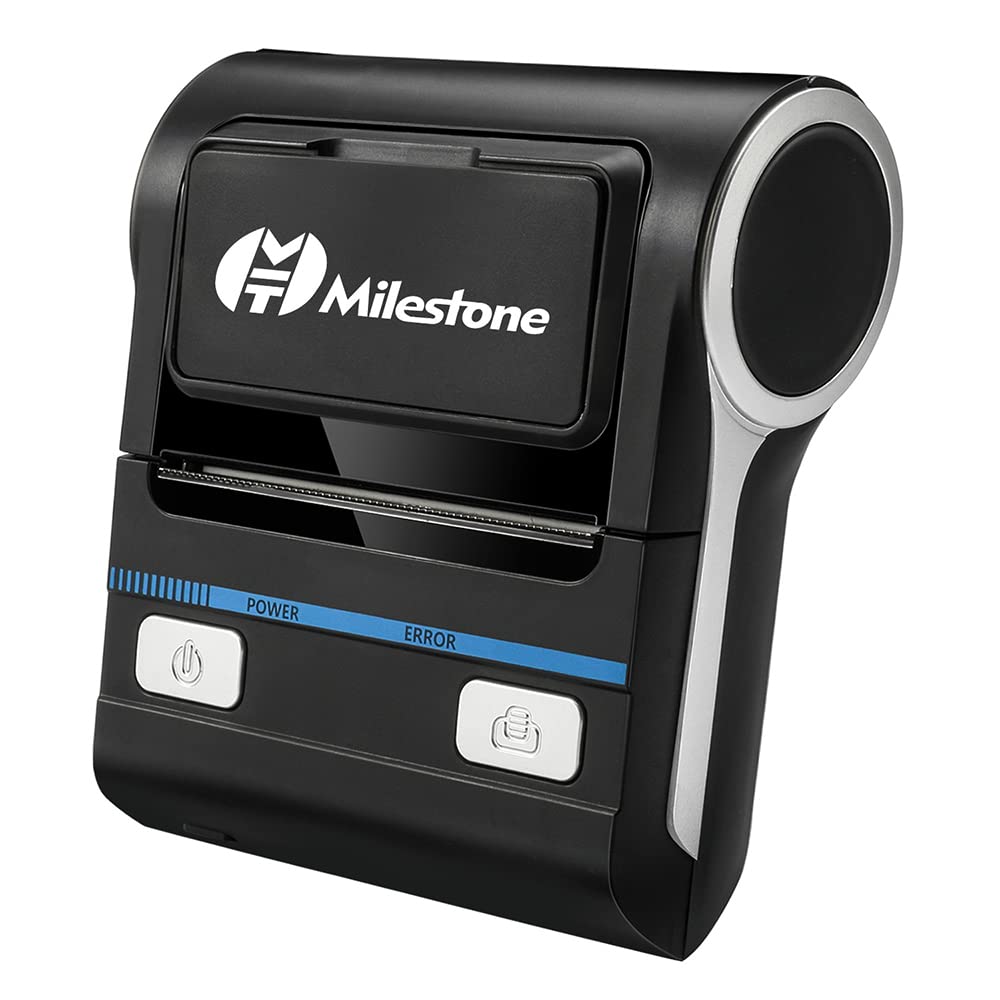
Figure 3.1: Front view of the HUIOP MHT-P8001 Portable Thermal Printer.
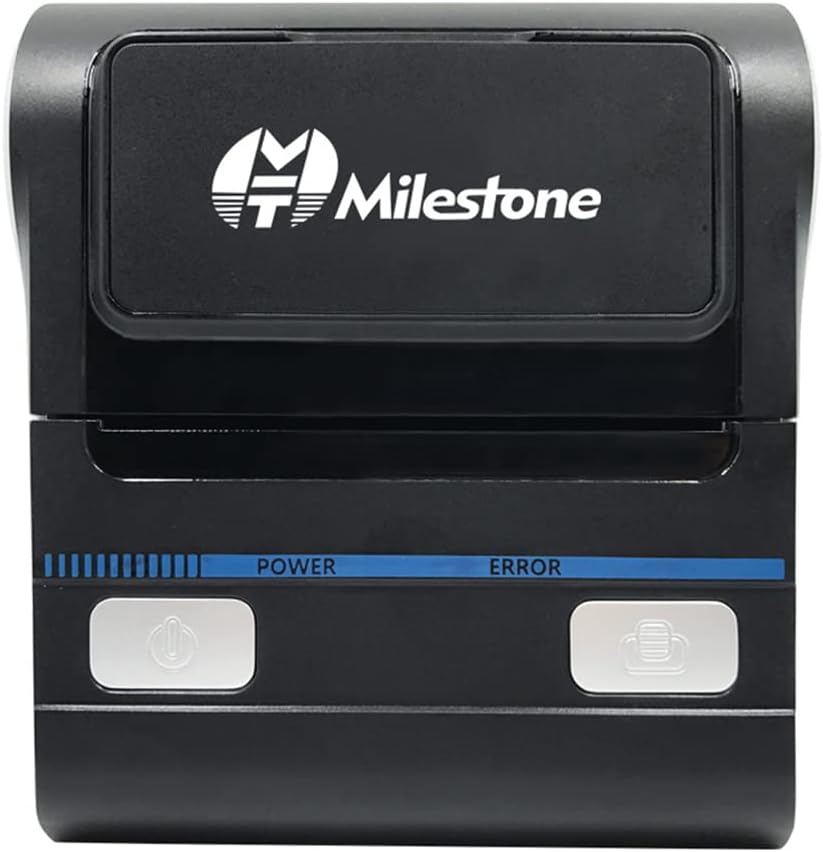
Figure 3.2: Close-up of the printer's front panel, showing power and error indicators.
4. Setup
4.1. Charging the Battery
The printer is equipped with a built-in 3600mAh lithium battery. Before initial use, fully charge the printer.
- Connect the provided power adapter to the printer's charging port.
- Plug the power adapter into a standard AC outlet (AC220V input, DC 9V/1A output).
- The power indicator light will show the charging status. Allow sufficient time for a full charge.
4.2. Loading Thermal Paper
The printer uses 80mm wide thermal paper. One roll is pre-installed.

Figure 4.1: The printer with its paper compartment open, ready for paper loading.
- Gently press the cover release button or latch to open the paper compartment cover.
- Insert the thermal paper roll into the compartment, ensuring the printing side of the paper faces the thermal print head. The paper should feed smoothly from the bottom of the roll.
- Pull a small length of paper out beyond the cutting edge.
- Close the paper compartment cover firmly until it clicks into place. Ensure there are no gaps.

Figure 4.2: The printer with thermal paper correctly loaded and the cover closed.
5. Operating Instructions
5.1. Power On/Off
- To power on: Press and hold the power button until the power indicator light illuminates.
- To power off: Press and hold the power button until the power indicator light turns off.
5.2. Connecting via Bluetooth
The printer supports Bluetooth connectivity for wireless printing from compatible devices (Android, iOS).
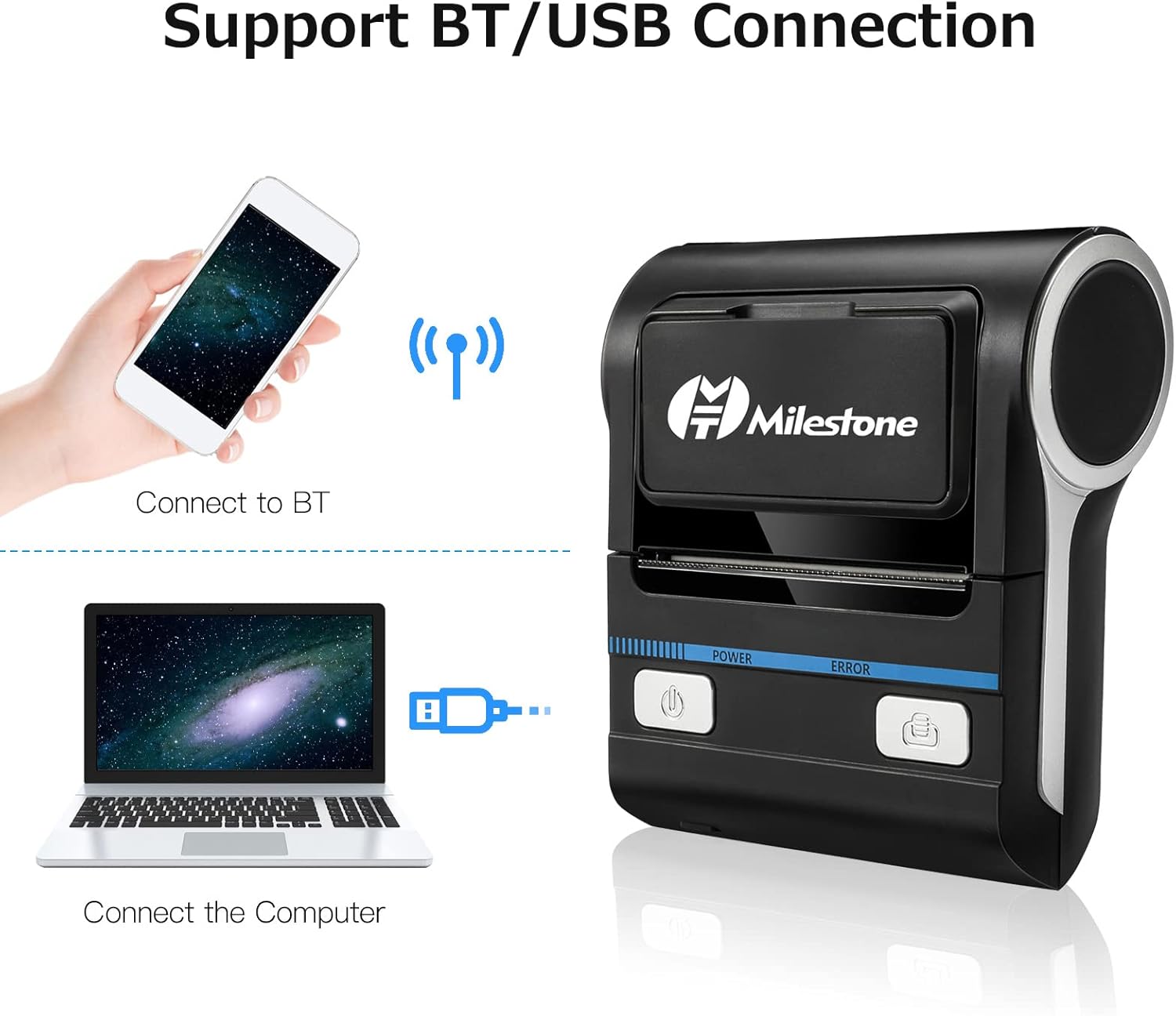
Figure 5.1: Diagram illustrating Bluetooth and USB connection methods for the printer.
- Ensure the printer is powered on.
- On your mobile device, go to the Bluetooth settings and enable Bluetooth.
- Search for available devices. The printer should appear as a device (e.g., "MHT-P8001" or similar).
- Select the printer to pair. If prompted for a PIN, enter 0000 or 1234 (common default PINs).
- Once paired, you can use a compatible printing application to send print jobs to the printer.
5.3. Connecting via USB
The printer can be connected to a computer via the provided USB cable for wired printing (Windows compatible).
- Ensure the printer is powered on.
- Connect one end of the USB cable to the printer's USB port and the other end to your computer's USB port.
- Your computer may automatically detect the printer. If not, you will need to install the printer drivers.
5.4. Driver Installation
For USB connection on Windows, or for advanced features, you may need to install specific drivers. Drivers can be downloaded from the manufacturer's website:
https://www.mhtclouding.com/mht/service_en.html#driver
Follow the instructions provided on the download page for driver installation.
5.5. Printing
Once connected via Bluetooth or USB and drivers are installed (if necessary), you can initiate print jobs from your application.
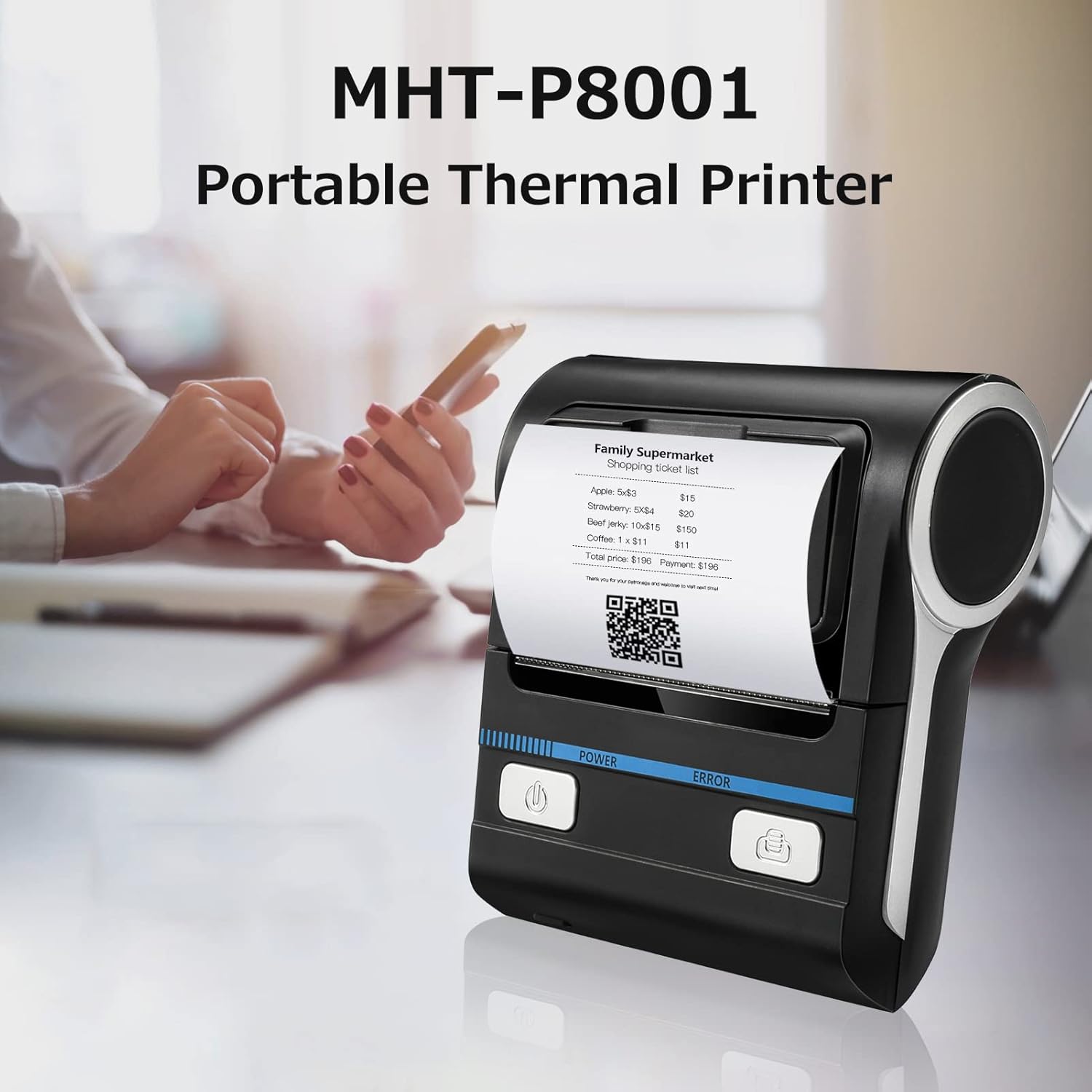
Figure 5.2: The HUIOP MHT-P8001 printer actively printing a thermal receipt.
- Open the document or application you wish to print from.
- Select the print option.
- Choose the HUIOP MHT-P8001 printer from the list of available printers.
- Adjust any necessary print settings (e.g., paper size, orientation) and confirm the print job.
6. Maintenance
6.1. Cleaning the Printer
Regular cleaning helps maintain print quality and extends the printer's life.
- Exterior: Use a soft, damp cloth to wipe the exterior of the printer. Do not use harsh chemicals or abrasive cleaners.
- Print Head: If print quality degrades (e.g., faded lines, streaks), the thermal print head may need cleaning. Power off the printer and allow the print head to cool. Gently wipe the print head with a cotton swab lightly dampened with isopropyl alcohol. Allow it to dry completely before use.
6.2. Battery Care
- Avoid fully discharging the battery frequently.
- If storing the printer for an extended period, charge the battery to approximately 50% and store it in a cool, dry place. Recharge every 3-6 months to prevent deep discharge.
- Use only the original power adapter provided with the printer.
7. Troubleshooting
Refer to the following table for common issues and their solutions.
| Problem | Possible Cause | Solution |
|---|---|---|
| Printer does not power on | Low battery; Power button not pressed correctly | Charge the battery; Press and hold the power button for a few seconds. |
| No print output | No paper; Paper loaded incorrectly; Connection issue; Driver issue | Load paper correctly; Check Bluetooth/USB connection; Install/reinstall drivers. |
| Faded or incomplete print | Low battery; Dirty print head; Poor quality thermal paper | Charge the battery; Clean the print head (see Section 6.1); Use high-quality thermal paper. |
| Bluetooth connection fails | Printer not in pairing mode; Incorrect PIN; Device Bluetooth off | Ensure printer is on; Re-attempt pairing with PIN 0000 or 1234; Enable Bluetooth on your device. |
| USB connection not recognized | Missing/corrupt drivers; Faulty USB cable/port | Install/reinstall drivers from the official website; Try a different USB cable or port. |
8. Specifications
- Model: MHT-P8001
- Printing Method: Thermal line printing
- Print Command: ESC/POS
- Print Width: 72mm
- Character Size: 12*24 point
- Print Density: 576 dots/line
- Print Speed: Max. 90mm/s
- Interface: USB + Bluetooth (BT)
- Paper Width: 79.5 ± 0.5mm
- Roll Diameter: ≤ 50mm
- Mechanical Properties: 50KM (Print head life)
- Operating System Compatibility: Android, iOS, Windows
- Built-in Battery: 3600mAh (1800mAh*2) Lithium Battery
- Power Adapter: Input AC220V; Output DC 9V/1A
- Barcode Types (1D): UPC_A/JSN13(EAN13)/JAN8(EAN8)/CODE39/ITF/CODABAR/CODE93/CODE128
- Barcode Types (2D): QR code
- Item Size: 12.5 * 11 * 5cm / 4.92 * 4.33 * 1.97in
9. Support
For further assistance, driver downloads, or product information, please visit the official HUIOP support website:
https://www.mhtclouding.com/mht/service_en.html#driver
Please retain your purchase receipt for any warranty claims.