
Havit KB884L
Contents
Havit KB884L White Mechanical Gaming Keyboard User Manual
Model: KB884L
Introduction
This manual provides detailed instructions for the Havit KB884L White Mechanical Gaming Keyboard. Please read this manual thoroughly before using the product to ensure proper operation and to maximize its lifespan. This keyboard is designed for gaming and general computing, offering a responsive mechanical key experience and customizable RGB lighting.
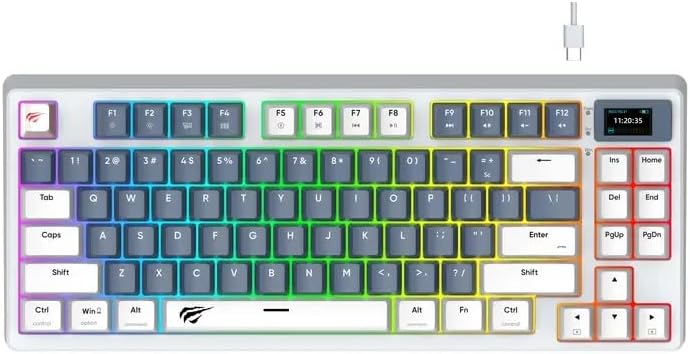
Image: Top view of the Havit KB884L White Mechanical Gaming Keyboard, showcasing its compact layout, RGB backlighting, and integrated display screen.
Setup
Follow these steps to set up your Havit KB884L keyboard:
- Unpacking: Carefully remove the keyboard and any included accessories from the packaging. Ensure all components are present: Havit KB884L keyboard, USB-C to USB-A cable.
- Connection: Locate the USB-C port on the keyboard (typically at the top edge). Insert the USB-C end of the cable into the keyboard and the USB-A end into an available USB port on your computer.
- Driver Installation: The Havit KB884L is a plug-and-play device. Your operating system (Windows, macOS, Linux) should automatically detect and install the necessary drivers. No manual driver installation is typically required for basic functionality.
- Initial Test: Open a text editor or web browser and type to confirm the keyboard is functioning correctly. The RGB lighting should illuminate upon connection.
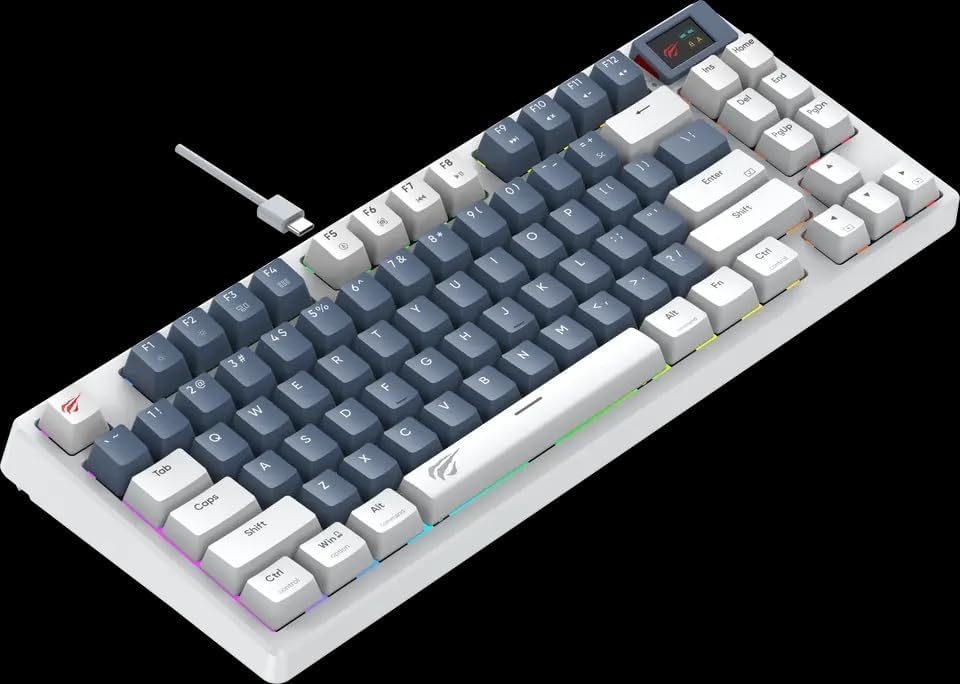
Image: Angled view of the Havit KB884L White Mechanical Gaming Keyboard, showing the USB-C cable connection point at the top left.
Operation
Basic Key Functions
The keyboard features a standard QWERTY layout with additional function keys and a compact 81-key design.
Function (Fn) Key Combinations
The Fn key (located near the left Ctrl key) can be combined with other keys to access multimedia controls and system functions. Refer to the keycap legends for specific functions.
- Fn + F1-F12: Multimedia and system shortcuts (e.g., volume control, media playback, web browser, email).
- Fn + Win: Locks/unlocks the Windows key to prevent accidental presses during gaming.
- Fn + Arrow Keys: Adjusts RGB lighting effects (brightness, speed, direction).
RGB Lighting Control
The KB884L features dynamic RGB backlighting. Use the following combinations to customize the lighting:
- Fn + \ |: Cycles through various lighting modes.
- Fn + [ { or ] }: Adjusts lighting brightness.
- Fn + ; : or ' ": Adjusts lighting speed.
- Fn + , < or . >: Changes lighting direction or color.
Integrated Display Screen
The small display screen on the top right of the keyboard typically shows information such as time, connection status, or active profile. Specific functionalities may vary or require dedicated software (if available from the manufacturer).
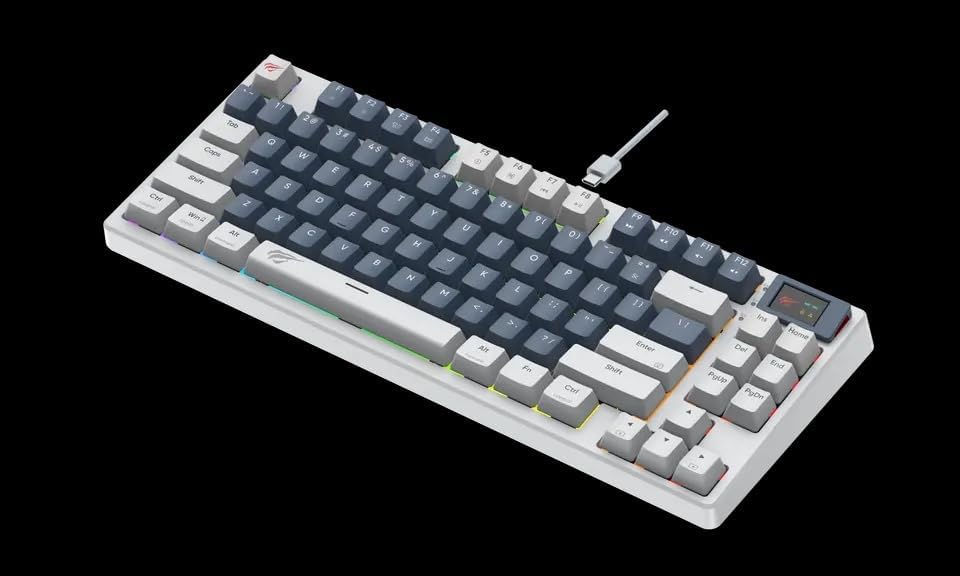
Image: Angled view of the Havit KB884L White Mechanical Gaming Keyboard, highlighting the compact layout and the integrated display screen.
Maintenance
Proper maintenance ensures the longevity and performance of your keyboard:
- Cleaning:
- Disconnect the keyboard from your computer before cleaning.
- Use a can of compressed air to remove dust and debris from between the keycaps.
- Wipe the keycaps and keyboard surface with a soft, slightly damp, lint-free cloth. Avoid excessive moisture.
- Do not use harsh chemicals, abrasive cleaners, or solvents, as these can damage the keyboard's finish or keycap legends.
- Storage: When not in use for extended periods, store the keyboard in a clean, dry environment away from direct sunlight and extreme temperatures.
- Handling: Avoid dropping the keyboard or exposing it to liquids. Do not attempt to disassemble the keyboard, as this will void the warranty.

Image: Side view of the Havit KB884L White Mechanical Gaming Keyboard, illustrating its profile and keycap height.
Troubleshooting
If you encounter issues with your Havit KB884L keyboard, try the following solutions:
| Problem | Possible Cause | Solution |
|---|---|---|
| Keyboard not responding | Loose USB connection, faulty USB port, driver issue. |
|
| RGB lighting not working or stuck | Lighting mode disabled, software conflict, minor glitch. |
|
| Certain keys not working | Debris under keycap, faulty switch. |
|
If these solutions do not resolve the issue, please refer to the Warranty & Support section for further assistance.
Specifications
| Brand | Havit |
| Model | KB884L |
| Connectivity | Wired (USB) |
| Keyboard Description | Gaming, Mechanical |
| Number of Keys | 81 |
| Color | White |
| Material | Plastic |
| Product Dimensions | 10 x 5 x 2 cm |
| Item Weight | 1 Kilogram |
| Compatible Devices | Laptop, Tablet |
Warranty & Support
Havit products are manufactured to the highest quality standards. In the unlikely event of a defect due to faulty materials or workmanship, your product is covered by a manufacturer's warranty.
- Warranty Period: Please refer to the warranty card included with your product or visit the official Havit website for specific warranty terms and duration applicable to your region.
- Claiming Warranty: To claim warranty service, you may need your proof of purchase (receipt or invoice). Do not attempt to repair the product yourself, as this may void the warranty.
- Customer Support: For technical assistance, troubleshooting beyond this manual, or warranty inquiries, please contact Havit customer support through their official website or the contact information provided with your purchase.
- Online Resources: Visit the official Havit website (www.havit.com) for updated drivers, software, FAQs, and additional product information.
Ask a question about this manual
Ask about setup, troubleshooting, compatibility, parts, safety, or missing instructions. Manuals+ will review the question and use this page’s manual context to help answer it.