1. Introduction
Thank you for choosing the Diyeeni 1080P Triple Lens Car Dashboard Camera. This manual provides essential information for the proper installation, operation, and maintenance of your device. Please read it thoroughly before use to ensure optimal performance and safety.
2. Product Overview
Key Features:
- 1080P High Definition Recording: Captures clear video with a wide-angle lens.
- Triple Lens Design: Monitors the front, rear, and interior of the vehicle simultaneously.
- 2-Inch Display: Provides clear playback and supports automatic rear view switching.
- Night Vision Technology: Records clear videos in low-light conditions.
- 24-Hour Parking Mode: Automatically records in case of collision or proximity detection when parked.
- Motion Detection: Initiates recording upon detecting movement.
- Loop Recording: Overwrites the oldest footage when the memory card is full.
- Supports up to 32GB Memory Card: (Memory card not included).
Package Contents:
- 1 x Diyeeni Car Dashboard Camera Unit
- 1 x Power Cord (Car Cigarette Lighter Interface)
- 1 x Instruction Manual
- 1 x Rear Camera
- 2 x Screws
- 1 x License Plate Sticker
- 1 x Connecting Bracket
Product Components:

Image 2.1: Front view of the Diyeeni Triple Lens Car Dashboard Camera, showing the main unit with its display screen and front-facing lens.

Image 2.2: Close-up view of the main camera lens, indicating 'WIDE ANGLE LENS F/2.0 1080P FOV 130'.

Image 2.3: Side view of the dash camera, highlighting the control buttons: OK, M (Menu), Up, Down, and Power.

Image 2.4: The compact rear camera unit with its connecting cable.

Image 2.5: All components included in the package: the dash cam, power cord, rear camera, screws, and bracket.
3. Setup and Installation
3.1 Memory Card Installation
- Ensure the dash camera is powered off.
- Locate the memory card slot on the side of the device.
- Insert a compatible Micro SD card (Class 10 or higher, up to 32GB, not included) into the slot until it clicks into place.
- To remove, gently push the card in until it springs out.
3.2 Main Unit Installation
- Clean the area on your windshield where you intend to mount the camera.
- Attach the connecting bracket to the dash camera.
- Securely mount the dash camera to the windshield using the bracket, ensuring it does not obstruct your view.
- Adjust the camera angle to capture the desired view of the road ahead.
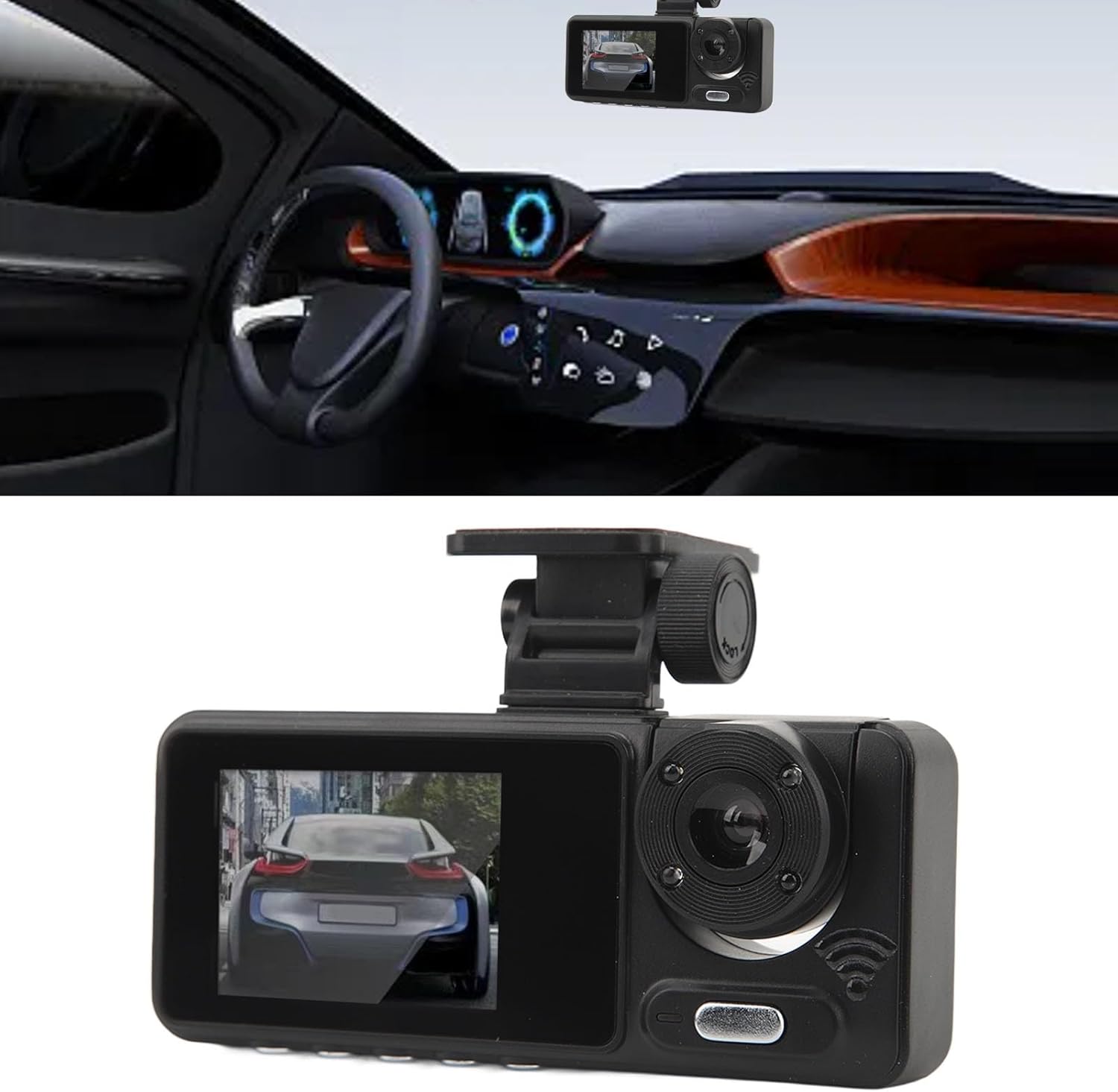
Image 3.1: The dash camera mounted on the windshield, positioned to capture the road ahead and the vehicle's interior.
3.3 Rear Camera Installation
- Mount the rear camera at the back of your vehicle, typically above the license plate or on the rear window.
- Use the provided screws or adhesive to secure it.
- Route the rear camera cable to the main dash camera unit, ensuring it does not interfere with vehicle operations.
- Connect the rear camera cable to the designated port on the main dash camera.
3.4 Power Connection
- Connect the power cord to the dash camera's power input port.
- Plug the other end of the power cord into your car's cigarette lighter interface.
- The camera will typically power on automatically when the vehicle starts and power off when the engine is turned off.
4. Operating Instructions
4.1 Basic Recording
Once powered on, the dash camera will automatically begin loop recording. Video segments are saved to the memory card. When the card is full, the oldest unlocked files will be overwritten by new recordings.
4.2 Motion Detection
To activate Motion Detection, access the camera's menu settings. When enabled, the camera will automatically start recording if it detects movement in front of the vehicle while parked. This feature helps capture incidents when the vehicle is unattended.
4.3 Parking Monitor
The 24-hour Parking Mode automatically switches to parking mode when the car is turned off. In this mode, the camera will record a 30-second video clip if it detects a collision or someone approaching the front of the car. This provides continuous surveillance for your parked vehicle.
4.4 Night Vision
The camera is equipped with advanced night vision technology, allowing it to record clear videos even in low-light conditions, enhancing visibility and detail during nighttime driving or parking.
4.5 Display and Menu Navigation
Use the 2-inch color display to view live footage, playback recorded videos, and access the camera's settings menu. Navigate through the menu options using the physical buttons (OK, M, Up, Down) located on the device.
4.6 App Connectivity (for 6Frametech)
The device supports connectivity with the 'for 6Frametech' app. Refer to the app's instructions for pairing and utilizing features such as live view, video download, and settings adjustment via your smartphone.
5. Maintenance
5.1 Cleaning
- Gently wipe the camera lens and screen with a soft, lint-free cloth.
- Avoid using abrasive cleaners or solvents that could damage the device.
5.2 Memory Card Management
- Regularly format the memory card (at least once a month) within the camera's settings to ensure optimal performance and prevent data corruption.
- Back up important video files to another storage device before formatting.
6. Troubleshooting
Common Issues and Solutions:
- Camera not powering on: Check the power connection to the cigarette lighter. Ensure the vehicle's ignition is on.
- Recording stops unexpectedly: Ensure the memory card is properly inserted and not full. Format the memory card. Use a high-quality Class 10 or higher Micro SD card.
- Poor video quality: Clean the camera lens. Ensure the protective film has been removed from the lens. Check settings for video resolution.
- Screen frozen or unresponsive: Press and hold the power button to restart the device. If issues persist, use a small pin to press the reset button (if available).
- Rear camera not displaying: Check the connection of the rear camera cable to the main unit. Ensure the rear camera is properly installed.
7. Specifications
| Item Type | Cam |
| Material | ABS, Metal |
| Video Resolution | 1680 x 960/30fps |
| Video Format | AVI |
| Image Format | JPG |
| Motion Detection | Supported |
| Battery Type | Lithium Ion Battery |
| Battery Capacity | 320mAh (Included) |
| Recording Function | Supported |
| Display Screen | 2.0 Inch Color Display |
| Screen Resolution | 800 x 480 |
| Memory Card Support | Maximum 32GB (Not Included) |
| Operating Temperature | -40 to 70 Degrees Celsius |
| Loop Recording | Supported |
| Recorder Power Interface | Car Cigarette Lighter Interface |
| App Name | for 6Frametech |
8. Warranty and Support
For any questions, technical assistance, or warranty claims, please contact Diyeeni customer support through your purchase platform. Please have your model number (Diyeeni56vmx0gnu1) and purchase details ready when contacting support.