1. Introduction
This manual provides essential information for setting up, operating, and maintaining your SAMSUNG Galaxy Tab S9 (Model SM-X710). Please read this manual thoroughly to ensure proper use and to maximize the performance of your device.
The Galaxy Tab S9 features an 11-inch AMOLED display, a powerful Snapdragon 8 Gen 2 processor, 128GB of storage, and runs on the Android operating system. It supports Wi-Fi 6E and Bluetooth 5.3 connectivity.
2. Setup
2.1 Unboxing and Initial Charge
Carefully remove all components from the packaging. The box should contain the SAMSUNG Galaxy Tab S9 and a charging cable. Before first use, fully charge the tablet using the provided charging cable and a compatible power adapter (sold separately).

Image: Front view of the SAMSUNG Galaxy Tab S9 tablet.
2.2 Powering On/Off
- To Power On: Press and hold the Power button located on the side of the tablet until the Samsung logo appears.
- To Power Off: Press and hold the Power button, then tap "Power off" on the screen. Alternatively, swipe down from the top of the screen to open the Quick Settings panel, tap the Power icon, and select "Power off".
- To Restart: Press and hold the Power button, then tap "Restart" on the screen.
2.3 Initial Setup Wizard
Upon first power-on, the tablet will guide you through an initial setup process. Follow the on-screen prompts to:
- Select your preferred language.
- Connect to a Wi-Fi network.
- Sign in with your Google account or create a new one.
- Set up security features (e.g., PIN, pattern, fingerprint).
- Review and accept terms and conditions.
3. Operating the Tablet
3.1 Basic Navigation
- Home Screen: Swipe left or right to navigate between home screens. Tap an app icon to open it.
- App Drawer: Swipe up from the bottom of the home screen to access all installed applications.
- Notifications & Quick Settings: Swipe down from the top of the screen to view notifications and access quick settings toggles (Wi-Fi, Bluetooth, brightness, etc.).
- Recent Apps: Swipe up from the bottom of the screen and hold, then release to view recently opened applications.
3.2 Wi-Fi and Bluetooth Connectivity
- Wi-Fi: Go to Settings > Connections > Wi-Fi. Turn Wi-Fi on and select your desired network. Enter the password if prompted.
- Bluetooth: Go to Settings > Connections > Bluetooth. Turn Bluetooth on and select a device from the list to pair.
3.3 Using the S Pen
The Galaxy Tab S9 is compatible with the S Pen (sold separately or included with some bundles). The S Pen allows for precise writing, drawing, and navigation. It magnetically attaches to the back of the tablet for charging and storage.

Image: SAMSUNG Galaxy Tab S9 with S Pen.

Image: Back view of the SAMSUNG Galaxy Tab S9, highlighting the S Pen storage area.
- Air Command: Hover the S Pen over the screen and press the S Pen button to open the Air Command menu for quick access to S Pen features like Create note, Smart select, and Screen write.
- Charging: Attach the S Pen to the magnetic strip on the back of the tablet to charge it.
4. Maintenance
4.1 Cleaning the Device
To clean your tablet, use a soft, lint-free cloth. For stubborn smudges, slightly dampen the cloth with water or a screen cleaner specifically designed for electronics. Avoid using harsh chemicals, abrasive materials, or excessive moisture.
4.2 Software Updates
Keep your tablet's software up to date to ensure optimal performance, security, and access to new features. Go to Settings > Software update > Download and install to check for and apply updates.
4.3 Battery Care
To prolong battery life, avoid extreme temperatures. It is recommended to keep the battery charge between 20% and 80% for long-term health. Use only Samsung-approved charging accessories.
5. Troubleshooting
If you encounter issues with your Galaxy Tab S9, refer to the following common solutions:
- Device Not Responding: Press and hold the Power button and Volume Down button simultaneously for about 7-10 seconds to force restart the device.
- Wi-Fi Connectivity Issues: Try restarting your Wi-Fi router and the tablet. Ensure you are within range of the Wi-Fi signal.
- S Pen Not Working: Ensure the S Pen is properly charged by attaching it to the magnetic strip on the back of the tablet. Check if the S Pen features are enabled in Settings > Advanced features > S Pen.
- Apps Crashing: Clear the cache of the problematic app via Settings > Apps > [App Name] > Storage > Clear cache. If the issue persists, try reinstalling the app.
- Slow Performance: Close unnecessary background apps. Check for available software updates. Consider freeing up storage space.
- Factory Reset (Last Resort): If problems persist, you may need to perform a factory reset. Warning: This will erase all data on your tablet. Back up important data before proceeding. Go to Settings > General management > Reset > Factory data reset.
6. Specifications
Below are the key technical specifications for the SAMSUNG Galaxy Tab S9 (SM-X710):
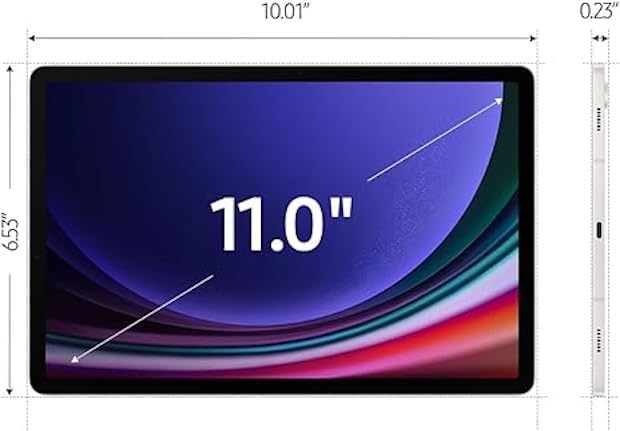
Image: Dimensions of the SAMSUNG Galaxy Tab S9.
| Feature | Detail |
|---|---|
| Model Name | Galaxy Tab S9 |
| Model Number | SM-X710 |
| Screen Size | 11 Inches |
| Display Type | AMOLED |
| Display Resolution | 2560 x 1600 Pixels |
| Processor | Qualcomm Snapdragon 8 Gen 2 (up to 3.2 GHz) |
| RAM Memory | 8 GB |
| Storage Capacity | 128 GB |
| Operating System | Android |
| Wireless Technology | WiFi 6E (802.11ax), Bluetooth 5.3 |
| Battery Capacity | 8000 Milliamp Hours (14 Hours Average Life) |
| Camera | Front, Rear (FHD 1080p Video Capture) |
| Audio | Quad speakers with Dolby Atmos technology |
| Dimensions (L x W x Th) | 8.3"L x 4.9"W x 0.3"Th |
| Item Weight | 1.1 Pounds |
| Included in Box | Charging Cable |
7. Warranty and Support
7.1 Warranty Information
This SAMSUNG Galaxy Tab S9 (SM-X710) comes with a 90-Day Warranty. Please retain your proof of purchase for warranty claims. The warranty covers manufacturing defects and malfunctions under normal use conditions.
For detailed warranty terms and conditions, please refer to the documentation provided with your purchase or visit the official Samsung support website.
7.2 Customer Support
For further assistance, technical support, or service inquiries, please contact Samsung Customer Service. You can find contact information and additional resources on the official Samsung support website:
https://www.samsung.com/us/support/
When contacting support, please have your model number (SM-X710) and serial number ready.


