
Introduction
This manual provides comprehensive instructions for the safe and efficient use of your DOOGEE N50PRO smartphone. Please read this manual thoroughly before operating your device and retain it for future reference. The DOOGEE N50PRO is an Android 13 smartphone equipped with an Octa-Core processor, a 6.52-inch HD+ display, a 50MP main camera, a 4200mAh battery, and supports 4G Dual SIM, Face ID, and Fingerprint ID.
Package Contents
Verify that all the following items are included in your product package:
- DOOGEE N50PRO Smartphone
- Packaging Box
- Charger (9V/2A)
- USB Type-C Cable
- SIM Card Pin
- Pre-applied TP Protective Film
- User Manual (this document)
Setup
1. SIM Card and TF Card Installation
The DOOGEE N50PRO supports dual Nano SIM cards or one Nano SIM card and one TF (MicroSD) card for expandable storage up to 1TB. Ensure the device is powered off before inserting or removing cards.
- Locate the SIM card tray on the side of the phone.
- Insert the SIM card pin into the small hole next to the tray to eject it.
- Carefully pull out the tray.
- Place your Nano SIM card(s) and/or TF card into the designated slots on the tray. Ensure the gold contacts face downwards.
- Gently push the tray back into the phone until it clicks into place.
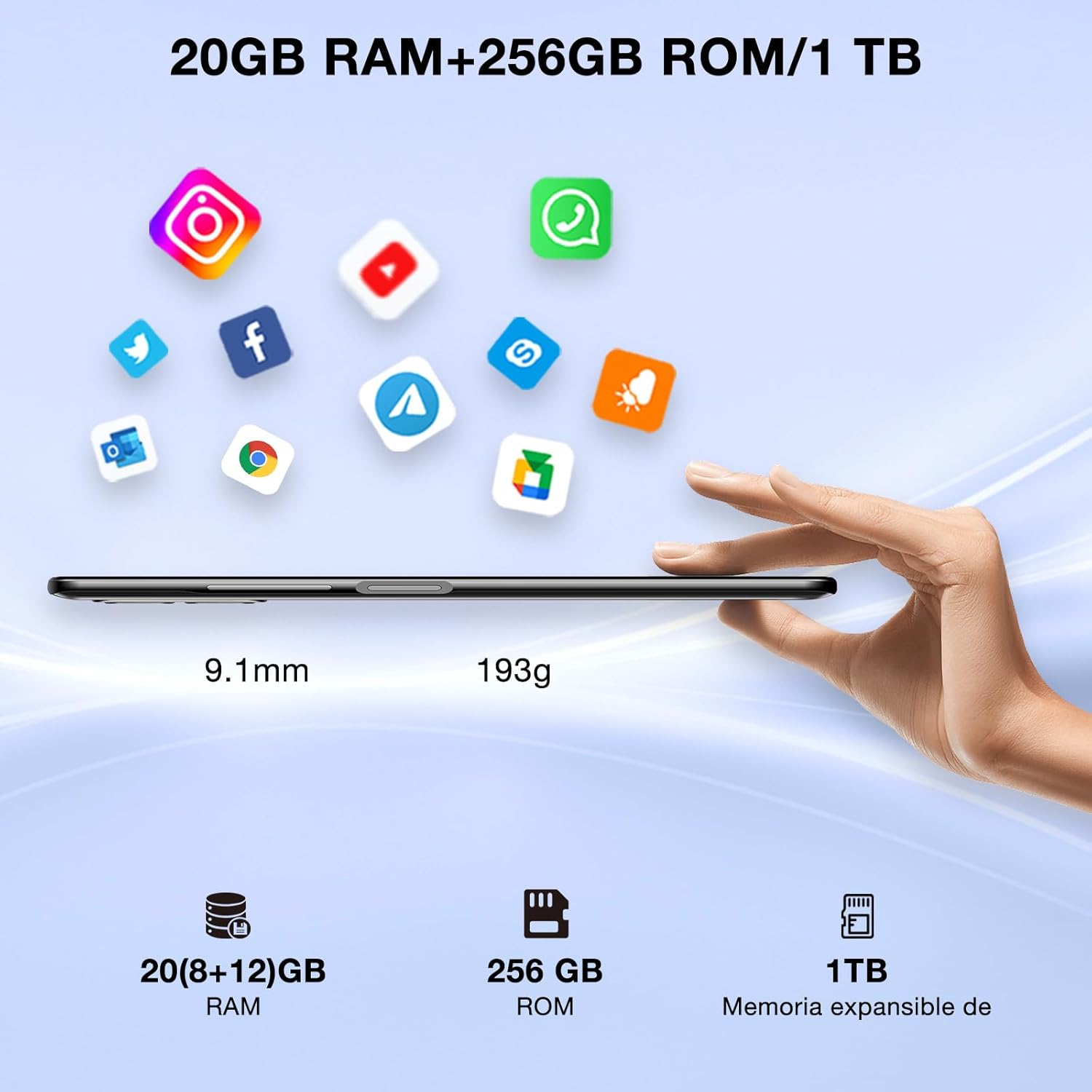
Image: DOOGEE N50PRO smartphone showing its slim profile (9.1mm), weight (193g), and memory configuration (20GB RAM, 256GB ROM, 1TB expandable memory).
2. Initial Power On
Press and hold the Power button located on the side of the device until the DOOGEE logo appears. Follow the on-screen prompts to complete the initial setup, including language selection, Wi-Fi connection, and Google account setup.
3. Charging the Battery
Before first use, it is recommended to fully charge the device. Connect the USB Type-C cable to the phone's charging port and the other end to the provided 9V/2A charger. Plug the charger into a power outlet. The charging indicator will appear on the screen.

Image: DOOGEE N50PRO connected to a charger, illustrating its 4200mAh battery capacity and 18W fast charging capability. The image also highlights OTG reverse charging.
Operating Instructions
1. Basic Navigation and Android 13 Features
Your DOOGEE N50PRO runs on Android 13, offering an intuitive user experience. Swipe down from the top of the screen to access the notification panel and quick settings. Customize your control center and direct access operations for efficient use of various functions.

Image: Visual representation of the DOOGEE N50PRO's internal components, highlighting the Spreadtrum T606 Octa-Core processor with 1.6GHz high frequency and 12nm advanced technology, running on Android 13.
2. Security Features: Face ID and Fingerprint ID
Enhance your device's security and convenience with advanced biometric authentication:
- Face ID: Register your face to unlock the phone by simply looking at the front camera.
- Fingerprint ID: Register your fingerprint(s) to unlock the phone or authorize purchases with a touch. The fingerprint sensor is typically located on the side or back of the device.

Image: A user demonstrating Face ID unlock and a close-up of the Fingerprint ID sensor on the DOOGEE N50PRO, showcasing its multi-function security features.
3. Camera Usage
The DOOGEE N50PRO features a triple camera system:
- 50 MP Main Camera: For high-resolution photos.
- 8 MP Front Camera: For selfies and video calls.
- 2 MP Macro Camera: For detailed close-up shots.
Access the Camera app from your home screen or app drawer. Explore various modes such as Panorama, Portrait, and Night mode to capture different scenes effectively.

Image: Diagram illustrating the DOOGEE N50PRO's dual AI camera setup, featuring a 50MP main camera, an 8MP front camera, and a 2MP macro camera. Sample photos taken with the 50MP main and 8MP front cameras are also shown.
4. Connectivity
- Wi-Fi: Supports 2.4G/5G Wi-Fi for fast and stable internet connection. Go to Settings > Network & internet > Wi-Fi to connect to available networks.
- Bluetooth 5.0: For connecting wireless accessories like headphones or speakers. Go to Settings > Connected devices > Bluetooth.
- OTG (On-The-Go): Allows the phone to act as a host to connect USB devices like flash drives or external keyboards. It also supports reverse charging for other devices.
- Navigation: Integrated GPS, GLONASS, BeiDou, and Galileo for accurate location services.
- FM Radio: Use the built-in FM radio feature (requires headphones to act as an antenna).
- 3.5mm Headphone Jack: For wired audio accessories.
5. Parental Control
The device includes parental control features, allowing you to monitor and manage screen time and application usage for children. Access these settings through the device's system settings to balance usage effectively.
Maintenance
1. Battery Care
- Avoid exposing the battery to extreme temperatures (hot or cold).
- Do not fully discharge the battery frequently. Charge it before it drops below 20%.
- Use only the provided charger and cable to prevent damage.
2. Cleaning
Use a soft, lint-free cloth to clean the screen and body of the phone. Avoid using harsh chemicals or abrasive materials. For stubborn smudges, slightly dampen the cloth with water or a screen cleaner designed for electronics.
3. Software Updates
Regularly check for and install software updates to ensure your device has the latest features, security patches, and performance improvements. Go to Settings > System > System update.
Troubleshooting
- Device not powering on: Ensure the battery is charged. Connect the charger and wait a few minutes before attempting to power on again.
- Screen unresponsive: Try restarting the device by holding the Power button for about 10-15 seconds.
- Network issues: Check if your SIM card is properly inserted. Try toggling Airplane Mode on and off. If issues persist, contact your mobile service provider.
- Apps crashing: Clear the cache of the problematic app (Settings > Apps > [App Name] > Storage & cache > Clear cache). If the issue continues, consider reinstalling the app.
- Slow performance: Close unused apps, clear cache, or consider a factory reset as a last resort (back up your data first).
Specifications
| Feature | Specification |
|---|---|
| Model Name | DOOGEE N50PRO |
| Operating System | Android 13.0 |
| Processor | Octa-Core (Spreadtrum T606) |
| RAM | 20 GB (Extended Memory) |
| Internal Storage (ROM) | 256 GB |
| Expandable Storage | Up to 1 TB (TF Card) |
| Display Size | 6.52 Inches |
| Display Resolution | HD+ (720x1600) |
| Main Camera | 50 MP |
| Front Camera | 8 MP |
| Macro Camera | 2 MP |
| Battery Capacity | 4200 mAh |
| Charging | 18W Type-C Fast Charging |
| Cellular Technology | 4G |
| SIM Card Type | Nano SIM (Dual SIM support) |
| Connectivity | Wi-Fi (2.4G/5G), Bluetooth 5.0, OTG, FM Radio |
| Navigation | GPS, GLONASS, BeiDou, Galileo |
| Security Features | Face ID, Fingerprint ID |
| Dimensions | 165.8 x 76.2 x 9.1 mm |
| Weight | 187 g |
| Headphone Jack | 3.5 mm |
| Talk Time | Up to 16 Hours |

Image: The DOOGEE N50PRO's 6.52-inch Waterdrop HD+ display, showing its 720x1600 resolution, 20:9 aspect ratio, and 86% screen-to-body ratio.
Warranty and Support
1. Warranty Information
Your DOOGEE N50PRO smartphone comes with a two-year official warranty from the date of purchase. Please retain your proof of purchase for warranty claims. This warranty covers manufacturing defects and malfunctions under normal use conditions.
2. Customer Support
For technical assistance, warranty claims, or further inquiries, please contact DOOGEE customer support through their official website or the contact information provided with your purchase. Ensure you have your device model number and proof of purchase ready when contacting support.

