
Product Overview
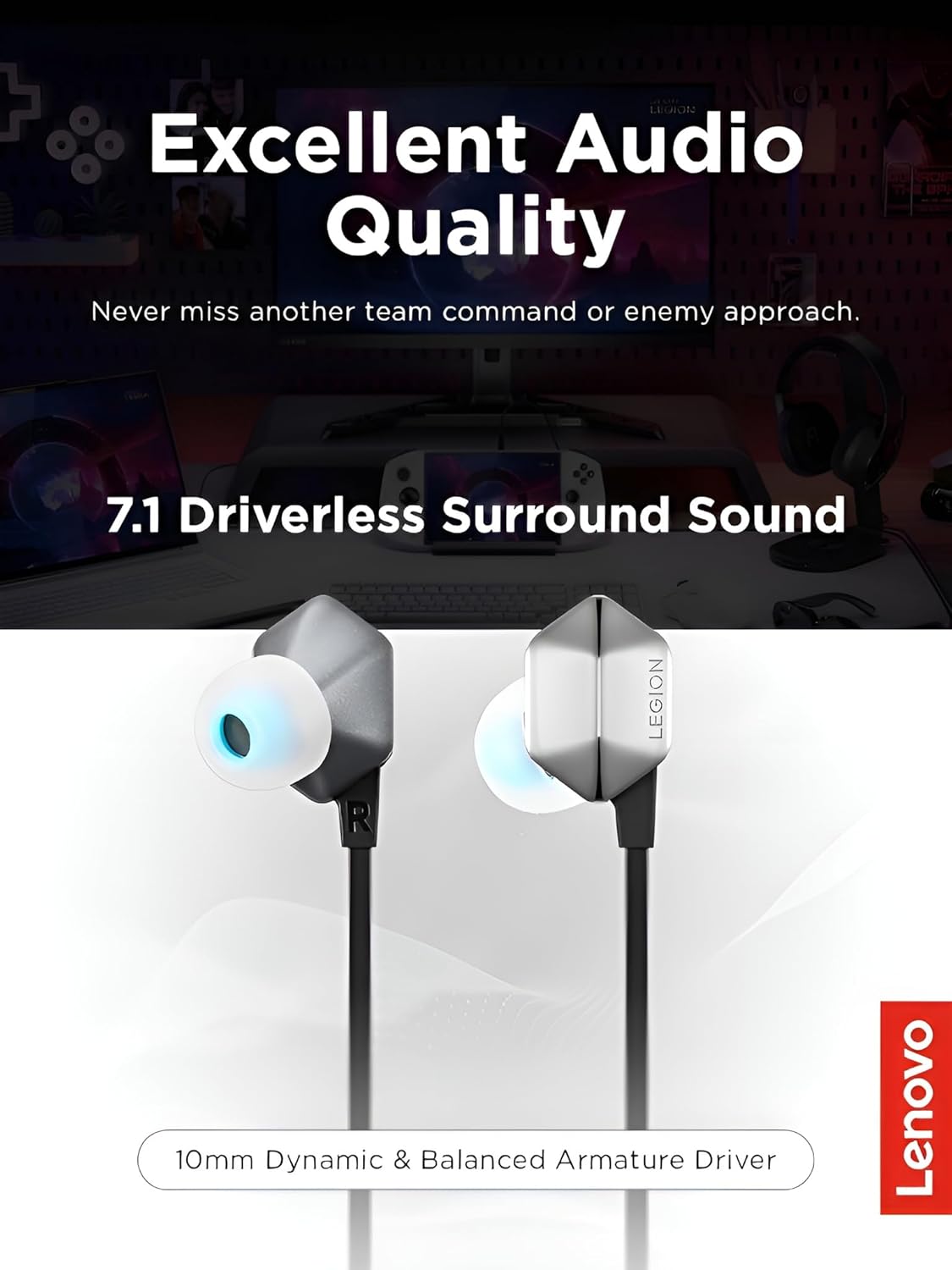
The Lenovo Legion E510 headphones are designed to deliver an immersive audio experience for gaming, music, and movies. They feature 7.1 surround sound, Hi-Res Audio, and a convenient in-line controller.

Package Contents
Ensure all items are present in the package:
- Lenovo Legion E510 RGB Gaming In-Ear Headphones
- Ear Cushions (additional sizes)
- User Manual
Setup
Connecting Your Headphones
The Legion E510 headphones connect via a USB-C port, ensuring wide compatibility with PC, mobile phones, and tablets. Simply plug the USB-C connector into an available port on your device.

Customizing Comfort
Select the appropriate silicone ear tips from the included extra pairs to achieve a secure and comfortable fit for extended listening sessions. A proper fit enhances sound quality and noise isolation.

Operating Instructions
Audio Features
Experience crystal clear audio with driverless 7.1 surround sound and Hi-Res Audio technology. The 10mm dynamic and balanced armature drivers deliver rich bass and clear high pitches, free from distortion.
In-Line Controller
The intuitive in-line controller allows for easy management of media playback and communication:
- Play/Pause: Press the central button to play or pause audio.
- Volume Control: Use the dedicated volume slider or buttons to adjust the audio level.
- Microphone Mute: Toggle the microphone switch to mute or unmute your voice.
The controller also features integrated RGB lights for a distinct aesthetic.

Microphone Usage
The studio-quality in-line microphone ensures clear voice pickup for effective communication during gaming sessions, conference calls, or voice chats.
Maintenance
Cleaning
Gently wipe the headphones and ear tips with a soft, dry cloth. For ear tips, you may use a slightly damp cloth with mild soap, ensuring they are completely dry before reattaching. Avoid using harsh chemicals, solvents, or abrasive materials.
Storage
Store the headphones in a cool, dry place when not in use. Avoid exposing them to extreme temperatures, humidity, or direct sunlight. Proper storage helps prolong the lifespan of the product.
Troubleshooting
No Sound
- Ensure the USB-C connector is fully and securely inserted into your device's port.
- Check the volume level on both the in-line controller and your connected device. Increase volume as needed.
- Verify that the Lenovo Legion E510 headphones are selected as the primary audio output device in your device's sound settings.
Microphone Not Working
- Confirm the microphone mute switch on the in-line controller is in the "unmute" position.
- Check your device's sound settings to ensure the microphone is enabled and selected as the input device.
- Test the microphone with another application or device to determine if the issue is specific to a particular program.
Connectivity Issues
- Disconnect and reconnect the USB-C cable from your device.
- Try connecting the headphones to a different USB-C port or a different compatible device to rule out port or device-specific issues.
Specifications
Technical Details
| Feature | Detail |
|---|---|
| Model Name | E510 |
| Connectivity Technology | Wired |
| Hardware Interface | USB Type C |
| Audio Driver Type | Dynamic Driver |
| Audio Driver Size | 10 Millimeters |
| Control Type | Media Control |
| Controller Type | In-line |
| Special Features | Noise Isolation, Surround Sound, Volume Control |
| Item Weight | 0.96 ounces |
| Product Dimensions | 0.78 x 0.86 x 0.97 inches |
| Material | Polycarbonate (PC) |
| Compatible Devices | Laptops, Desktops, Tablets, Cellphones |
Warranty and Support
Product Support
For further assistance, please refer to the included User Manual or visit the official Lenovo support website. The User Manual is provided in the package for detailed instructions.
Information regarding product warranty and available protection plans can be found on the product's purchase page or by contacting Lenovo customer service directly. Please retain your proof of purchase for warranty claims.