
Bmax B8 Pro
Bmax B8 Pro Mini PC User Manual
Model: B8 Pro
1. Product Overview
The Bmax B8 Pro Mini PC is a compact desktop computer designed for various applications, from office work and web browsing to streaming video and home entertainment. It features an Intel 12th Generation i7-1255U Processor, providing efficient performance for demanding tasks. The system is equipped with 24GB LPDDR5 RAM and a 1TB NVMe SSD, ensuring fast boot times, rapid application loading, and smooth multitasking.

Figure 1.1: The Bmax B8 Pro Mini PC, showcasing its compact design.
2. What's in the Box
Upon opening the package, verify that all components are present:
- 1 x B8 Pro MINI PC
- 1 x Power Adapter
- 1 x User Guide
- 1 x HDMI cable
- 1 x Metal Bracket (for VESA mounting)

Figure 2.1: All items included in the Bmax B8 Pro Mini PC package.
3. Setup Guide
3.1 Connecting Peripherals
Before powering on your Mini PC, connect your essential peripherals:
- Display: Connect your monitor, TV, or projector using the HDMI port or Type-C port. The device supports 4K/60Hz resolution and triple-display configurations.
- Keyboard & Mouse: Plug your USB keyboard and mouse into the available USB 2.0 or USB 3.0 ports.
- Audio: Connect headphones or speakers to the 3.5mm headset jack on the front panel.
- Network: For wired internet access, connect an Ethernet cable to the Gigabit Ethernet port.
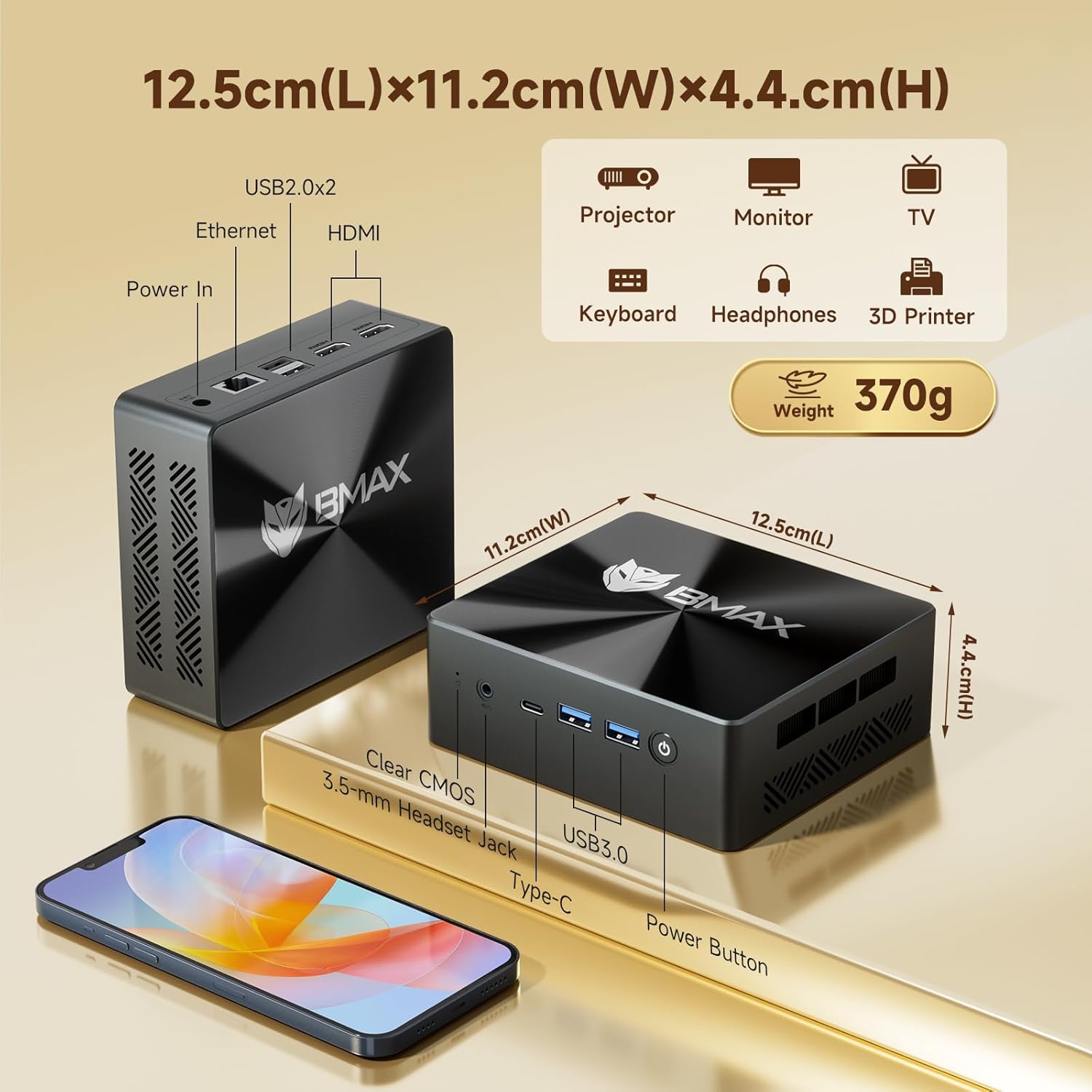
Figure 3.1: Front and rear views of the Bmax B8 Pro Mini PC, highlighting port locations and dimensions.
3.2 Powering On
Once all peripherals are connected:
- Connect the power adapter to the DC-in port on the Mini PC.
- Plug the power adapter into a wall outlet.
- Press the power button located on the front panel of the Mini PC. The power indicator light will illuminate.
- The system will boot up, and you will see the operating system (likely Windows 11 Pro) on your connected display. Follow any on-screen instructions for initial setup.
4. Operating Instructions
4.1 Operating System
The Bmax B8 Pro Mini PC typically comes pre-installed with Windows 11 Pro, providing a modern and secure user interface. Ensure your operating system is updated regularly for optimal performance and security.
4.2 Performance Features
The Mini PC is powered by an Intel 12th Generation i7-1255U Processor, featuring 10 cores and 12 threads with a max clock speed of 4.7 GHz. This processor delivers strong performance for various workloads, from everyday computing to more intensive applications.

Figure 4.1: Details of the Intel Core i7-1255U Processor, highlighting its core count, threads, and clock speed.
It includes 24GB of LPDDR5 RAM operating at 5200MHz and a 1TB NVMe SSD (M.2_NVMe 2280 x1). This high-speed memory and storage combination ensures quick data access and responsiveness, suitable for demanding software like Photoshop, Dreamweaver, Premiere, AI, and XD.

Figure 4.2: Illustration of the dual-channel high-speed 24GB LPDDR5 RAM and 1TB NVMe SSD configuration.
4.3 Connectivity
The B8 Pro Mini PC offers robust connectivity options:
- Wi-Fi 6: Supports faster wireless transmission speeds and improved network efficiency compared to older Wi-Fi standards.
- Bluetooth 5.2: Provides lower latency and more stable connections for wireless peripherals.
- Gigabit Ethernet: For reliable high-speed wired network connections.
- USB Ports: Includes multiple USB 2.0 and USB 3.0 ports for connecting various devices.
- HDMI & Type-C: For video output to displays.
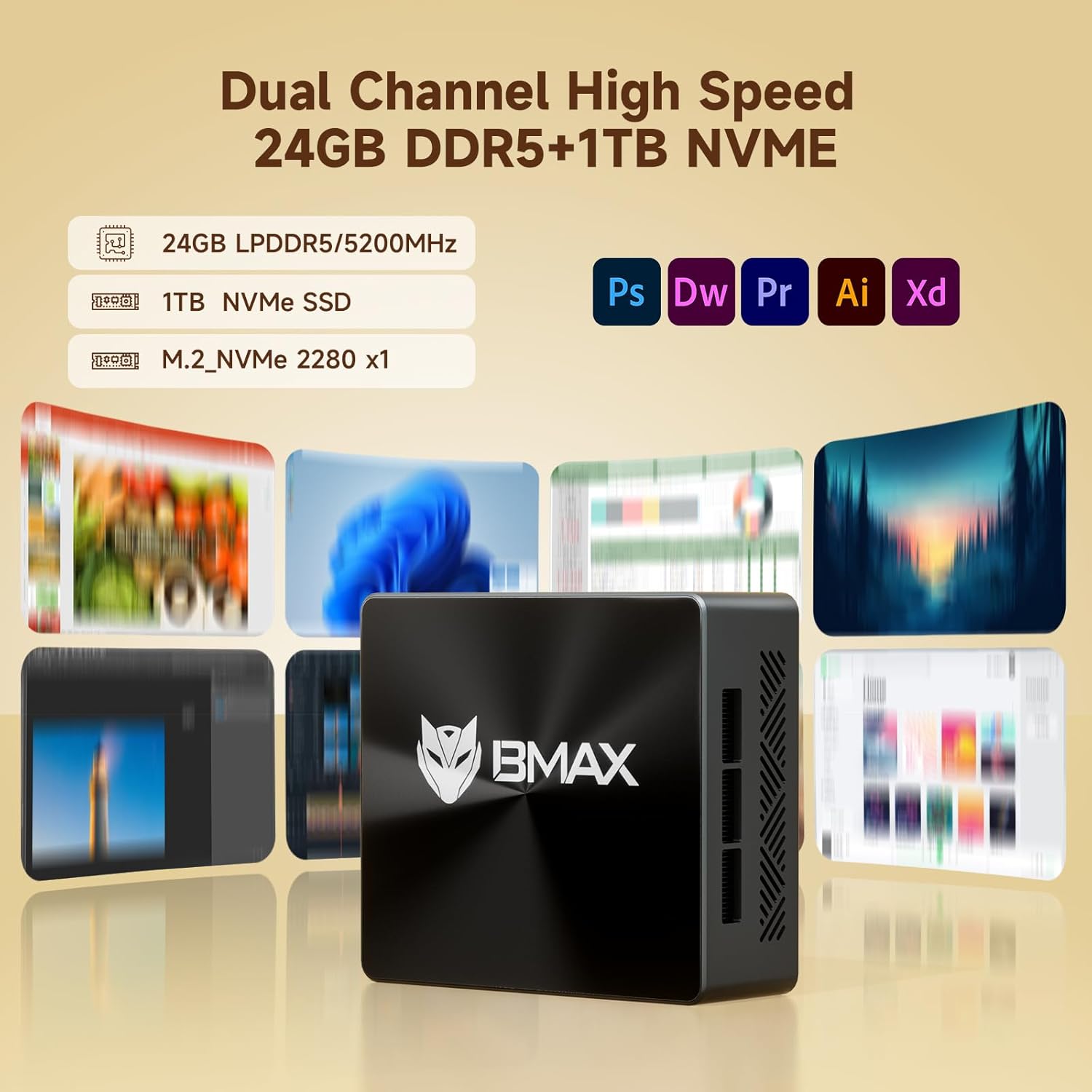
Figure 4.3: Visual representation of the Mini PC's support for WiFi 6 and Bluetooth 5.2, indicating faster transmission speeds.
5. Maintenance
5.1 Cooling System
The B8 Pro Mini PC incorporates a smart fan and two copper heat pipes to ensure efficient heat dissipation and stable operation, even under load. Ensure proper airflow around the device by keeping vents clear.

Figure 5.1: Diagram illustrating the smart fan and dual copper heat pipe cooling solution within the Mini PC.
5.2 Cleaning
To maintain optimal performance and longevity, regularly clean the exterior of the Mini PC with a soft, dry cloth. Use compressed air to gently clear dust from the ventilation openings. Do not use liquid cleaners directly on the device.
6. Troubleshooting
If you encounter issues with your Bmax B8 Pro Mini PC, refer to the following common troubleshooting steps:
- No Power:
Ensure the power adapter is securely connected to both the Mini PC and a working power outlet. Try a different outlet if necessary. - No Display:
Verify that the HDMI or Type-C cable is firmly connected to both the Mini PC and the monitor. Ensure the monitor is powered on and set to the correct input source. - Slow Performance:
Check for background applications consuming excessive resources. Ensure the operating system and drivers are up to date. Consider running a disk cleanup or defragmentation if using an HDD (though this model uses SSD). - Network Connectivity Issues:
For Wi-Fi, ensure the Wi-Fi adapter is enabled and you are connected to the correct network. For wired Ethernet, check the cable connection and router status. - System Unresponsive:
If the system becomes unresponsive, press and hold the power button for 5-10 seconds to force a shutdown. Wait a few moments, then power it back on. If issues persist, locate the 'Clear CMOS' button (often a small pinhole) and follow instructions in the user guide for a CMOS reset.
7. Technical Specifications
| Feature | Specification |
|---|---|
| Model Name | B8 Pro |
| Processor | Intel 12th Gen Core i7-1255U (4.7 GHz max) |
| RAM | 24GB LPDDR5 |
| Storage | 1TB NVMe SSD |
| Graphics Card | Integrated |
| Max Screen Resolution | 3840 x 2160 (4K) |
| Operating System | OS (typically Windows 11 Pro) |
| USB 2.0 Ports | 2 |
| USB 3.0 Ports | 2 |
| Connectivity | WiFi 6, Bluetooth 5.2, Gigabit Ethernet |
| Item Weight | 1.87 pounds |
| Dimensions (L x W x H) | 10.51 x 6.14 x 2.91 inches |
8. Warranty and Support
8.1 Product Warranty
The Bmax B8 Pro Mini PC comes with a standard manufacturer's warranty. Please refer to the warranty card included in your package or visit the official Bmax website for detailed warranty terms and conditions. Keep your proof of purchase for warranty claims.
8.2 Customer Support
For technical assistance, troubleshooting, or warranty inquiries, please contact Bmax customer support through their official channels. You can often find contact information on the manufacturer's website or in the included user guide.
Visit the official Bmax Store on Amazon for more information and products: Bmax Store
Related documentsB8 Pro

Ask a question about this manual
Ask about setup, troubleshooting, compatibility, parts, safety, or missing instructions. Manuals+ will review the question and use this page’s manual context to help answer it.