
1. Introduction
This manual provides instructions for the proper installation, operation, and maintenance of your MUNBYN ITPP047plus Receipt Printer. Please read this manual thoroughly before using the device to ensure optimal performance and safety.
The MUNBYN ITPP047plus is an 80mm thermal receipt printer designed for various business environments, offering high-speed printing and multiple connectivity options including USB, Ethernet, and WiFi. It supports ESC/POS commands and is compatible with Windows and Mac operating systems.
2. Safety Information
- Ensure the printer is placed on a stable, level surface.
- Do not expose the printer to water or excessive humidity.
- Use only the power adapter supplied with the printer.
- Avoid placing the printer in direct sunlight or near heat sources.
- Do not attempt to disassemble or repair the printer yourself. Contact qualified service personnel.
- Keep out of reach of children.
- Unplug the printer from the power outlet before cleaning or maintenance.
3. Package Contents
Verify that all items are present in the package:
- MUNBYN ITPP047plus Receipt Printer
- Power Cable
- Power Adapter
- USB Cable
- Thermal Paper Roll (80mm)
- Paper Roll Axis
- User Manual (this document)

Image: Contents of the MUNBYN ITPP047plus package, including the printer, power adapter, power cable, USB cable, thermal paper roll, paper roll axis, and user manual.
4. Setup
4.1. Loading Thermal Paper
- Open the printer cover by pressing the release button.
- Insert the 80mm thermal paper roll into the paper compartment. Ensure the paper feeds from the bottom of the roll and the leading edge extends slightly out of the printer.
- If using a smaller diameter roll, utilize the provided paper roll axis to secure it.
- Close the printer cover firmly until it clicks into place.
Video: Demonstration of loading thermal paper into the MUNBYN receipt printer. This video shows the process of opening the cover, inserting the paper roll, and closing the cover. It also highlights the use of the paper roll axis for smaller rolls.
4.2. Connecting the Printer
- Connect the power adapter to the printer's power port and then plug the power cable into a wall outlet.
- Connect the USB cable from the printer's USB port to your computer.
- For Ethernet connection, connect an Ethernet cable from the printer's LAN port to your network router or switch.
- For WiFi connection, refer to the specific WiFi setup instructions in the driver installation guide.
- Turn on the printer using the power switch.

Image: Rear view of the MUNBYN ITPP047plus printer, clearly showing the USB, Serial, LAN, Cash Drawer, and Power ports.
Video: A demonstration of connecting the MUNBYN thermal printer to power and a computer via USB, and loading paper. It also shows the printer performing a self-test print.
4.3. Driver Installation (Windows)
- Insert the provided CD-ROM into your computer's CD drive.
- Navigate to the "Driver" folder and run the setup file for Windows.
- Follow the on-screen instructions to complete the driver installation.
- During installation, select "USB" as the printer interface and "POS-80C" as the printer series.
- Perform a test print to confirm successful installation.
Video: This video demonstrates the driver installation process for the MUNBYN thermal printer on a Windows system, including selecting the correct port and printer model, and performing a test print.
5. Operating Instructions
5.1. Basic Printing
Once the printer is connected and drivers are installed, you can print receipts from your POS software or application. The printer features high-speed printing at 300mm/s and an auto-cutter function for efficient operation.
Video: Shows the MUNBYN thermal printer in operation, demonstrating its high-speed printing and automatic paper cutting feature for receipts.
5.2. Supported Systems and Applications
The printer is compatible with various operating systems and POS applications. It supports ESC/POS commands for broad compatibility.
- Operating Systems: Windows, Mac OS, Linux, Android, iOS
- POS Compatibility: Square POS, Square Stand POS, and other ESC/POS command-based systems.
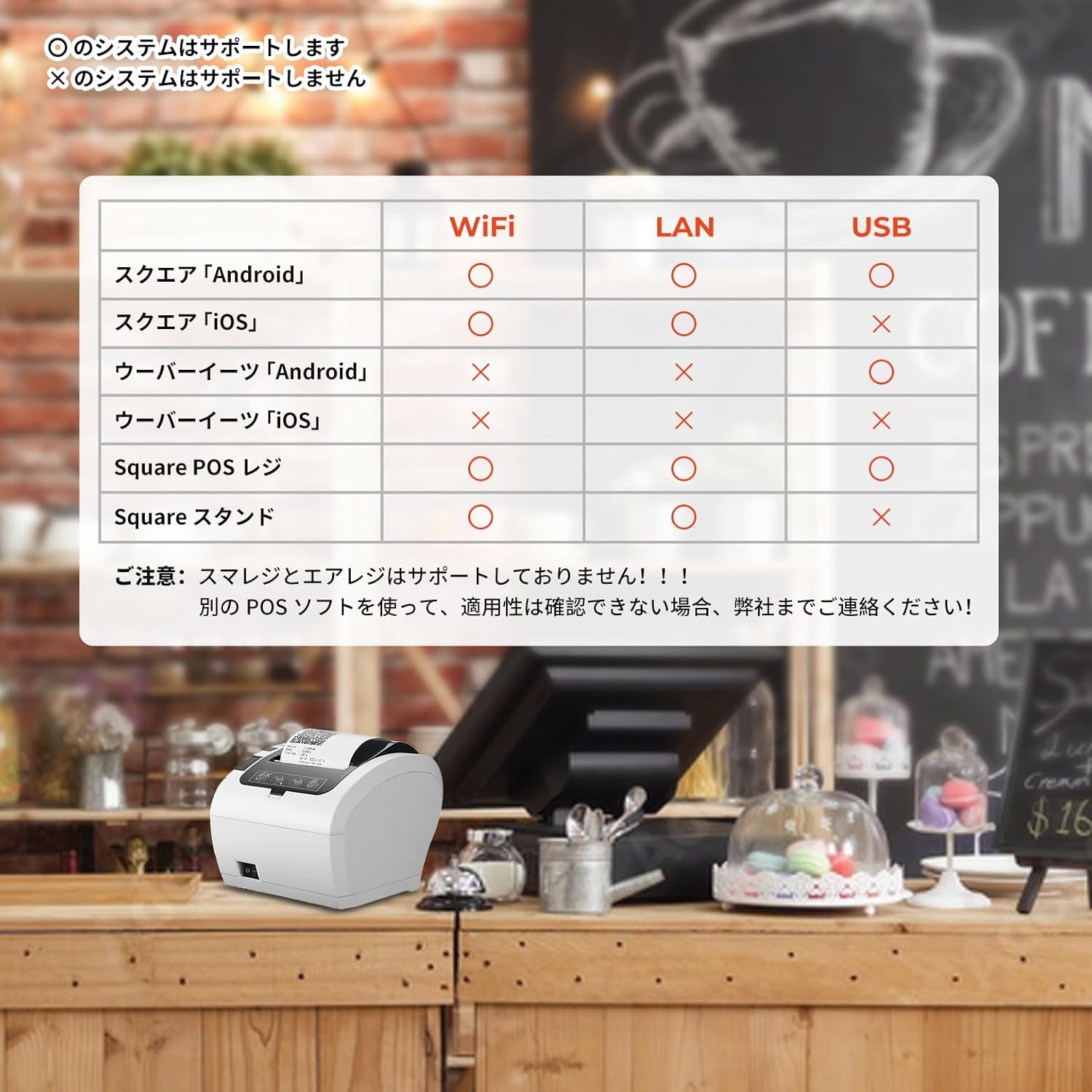
Image: A compatibility chart illustrating which POS systems and devices (Android, iOS) are supported via WiFi, LAN, and USB connections for the MUNBYN ITPP047plus printer.

Image: A detailed table showing compatibility of the MUNBYN WiFi receipt printer with numerous POS software applications across USB, LAN, and WiFi connections for Android and iOS devices.
5.3. Connecting to a Value Counter
The printer can be connected to compatible value counters, such as the BC-40, to print transaction summaries. Ensure the serial port mode and baud rate are correctly configured on the value counter to communicate with the printer.
Video: This video illustrates how to connect the MUNBYN printer with a BC-40 value counter and print a summary of counted banknotes.
6. Maintenance
6.1. Cleaning the Printer Head
Regularly clean the thermal printer head to ensure clear print quality. Use a soft cloth dampened with isopropyl alcohol. Gently wipe the print head surface. Allow it to dry completely before use.
6.2. Cleaning the Paper Path
Remove any paper dust or debris from the paper path using a soft brush or compressed air. This prevents paper jams and ensures smooth feeding.
6.3. General Cleaning
Wipe the exterior of the printer with a soft, dry cloth. Do not use abrasive cleaners or solvents.
7. Troubleshooting
| Problem | Possible Cause | Solution |
|---|---|---|
| Printer not powering on | Power cable not connected; Power adapter faulty; Power outlet not working. | Check power connections; Try a different power adapter; Test the power outlet. |
| No print output | Paper jam; No paper; Incorrect driver installation; Incorrect port selection; Printer offline. | Clear paper jam; Load new paper; Reinstall drivers; Verify port settings; Ensure printer is online. |
| Poor print quality | Dirty print head; Low quality thermal paper; Print density settings. | Clean print head; Use recommended thermal paper; Adjust print density in driver settings. |
| Connectivity issues (WiFi/Ethernet) | Incorrect network settings; Router issues; Firewall blocking connection. | Verify IP address and network settings; Restart router; Check firewall settings. |
8. Specifications
- Model Name: PP047P (ITPP047plus)
- Printing Technology: Thermal Printing
- Print Output: Monochrome
- Max Print Speed (Monochrome): 300 pages/minute (equivalent to 300mm/s)
- Max Print Resolution (Monochrome): 203 dpi
- Max Media (Paper) Size: 80mm
- Sheet Size: 80 millimeters
- Connectivity Technology: Ethernet, USB, Wi-Fi
- Supported OS: Android, Linux, Mac OS, Windows, iOS
- Power Source: AC Power
- Product Dimensions (L x W x H): 28.6 x 16.4 x 16 cm
- Item Weight: 1.74 Kilograms
- Color: White
- Special Feature: Network Ready
- ENERGY STAR Certified: Yes
9. Warranty & Support
MUNBYN provides a warranty for this product against defects in materials and workmanship under normal use. The specific warranty period may vary by region and retailer. Please retain your purchase receipt as proof of purchase.
For technical support, troubleshooting assistance, or warranty claims, please contact MUNBYN customer service through their official website or the retailer where the product was purchased. You can find more information and resources on the MUNBYN Amazon Store.


