
Phomemo M08F Pro
Phomemo M08F Portable Thermal Printer User Manual
Model: M08F Pro
Your guide to setting up, operating, and maintaining your Phomemo M08F printer.
1. Introduction
Thank you for choosing the Phomemo M08F Portable Thermal Printer. This compact and lightweight A4 thermal printer is designed for convenience, allowing you to print documents anytime, anywhere. It is compatible with both mobile devices (iOS and Android via Bluetooth) and computers (Mac OS, Windows, Chrome OS, Linux via USB cable).
This manual provides detailed instructions to help you get started, operate, and maintain your printer for optimal performance.
2. Package Contents
Please verify that all items are present in your package:
- Phomemo M08F Portable Thermal Printer
- USB Cable (for charging and PC connection)
- Quick Start Guide
- Phomemo A4 Thermal Paper (sample pack)
3. Product Overview
Familiarize yourself with the main components of your Phomemo M08F printer.

Figure 3.1: Phomemo M08F Portable Thermal Printer in use, demonstrating its compact size and A4 printing capability. A smartphone displays the Phomemo app, indicating various printing options.

Figure 3.2: The Phomemo M08F printer connected to a laptop, highlighting its compatibility with Windows, Mac OS, Chrome OS, and Linux operating systems for versatile use.
4. Setup Guide
4.1 Charging the Printer
Before first use, fully charge the printer. Connect the provided USB cable to the printer's charging port and a power adapter (not included) or a computer's USB port. The indicator light will show charging status.
- Charging Indicator: Refer to the Quick Start Guide for specific light behavior (e.g., Red for charging, Green for fully charged).
4.2 Loading Thermal Paper
The Phomemo M08F uses A4 thermal paper. Ensure you load the paper correctly for optimal printing.
- Open the paper cover on the printer.
- Insert a sheet of A4 thermal paper with the printable side facing up.
- Gently push the paper until the printer automatically feeds it slightly.
- Close the paper cover securely.

Figure 4.1: Phomemo M08F A4 thermal paper, specifically designed for this printer model to ensure high-quality thermal prints without ink.
4.3 Software Installation (for PC/Mac)
For computer connectivity, you need to install the appropriate drivers.
- Visit the official Phomemo driver download page: https://phomemo.com/pages/m08f
- Download and install the driver compatible with your operating system (Windows, Mac OS, Chrome OS, Linux).
- Follow the on-screen instructions to complete the installation.

Figure 4.2: USB cable connection for the Phomemo M08F printer to a laptop, illustrating the necessity of downloading drivers from the official Phomemo website for PC/Mac compatibility.
4.4 App Installation (for Mobile Devices)
For wireless printing via Bluetooth, download the Phomemo app on your smartphone or tablet.
- Search for "Phomemo" on the Apple App Store (for iOS) or Google Play Store (for Android).
- Download and install the official Phomemo app.

Figure 4.3: The Phomemo M08F printer demonstrating Bluetooth connectivity with a smartphone. The image shows the Phomemo app icon and links to download from the App Store and Google Play, facilitating wireless printing.
5. Operating Instructions
5.1 Connecting via Bluetooth (Mobile)
- Ensure your Phomemo M08F printer is turned on and charged.
- Enable Bluetooth on your mobile device.
- Open the Phomemo app.
- Within the app, search for available devices and select "M08F" to pair.
- Once connected, the app will indicate a successful connection.
5.2 Connecting via USB (PC/Mac)
- Ensure the printer drivers are installed on your computer (refer to Section 4.3).
- Connect the Phomemo M08F printer to your computer using the provided USB cable.
- Your computer should recognize the printer. You can now print directly from your applications.
5.3 Printing Documents
The Phomemo M08F is ideal for printing various documents, including contracts, invoices, and study materials.
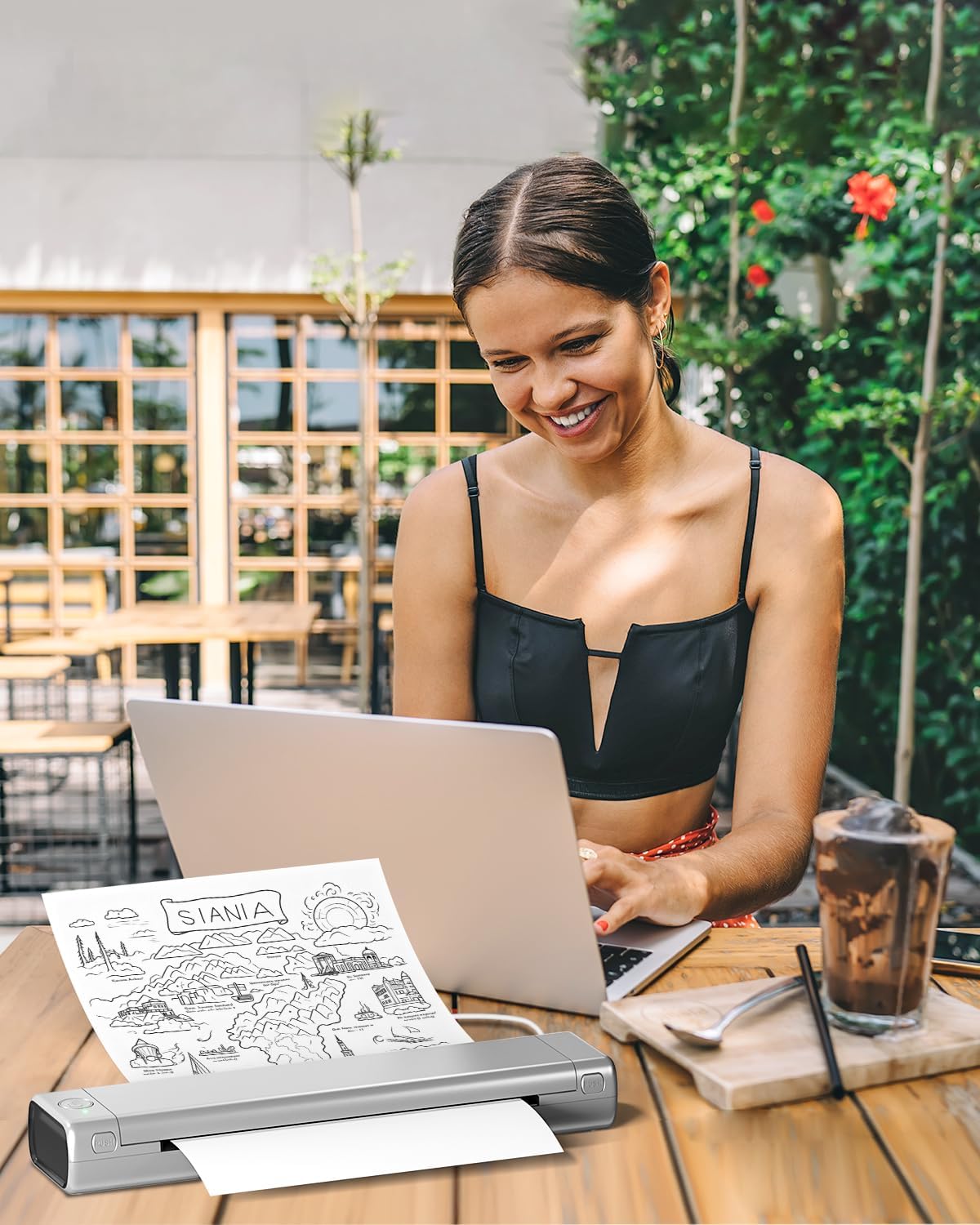
Figure 5.1: A professional using the Phomemo M08F printer in a mobile office setting, demonstrating its utility for printing documents like sales contracts on the go.

Figure 5.2: A woman using the Phomemo M08F printer outdoors with her laptop, illustrating the printer's portability and convenience for travel, study, or remote work.

Figure 5.3: Children in a classroom environment interacting with the Phomemo M08F printer, demonstrating its applicability for educational activities and printing learning materials.

Figure 5.4: A group of individuals collaborating around a table, utilizing the Phomemo M08F printer to print design mock-ups or planning documents, showcasing its versatility in professional settings.
5.4 Print Quality
The Phomemo M08F provides a print clarity of up to 203 DPI with black and white thermal printing. For best results, ensure your thermal paper is of good quality and properly loaded.
6. Maintenance
6.1 Cleaning the Print Head
To maintain print quality, regularly clean the print head. Use a cotton swab lightly dampened with isopropyl alcohol. Gently wipe the print head surface. Allow it to dry completely before use.
6.2 Battery Care
- Charge the printer regularly, even if not in frequent use, to prolong battery life.
- Avoid exposing the printer to extreme temperatures.
- If storing for an extended period, charge the battery to about 50% before storage.
6.3 Paper Storage
Store thermal paper in a cool, dry place away from direct sunlight and heat to prevent premature fading of prints.
7. Troubleshooting
7.1 Common Issues and Solutions
| Problem | Possible Cause | Solution |
|---|---|---|
| Printer not turning on | Low battery; Power button not pressed correctly. | Charge the printer; Press and hold the power button for a few seconds. |
| Poor print quality / Faded prints | Print head dirty; Low battery; Incorrect paper type or orientation; Old thermal paper. | Clean the print head (Section 6.1); Charge the printer; Ensure correct thermal paper is loaded with printable side up; Use fresh thermal paper. |
| Cannot connect via Bluetooth | Bluetooth not enabled; Printer not in pairing mode; App issue; Interference. | Ensure Bluetooth is on and printer is discoverable; Restart printer and mobile device; Reinstall Phomemo app; Move closer to printer. |
| Cannot print from PC/Mac | Drivers not installed; Incorrect USB connection; Printer not selected. | Install drivers (Section 4.3); Try a different USB port or cable; Select Phomemo M08F as the printer in your application. |
| Paper jam | Improper paper loading; Damaged paper. | Open paper cover and carefully remove jammed paper; Ensure paper is loaded straight and not wrinkled. |
If you encounter issues not listed here, please refer to the Phomemo official website or contact customer support.
8. Specifications
| Feature | Detail |
|---|---|
| Model Name | M08F Pro |
| Printing Technology | Thermal |
| Connectivity | Bluetooth, USB |
| Max Media Size | A4 |
| Print Resolution (B&W) | 203 dpi or more |
| Product Dimensions | 35P x 6.5l x 4H centimeters |
| Item Weight | 34.99 Grams |
| Battery Type | Lithium-ion (included) |
| Compatible Devices | Laptop, PC, Smartphone, Tablet |
| Supported OS | Android, iOS, Mac OS, Windows, Chrome OS, Linux |
9. Warranty and Support
9.1 Warranty Information
The Phomemo M08F Portable Thermal Printer comes with a limited warranty. Please refer to the warranty card included in your package or visit the official Phomemo website for detailed warranty terms and conditions.
Warranty Type: Limited Warranty
9.2 Customer Support
For technical assistance, troubleshooting, or any inquiries regarding your Phomemo M08F printer, please contact Phomemo customer support through their official channels:
- Official Website: https://phomemo.com
- Driver Download: https://phomemo.com/pages/m08f
- Refer to the contact section on the official website for email or phone support.
Related documentsM08F Pro


Ask a question about this manual
Ask about setup, troubleshooting, compatibility, parts, safety, or missing instructions. Manuals+ will review the question and use this page’s manual context to help answer it.