
ZHNN a38952fd-716f-4dec-91bf-d07a42de6510
Contents
ZHNN Wireless CarPlay Adapter Instruction Manual
Model: a38952fd-716f-4dec-91bf-d07a42de6510
1. Product Overview
The ZHNN Wireless CarPlay Adapter is designed to integrate wireless Apple CarPlay and Android Auto functionality into compatible Toyota vehicles. This retrofit kit decoder allows users to access smartphone features such as navigation, music, calls, and messaging directly on their car's infotainment screen, enhancing convenience and safety while driving. It retains original car controls, including steering wheel buttons and touch screen functionality.
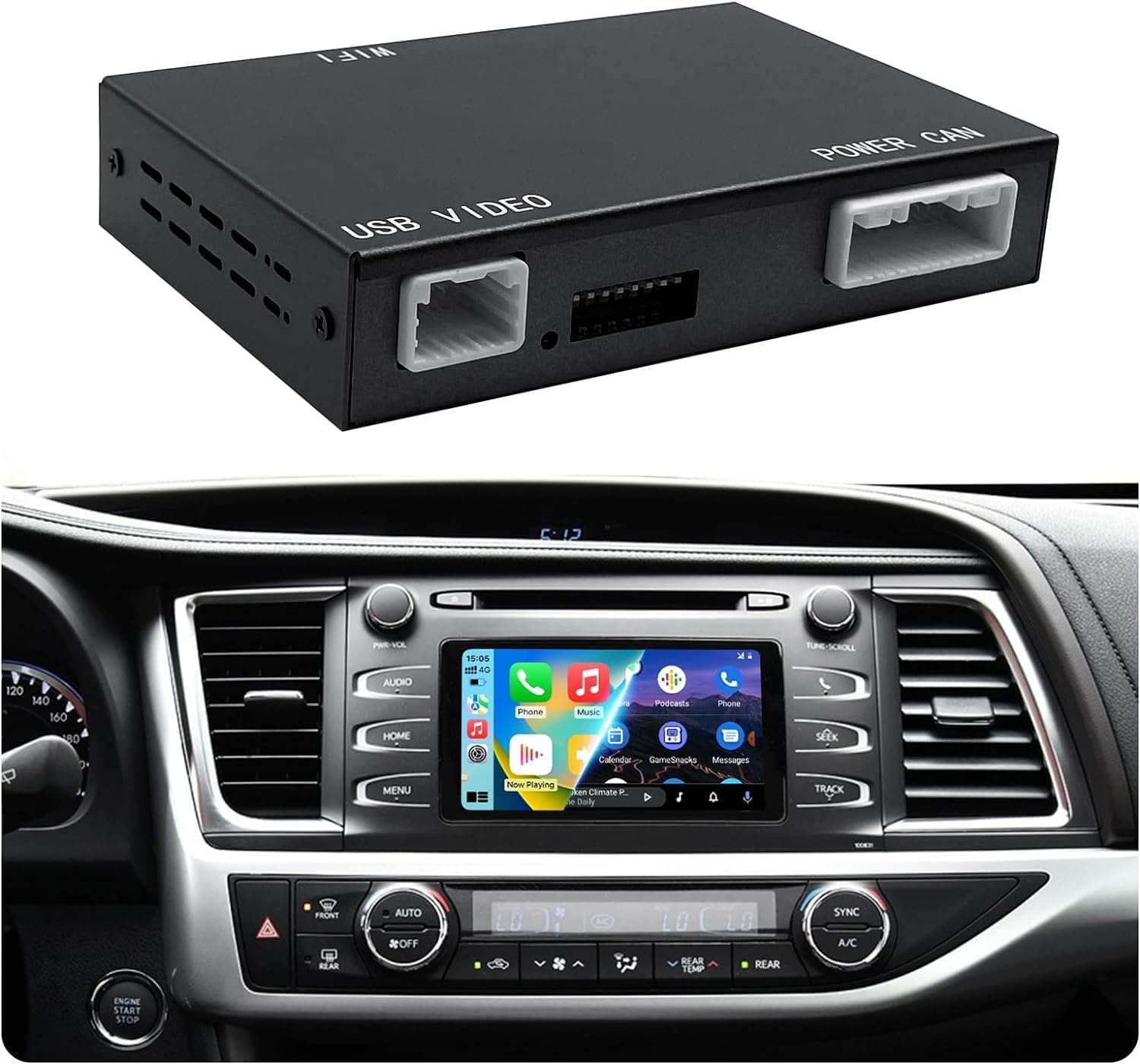
Image: The ZHNN Wireless CarPlay Adapter module shown above a Toyota car dashboard displaying the CarPlay interface.

Image: Promotional banner highlighting the adapter's compatibility with Toyota 2014-2019 models featuring Touch2 & Entune2.0 systems.
2. Compatibility
This CarPlay adapter is specifically designed for Toyota vehicles manufactured from 2014 to 2019 that are equipped with the Touch2 & Entune2.0 infotainment system. Please verify your car's system before purchase.
2.1 Compatible Models:
- Toyota Tundra (2014-2019)
- Toyota RAV4 (2014-2019)
- Toyota Highlander (2014-2019)
- Toyota 4Runner (2014-2019)
- Toyota Tacoma (2014-2019)
- Toyota Camry (2014-2019)
- Toyota Corolla (2014-2019)
- Toyota Avalon (2015-2018)
- Toyota Prius (2016-2019)
- Toyota Sienna (2015-2017)
- Toyota CH-R (2018)
- Toyota Avensis (2014-2019)
- Toyota Auris (2014-2019)
- Toyota Yaris (2014-2018)
- Toyota 86 (2017-2019)
- Toyota Verso (2014-2019)
- Toyota Verso S (2014-2019)
- Toyota Sequoia (2014-2019)
- Toyota Alphard (2015-2017)
- Toyota Land Cruiser (2014-2019)
- Toyota Land Cruiser Prado (2014-2019)
2.2 Important Exclusions:
- NOT compatible with Corolla 86140-02540 Fujitsu with 7" display.
- NOT compatible with 4Runner with Pioneer host.
- NOT compatible with Toyota cars equipped with a 360 camera/bird's eye view system.
- If your car's infotainment system does not have an AUX icon, this adapter will NOT be compatible.
- NOT compatible with Toyota CHR 2019.

Image: A detailed list of compatible Toyota models and years, along with visual representations of Entune 2.0 and Touch 2 system interfaces.

Image: A banner emphasizing the importance of verifying car model compatibility with Touch2 & Entune2.0 systems before purchase.
3. Package Contents
Upon opening the package, please ensure all the following components are present and in good condition:
- CarPlay Adapter Module (1 unit)
- USB Video Cable (1 unit)
- Power Cable (1 unit)
- User Manual (1 unit)
- Installation Tools (e.g., pry tool)
- Wiring Harnesses (various, for connection)

Image: A visual representation of the CarPlay adapter module, various cables, wiring harnesses, installation tools, and the user manual included in the package.

Image: A combined image showing the product dimensions and the various components included, alongside a detailed connection diagram for installation.
4. Setup and Installation
Installation of this adapter requires accessing your car's infotainment system. It is highly recommended to watch the provided installation instructions and videos before attempting installation. Professional installation is advised if you are not comfortable with car electronics.
4.1 Initial Setup Steps:
- After physical installation, ensure your car's infotainment system is powered on.
- Click the "AUX" icon on your car's screen to enter the upgrade system. This is a crucial step for the adapter to function correctly.
- Plug the CarPlay adapter into your car's USB port.
- Pair your smartphone with the adapter via Bluetooth.
- Turn on your phone's Wi-Fi to establish the wireless connection.
4.2 Wireless CarPlay / Wireless Android Auto Connection Method:
- On the adapter's interface, select "Bluetooth".
- Check the Bluetooth device name (e.g., "CAR-BT-xxxx") and pair your device.
- Ensure Bluetooth and Wi-Fi are enabled on your phone, then confirm pairing.
- Wait for the connection to succeed. Your phone's CarPlay or Android Auto interface should appear on the car screen.

Image: A step-by-step visual guide illustrating the connection process for wireless CarPlay and Android Auto, including Bluetooth pairing and Wi-Fi activation.
4.3 Wireless Screen Mirroring (AirPlay / AutoLink) Connection Method:
- On the adapter's interface, select "Airplay" (for iOS) or "AutoLink" (for Android).
- Turn on your phone's wireless LAN option. The search bar will show the "CAR-WIFI-XXX" network. Connect to it using the password 66668888.
- After the CarPlay Wi-Fi connection is successful, return to your phone's main interface and select "Screen Mirroring" (for iOS) or "AutoLink" (for Android).
- Once "Screen Mirroring" is activated on your mobile phone, the content will be cast to your car screen.
5. Operating Instructions
5.1 Wireless CarPlay & Android Auto Functionality:
Once connected, the adapter enables seamless wireless CarPlay or Android Auto. This allows you to:
- Make and receive hands-free calls.
- Send and read messages.
- Play music and podcasts from your smartphone.
- Utilize real-time navigation applications.
- Access Siri or Google Assistant for voice commands.

Image: Side-by-side comparison showing the wireless Apple CarPlay and Android Auto interfaces displayed on a car's infotainment screen.

Image: Illustrates compatibility with most iOS (iOS 9+) and Android (Android 6.0+) phones, showcasing features like real-time navigation, voice control, music playback, and calling functions.
5.2 Phone Mirror Function:
The adapter supports phone mirroring (Airplay for iOS, AutoLink for Android), allowing you to cast your smartphone's content directly to your car's screen. This feature is ideal for viewing videos, photos, or other media on a larger display.

Image: A composite image demonstrating various functions including phone mirroring (Mirror Link), support for reversing camera input, USB video playback, and voice assistant control.
5.3 Retain Original Car Control:
The adapter is designed to work seamlessly with your vehicle's existing controls, ensuring a familiar and intuitive user experience. This includes:
- Steering wheel controls (e.g., volume, track skip, answer/reject calls, voice assistant activation).
- Original car touch screen control.
- Support for the original reversing camera.

Image: Demonstrates how the adapter supports both original car button controls (e.g., steering wheel buttons) and the car's touch screen for interacting with CarPlay/Android Auto.

Image: A visual guide detailing specific steering wheel button functions (volume, track, call, Siri activation) and confirming support for the original car's touch screen.
5.4 Voice Assistant Control:
Access your smartphone's voice assistant (Siri for Apple CarPlay, Google Assistant for Android Auto) at any time. This allows for hands-free operation of various functions, including:
- Making calls.
- Playing specific music or playlists.
- Getting navigation directions.
- Checking weather.
- Sending messages.

Image: Depicts a car dashboard with the CarPlay interface, showing examples of voice commands for Siri, such as "Call Mom," "How's the weather today," and "Play my favorite music."
5.5 Product Functions Overview:

Image: A comprehensive overview of the adapter's capabilities, including phone calls, online music streaming, navigation, Siri control, USB media playback, screen mirroring, wireless CarPlay, and wireless Android Auto.
6. Troubleshooting
- No Display After Installation: Ensure all cables are securely connected. Verify that you have clicked the "AUX" icon on your car's screen to enter the upgrade system.
- Wireless Connection Issues:
- Confirm Bluetooth is enabled and paired on your phone and the adapter.
- Ensure Wi-Fi is enabled on your phone for the wireless connection.
- Try forgetting the Bluetooth device on your phone and re-pairing.
- Restart both your phone and the car's infotainment system.
- Audio Problems:
- Check the volume levels on both your phone and the car's system.
- Ensure the correct audio input (AUX) is selected on your car's head unit.
- Screen Mirroring Not Working:
- For Airplay/AutoLink, ensure your phone is connected to the adapter's Wi-Fi network ("CAR-WIFI-XXX") using the password 66668888.
- Verify that screen mirroring is activated on your phone after connecting to the adapter's Wi-Fi.
- Compatibility Issues:
- Double-check your car model and year against the compatibility list in Section 2.
- Remember, this adapter is not compatible with Toyota CHR 2019, Corolla 86140-02540 Fujitsu with 7" display, 4Runner with Pioneer host, or vehicles with 360 camera/bird's eye view systems.
- The absence of an AUX icon in your car's system indicates incompatibility.
7. Specifications
| Feature | Detail |
|---|---|
| Brand | ZHNN |
| Model Number | a38952fd-716f-4dec-91bf-d07a42de6510 |
| Compatible Devices | Smartphone (iOS and Android) |
| Hardware Interface | Bluetooth, USB |
| Wireless Standard | Bluetooth |
| Number of Ports | 1 (USB) |
| Color | Black |
| Product Dimensions | 12.75 x 8.4 x 2.59 cm (approximate host size) |
| Item Weight | 661 g (Parcel Weight) |
| Batteries Required | No |
8. Warranty and Support
For technical support and warranty inquiries, please refer to the contact information provided with your purchase or on the official ZHNN website. It is recommended to watch the installation instructions and videos before installing the product to ensure proper setup and avoid potential issues.
The product typically comes with a standard manufacturer's warranty. Please retain your proof of purchase for any warranty claims.
9. Official Product Videos (Not Available)
Based on the provided product data, no official product videos with embeddable links or relevant creator information were available for inclusion in this manual.
Ask a question about this manual
Ask about setup, troubleshooting, compatibility, parts, safety, or missing instructions. Manuals+ will review the question and use this page’s manual context to help answer it.