
1. Introduction
Thank you for choosing the Syble D20R 2D QR Wireless Barcode Scanner. This device is designed for efficient and reliable scanning of both 1D and 2D barcodes, including QR codes. It offers flexible connectivity options, including Bluetooth and 2.4GHz wireless, making it suitable for various retail, logistics, and inventory management applications.
Please read this manual thoroughly before operating the scanner to ensure proper usage and to maximize its performance and lifespan.
2. Product Overview
The Syble D20R is a portable and ergonomically designed barcode scanner equipped with an advanced decoding chip for fast and accurate scanning. Its dual-mode wireless connectivity provides versatility for different operating environments.
Key Features:
- Dual Connectivity: Supports both Bluetooth and 2.4GHz wireless connections.
- 2D QR Code Scanning: Capable of scanning and decoding 2D QR barcodes efficiently.
- Ergonomic Design: Stylish and comfortable for extended use.
- Plug and Play: Easy setup and immediate operation.
- Long Battery Life: Equipped with a 1400mAh battery, offering up to 15 days standby time and 6 hours of continuous operation.
- Wide Compatibility: Works with tablets, laptops, desktop computers, and smartphones.
Package Contents:
- Syble D20R Barcode Scanner
- USB Charging Cable
- 2.4GHz Wireless Dongle (if applicable)
- User Manual (this document)
3. Setup
Before first use, ensure the scanner is fully charged.
3.1 Charging the Scanner
- Connect the small end of the USB charging cable to the charging port on the scanner.
- Connect the larger end of the USB cable to a USB power adapter (not included) or a computer's USB port.
- The charging indicator light will illuminate. Once fully charged, the light may change color or turn off, depending on the model.
Note: A full charge typically takes approximately 2-3 hours.
3.2 Connecting to a Device
The Syble D20R offers two primary connection methods:
3.2.1 2.4GHz Wireless Connection (via USB Dongle)
- Insert the 2.4GHz USB dongle into an available USB port on your computer or compatible device.
- Turn on the barcode scanner. It should automatically pair with the dongle.
- A successful connection is usually indicated by a specific sound or LED light on the scanner.
- Open a text editor or application where you want the scanned data to appear and test by scanning a barcode.
3.2.2 Bluetooth Connection
- Turn on the barcode scanner.
- Put the scanner into Bluetooth pairing mode. This usually involves scanning a specific "pairing" barcode from the supplementary guide or holding a button. Refer to the quick start guide for the exact pairing barcode if available.
- On your host device (smartphone, tablet, laptop), go to Bluetooth settings and enable Bluetooth.
- Search for available devices. The scanner should appear as "Syble D20R" or a similar name.
- Select the scanner to pair. Once paired, the scanner will indicate a successful connection.
- Open a text editor or application and test by scanning a barcode.
4. Operating Instructions
4.1 Basic Scanning
- Ensure the scanner is powered on and connected to your host device.
- Point the scanner's window at the barcode you wish to scan.
- Press the trigger button. A red aiming line or light will appear.
- Position the aiming line across the entire barcode.
- Once successfully scanned, the scanner will emit a beep and/or the indicator light will flash. The barcode data will appear in your active application.
Tip: For best results, hold the scanner at an appropriate distance (typically 5-20 cm) and angle to the barcode, avoiding glare.
4.2 Scanning 2D QR Codes
The D20R is specifically designed to read 2D QR codes. The process is similar to 1D barcodes:
- Ensure the entire QR code is within the scanner's field of view.
- Press the trigger button. The scanner's advanced decoding chip will quickly process the QR code.
4.3 Power Management
- Automatic Sleep Mode: To conserve battery, the scanner will enter sleep mode after a period of inactivity. Press the trigger button to wake it up.
- Power Off: To turn off the scanner completely, refer to the quick start guide or scan the "Power Off" barcode if provided.
5. Maintenance
Proper maintenance ensures the longevity and optimal performance of your barcode scanner.
- Cleaning: Use a soft, lint-free cloth slightly dampened with water or a mild cleaning solution to clean the scanner's exterior and scanning window. Do not use abrasive cleaners or solvents.
- Storage: Store the scanner in a cool, dry place away from direct sunlight and extreme temperatures.
- Battery Care: Avoid fully discharging the battery frequently. For long-term storage, charge the battery to about 50% and store in a cool place.
- Avoid Drops: While designed to be durable, avoid dropping the scanner, as this can damage internal components.
6. Troubleshooting
| Problem | Possible Cause | Solution |
|---|---|---|
| Scanner does not turn on. | Low battery. | Charge the scanner for at least 2-3 hours. |
| Scanner does not connect to device. | Incorrect pairing mode, out of range, Bluetooth/dongle issue. | Ensure scanner is in correct pairing mode. Check device's Bluetooth settings. Re-insert USB dongle. Move closer to the host device. |
| Scanner does not read barcodes. | Barcode damaged, poor lighting, incorrect angle/distance, scanner not connected. | Ensure barcode is clear and undamaged. Adjust lighting. Try different angles and distances. Verify connection to host device. |
| Scanned data appears incorrectly. | Keyboard layout mismatch, data format settings. | Check the host device's keyboard language settings. Refer to the supplementary programming guide for data format adjustments. |
If the problem persists, please contact customer support.
7. Specifications
| Feature | Detail |
|---|---|
| Model | D20R |
| Connectivity | Bluetooth, 2.4GHz Wireless |
| Scan Capability | 1D and 2D (QR) Barcodes |
| Battery Capacity | 1400mAh |
| Standby Time | Up to 15 days |
| Continuous Operation | Up to 6 hours |
| Compatible Devices | Tablets, Laptops, Desktop Computers, Smartphones |
| Manufacturer | Syble |
| Country of Origin | China |
8. Warranty and Support
8.1 Warranty Information
The Syble D20R Barcode Scanner comes with a standard manufacturer's warranty against defects in materials and workmanship. The specific terms and duration of the warranty may vary by region and retailer. Please retain your proof of purchase for warranty claims.
This warranty does not cover damage caused by misuse, accidents, unauthorized modifications, or normal wear and tear.
8.2 Customer Support
For technical assistance, troubleshooting, or warranty inquiries, please contact your retailer or the manufacturer's customer support. Contact information can typically be found on the product packaging or the manufacturer's official website.
9. Product Image
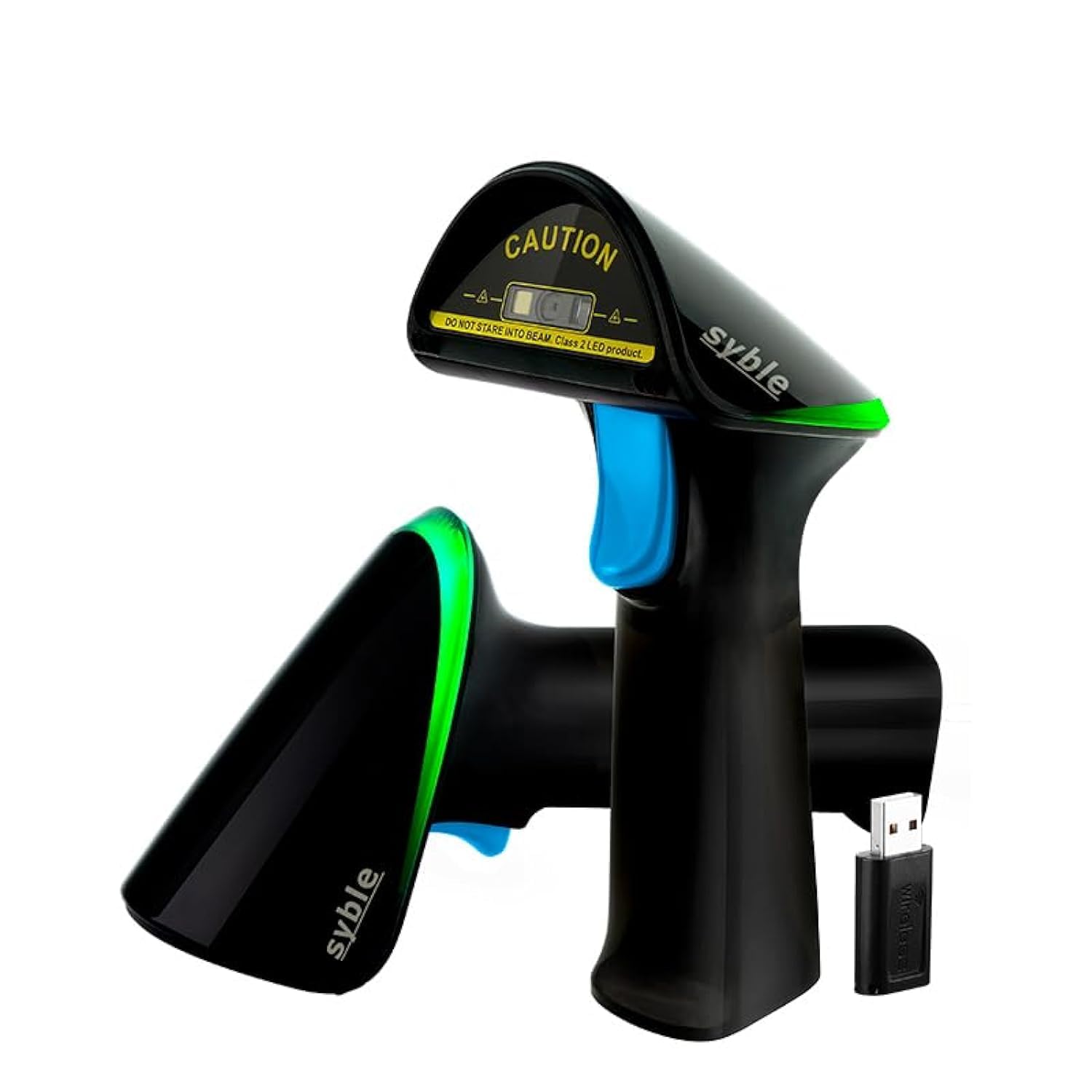
Image: The Syble D20R 2D QR Wireless Barcode Scanner, showcasing its compact and ergonomic design. The scanner is black with a prominent scanning window and a trigger button, designed for comfortable handheld operation.


