1. Introduction and Overview
The Alxum Wireless Android Auto Adapter converts your car's existing wired Android Auto system into a wireless one. This device eliminates the need for physical cable connections, providing a more convenient and clutter-free driving experience. It allows seamless access to Android Auto features such as navigation, phone calls, music playback, and voice assistant directly on your car's display.
Key features include a stable 5.8GHz WiFi connection, an intelligent IC chip for reduced audio latency, and automatic pairing after the initial setup. The adapter supports Android phones running Android 12.0 or above and is compatible with cars equipped with factory-installed wired Android Auto.

Image 1.1: The Alxum Wireless Android Auto Adapter facilitating wireless connection between a smartphone and a car's infotainment system.
2. What's in the Box
Upon opening the package, you should find the following items:
- 1x Alxum Wireless Android Auto Adapter
- 1x USB-A to USB-C Adapter
- 1x User Manual (this document)

Image 2.1: The Alxum adapter showcasing its internal components and design features.
3. Setup Instructions
Follow these steps to set up your Alxum Wireless Android Auto Adapter:
- Step 1: Connect the Adapter to your Car. Plug the Alxum Wireless Android Auto Adapter into the USB port of your car that supports data transfer. If your car has a USB-C port, use the provided USB-A to USB-C adapter.
- Step 2: Enable Wi-Fi and Bluetooth on your Phone. On your Android smartphone, turn on both Wi-Fi and Bluetooth. Ensure your phone is not connected to other Wi-Fi networks.
- Step 3: Pair with the Adapter. Search for the adapter's Bluetooth name (e.g., "smart AD-xxxx") in your phone's Bluetooth settings and pair with it.
- Step 4: Start Android Auto. Once paired, your car's display should automatically launch Android Auto wirelessly.
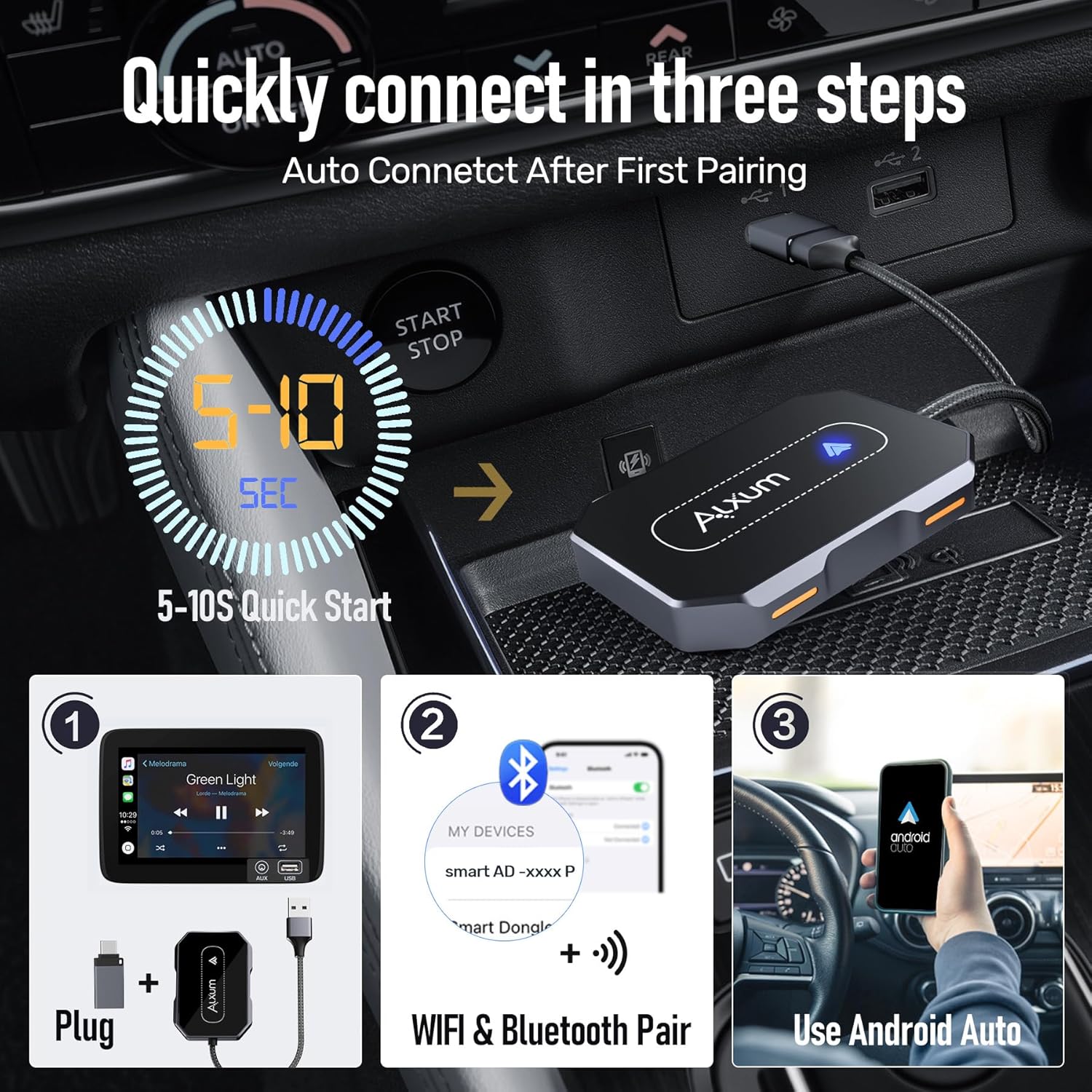
Image 3.1: Visual guide for the quick three-step setup process.
After the first successful pairing, the adapter will automatically connect to your phone when you start your car, provided Bluetooth and Wi-Fi are enabled on your device.
Setup Video Guide
Video 3.1: An official video demonstrating the setup and functionality of the Wireless Android Auto Car Adapter.
4. Operating Instructions
Once connected, the Alxum Wireless Android Auto Adapter allows you to use all standard Android Auto functions wirelessly. Your car's original control methods remain fully functional.
- Navigation: Access Google Maps or other compatible navigation apps directly on your car's screen.
- Communication: Make and receive calls, send messages, and access your contacts.
- Media Playback: Stream music, podcasts, and audiobooks from your favorite apps.
- Voice Assistant: Utilize voice commands (e.g., "Hey Google") for hands-free control of various functions.
Control Methods
The adapter supports the following original car control methods:
- Steering Wheel Controls: Use your car's steering wheel buttons to manage audio, calls, and navigation.
- Touch Screen Control: Interact directly with the car's infotainment touchscreen.
- OEM Knob Control: For vehicles with a central control knob, this method remains functional.

Image 4.1: The adapter integrates with existing car controls for a familiar user experience.
5. Maintenance
To ensure the longevity and optimal performance of your Alxum Wireless Android Auto Adapter, consider the following maintenance guidelines:
- Cleaning: Gently wipe the adapter with a soft, dry cloth. Avoid using liquid cleaners or abrasive materials.
- Storage: Store the adapter in a cool, dry place when not in use. Avoid exposing it to direct sunlight or extreme temperatures.
- Cable Care: The adapter features a nylon braided cable. Avoid sharp bends or excessive pulling to prevent damage.
6. Troubleshooting
If you encounter issues with your Alxum Wireless Android Auto Adapter, refer to the following common troubleshooting steps:
- Connection Failure:
- Ensure your car has factory-installed wired Android Auto. The adapter is not compatible with cars that do not support wired Android Auto.
- Verify that your Android phone is running Android 12.0 or a newer version.
- Check that both Wi-Fi and Bluetooth are enabled on your phone.
- Confirm that your phone is not connected to any other Wi-Fi networks or Bluetooth devices that might interfere with the adapter's connection.
- Try unplugging the adapter from the car's USB port and plugging it back in.
- Restart your smartphone and your car's infotainment system.
- Audio Latency or Disconnections:
- Ensure the adapter is securely plugged into a USB port that supports data transfer.
- Minimize other wireless interference sources in the vehicle.
- Check for firmware updates for the adapter (see "Online Upgrades" below).
- Online Upgrades:
The Alxum Wireless Android Auto Adapter supports online firmware updates to improve performance and compatibility. Refer to the official Alxum website or contact customer support for detailed instructions on how to perform an online update.
If these steps do not resolve your issue, please contact Alxum customer support for further assistance.
7. Specifications
| Feature | Detail |
|---|---|
| Brand | Alxum |
| Model Number | BY960X-A |
| Connectivity Technology | USB, 5.8GHz WiFi, Bluetooth |
| Connector Type | USB Type A (with USB-A to USB-C adapter included) |
| Compatible Devices | Cars with factory wired Android Auto, Android Phones with Android 12+ |
| Specific Uses | Convert wired Android Auto to wireless, GPS, Hands-free calls, Music playback |
| Special Features | Online Upgrade Only, Dual Connection Design |
| Item Weight | 3.35 ounces |
| Package Dimensions | 6.5 x 2.68 x 1.06 inches |
| Manufacturer | Shenzhen Boyi Electronic Co., Ltd. |
| Date First Available | December 13, 2023 |
8. Warranty and Support
Alxum provides professional customer support for the Wireless Android Auto Adapter. For any inquiries, technical assistance, or warranty claims, please refer to the contact information provided with your product packaging or visit the official Alxum website.
If you experience any issues, Alxum support is available to assist with troubleshooting and firmware updates.


