
1. Introduction
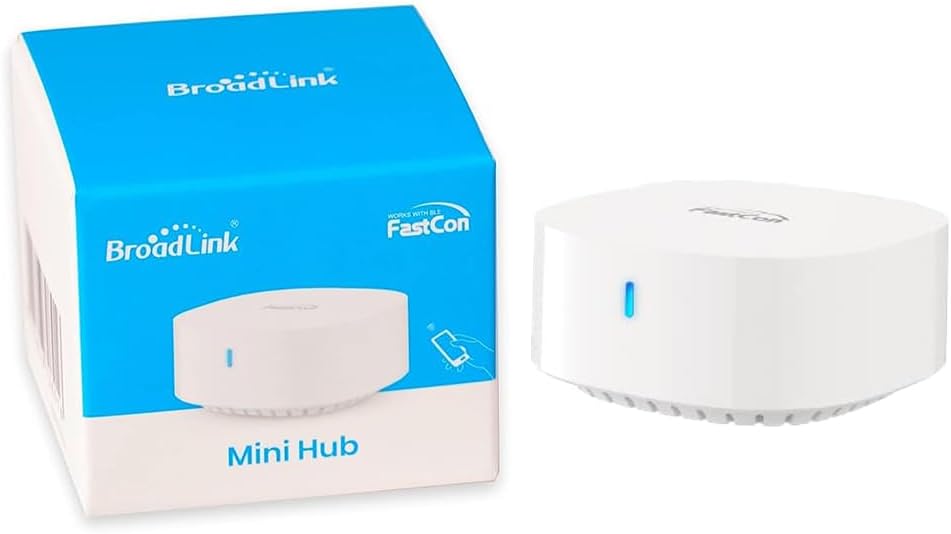
Thank you for choosing the BroadLink FastCon Mini Hub (GW4C). This device serves as a central controller for your BroadLink FastCon smart home devices, enabling remote control and voice command integration. This manual provides essential information for setting up, operating, and maintaining your Mini Hub.
2. Safety Information
- Ensure the device is placed in a dry environment, away from water or excessive humidity.
- Do not expose the device to extreme temperatures or direct sunlight.
- Avoid dropping or subjecting the device to strong impacts.
- Do not attempt to disassemble or repair the device yourself. Contact customer support for assistance.
- Use only the provided power adapter or a compatible power source.
3. Package Contents
Verify that your package contains the following items:
- BroadLink FastCon Mini Hub (GW4C)
- USB Power Cable
- User Manual (this document)
4. Setup
4.1 Initial Setup and App Pairing
- Power On: Connect the Mini Hub to a power source using the provided USB cable. The indicator light will begin to flash.
- Download App: Download the BroadLink App from your smartphone's app store (iOS or Android).
- Add Device: Open the BroadLink App, create an account if you haven't already, and follow the in-app instructions to add a new device. Select the FastCon Mini Hub.
- Wi-Fi Configuration: The app will guide you through connecting the Mini Hub to your 2.4 GHz Wi-Fi network. Ensure your phone is connected to the same 2.4 GHz network during setup. Note: 5GHz Wi-Fi networks are not supported.
- FastCon Device Connection: Once the Mini Hub is successfully connected, any BroadLink FastCon devices (version 4.0 and above) within range will automatically connect to the hub without further pairing steps.

5. Operating
5.1 Remote Control
The BroadLink App allows you to control your connected FastCon devices from anywhere, as long as your Mini Hub has an internet connection. You can turn devices on/off, adjust settings, and monitor their status directly from your smartphone.

5.2 Voice Control Integration
The Mini Hub enables voice control for your FastCon devices through compatible smart assistants like Amazon Alexa and Google Home. Link your BroadLink account within the Alexa or Google Home app to enable voice commands.

5.3 Device Timer
Utilize the BroadLink App to set schedules and timers for your connected FastCon devices. This allows for automated operation, such as turning lights on or off at specific times.

6. Maintenance
6.1 Cleaning
To clean the Mini Hub, gently wipe its surface with a soft, dry cloth. Do not use liquid cleaners or abrasive materials, as these can damage the device.
6.2 Storage
When not in use for extended periods, store the Mini Hub in a cool, dry place, away from direct sunlight and extreme temperatures.
7. Troubleshooting
If you encounter issues with your BroadLink FastCon Mini Hub, refer to the following table for common problems and solutions:
| Problem | Possible Solution |
|---|---|
| Mini Hub not connecting to Wi-Fi | Ensure your Wi-Fi network is 2.4 GHz. Check Wi-Fi password. Move the hub closer to the router. Restart the hub and your router. |
| FastCon devices not connecting to Mini Hub | Ensure the Mini Hub is successfully connected to Wi-Fi. Verify FastCon devices are within range and are FastCon 4.0 or above. Restart the FastCon devices. |
| Voice control not working with Alexa/Google Home | Ensure your BroadLink account is linked correctly in the Alexa/Google Home app. Check internet connectivity for both the hub and your voice assistant device. Try re-discovering devices in the Alexa/Google Home app. |
| App cannot find the Mini Hub | Ensure your smartphone is connected to the same 2.4 GHz Wi-Fi network as the hub during setup. Restart the app and the hub. |
8. Specifications
| Feature | Detail |
|---|---|
| Model Number | GW4C |
| Brand | Broadlink |
| Connectivity Technology | FastCon (4.0 and above), 2.4 GHz Wi-Fi |
| Compatible Devices | BroadLink FastCon devices |
| Voice Assistant Compatibility | Amazon Alexa, Google Home |
| Maximum Connected Devices | Up to 250 BroadLink FastCon devices |
| Item Weight | 1.13 ounces |
| Package Dimensions | 3.98 x 3.43 x 0.94 inches |
| Material | Aluminum |
| Color | White |
| Voltage | 120 Volts |
| Wattage | 4.5 watts |
9. Warranty and Support
9.1 Warranty Information
BroadLink products typically come with a limited manufacturer's warranty. Please refer to the warranty card included with your product or visit the official BroadLink website for detailed warranty terms and conditions specific to your region.
9.2 Customer Support
For technical assistance, troubleshooting, or warranty claims, please contact BroadLink customer support through their official website or the contact information provided in the BroadLink App. Have your product model number (GW4C) and purchase details ready when contacting support.


