
Introduction
The VOCOlinc BR30 Smart LED Bulb is a versatile lighting solution designed for modern smart homes. This RGBW color-changing floodlight bulb offers tunable white light from 2200K to 7000K, dimmable brightness, and seamless integration with popular smart home platforms such as Amazon Alexa, Apple HomeKit, and Google Home. Control your lighting experience through voice commands or the dedicated VOCOlinc mobile application, enabling personalized schedules, group control, and various lighting effects.
Product Features
- Smart Voice Control: Compatible with Amazon Alexa, Apple HomeKit, and Google Home for hands-free operation.
- APP Remote Control: Manage your bulbs from anywhere using the free VOCOlinc app (iOS/Android).
- Group Control: Create groups to control multiple bulbs simultaneously with a single command.
- 16 Million Colors & Tunable White: Customize your ambiance with a vast color spectrum and adjustable white light (2200K-7000K).
- Dimmable: Adjust brightness levels to suit any mood or activity.
- Scheduling & Timers: Automate your lighting with custom schedules and timers for convenience and security.
- Energy Saving: Designed for efficiency with a lifespan of approximately 25,000 hours.

Figure 1: Overview of VOCOlinc BR30 Smart LED Bulb features.
Setup Instructions
1. Installation
- Ensure the power to the light fixture is turned off before installation.
- Carefully screw the VOCOlinc BR30 Smart LED Bulb into a standard E26 socket.
- Turn on the power to the light fixture. The bulb should light up, indicating it's ready for pairing.
2. Connecting to Wi-Fi (2.4GHz)
The VOCOlinc BR30 Smart LED Bulb requires a 2.4GHz Wi-Fi network for initial connection and operation. Ensure your smartphone is connected to a 2.4GHz Wi-Fi network during the setup process.
3. Pairing with VOCOlinc App
- Download the free VOCOlinc app from the App Store (iOS) or Google Play Store (Android).
- Open the VOCOlinc app and follow the on-screen instructions to add a new device.
- Scan the QR code located on the bulb or its packaging when prompted.
- Confirm your 2.4GHz Wi-Fi network and enter the password.
- The app will guide you through the final steps to connect your bulb.
4. Smart Home Integration (Optional)
After successful pairing with the VOCOlinc app, you can integrate your smart bulb with your preferred smart home ecosystem:
- Apple HomeKit: Open the Apple Home app, tap the '+' icon, select 'Add Accessory', and scan the HomeKit QR code on the bulb or packaging.
- Amazon Alexa: In the Alexa app, go to 'Devices', tap '+', select 'Light', choose 'VOCOlinc', and follow the instructions to enable the skill and discover devices.
- Google Home: In the Google Home app, tap '+', select 'Set up device', then 'Works with Google', search for 'VOCOlinc', and link your account.
Operating Instructions
1. App Control
The VOCOlinc app provides comprehensive control over your smart bulb:
- On/Off: Toggle the bulb's power.
- Brightness: Adjust the light intensity using a slider.
- Color Selection: Choose from 16 million colors using a color wheel or predefined color palettes.
- White Light Adjustment: Tune the white light from warm (2200K) to cool (7000K).
- Effects: Select from various dynamic lighting effects for different moods or occasions.
- Scheduling: Set specific times for the bulb to turn on/off, change color, or adjust brightness.
- Group Control: Group multiple VOCOlinc bulbs to control them simultaneously.

Figure 2: Remote control via the VOCOlinc app.
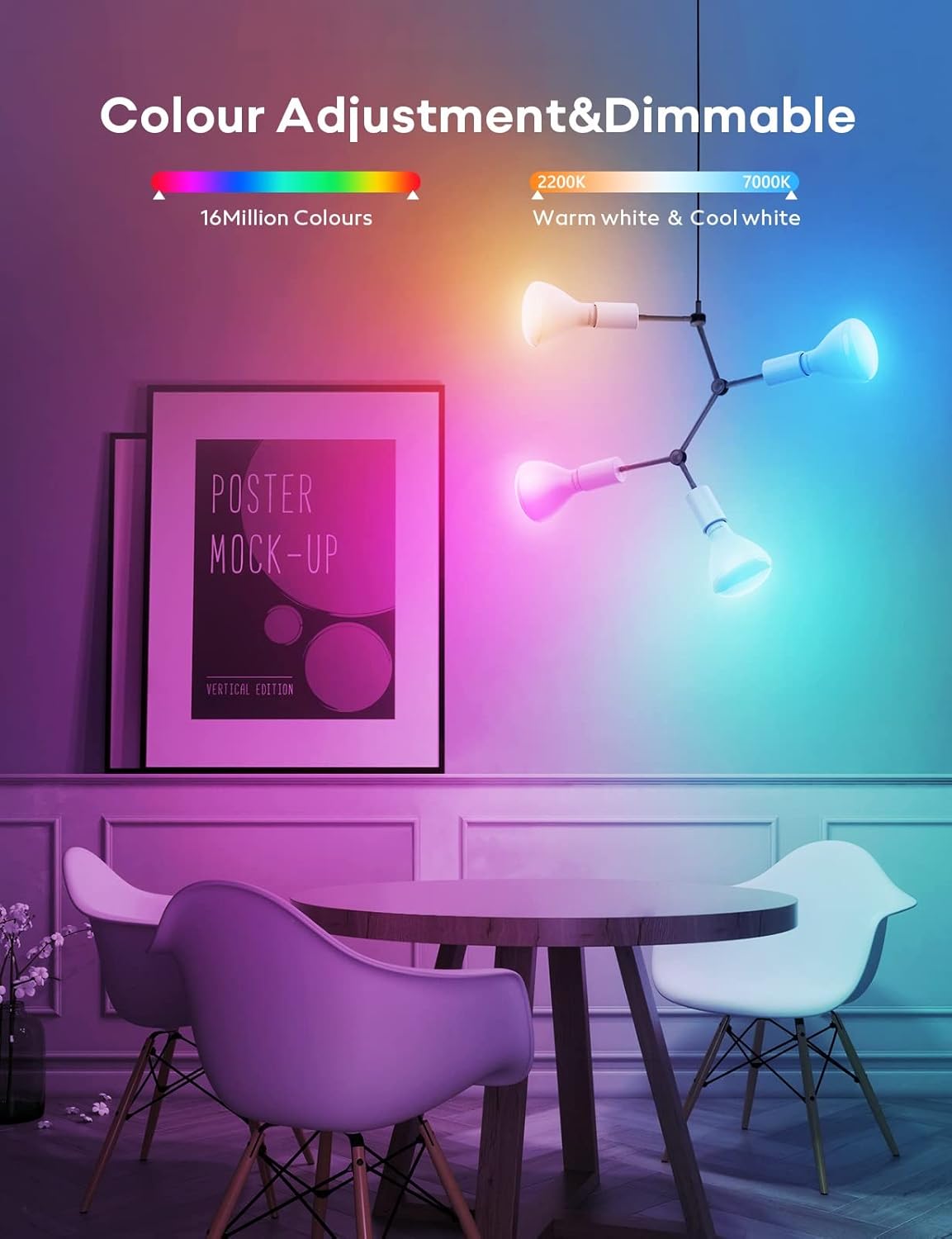
Figure 3: Color adjustment and dimming capabilities.

Figure 4: Group control functionality within the app.
2. Voice Control
Once integrated with a smart assistant, use voice commands to control your bulb:
- "Alexa, turn on the living room lights."
- "Hey Siri, dim the kitchen lights to 50%."
- "Hey Google, set the bedroom to blue."

Figure 5: Voice control integration with smart assistants.
3. Scheduling and Timers
Set up personalized schedules to automate your lighting:
- In the VOCOlinc app, navigate to the 'Schedule' section.
- Create new schedules for specific times, days, and desired light settings (on/off, brightness, color).
- Use timers for countdowns or specific duration lighting.

Figure 6: Setting personal light schedules.
Maintenance
The VOCOlinc BR30 Smart LED Bulb is designed for long-term use with minimal maintenance. To ensure optimal performance and longevity:
- Cleaning: Ensure the bulb is cool and the power is off before cleaning. Wipe the bulb with a soft, dry cloth. Do not use liquid cleaners or abrasive materials.
- Environment: This bulb is designed for indoor use only. Avoid exposure to water, high humidity, or extreme temperatures.
- Firmware Updates: Regularly check the VOCOlinc app for firmware updates to ensure your bulb has the latest features and security enhancements.
Troubleshooting
- Bulb Not Connecting/Responding:
- Ensure your Wi-Fi network is 2.4GHz. The bulb does not support 5GHz networks.
- Check your Wi-Fi signal strength. Move the bulb closer to your router if necessary.
- Restart your Wi-Fi router and the smart bulb (turn off/on power).
- Perform a factory reset on the bulb (typically by cycling power on/off multiple times) and attempt pairing again.
- Inconsistent Behavior (e.g., random turning on/off, unsynced groups):
- Verify a stable 2.4GHz Wi-Fi connection. Weak or intermittent signals can cause issues.
- Ensure the VOCOlinc app and bulb firmware are up to date.
- If using group control, ensure all bulbs are within good Wi-Fi range.
- Check for conflicting schedules or automations in your smart home apps.
- Voice Commands Not Working:
- Confirm the bulb is correctly linked to your smart assistant (Alexa, HomeKit, Google Home).
- Ensure your smart assistant device is online and functioning correctly.
- Use the exact names you assigned to your bulbs or groups in the smart home app.
Specifications
| Brand | VOCOlinc |
| Model Name | BR30-2P |
| Light Type | LED |
| Bulb Shape Size | BR30 |
| Bulb Base | E26 |
| Wattage | 9.5 Watts (60W Equivalent) |
| Brightness | 800 Lumens |
| Color Temperature | 2200K-7000K (Tunable White) |
| Light Color | RGBW (16 Million Colors) |
| Voltage | 120 Volts (AC) |
| Connectivity Protocol | Wi-Fi (2.4GHz only) |
| Control Method | App, Voice |
| Smart Home Compatibility | Amazon Alexa, Apple HomeKit, Google Assistant |
| Indoor/Outdoor Usage | Indoor |
| Light Source Operating Life | 25,000 Hours |
| Material Type | Acrylonitrile Butadiene Styrene (ABS) |
Warranty and Support
Warranty Information
The VOCOlinc BR30 Smart LED Bulb comes with a 1-year manufacturer's warranty. This warranty covers defects in materials and workmanship under normal use. Please retain your proof of purchase for warranty claims.
Customer Support
For any questions, technical assistance, or warranty inquiries, please contact VOCOlinc customer service. We provide 24-hour email service and return service.
- Email Support: Refer to the VOCOlinc official website or product packaging for the most current email address.
- Online Resources: Visit the VOCOlinc website for FAQs, troubleshooting guides, and product updates.

