
Introduction
This manual provides detailed instructions for the MelGeek Modern97 Fountain Wireless Mechanical Keyboard. It covers initial setup, operational procedures, customization options, maintenance guidelines, and troubleshooting tips to ensure optimal performance and user experience. Please read this manual thoroughly before using your keyboard.
Package Contents
Verify that all items are present in your package:
- 1 x MelGeek Mechanical Keyboard
- 1 x Type C Cable
- 1 x Keycap Puller
- 1 x User Manual (this document)
- 1 x 2.4G Dongle
- Extra Keycaps (quantity may vary)

Image: Contents of the MelGeek Modern97 Fountain package, including the keyboard, USB-C cable, keycap puller, 2.4G dongle, and extra keycaps.
Setup
Connectivity Modes
The MelGeek Modern97 keyboard supports three connectivity modes: 2.4G wireless, Bluetooth 5.1, and USB-C wired connection. This allows for versatile use across various devices and operating systems including Mac, iOS, Windows, Android, and Linux.
1. USB-C Wired Connection
Connect the provided USB-C cable from the keyboard to an available USB port on your computer. The keyboard will be automatically recognized and ready for use. This mode also charges the keyboard battery.
2. 2.4G Wireless Connection
Insert the 2.4G USB dongle into an available USB port on your computer. Ensure the keyboard's mode switch is set to 2.4G. The keyboard should connect automatically. This mode offers a polling rate of less than 1ms (1000Hz) for responsive performance.
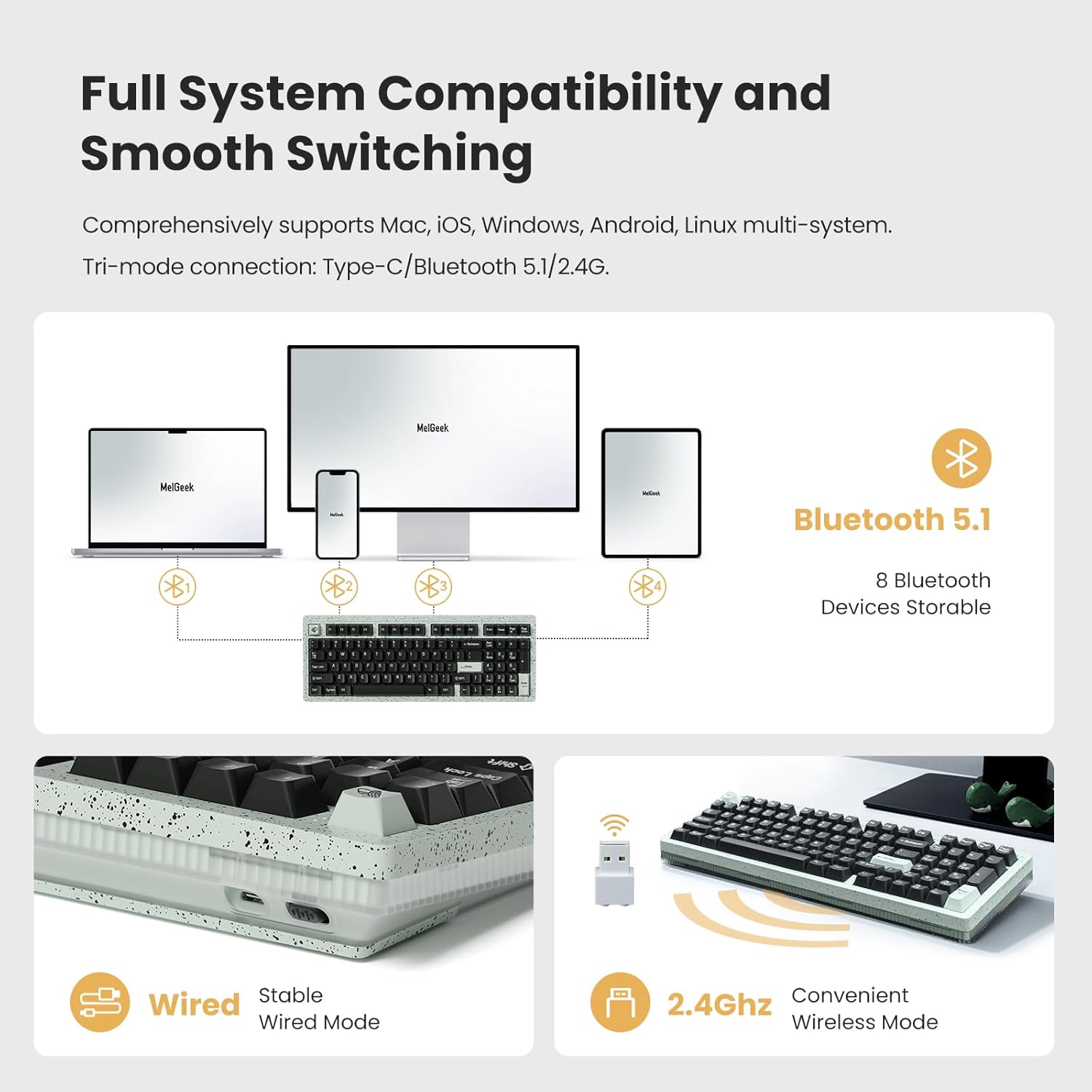
Image: Diagram illustrating the keyboard's triple mode connectivity (USB-C, Bluetooth, 2.4G) and compatibility with multiple operating systems.
3. Bluetooth 5.1 Connection
To connect via Bluetooth:
- Set the keyboard's mode switch to Bluetooth.
- On your device (computer, tablet, smartphone), enable Bluetooth and search for new devices.
- Select "MelGeek Modern97" from the list of available devices to pair.
- The keyboard can store up to 8 Bluetooth devices, allowing for quick switching between paired devices.
Operation
Basic Keyboard Functions
The Modern97 features a 97-key layout, providing a compact design while retaining essential keys for productivity and gaming. The keyboard includes standard alphanumeric keys, function keys (F1-F12), a numeric keypad, and dedicated arrow keys.
Battery Management
The keyboard is equipped with a 4000mAh high-capacity battery. Battery life can extend up to 400 days in power-saving mode. Charging occurs automatically when connected via USB-C.

Image: Visual representation of the keyboard's 4000mAh battery and its durability, power-saving, and performance modes.
Customization
The MelGeek Modern97 keyboard offers extensive customization options through the MelGeek Hive software. This software allows you to personalize key values, LED lighting, shortcuts, and macros.
MelGeek Hive Software
Download and install the MelGeek Hive software from the official MelGeek website to access advanced customization features.

Image: Screenshot of the MelGeek Hive software interface, demonstrating key value remapping capabilities.
1. Modifying Key Values
Within the MelGeek Hive software, navigate to the "Key Value" section. You can remap individual keys to perform different functions, including basic key presses, media controls, system commands, mouse actions, or special functions.
Video: Instructions on how to modify key values using the MelGeek Hive software.
2. Setting Shortcuts
The "Shortcuts" section in MelGeek Hive allows you to create custom key combinations for various functions, enhancing productivity. You can assign shortcuts for LED modes, brightness, system toggles, and more.
Video: Guide on setting up custom shortcuts using the MelGeek Hive software.
3. Programming Macros
Utilize the "Macro" page in MelGeek Hive to record and assign complex sequences of keystrokes. This feature is ideal for automating repetitive tasks or executing complex commands with a single key press.
Video: Tutorial on setting MACRO functions within the MelGeek Hive software.
4. Customizable RGB Backlight
Each key on the Modern97 features individual RGB backlighting. The MelGeek Hive software allows full customization of lighting effects, including 8 different RGB lighting types, brightness, speed, and the ability to set multiple colors for various zones or individual keys.

Image: The MelGeek Modern97 Fountain keyboard showcasing its customizable RGB backlighting.
Video: Demonstration of changing RGB-LED colors and effects using the MelGeek Hive software.
Maintenance
Cleaning Your Keyboard
To maintain the appearance and functionality of your keyboard, regularly clean it using a soft, dry cloth. For deeper cleaning, you can use a can of compressed air to remove dust and debris from between the keycaps. Avoid using harsh chemicals or abrasive materials.
Hot-Swappable Switches and Keycaps
The Modern97 features a hot-swappable design, allowing you to easily change switches without soldering. Use the provided keycap puller to remove keycaps and a switch puller (not included, but often comes with replacement switches) to gently remove and re-insert the switch. This enables customization and easy replacement of faulty components.

Image: Illustration of the hot-swappable switch design, showing a switch being removed from the PCB.
Troubleshooting
Connectivity Issues
- Keyboard not connecting via 2.4G/Bluetooth: Ensure the mode switch on the keyboard is set to the correct wireless mode. For 2.4G, verify the dongle is securely inserted. For Bluetooth, ensure your device's Bluetooth is enabled and the keyboard is paired. Try re-pairing if necessary.
- Intermittent connection: Move the keyboard closer to the receiver/device to reduce interference. Ensure no large metal objects are blocking the signal path.
Keys Not Responding
- Individual keys not working: Due to the hot-swappable design, switches can be easily removed and re-seated. Use a keycap puller to remove the keycap, then a switch puller to gently remove and re-insert the switch. Ensure it is fully seated.
- All keys not working: Check the battery level. Connect the keyboard via USB-C to ensure it's powered. If using wireless, try switching to wired mode to rule out wireless connectivity issues.
RGB Lighting Issues
- Lights not turning on: Ensure the keyboard is powered on and not in a low-power state. Check the MelGeek Hive software for lighting settings and brightness levels.
- Incorrect colors/effects: Use the MelGeek Hive software to reset or reconfigure your desired RGB lighting profiles.
Specifications
| Product Dimensions | 12.84"L x 4.78"W x 1.24"H (326.14mm L x 121.41mm W x 31.5mm H) |
| Item Weight | 3.56 pounds (1.61 kg) |
| Connectivity Technology | 2.4G wireless, Bluetooth 5.1, USB-C |
| Compatible Devices | Laptop, PC, Smartphone, Tablet (Mac, iOS, Windows, Android, Linux) |
| Keyboard Description | Mechanical, Gaming |
| Special Features | Hot-Swappable, Portable, Programmable Keys, Rechargeable |
| Backlighting | Full Customizable RGB |
| Battery | 1 Lithium Ion battery (included), 4000mAh |
| Keycap Material | ABS Double-shot |
| Switch Type | Pre-lubed Linear Switches (Kailh Sonic53) |
Warranty & Support
For warranty information and technical support, please refer to the official MelGeek website or contact their customer service. The user manual included in the package contains specific warranty details.
Manufacturer: MelGeek
Date First Available: October 9, 2023
