
1. Product Overview
The TECLAST T40HD is a 10.5-inch Android 13 tablet designed for versatile use, offering a balance of performance and features for daily tasks, entertainment, and connectivity. It features a high-resolution display, an octa-core processor, ample memory, and comprehensive connectivity options.
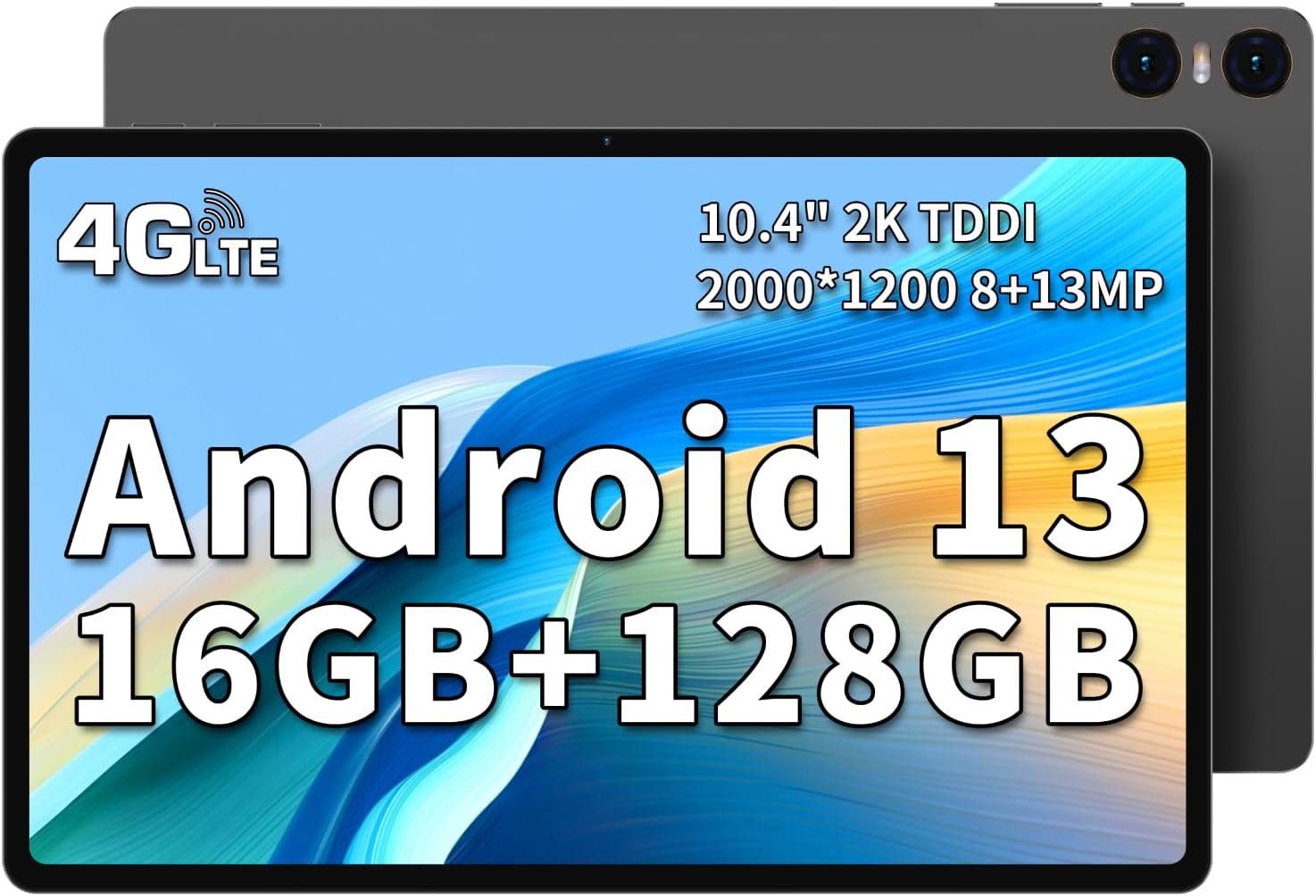
Image: Front and back view of the TECLAST T40HD tablet, highlighting its slim design and dual cameras.
Key Features:
- Operating System: Android 13 with enhanced privacy and personalized features.
- Display: 10.5-inch FHD IPS screen (1920x1200 resolution) with 178-degree viewing angle.
- Processor: UNISOC T606 8-core CPU for efficient performance.
- Memory & Storage: 16GB RAM (8GB physical + 8GB virtual expansion) and 128GB internal storage, expandable up to 1TB via Micro SD card (FAT32 format, sold separately).
- Connectivity: 4G LTE (dual nano-SIM support), 2.4G/5G WiFi (802.11ac), Bluetooth 5.0.
- Cameras: 8MP front camera and 13MP rear camera.
- Battery: 7200mAh polymer lithium battery.
- Audio: Dual speakers for immersive sound.
- Design: Slim 7.5mm body with an aluminum alloy back.
2. Getting Started: Setup
2.1 Unboxing and Initial Inspection
Upon receiving your TECLAST T40HD tablet, carefully open the packaging and inspect the contents. Ensure all items listed below are present and in good condition.

Image: Contents of the TECLAST T40HD tablet package, including the tablet, power adapter, charging cable, instruction manual, and ejection pin.
2.2 Package Contents
- TECLAST T40HD Android 13 Tablet x 1
- Charger x 1
- Charging Cable (USB-A to USB-C) x 1
- Instruction Manual x 1
- Ejection Pin x 1
2.3 Charging the Tablet
Before first use, it is recommended to fully charge your tablet. Connect the provided charging cable to the tablet's USB-C port and the charger to a power outlet. The battery indicator on the screen will show charging status.
2.4 Powering On/Off
- To Power On: Press and hold the Power button (located on the side) until the TECLAST logo appears on the screen.
- To Power Off: Press and hold the Power button until the power options appear, then select "Power Off".
- To Restart: Press and hold the Power button until the power options appear, then select "Restart".

Image: Detailed view of the tablet's side, indicating the location of the SIM/Micro SD slot, volume buttons, power button, speakers, Type-C port, and reset pinhole.
2.5 Initial Setup Wizard
The first time you power on the tablet, you will be guided through an initial setup wizard. This includes:
- Selecting your language.
- Connecting to a Wi-Fi network.
- Setting up your Google account (optional, but recommended for app downloads).
- Setting up screen lock (PIN, pattern, password, or face unlock).
- Reviewing privacy settings.
2.6 Inserting SIM Card and Micro SD Card
The TECLAST T40HD supports dual nano-SIM cards for 4G LTE connectivity and a Micro SD card for storage expansion.
- Locate the SIM/Micro SD card tray on the side of the tablet.
- Insert the provided ejection pin into the small hole next to the tray to eject it.
- Carefully place your nano-SIM card(s) and/or Micro SD card into the designated slots on the tray. Ensure correct orientation.
- Gently push the tray back into the tablet until it clicks into place.
Note: SIM cards are not included in the package. Ensure your SIM card's band is compatible with the tablet's supported frequencies: GSM:B2,B3,B5,B8; WCDMA: B1,B2,B5,B8; FDD-LTE: B1,B3,B5,B7,B8,B20; TD-LTE: B34,B38,B39,B40,B41.
3. Operating Your Tablet
3.1 Android 13 Interface
The TECLAST T40HD runs on Android 13, offering an intuitive and customizable user experience. Key features include:
- Material You: Personalize your tablet's theme and UI with dynamic colors based on your wallpaper.
- Enhanced Privacy Controls: Granular control over app permissions, photo, video, and clipboard access.
- Taskbar: Quickly switch between apps and access frequently used applications.
- Split Screen & Floating Window: Multitask efficiently by running two apps side-by-side or in a floating window.

Image: The Android 13 interface on the TECLAST T40HD tablet, demonstrating multitasking capabilities with multiple applications open.
3.2 Connectivity
- Wi-Fi: Connect to 2.4GHz or 5GHz Wi-Fi networks for internet access. Go to Settings > Network & internet > Wi-Fi to manage connections.
- 4G LTE: With a compatible nano-SIM card, enjoy mobile data connectivity. Ensure your SIM card is properly inserted and activated.
- Bluetooth 5.0: Pair with Bluetooth devices like headphones, speakers, or keyboards. Go to Settings > Connected devices > Connection preferences > Bluetooth.
- GPS: The tablet supports GPS, GLONASS, and GALILEO for accurate location services and navigation.

Image: The TECLAST T40HD tablet being used for GPS navigation in a vehicle, demonstrating its location services.
3.3 Camera Functions
The tablet is equipped with an 8MP front camera and a 13MP rear camera. Open the Camera app to capture photos and videos.
- Photo Mode: Tap the shutter button to take pictures.
- Video Mode: Switch to video mode to record footage.
- Settings: Access camera settings for options like resolution, flash, and AI enhancements.
3.4 Media and Entertainment
Enjoy a rich multimedia experience with the 10.5-inch FHD display and dual speakers.
- Video Playback: The tablet supports Widevine L1, allowing for high-definition streaming from services like YouTube and Amazon Prime Video. (Note: Netflix HD is not supported).
- Audio: Connect headphones via the 3.5mm jack or use Bluetooth headphones for private listening.
- Wireless Projection: Easily connect your tablet to a larger TV or display for an enhanced viewing experience.
Video: An official product video from Teclast Brand Store showcasing the features and design of the T45HD Android 13 tablet, including its display, processor, memory, and camera capabilities.
4. Maintenance and Care
To ensure the longevity and optimal performance of your TECLAST T40HD tablet, follow these maintenance guidelines:
- Cleaning: Use a soft, lint-free cloth to clean the screen and body. Avoid abrasive materials or harsh chemicals.
- Battery Care: Avoid extreme temperatures. Do not let the battery fully drain frequently. For long-term storage, charge the battery to about 50-60%.
- Software Updates: Regularly check for and install system updates to ensure security and performance improvements. Go to Settings > System > System update.
- Storage Management: Periodically clear unnecessary files and apps to free up storage space. You can expand storage with a Micro SD card up to 1TB (FAT32 format).
- Protection: Consider using a protective case and screen protector to guard against drops and scratches.
- Environmental Conditions: Avoid exposing the tablet to direct sunlight, excessive moisture, or extreme temperatures.
5. Troubleshooting
If you encounter issues with your TECLAST T40HD tablet, try the following basic troubleshooting steps:
- Tablet Not Responding: If the tablet freezes, press and hold the Power button for about 10-15 seconds to force a restart.
- Battery Draining Quickly:
- Reduce screen brightness.
- Close unused apps running in the background.
- Disable Wi-Fi, Bluetooth, or GPS when not in use.
- Check battery usage in Settings > Battery to identify power-hungry apps.
- Wi-Fi Connectivity Issues:
- Toggle Wi-Fi off and on.
- Restart your Wi-Fi router.
- Forget the network and reconnect.
- Ensure you are within range of the Wi-Fi signal.
- Apps Crashing or Not Working:
- Clear the app's cache and data (Settings > Apps > [App Name] > Storage & cache).
- Update the app from the Google Play Store.
- Uninstall and reinstall the app.
- Slow Performance:
- Close unnecessary background apps.
- Clear cache data regularly.
- Ensure sufficient free storage space.
- Restart the tablet.
- Factory Reset: As a last resort, if software issues persist, you may perform a factory reset. This will erase all data on the tablet, so back up important information first. Go to Settings > System > Reset options > Erase all data (factory reset).
6. Specifications
| Feature | Specification |
|---|---|
| Brand | TECLAST |
| Model Name | T40HD |
| Operating System | Android 13 |
| Screen Size | 10.5 Inches |
| Screen Resolution | 1920 x 1200 Pixels (FHD IPS) |
| Processor | Unisoc T606 (8-core, 1.6 GHz) |
| Graphics Coprocessor | Mali-G57 |
| RAM | 16GB (8GB physical + 8GB virtual) |
| Flash Memory Size | 128 GB |
| Expandable Storage | Micro SD up to 1TB (FAT32 format) |
| Rear Webcam Resolution | 13 MP |
| Front Webcam Resolution | 8 MP |
| Wireless Type | 802.11ac (2.4G/5G WiFi) |
| Bluetooth | Bluetooth 5.0 |
| Cellular Connectivity | 4G LTE (Dual Nano-SIM) |
| Battery Capacity | 7200mAh |
| Item Weight | 1.92 pounds |
| Product Dimensions | 9.7 x 6.3 x 0.29 inches |
| Color | Black |
7. Warranty and Support
TECLAST products purchased from our store come with a 12-month warranty. If you experience any issues with your product, please contact customer support through your Amazon purchase history. Most questions are answered within 24 hours to ensure a positive experience with our products.
For further assistance, please refer to the official TECLAST website or contact their customer service directly.
