
1. Introduction
This manual provides detailed instructions for the installation, operation, and maintenance of your ORICO OM28P-G2 USB C Docking Station with M.2 SSD Enclosure. Please read this manual thoroughly before using the product to ensure proper functionality and to prevent damage.
2. Product Overview
The ORICO OM28P-G2 is an 8-in-1 USB C docking station that integrates an M.2 SSD enclosure. It is designed to expand connectivity and storage for your USB-C enabled devices, such as laptops, MacBooks, and gaming consoles like the Nintendo Switch or Steam Deck.
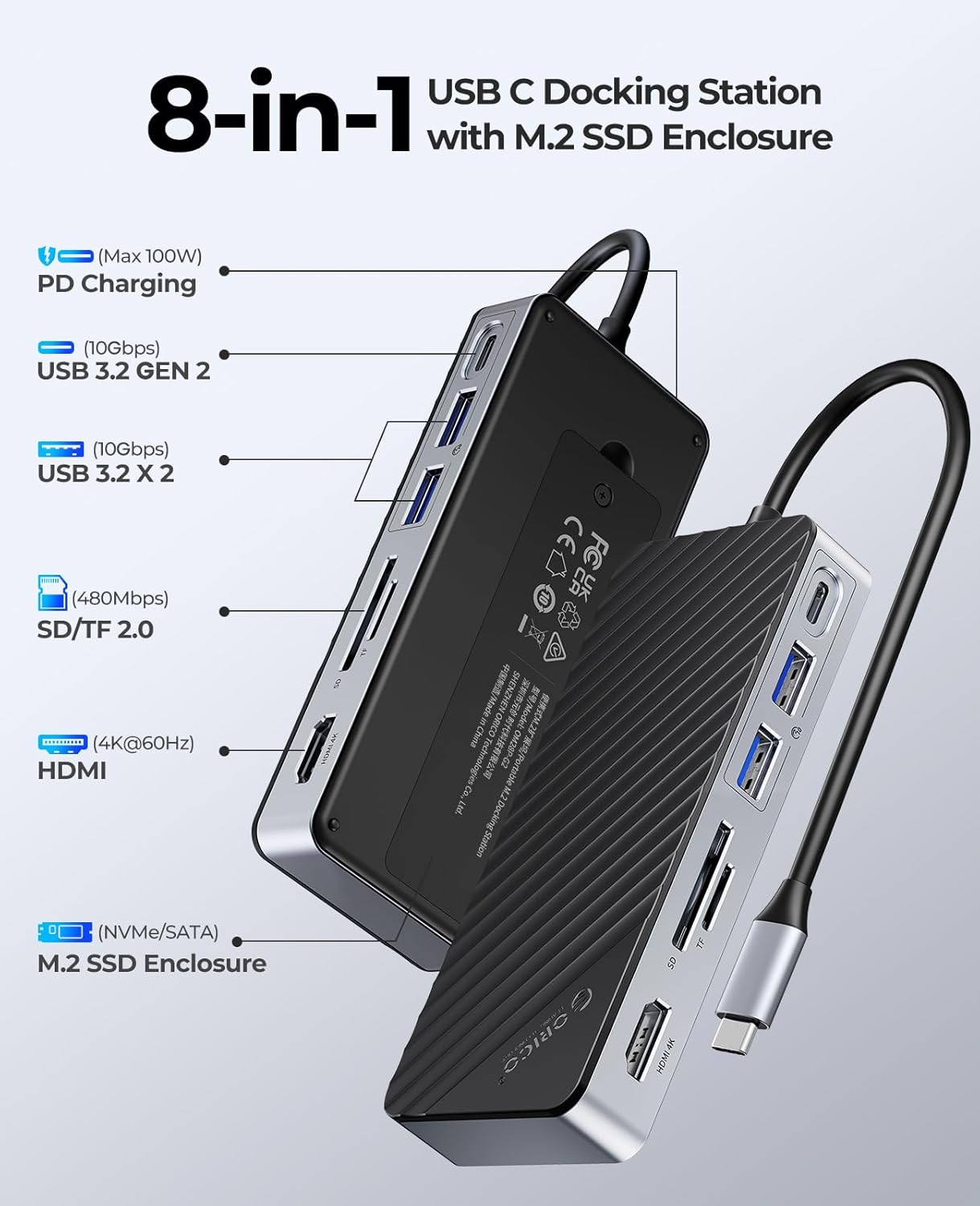
Image 2.1: Overview of the ORICO OM28P-G2 docking station, highlighting its 8-in-1 features including PD Charging, USB 3.2 Gen 2 ports, SD/TF card reader, HDMI output, and M.2 SSD Enclosure.
Key Features:
- Integrated M.2 SSD Enclosure: Supports NVMe/SATA M.2 SSDs, expanding storage capacity up to 8TB. (SSD not included).
- High-Speed Data Transfer: Two USB-A ports and one USB-C port supporting USB 3.2 Gen2 speeds of 10 Gbps.
- 4K HDMI Output: Connect to an external display for 4K resolution at 60Hz. Ensure your host device's Type-C port supports video transmission.
- PD100W Power Delivery: Dedicated power interface for fast charging your laptop or host device.
- SD/TF Card Reader: USB 2.0 speeds up to 30 MB/s for convenient file transfer. Note: SD and TF cards cannot be used simultaneously.
3. Package Contents
Please verify that all items are present in the package:

Image 3.1: All items included in the ORICO OM28P-G2 product box.
- ORICO OM28P-G2 USB C Docking Station with M.2 Enclosure
- Thermal Pad
- Heatsink
- Instruction Book (Quick Start Guide)
- Screwdriver
- 2 x Plastic Plugs
- Screw
- USB-C to USB-C Cable
4. Setup and M.2 SSD Installation
Follow these steps to install an M.2 SSD into the enclosure. An M.2 SSD is not included and must be purchased separately.
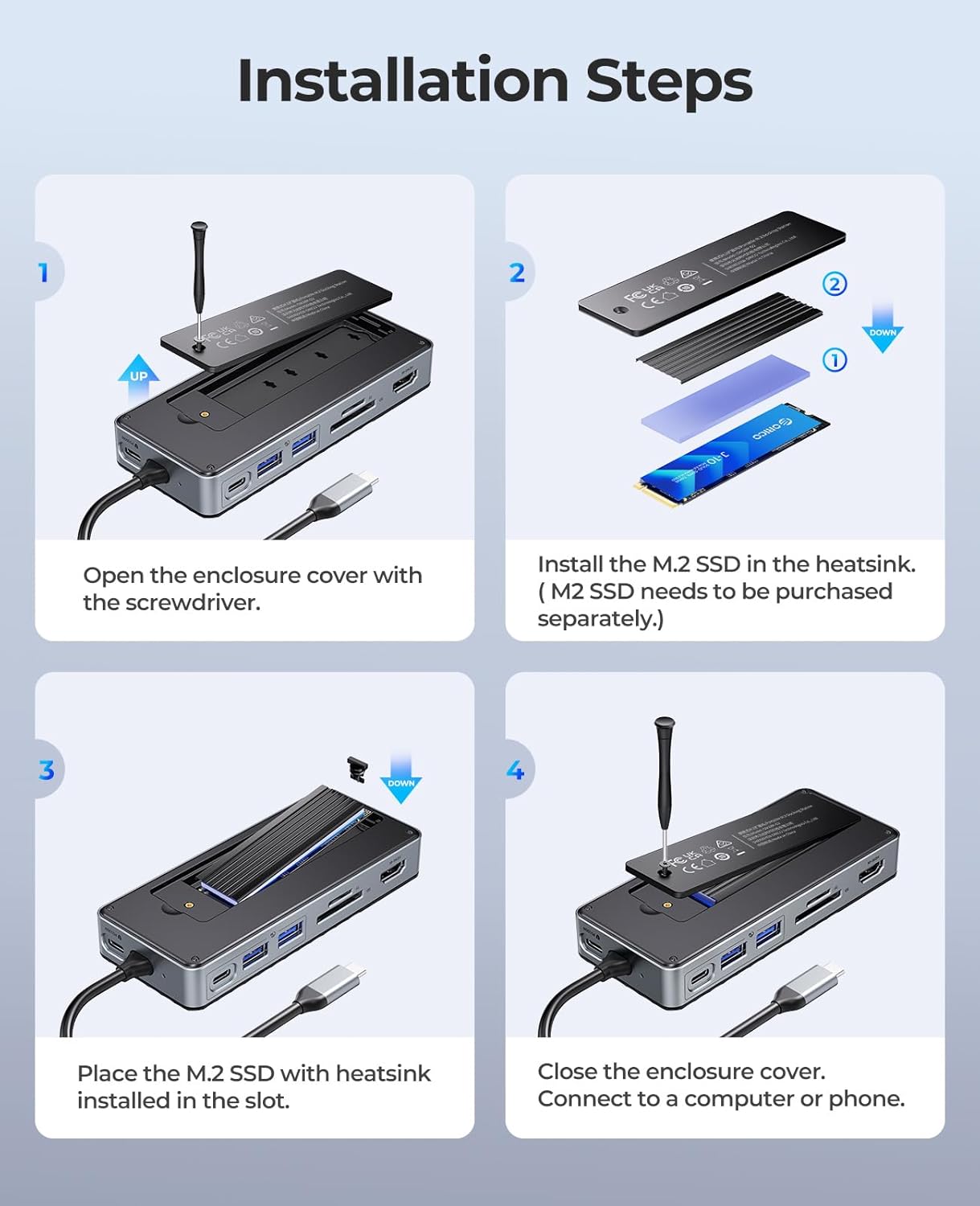
Image 4.1: Visual guide for M.2 SSD installation.
- Open the Enclosure: Use the provided screwdriver to open the enclosure cover.
- Install SSD with Heatsink: Place the thermal pad onto the M.2 SSD, then attach the heatsink. Insert the M.2 SSD into the slot within the enclosure. The enclosure supports NVMe/SATA M.2 SSDs of sizes 2230, 2242, 2260, and 2280.
- Secure the SSD: Gently press the M.2 SSD with the heatsink into the slot until it is seated correctly.
- Close the Enclosure: Replace the enclosure cover and secure it with the screw.
After installation, connect the docking station to your computer or phone using the USB-C to USB-C cable.

Image 4.2: M.2 NVMe and SATA SSD compatibility details, including supported key types (M Key, B+M Key) and sizes (2230, 2242, 2260, 2280).
5. Operating Instructions
5.1 Connecting to Your Device
Connect the ORICO OM28P-G2 docking station to your host device (laptop, MacBook, Switch, Steam Deck) using the provided USB-C to USB-C cable. Ensure your device has a compatible USB-C port.

Image 5.1: Important note on USB-C port compatibility. Confirm your laptop's USB-C port supports DisplayPort Alternate Mode for video output.
Important Note: Before using the HDMI port, ensure that the host device's Type-C interface supports video transmission (DisplayPort Alternate Mode).
5.2 Using USB Data Ports
The docking station features two USB-A ports and one USB-C port for data transfer, all supporting USB 3.2 Gen2 speeds up to 10 Gbps. Connect your USB peripherals such as external hard drives, flash drives, keyboards, mice, or other devices.

Image 5.2: Demonstrating 10 Gbps data transfer using the USB-C and USB-A ports.

Image 5.3: Examples of USB-A and USB-C devices compatible with the docking station.
5.3 HDMI Display Output
Connect an HDMI cable from the docking station to an external monitor or TV to extend or mirror your display. The HDMI port supports resolutions up to 4K at 60Hz.
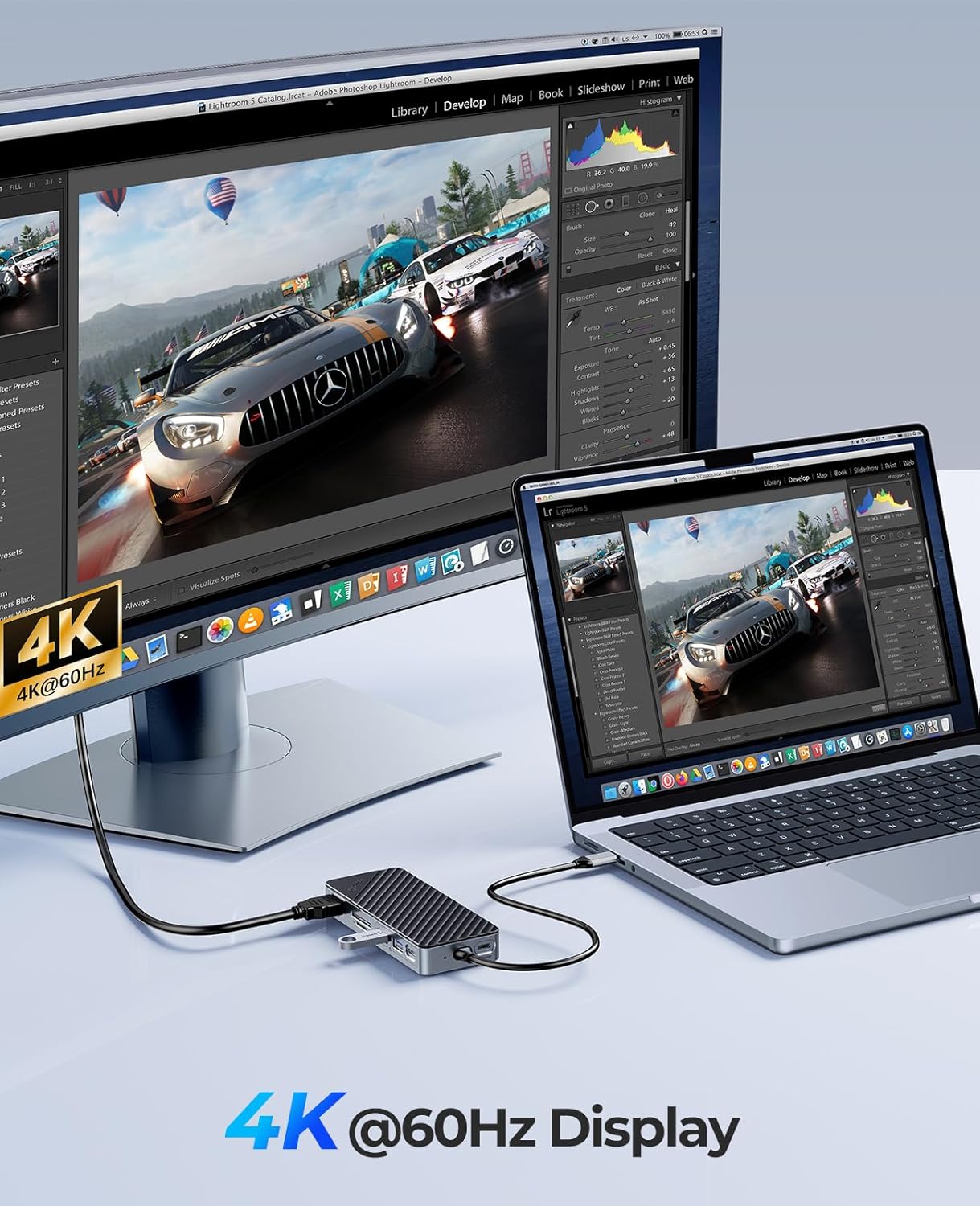
Image 5.4: Demonstrating 4K@60Hz display output.
5.4 Power Delivery (PD100W)
The dedicated PD100W USB-C port allows you to charge your laptop or host device while using the docking station. Connect a USB-C power adapter (not included) to this port. This ensures stable data transfer, especially when an SSD is in use.

Image 5.5: Powering up a laptop using the PD100W charging feature.
5.5 SD/TF Card Reader
Insert your SD or TF (Micro SD) card into the corresponding slot for data access. The card reader supports USB 2.0 speeds up to 30 MB/s. Please note that SD and TF cards cannot be used simultaneously.
6. Compatibility
The ORICO OM28P-G2 is compatible with:
- Laptops, MacBooks, Nintendo Switch, and Steam Deck with Type-C ports.
- Various M.2 NVMe/SATA SSDs (sizes 2230, 2242, 2260, 2280).
- USB 3.2 Gen2 10 Gbps devices.
- HDMI 4K @ 60Hz compatible displays.
- TF/SD cards (not simultaneously).
7. Troubleshooting
- No Display Output via HDMI:
- Ensure your host device's USB-C port supports DisplayPort Alternate Mode.
- Check the HDMI cable connection.
- Try connecting to a different HDMI port on your monitor/TV.
- SSD Not Detected:
- Verify the M.2 SSD is correctly installed and secured within the enclosure.
- Ensure the SSD is properly formatted for your operating system.
- Connect a PD power adapter to the docking station for stable power, especially with high-power SSDs.
- Slow Data Transfer Speeds:
- Ensure your connected devices and cables support USB 3.2 Gen2 (10 Gbps).
- Connect a PD power adapter to the docking station to ensure sufficient power for all connected devices.
- SD/TF Cards Not Working:
- Remember that SD and TF cards cannot be used simultaneously. Remove one if both are inserted.
- Ensure the card is inserted correctly.
- Overheating:
- The device is designed with a cooling vest module. Ensure proper airflow around the device.
- Verify the thermal pad and heatsink are correctly installed with the M.2 SSD.

Image 7.1: Temperature control performance data, indicating effective heat dissipation.
8. Specifications
| Feature | Detail |
|---|---|
| Brand | ORICO |
| Model Number | OM28P-G2 |
| Color | Black |
| Interface Hardware | HDMI, USB 3.2 Gen 2, USB Type C |
| Total USB Ports | 3 (2x USB-A, 1x USB-C for data) |
| Total HDMI Ports | 1 |
| Power Delivery | PD100W (Input) |
| Data Transfer Speed | 10 Gbps (USB 3.2 Gen2) |
| HDMI Resolution | Up to 4K @ 60Hz |
| Card Reader | SD/TF (USB 2.0, up to 30 MB/s, not simultaneous) |
| M.2 SSD Compatibility | NVMe/SATA M.2 SSDs (2230, 2242, 2260, 2280) |
| Compatible Devices | Laptops, MacBooks, Switch, Steam Deck with Type-C ports; various M.2 NVMe/SATA SSDs; USB 3.2 Gen2 10 Gbps devices; HDMI 4K @ 60Hz displays; TF/SD cards. |
9. Maintenance
- Keep the device clean and free from dust. Use a soft, dry cloth for cleaning.
- Avoid exposing the device to extreme temperatures, humidity, or direct sunlight.
- Do not attempt to disassemble or repair the device yourself. Contact customer support if issues arise.
- Ensure proper ventilation around the docking station during operation to maintain optimal temperature.
10. Warranty and Support
ORICO provides a standard warranty for this product. For specific warranty terms and conditions, please refer to the warranty card included in your package or visit the official ORICO website. If you encounter any issues or require technical assistance, please contact ORICO customer support through their official channels or the seller from whom you purchased the product.
Contact information for support is typically available on the ORICO website or in the quick start guide.


