
Introduction
This manual provides detailed instructions for the proper use, installation, and maintenance of your ORICO OM28P USB-C Hub with M.2 SSD Enclosure. This innovative 8-in-1 docking station combines the functionality of a USB-C hub with an M.2 NVMe/SATA SSD enclosure, offering expanded storage and versatile connectivity for your devices.

Image: The ORICO USB-C Hub with M.2 SSD Enclosure, showcasing its compact design and various included accessories like cables and an SSD.
Product Overview
The ORICO OM28P is designed to enhance your productivity and connectivity. Key features include:
- Integrated M.2 SSD Enclosure: Supports M.2 NVMe/SATA SSDs, expanding storage capacity up to 8TB.
- Ultra-fast Data Transfer: Two USB-A ports and one USB-C port supporting USB 3.2 Gen2 10Gbps speeds for rapid file transfers.
- 4K HDMI Display Output: Connect to an external display for 4K@60Hz resolution, ideal for presentations or extended desktop use.
- PD100W Fast Charging: A dedicated power interface for up to 100W Power Delivery to charge your laptop.
- SD/TF Card Reader: USB 2.0 speeds (up to 30 MB/sec) for convenient access to memory cards. Note: TF and SD cards cannot be used simultaneously.
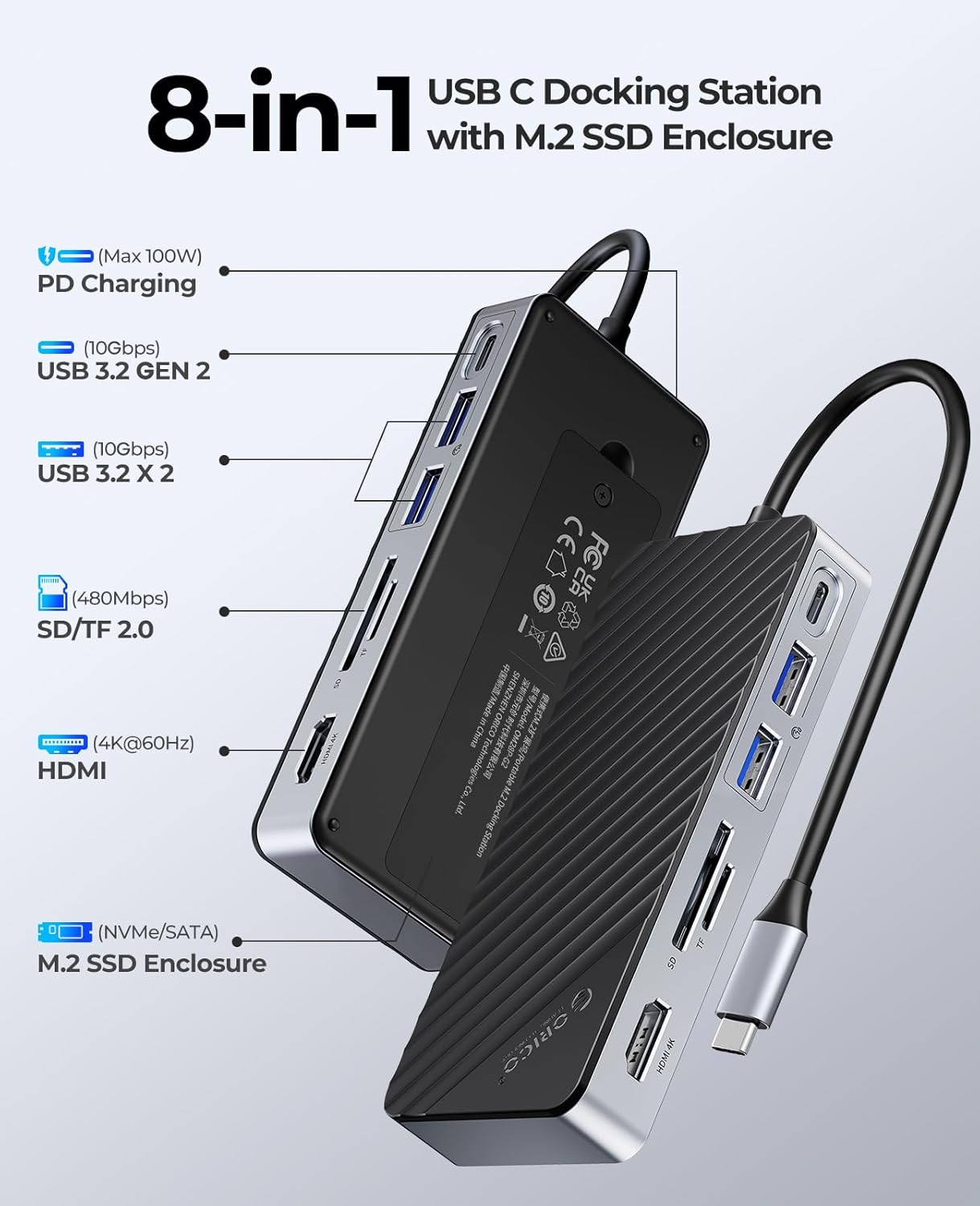
Image: A detailed diagram illustrating the 8-in-1 features of the ORICO USB-C Hub, including PD charging, USB 3.2 Gen 2 ports, SD/TF card reader, HDMI, and M.2 SSD enclosure.
What's in the Box
Please verify that all items are present in the package:
- ORICO USB-C Dock with M.2 Enclosure
- Thermal Pad
- Heatsink
- Instruction Book (Quick Start Guide)
- Screwdriver
- 2 x Plastic Plugs
- Screw
- USB-C to USB-C Cable (for computer connection)

Image: An exploded view showing all components included in the ORICO USB-C Hub package, clearly labeled with numbers.
Setup: M.2 SSD Installation
Follow these steps to install an M.2 SSD into the enclosure. (M.2 SSD needs to be purchased separately.)
- Open the Enclosure: Use the provided screwdriver to open the enclosure cover.
- Install SSD in Heatsink: Place the M.2 SSD into the heatsink. Ensure the thermal pad is applied between the SSD and the heatsink for optimal cooling.
- Place SSD in Slot: Carefully insert the M.2 SSD with the heatsink installed into the designated slot within the enclosure.
- Close Enclosure: Securely close the enclosure cover using the screwdriver.
- Connect: Connect the USB-C hub to your computer or phone using the provided USB-C to USB-C cable.
The enclosure supports M.2 NVMe/SATA SSDs with M, B, or M+B keys and form factors 2230, 2242, 2260, and 2280.
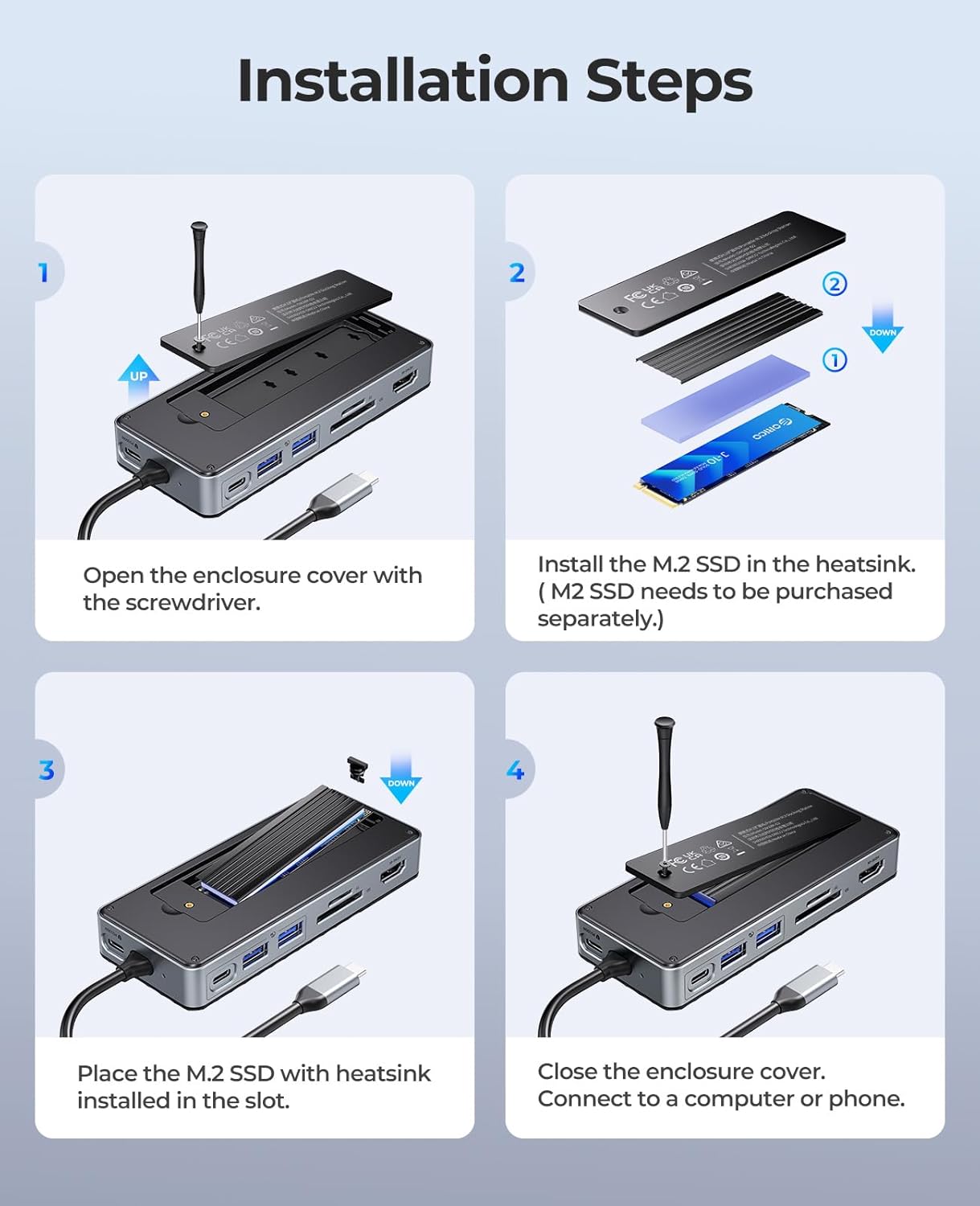
Image: A four-step visual guide demonstrating how to open the enclosure, install an M.2 SSD with a heatsink, place it into the slot, and close the cover.
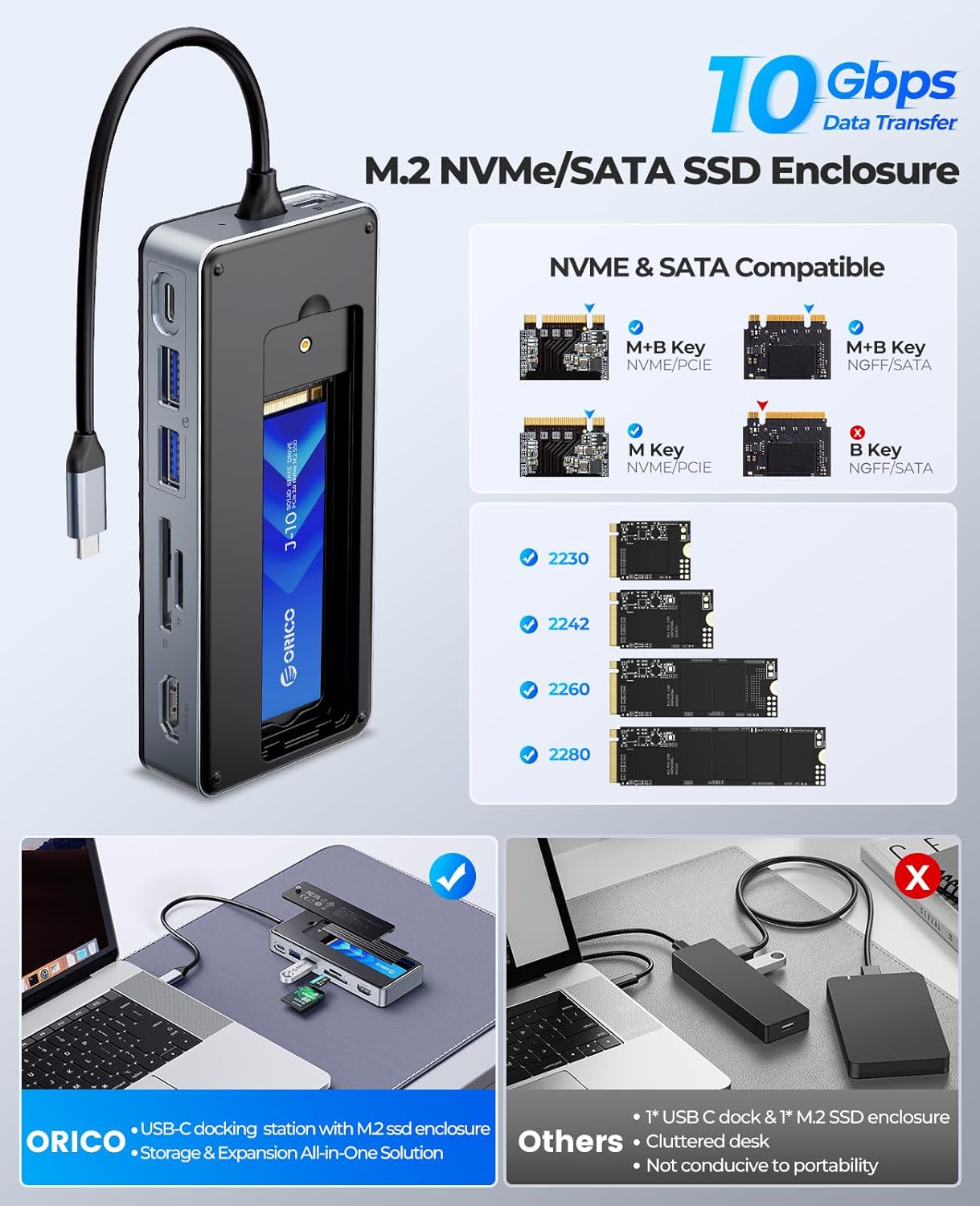
Image: A diagram illustrating the compatibility of the M.2 SSD enclosure with various NVMe and SATA M.2 SSD types (M Key, B Key, M+B Key) and sizes (2230, 2242, 2260, 2280).
Operating Instructions
Connecting the Hub
Connect the integrated USB-C cable from the ORICO hub to a USB-C port on your laptop, PC, or compatible device. For stable data transfer, especially when using the SSD, ensure a PD charger is connected to the hub's PD port.
Using USB Ports and SSD
The hub features two USB-A ports and one USB-C port, all supporting 10Gbps data transfer. Plug your USB devices (e.g., external hard drives, flash drives, keyboards, mice) into these ports. The integrated M.2 SSD will appear as an external drive on your system, allowing for high-speed data storage and retrieval.

Image: A laptop connected to the ORICO hub, demonstrating fast file transfers at 10Gbps via USB-C and USB-A ports.
HDMI Display Output
Connect an HDMI cable from the hub's HDMI port to your external monitor or TV. Ensure your host device's USB-C port supports video transmission (DisplayPort Alternate Mode). The hub supports resolutions up to 4K@60Hz for a clear and smooth visual experience.

Image: A laptop connected to an external monitor through the ORICO hub, displaying a 4K@60Hz resolution for enhanced visual workspace.
Power Delivery (PD) Charging
Connect your laptop's original USB-C power adapter to the PD port on the ORICO hub. The hub supports up to 100W Power Delivery, allowing you to charge your laptop while using the hub's other functions. This ensures stable operation, especially for power-intensive tasks or when using the M.2 SSD.
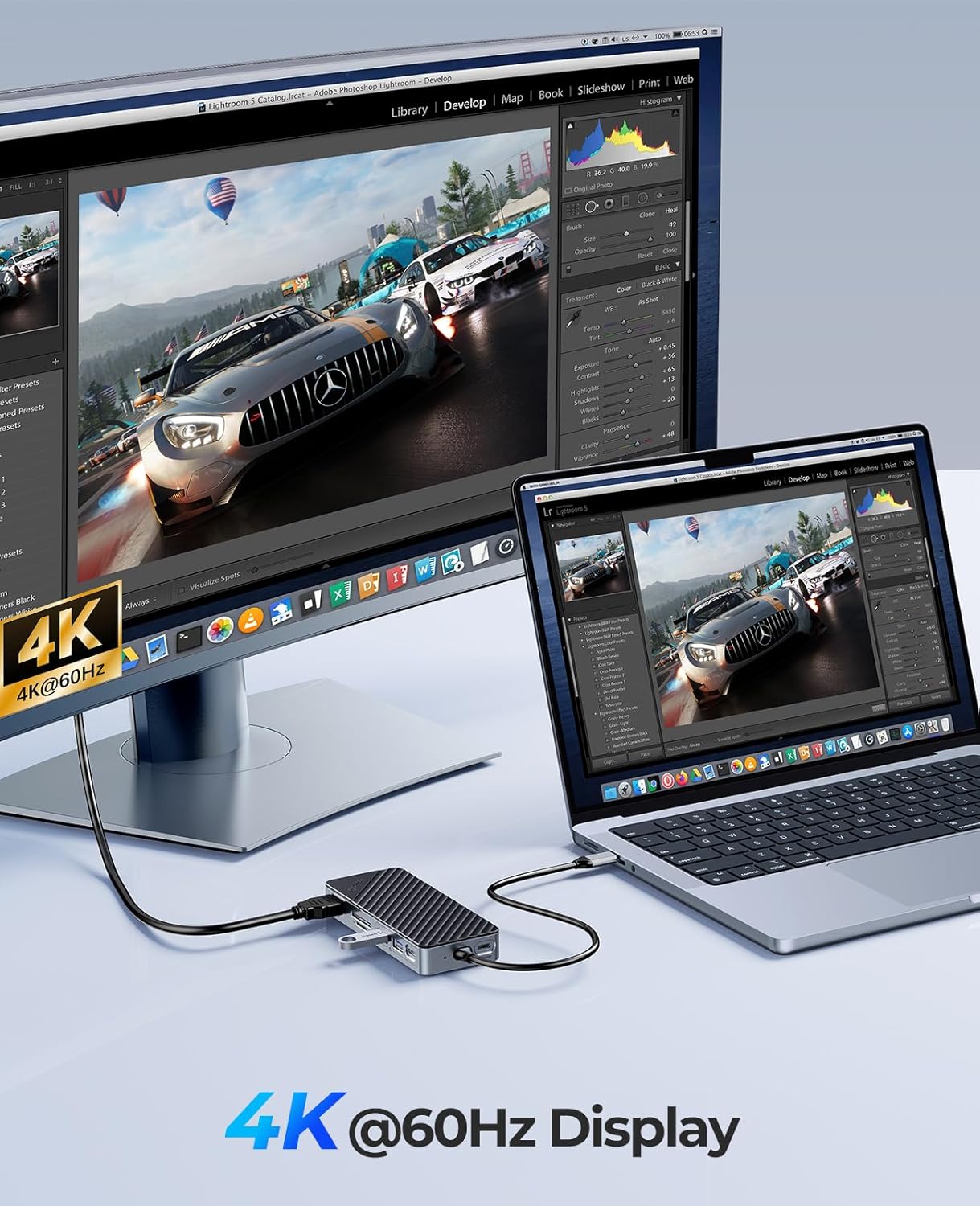
Image: A diagram showing the ORICO hub connected to a power adapter, delivering up to 100W of power to a laptop, illustrating efficient charging.
SD/TF Card Reader
Insert your SD or TF (MicroSD) card into the corresponding slot. The hub allows for quick transfer of photos and videos. Remember that only one card (SD or TF) can be used at a time.
Maintenance
- Cleaning: Use a soft, dry cloth to clean the surface of the hub. Avoid liquid cleaners or abrasive materials.
- Storage: Store the hub in a cool, dry place away from direct sunlight and extreme temperatures.
- Handling: Avoid dropping or subjecting the device to strong impacts.
- Disconnection: Always safely eject any connected storage devices (like the M.2 SSD or SD/TF cards) from your operating system before physically disconnecting the hub.
Troubleshooting
- SSD Not Detected:
- Ensure the M.2 SSD is correctly installed and secured within the enclosure.
- Verify the USB-C cable connection between the hub and your host device is secure.
- Connect a PD charger to the hub's PD port to ensure sufficient power, especially for NVMe SSDs.
- Check Disk Management (Windows) or Disk Utility (macOS) to see if the SSD is recognized but unformatted.
- HDMI Display Not Working:
- Confirm that your host device's USB-C port supports video output (DisplayPort Alternate Mode).
- Try a different HDMI cable or monitor.
- Ensure the hub is receiving adequate power, especially if multiple devices are connected.
- Slow Data Transfer Speeds:
- Ensure your host device's USB-C port supports USB 3.2 Gen2 (10Gbps).
- Use high-quality USB cables for connected peripherals.
- Verify the SSD installed is capable of 10Gbps speeds.
- Charging Issues:
- Ensure your PD charger is connected to the hub's PD port and is capable of delivering sufficient wattage (e.g., 100W).
- Check the charging cable between the PD charger and the hub.
Specifications
| Feature | Detail |
|---|---|
| Brand | ORICO |
| Model | OM28P |
| Color | Black |
| Hardware Interface | HDMI, USB 3.2 Gen 2, USB Type C |
| Compatible Devices | PC, laptop |
| Total USB Ports | 3 (2x USB-A, 1x USB-C) |
| Number of Ports (Total) | 8 (including M.2 SSD enclosure, HDMI, SD/TF, PD) |
| Total HDMI Ports | 1 |
| Wattage (PD) | 100 watts |
| Manufacturer | SHENZHEN ORICO TECHNOLOGIES CO.,LTD |
Warranty and Support
For specific warranty information regarding your ORICO OM28P USB-C Hub with M.2 SSD Enclosure, please refer to the product packaging or visit the official ORICO website. Warranty terms and conditions may vary by region and retailer.
For technical support, troubleshooting assistance, or any product-related inquiries, please contact ORICO customer service through their official channels. Contact information can typically be found on the ORICO website or in the quick start guide included with your product.
Please note: No official product videos were available for embedding based on the provided product data.


