
ORICO OM28PR
ORICO USB-C Hub with M.2 SSD Enclosure User Manual
Model: OM28PR
1. Product Overview
The ORICO USB-C Hub with M.2 SSD Enclosure (Model OM28PR) is an innovative 8-in-1 docking station designed to expand connectivity and storage for your USB-C enabled devices. It integrates an M.2 SSD enclosure with multiple essential ports, providing a comprehensive solution for data transfer, video output, network connectivity, and power delivery.

Image: The ORICO OM28PR USB-C Hub with M.2 SSD Enclosure, showcasing its compact design and various connected peripherals like USB drives, Ethernet cable, and HDMI cable.
Key Features:
- Integrated M.2 SSD Enclosure: Supports M.2 NVMe/SATA SSDs, expanding storage capacity up to 8TB.
- High-Speed Data Transfer: Features USB 3.2 Gen2 ports (1x USB-A, 1x USB-C) offering up to 10Gbps data transfer speeds.
- 4K HDMI Output: Supports 4K@60Hz video output for external displays.
- Gigabit Ethernet: Provides a stable wired network connection up to 1000Mbps.
- 100W Power Delivery: A dedicated PD port allows for fast charging of your laptop while using the hub.
- Efficient Heat Dissipation: Includes a heatsink and silicone cooling pad for optimal SSD performance.

Image: A detailed diagram illustrating the 8-in-1 features of the ORICO USB-C Hub, including PD Charging, USB 3.2 Gen2 (10Gbps), USB 2.0, RJ45 Ethernet, 4K@60Hz HDMI, and M.2 NVMe/SATA SSD Enclosure.
2. Package Contents
Please verify that all items are present in the package before proceeding with installation or use.
- USB-C Docking Station (OM28PR)
- USB-C to USB-C Cable
- User Quick Start Guide / Manual
- Heatsink for M.2 SSD
- Silicone Cooling Pad
- Screwdriver
- 2 x Plastic Plugs
- Screw

Image: An exploded view showing all components included in the ORICO USB-C Hub package: the hub, thermal pad, heatsink, instruction book, USB-C to USB-C cable, screwdriver, plastic plugs, and screw.
3. Safety Information
To ensure safe operation and prevent damage to the device or injury, please observe the following safety guidelines:
- Do not expose the device to water, moisture, or extreme temperatures.
- Avoid dropping or subjecting the device to strong impacts.
- Do not attempt to disassemble or modify the device. Repairs should only be performed by authorized personnel.
- Ensure proper ventilation around the device during operation to prevent overheating.
- Use only the provided or recommended accessories and cables.
- When connecting an SSD, ensure the PD charging port is connected to a power source for stable data transfer, especially during heavy usage.
4. Setup Guide
4.1. M.2 SSD Installation
The ORICO OM28PR supports M.2 NVMe/SATA SSDs of various sizes (2230, 2242, 2260, 2280). An M.2 SSD is not included and must be purchased separately.
- Open the Enclosure: Use the provided screwdriver to open the enclosure cover.
- Install Heatsink and SSD: Place the silicone cooling pad onto the M.2 SSD, then attach the heatsink. Carefully insert the M.2 SSD into the slot within the enclosure. Ensure it is seated firmly.
- Secure the SSD: Use the plastic clip to hold the SSD in place.
- Close the Enclosure: Replace the enclosure cover and secure it with the screw using the screwdriver.

Image: Visual instructions for M.2 SSD installation: 1. Open cover, 2. Install SSD with heatsink, 3. Place SSD in slot, 4. Close cover and connect.

Image: A diagram illustrating the compatibility of the M.2 SSD enclosure with various M.2 NVMe (M Key, M+B Key) and SATA (B Key, M+B Key) SSD types and sizes (2230, 2242, 2260, 2280).
4.2. Connecting to Your Device
Connect the ORICO USB-C Hub to your laptop, MacBook, PC, iPad, or iPhone 15 using the provided USB-C to USB-C cable. Ensure your host device's USB-C port supports the desired functionalities (e.g., video output for HDMI).
Important Note:
- ● For stable data transfer, especially when using the M.2 SSD, connect a power adapter to the hub's PD charging port.
- ● Before using the HDMI port, confirm that your Type-C host interface supports video transmission (DisplayPort Alternate Mode).

Image: A visual guide explaining the different types of USB-C ports on laptops: charging only, data transfer only, and fully functional ports supporting data, power delivery, and DisplayPort Alt Mode.
5. Operating Instructions
5.1. Data Transfer
The hub features one USB-A and one USB-C port, both supporting USB 3.2 Gen2 with speeds up to 10Gbps. This allows for rapid transfer of large files, such as 1GB of video, music, or photos in approximately 1 second. Two additional USB 2.0 ports are available for connecting peripherals like keyboards, mice, or older USB devices.

Image: A visual representation of high-speed data transfer, highlighting the 10Gbps capability of the USB-C and USB-A ports, and 480Mbps for the two USB-A 2.0 ports.

Image: The ORICO hub connected to a tablet, demonstrating its ability to connect to various USB-A and USB-C devices such as a mouse, keyboard, M.2 SSD, HDD, U disk, hard drive, controller, and printer.
5.2. Video Output (HDMI)
Connect an HDMI cable from the hub's HDMI port to an external monitor or TV to extend or mirror your display. The hub supports resolutions up to 4K at 60Hz, providing a clear and smooth visual experience for presentations, movies, or gaming.

Image: A laptop connected to a large external monitor displaying a 4K resolution image, demonstrating the 4K@60Hz display output capability of the ORICO hub.
5.3. Network Connection (Ethernet)
For a stable and fast internet connection, plug an Ethernet cable into the RJ45 port on the hub. It supports Gigabit Ethernet (10/100/1000Mbps), ideal for online gaming, video conferencing, or large file downloads.

Image: A person using a laptop connected to the internet via the ORICO USB-C Hub's Gigabit Ethernet port, indicating stable and fast network connectivity for online activities.
5.4. Power Delivery (PD)
The dedicated PD100W power interface allows you to charge your laptop while using the hub. Connect your laptop's original power adapter to the PD port on the hub. The hub can deliver up to 85W of power to your laptop, ensuring it stays charged during use.
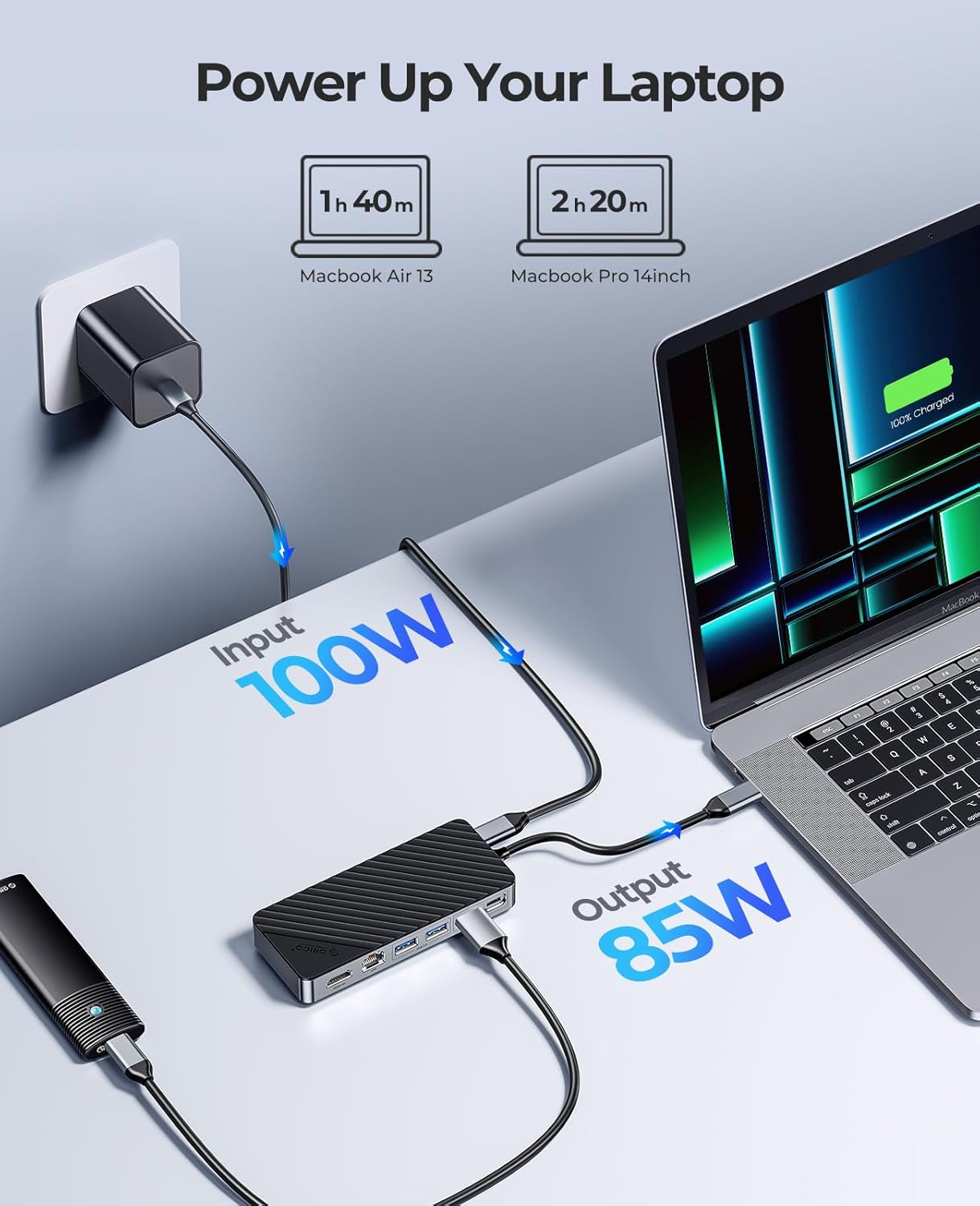
Image: A visual demonstrating the power delivery function, showing 100W input to the ORICO hub and 85W output to a connected laptop, with charging times for MacBook Air 13 and MacBook Pro 14inch.
6. Maintenance
6.1. Cleaning
To maintain the device's performance and appearance, gently wipe the exterior with a soft, dry cloth. Avoid using liquid cleaners or abrasive materials.
6.2. Temperature Management
The ORICO OM28PR is designed with heat dissipation features, including a heatsink and silicone cooling pad for the M.2 SSD. While operating, especially during heavy data transfer or charging, the device may become warm. This is normal. Ensure adequate airflow around the hub to prevent excessive heat buildup.

Image: A graph illustrating the temperature control performance of the ORICO hub, showing the SSD heatsink surface temperature, surrounding aluminum alloy shell temperature, and bottom aluminum alloy temperature over 60 minutes of operation.
6.3. Storage
When not in use, store the hub in a cool, dry place away from direct sunlight and extreme temperatures.
7. Troubleshooting
- SSD Not Recognized:
- Ensure the M.2 SSD is correctly installed and seated firmly in the enclosure.
- Verify that the PD charging port is connected to a power source for stable operation, especially with an SSD.
- Check Disk Management (Windows) or Disk Utility (macOS) to see if the SSD is detected but uninitialized or unformatted.
- Ensure the SSD type (NVMe/SATA) is compatible with the enclosure.
- No Video Output via HDMI:
- Confirm that your laptop's USB-C port supports DisplayPort Alternate Mode (video transmission). Not all USB-C ports support video output.
- Try a different HDMI cable or monitor to rule out external issues.
- Ensure the hub is securely connected to your device.
- Intermittent Connectivity / PD Passthrough Issues:
- Ensure the power adapter connected to the PD port is sufficient (e.g., 100W).
- Try a different USB-C cable connecting the hub to your host device.
- Disconnect and reconnect all cables.
- Slow Data Transfer Speeds:
- Ensure you are using the 10Gbps USB 3.2 Gen2 ports for high-speed devices.
- Verify that your connected device (e.g., external SSD, flash drive) supports 10Gbps speeds.
- Check for background processes that might be consuming bandwidth.
- Device Overheating:
- Ensure the heatsink and thermal pad are correctly installed on the M.2 SSD.
- Provide adequate ventilation around the hub. Avoid placing it in enclosed spaces.
- Reduce the number of connected high-power devices if possible.
8. Specifications
| Feature | Specification |
|---|---|
| Model Number | OM28PR |
| Brand | ORICO |
| Dimensions | 8.03 x 4.33 x 1.3 inches |
| Item Weight | 3.84 ounces |
| Hardware Interface | USB Type C |
| Total USB Ports | 4 (1x USB-C 10Gbps, 1x USB-A 10Gbps, 2x USB-A 480Mbps) |
| Total HDMI Ports | 1 (4K@60Hz) |
| Ethernet Port | 1 (Gigabit RJ45, 10/100/1000Mbps) |
| Power Delivery (PD) | Up to 100W Input (85W Output to host) |
| M.2 SSD Compatibility | NVMe/SATA (2230, 2242, 2260, 2280) up to 8TB |
| Compatible Devices | Laptop, MacBook Pro, PC, iPad, iPhone 15 (with compatible USB-C port) |
9. Warranty and Support
ORICO products are designed and manufactured to the highest quality standards. For warranty information, technical support, or customer service inquiries, please refer to the official ORICO website or contact their customer support channels. Keep your purchase receipt for warranty claims.
For further assistance, you may visit the ORICO Store on Amazon.
Related documentsOM28PR


Ask a question about this manual
Ask about setup, troubleshooting, compatibility, parts, safety, or missing instructions. Manuals+ will review the question and use this page’s manual context to help answer it.