1. Introduction
The AdaLov CPE881 3-Pack Wireless Bridge system is designed to extend network connectivity over long distances, providing a stable and high-speed wireless link. This system supports both Point-to-Point (PTP) and Point-to-Multipoint (PTMP) configurations, making it suitable for various outdoor networking needs such as connecting remote buildings, extending internet to surveillance cameras, or providing network access in large properties.
Operating on the 5.8GHz frequency band, the CPE881 offers enhanced speed and reduced interference. Each bridge features two 1000Mbps LAN ports for reliable wired connections and a 14dBi high-gain antenna for a working distance of up to 5KM (3.1 miles) with a clear line of sight. The devices are IP65-rated for outdoor use, ensuring durability in various weather conditions.

Image 1.1: AdaLov CPE881 Wireless Bridges
2. Package Contents
Verify that all items listed below are present in your package. If any items are missing or damaged, please contact customer support.
- 3 x Wireless Bridges (AdaLov CPE881)
- 3 x POE Adapters
- 3 x Metal Cable Ties
- 3 x Network Cables
- 1 x User Manual

Image 2.1: Package Contents
3. Product Overview
3.1. Device Components
Each CPE881 wireless bridge features the following components:
- Digital Tube Display: Shows the current operating mode (Transmitter A Mode, Receiver B Mode) and pairing status.
- Reset Button: Used to reset the device to factory settings or initiate pairing.
- A-B Button: Used to switch between Transmitter (A) and Receiver (B) modes during setup.
- DC Power Port: For connecting the power adapter.
- LAN (1000Mbps) Ports: Two Gigabit Ethernet ports for wired network connections.
- LED Indicators: Provide visual feedback on WLAN status, signal strength, LAN activity, and power.
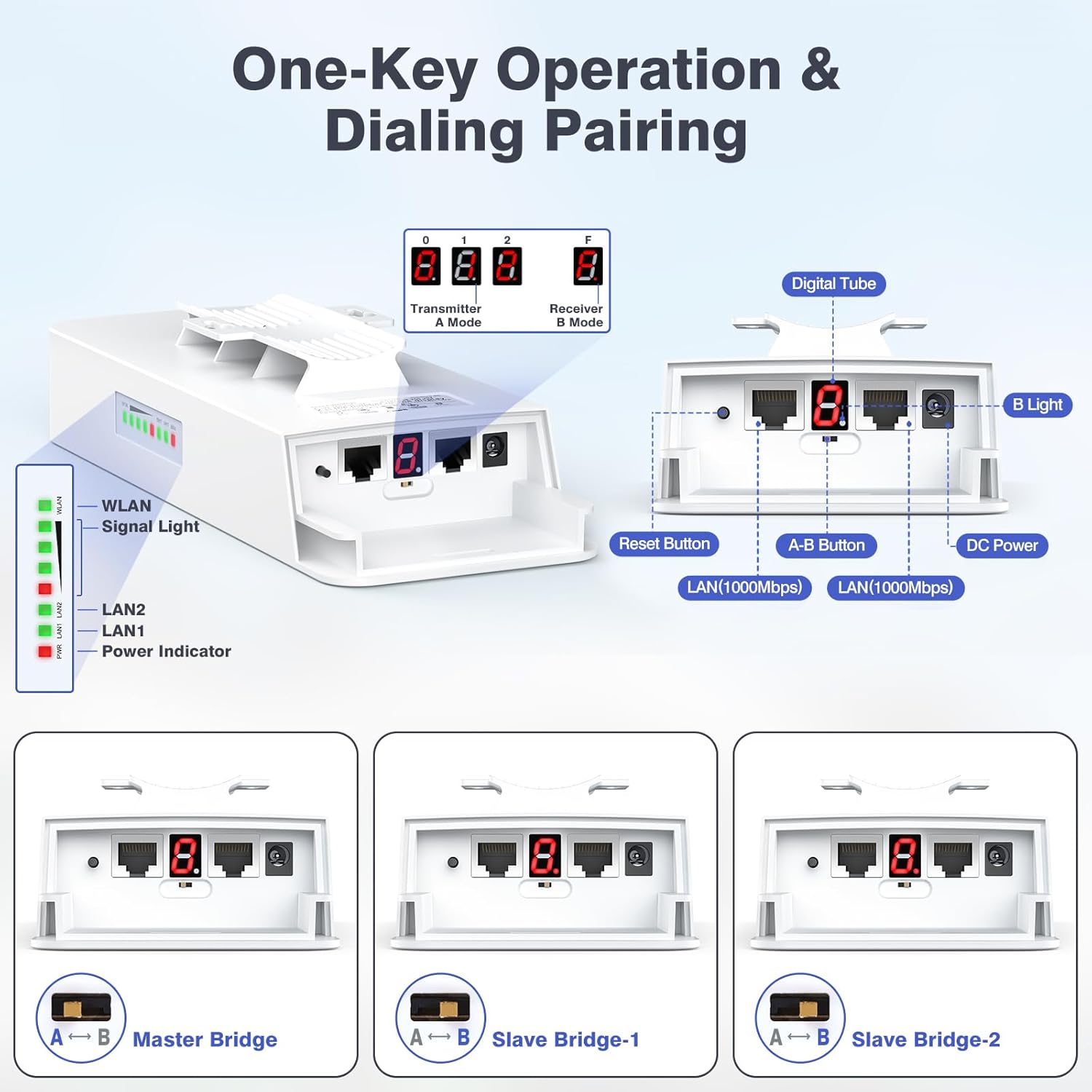
Image 3.1: CPE881 Device Components and Indicators
3.2. LED Indicators
| Indicator | Status | Description |
|---|---|---|
| Power | Solid Red | Device is powered on. |
| LAN1/LAN2 | Green (Solid/Flashing) | Solid: Wired connection established. Flashing: Data activity. |
| WLAN | Green (Solid/Flashing) | Solid: Wireless link established. Flashing: Wireless data activity. |
| Signal Light | Green/Red LEDs | Indicates wireless signal strength. More green LEDs mean stronger signal. |
4. Setup Instructions
The CPE881 bridges are designed for simple plug-and-play setup using a dialing pairing method. This section outlines the steps for both Point-to-Point (PTP) and Point-to-Multipoint (PTMP) configurations.
4.1. Point-to-Point (PTP) Setup
In a PTP setup, two CPE881 devices establish a direct wireless link to extend a network connection between two locations.
- Identify Devices: Designate one CPE881 as the Master Bridge (Transmitter A) and the other as the Slave Bridge (Receiver B).
- Power On: Connect both bridges to their respective POE adapters and power them on.
- Configure Master Bridge: On the Master Bridge, press the A-B button until the digital tube displays 'A'. This sets it as the transmitter.
- Configure Slave Bridge: On the Slave Bridge, press the A-B button until the digital tube displays 'B'. This sets it as the receiver.
- Pairing: The devices will automatically attempt to pair. Once paired, the WLAN and Signal LEDs on both devices will indicate a stable connection.
- Connect to Network:
- Connect the Master Bridge's LAN port to your main router or network switch.
- Connect the Slave Bridge's LAN port to the device or local network you wish to extend (e.g., another router, computer, or security camera system).
- Optimal Alignment: For best performance, ensure a clear line of sight between the two bridges and align them directly towards each other. The signal strength LEDs will help in achieving optimal alignment.

Image 4.1: Point-to-Point Configuration Example
4.2. Point-to-Multipoint (PTMP) Setup
A PTMP setup uses one Master Bridge to connect with multiple Slave Bridges, extending network coverage to several locations simultaneously.
- Identify Devices: Designate one CPE881 as the Master Bridge (Transmitter A) and the remaining two as Slave Bridges (Receiver B-1 and Receiver B-2).
- Power On: Connect all three bridges to their respective POE adapters and power them on.
- Configure Master Bridge: On the Master Bridge, press the A-B button until the digital tube displays 'A'.
- Configure Slave Bridges: On the first Slave Bridge, press the A-B button until the digital tube displays 'B'. On the second Slave Bridge, press the A-B button until the digital tube displays 'B'.
- Pairing: The Master Bridge will automatically pair with all Slave Bridges set to 'B' mode. The WLAN and Signal LEDs on all devices will indicate a stable connection.
- Connect to Network:
- Connect the Master Bridge's LAN port to your main router or network switch.
- Connect each Slave Bridge's LAN port to the respective device or local network at each remote location.
- Optimal Alignment: For PTMP, the Slave Bridges must be positioned in front of the Master Bridge. The Master Bridge and Slave Bridges must face each other, and the maximum angle between the Master Bridge and any Slave Bridge should not exceed 60 degrees for optimal signal.
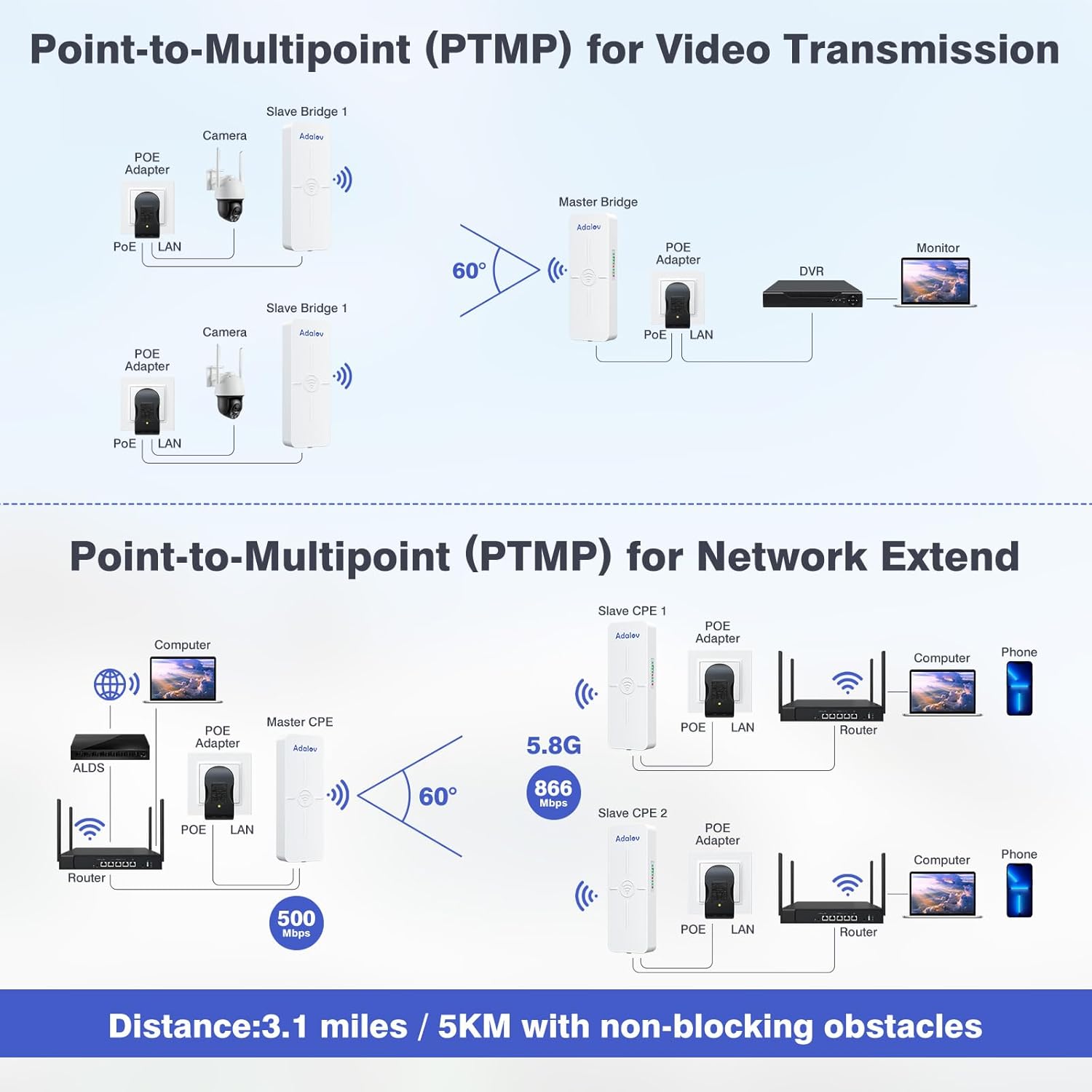
Image 4.2: Point-to-Multipoint Configuration Examples

Image 4.3: PTMP Connection Rules
5. Operating Instructions
Once the CPE881 bridges are set up and paired, they operate automatically to maintain the wireless link. Here are some operational considerations:
- Signal Monitoring: Regularly check the Signal Light LEDs on each bridge. A higher number of green LEDs indicates a stronger and more stable connection. If signal strength is low, consider adjusting the alignment or checking for new obstructions.
- Network Integration: The CPE881 acts as a transparent bridge. Devices connected to the Slave Bridge's LAN port will receive network access from the Master Bridge's network, as if directly connected via an Ethernet cable.
- High-Speed Performance: The 5.8GHz frequency band and Gigabit LAN ports are designed for high-speed data transfer. For optimal throughput, ensure your connected devices and network infrastructure also support Gigabit speeds.
- Power over Ethernet (PoE): The included PoE adapters simplify installation by providing both power and data over a single Ethernet cable, reducing cable clutter.
6. Maintenance
The AdaLov CPE881 is designed for minimal maintenance due to its robust construction.
- Weatherproof Design: The IP65 rating ensures the devices are dustproof and waterproof, suitable for harsh outdoor conditions. No special weather protection is typically required.
- Cleaning: Periodically inspect the exterior of the devices for dirt or debris buildup. Clean with a soft, damp cloth if necessary. Do not use harsh chemicals or abrasive materials.
- Firmware Updates: Check the manufacturer's website periodically for any available firmware updates. Follow the provided instructions carefully for any update process.
- Cable Inspection: Ensure all network and power cables are securely connected and free from damage.

Image 6.1: IP65 Outdoor Weather Resistance
7. Troubleshooting
If you encounter issues with your AdaLov CPE881 wireless bridges, refer to the following common troubleshooting steps:
- No Power:
- Ensure the POE adapter is correctly connected to a power outlet and the bridge.
- Verify the power outlet is functional.
- No Wireless Link (WLAN LED Off/Flashing Red):
- Check if the Master and Slave bridges are correctly configured (Master 'A', Slave 'B').
- Ensure there is a clear line of sight between the bridges. Obstructions like trees or buildings can severely degrade signal.
- Adjust the physical alignment of the bridges to face each other directly. Use the Signal Light LEDs to optimize alignment.
- Ensure the distance between bridges does not exceed the maximum recommended range (5KM/3.1 miles).
- Low Signal Strength (Few Green Signal LEDs):
- Improve line of sight by removing obstructions or adjusting mounting height.
- Fine-tune the alignment of the bridges. Even small adjustments can significantly improve signal.
- No Network Access (LAN LED Off/No Data):
- Verify that the Ethernet cables are securely connected to the LAN ports on both the bridge and the connected device/router.
- Test the Ethernet cables with another device to ensure they are functional.
- Ensure the main router connected to the Master Bridge is providing internet access.
- Difficulty with Point-to-Multipoint (PTMP) Setup:
- Confirm all Slave Bridges are set to 'B' mode.
- Ensure all Slave Bridges are within the 60-degree angular range of the Master Bridge and have a clear line of sight.
- Resetting to Factory Defaults: If issues persist, you can reset a bridge to its factory default settings by pressing and holding the Reset button for approximately 5-10 seconds until the LEDs flash. After resetting, reconfigure the device.
8. Specifications
| Feature | Detail |
|---|---|
| Model Name | CPE881 |
| Product Dimensions | 3.54 x 2.16 x 9.84 inches |
| Item Weight | 4.27 pounds (for the pack) |
| Frequency Band Class | Single-Band (5.8GHz) |
| Wireless Communication Standard | 802.11a, 802.11ac, 802.11n |
| Wireless Speed | Up to 866Mbps |
| LAN Data Rate | Up to 500Mbps |
| Connectivity Technology | Ethernet |
| LAN Ports | 2 x 1000Mbps Gigabit LAN Ports |
| Antenna Type | Internal 14dBi High-Gain Directional Antenna |
| Working Distance | Up to 5KM (3.1 miles) with Line of Sight (LOS) |
| Special Features | Access Point Mode, Directional Antenna, LED Indicator, Weatherproof (IP65) |
| Mounting Options | Pole or Wall-mounted |
| Compatible Devices | Computer, Router, Security Camera, Starlink, Switch (Note: Do not use 48V POE switch to power) |

Image 8.1: CPE881 Product Dimensions
9. Warranty and Support
AdaLov products are designed for reliability and performance. Your CPE881 3-Pack Wireless Bridge comes with a customer service guarantee.
- Warranty Information: For specific warranty terms and conditions, please refer to the documentation included with your purchase or visit the official AdaLov website.
- Technical Support: If you require technical assistance, have questions about installation, or encounter any issues not covered in this manual, please contact AdaLov customer support. Contact details can typically be found on the product packaging, the official AdaLov website, or through your point of purchase.

