
Introduction
This manual provides comprehensive instructions for the installation, operation, and maintenance of your Hugolog 2K 3MP Indoor Pan/Tilt Security Camera. Please read this manual thoroughly before use to ensure proper functionality and safety.
Product Overview
The Hugolog 2K 3MP Indoor Pan/Tilt Security Camera is designed for indoor monitoring, offering high-resolution video, advanced motion tracking, and smart detection features. It is suitable for use as a baby monitor, pet camera, or general home security device.

Figure 1: Hugolog 2K 3MP Indoor Pan/Tilt Security Camera (Model HU-PWR6-B)
Key Features
- Smart Motion Tracking & Auto-Focus and Zoom: AI-powered tracking follows movement; digital zoom up to 3X for detailed views.
- 2K HD and Starlight Night Vision: 3MP 2K resolution with a Starlight Sensor for enhanced color night vision (40X better than standard cameras) and f/1.4 aperture for clear night footage.
- Smart Motion and Sound Detection & Instant Notification: Advanced AI Human and Pet Detection reduces false alerts. Records and sends push alerts for motion, human presence, or crying babies.
- Two-Way Talk & Alarm Siren: Enables clear two-way communication and features an alarm siren that activates with motion.
- US Cloud Storage & SD Card Storage: Supports encrypted cloud storage in the US and a built-in microSD slot (up to 128GB) for local storage.
- Compatible with Alexa: Integrates with Amazon Alexa for voice control and viewing.
Package Contents
Please check the package contents upon unboxing to ensure all items are present:
- Hugolog 2K 3MP Indoor Pan/Tilt Security Camera
- Power Adapter
- Mounting Accessories (Screws, Wall Anchors)
- User Manual
Setup Guide
1. Powering On the Camera
- Connect the power adapter to the camera's power port.
- Plug the power adapter into a wall outlet. The camera will power on and initiate its startup sequence.
2. Installing the Hugolog Connect App
- Download the "Hugolog Connect" app from your smartphone's app store (iOS App Store or Google Play Store).
- Register for a new account or log in if you already have one.
3. Adding the Camera to the App
- Open the Hugolog Connect app and tap the "+" icon to add a new device.
- Follow the on-screen instructions to connect your camera to your Wi-Fi network. Ensure your phone is connected to a 2.4GHz Wi-Fi network during setup.
- Scan the QR code displayed on your phone with the camera lens when prompted.
- Once connected, you can name your camera and begin live viewing.

Figure 2: Hugolog Connect App interface for device management.
4. Installing a MicroSD Card (Optional)
For local video storage, insert a microSD card (up to 128GB, not included) into the designated slot on the camera. Ensure the camera is powered off before inserting or removing the card.

Figure 3: MicroSD card slot location on the camera.
5. Mounting the Camera
The camera can be placed on a flat surface or mounted to a wall or ceiling using the provided mounting accessories. Choose a location with a clear view and stable Wi-Fi signal.

Figure 4: Example of camera placement in a nursery.
Operating Instructions
Live View and Pan/Tilt Control
Access the live feed through the Hugolog Connect app. Use the on-screen controls to pan (355° horizontally) and tilt (90° vertically) the camera lens to view different areas of your room.

Figure 5: Pan and tilt functionality for wide area coverage.
Smart Motion Tracking and Auto-Focus
Enable Smart Motion Tracking in the app settings. The camera will automatically follow detected human or pet movement within its field of view. The auto-focus feature ensures clear images during movement and zooming.

Figure 6: Camera demonstrating auto-tracking of subjects.
Night Vision
The camera automatically switches to Starlight Color Night Vision in low-light conditions, providing clear, full-color video even in near darkness. This feature is significantly enhanced compared to standard infrared night vision.

Figure 7: Visual comparison of Starlight Color Night Vision clarity.
Two-Way Audio and Alarm Siren
Use the two-way talk feature in the app to communicate with individuals near the camera. The built-in alarm siren can be manually activated or set to trigger automatically upon detection of suspicious activity.

Figure 8: Two-way audio communication via the camera.
AI Detection and Notifications
Configure AI detection settings in the app to specify alerts for humans, pets, or sound events (e.g., crying baby). Receive instant push notifications on your smartphone when an event is detected.

Figure 9: AI detection filtering for relevant alerts.
Cloud and Local Storage
Recorded footage can be stored securely in the US Cloud (subscription may be required after trial) or locally on a microSD card. Access and review recordings via the Hugolog Connect app.

Figure 10: Easily review recorded events through the app's timeline.
Alexa Integration
Connect your Hugolog camera to Amazon Alexa for convenient voice control. Use commands like "Alexa, show me the [camera name]" to view the live feed on compatible Alexa-enabled devices.

Figure 11: Integrating the camera with Amazon Alexa for smart home control.
Sleep Mode
Activate Sleep Mode via the Hugolog App to temporarily disable camera recording and live viewing for privacy. You can also manually rotate the camera lens downwards.

Figure 12: Sleep Mode feature for privacy control.
Multi-Device Support and Sharing
The Hugolog Connect app supports viewing up to 16 cameras simultaneously and allows sharing live views with up to 20 users. This is ideal for family monitoring or collaborative security.
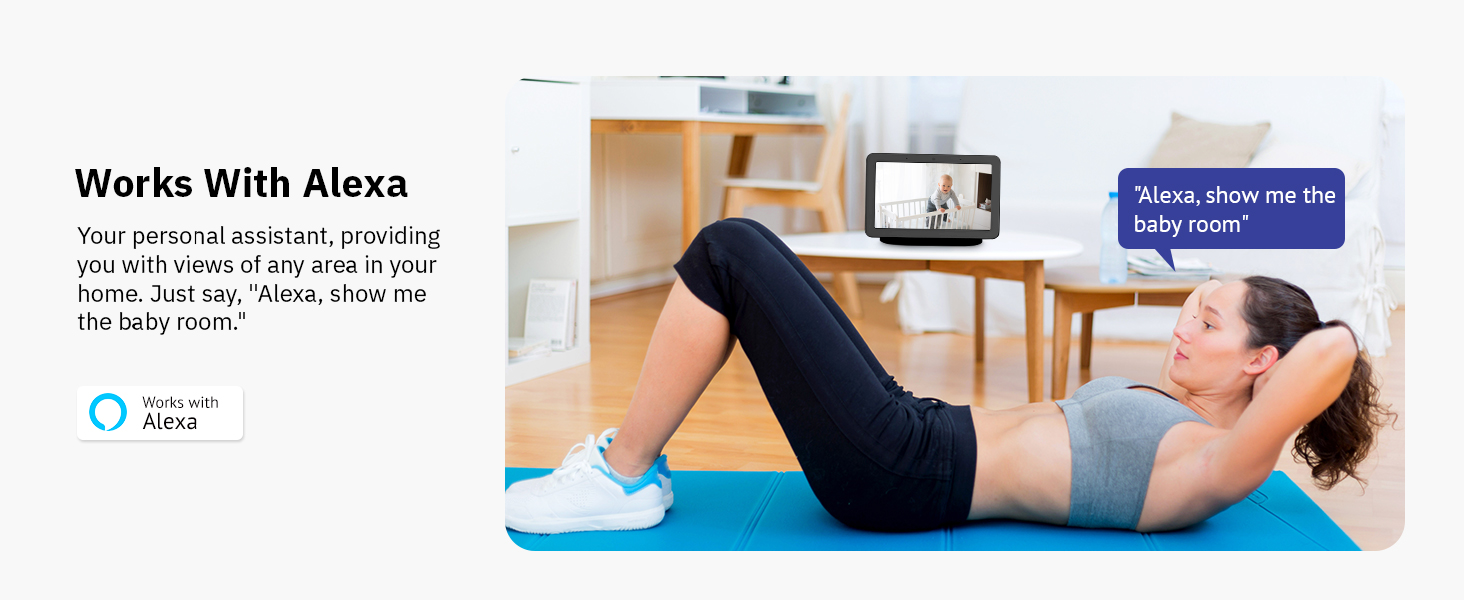
Figure 13: Multi-device viewing and sharing capabilities.
Maintenance
- Cleaning: Use a soft, dry cloth to clean the camera lens and body. Avoid harsh chemicals or abrasive materials.
- Software Updates: Regularly check the Hugolog Connect app for firmware updates to ensure optimal performance and security.
- Placement: Ensure the camera is placed in a stable, dry environment, away from direct sunlight, heat sources, and strong electromagnetic fields.
Troubleshooting
| Issue | Possible Cause | Solution |
|---|---|---|
| Camera not connecting to Wi-Fi | Incorrect Wi-Fi password, 5GHz network, weak signal. | Ensure correct 2.4GHz Wi-Fi password. Move camera closer to router. Restart camera and router. |
| Frequent false alerts | Sensitive motion detection, environmental factors (e.g., shadows, moving branches). | Adjust motion detection sensitivity in the app. Utilize AI Human/Pet Detection to filter irrelevant movements. |
| Poor night vision clarity | Obstructions near the lens, insufficient ambient light for color night vision. | Clear any obstructions. Ensure some ambient light is available for optimal Starlight Color Night Vision. |
| Two-way audio issues | Microphone/speaker blocked, low volume settings, network latency. | Check for obstructions. Adjust volume in the app. Ensure stable internet connection. |
Specifications
| Feature | Detail |
|---|---|
| Model Number | HU-PWR6-B |
| Video Capture Resolution | 3 MP (2K) |
| Indoor/Outdoor Usage | Indoor |
| Connectivity Protocol | Wi-Fi (2.4GHz) |
| Power Source | Corded Electric |
| Pan/Tilt Range | 355° Pan, 90° Tilt |
| Night Vision | Starlight Color Night Vision |
| Storage Options | MicroSD Card (up to 128GB), US Cloud Storage |
| Compatible Devices | Amazon Alexa |
| AI Features | Human/Pet Detection, Motion Tracking |
| Item Weight | 13.1 ounces |
| Dimensions | 6.65 x 3.82 x 3.78 inches (Package) |
Warranty and Support
For warranty information, please refer to the documentation included with your product or visit the official Hugolog website. For technical support, troubleshooting assistance, or to report any issues, please contact Hugolog customer service through their official channels.
Manufacturer: Hugolog
Online Support: Visit the Hugolog Store on Amazon

Figure 14: Hugolog customer support team ready to assist.


