
WEWATCH S3
WEWATCH S3 Smart Projector User Manual
Model: S3
Brand: WEWATCH
1. Introduction
Thank you for choosing the WEWATCH S3 Smart Projector. This projector integrates an Android operating system, offering a seamless entertainment experience with built-in streaming applications. It features 4K Ultra-HD resolution, 500 ANSI lumens brightness, 20000:1 contrast, electronic focus, 4-point keystone correction, and versatile connectivity options including dual-band WiFi and Bluetooth. This manual provides essential information for setting up, operating, maintaining, and troubleshooting your projector to ensure optimal performance and longevity.
2. Safety Information
Please read all safety instructions carefully before using the projector. Keep this manual for future reference.
- Power Supply: Use only the provided power adapter. Ensure the voltage matches the projector's requirements.
- Ventilation: Do not block ventilation openings. Ensure adequate airflow around the projector to prevent overheating.
- Liquid Exposure: Do not expose the projector to rain, moisture, or any liquids. Avoid placing objects filled with liquids, such as vases, on the projector.
- Cleaning: Unplug the projector before cleaning. Use a soft, dry cloth. Do not use liquid or aerosol cleaners.
- Placement: Place the projector on a stable, flat surface. Avoid placing it in direct sunlight, near heat sources, or in environments with excessive dust or humidity.
- Eye Protection: Do not look directly into the projector lens when the lamp is on, as the bright light can cause eye damage.
- Servicing: Do not attempt to service this product yourself. Refer all servicing to qualified service personnel.
3. Package Contents
Please check the package contents upon unboxing:
- WEWATCH S3 Smart Projector
- Remote Control
- Power Adapter
- HDMI Cable
- User Manual
4. Product Overview
Familiarize yourself with the components and ports of your WEWATCH S3 projector.

Front view of the WEWATCH S3 Smart Projector, showcasing the lens and sleek design.
Connectivity Ports

Rear view of the WEWATCH S3 Projector, highlighting the various input and output ports including LAN, USB, HDMI, AV, and headphone jack.
The projector is equipped with multiple ports for diverse connectivity:
- LAN Port (x1): For wired internet connection.
- USB Ports (x2): For connecting USB drives or other USB devices.
- HDMI Ports (x2): For connecting devices like laptops, gaming consoles, or TV sticks.
- AV Port (x1): For connecting older audio/video devices.
- Headphone Jack (3.5mm): For connecting external audio devices or headphones.
5. Setup
5.1 Placement and Screen Size
Position the projector on a stable surface. The projection distance determines the screen size. You can achieve a large screen size of up to 300 inches.
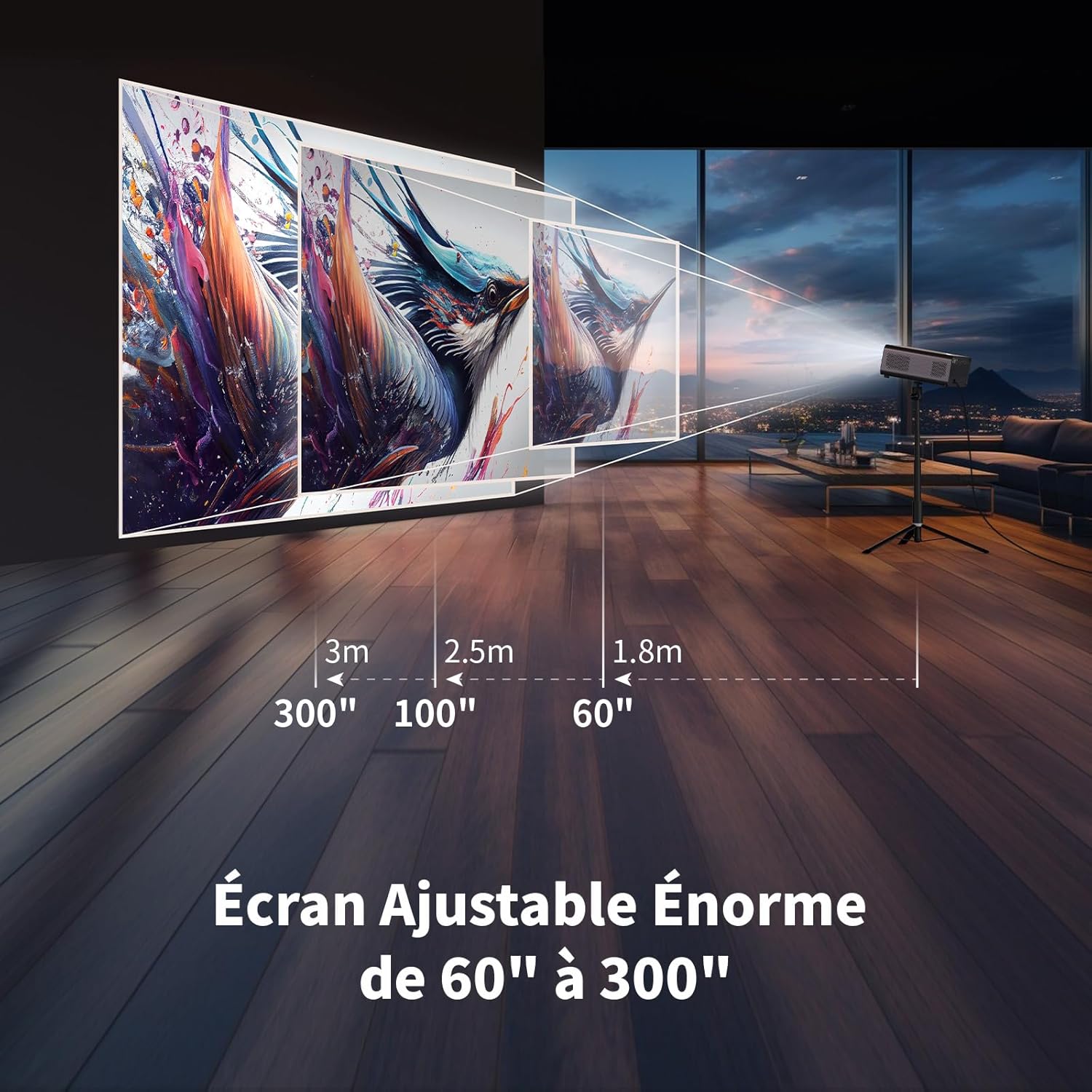
Illustration showing recommended projection distances for various screen sizes, from 60 inches at 1.8m to 300 inches at 3m.
5.2 Power Connection
Connect the power adapter to the projector's power input and then plug it into a wall outlet. Press the power button on the projector or remote control to turn it on.
5.3 Electronic Focus
Achieve a clear image quickly using the electronic focus function. Use the F+ and F- buttons on the remote control to adjust the focus until the image is sharp.

Image demonstrating the remote control's F+ and F- buttons for electronic focus adjustment, and the visual effect of keystone correction on the projected image.
5.4 Keystone Correction
The projector supports 4-point keystone correction and automatic vertical correction to ensure a rectangular image, regardless of the projection angle. Adjust these settings in the projector's menu if needed.
5.5 Zoom Function
The zoom function allows you to reduce the image size from 100% to 80% without moving the projector. This can be adjusted via the projector's settings menu.

Visual representation of the projector's zoom function, showing how the image size can be reduced from 100% to 50% without physically moving the projector.
6. Operating
6.1 Android OS and Built-in Applications
The WEWATCH S3 features an integrated Android operating system, providing direct access to popular streaming services like Netflix, YouTube, Prime Video, Disney+, and KODI. When using these applications, switch the remote control to mouse mode for optimal navigation. Remember to switch back to normal mode after use.

A user relaxing and watching content projected from the WEWATCH S3, showing the Android interface with icons for Netflix, YouTube, Prime Video, and other streaming applications.
6.2 Wireless Connectivity (WiFi & Bluetooth)
The projector supports dual-band 2.4G+5G WiFi for fast and stable connections with iOS, Android, and Windows devices. Bluetooth functionality allows you to connect external speakers for enhanced audio or Bluetooth headphones for private listening.

A person holding a smartphone, wirelessly mirroring its content to the WEWATCH S3 projector, demonstrating the 2.4/5G WiFi and Bluetooth capabilities for seamless content sharing.
6.3 Connecting External Devices
Utilize the HDMI, USB, LAN, and AV ports to connect various external devices such as TV sticks, USB drives, laptops, gaming consoles, or older media players for diverse content playback.
6.4 Bluetooth Speaker Mode
The projector can function as a standalone Bluetooth speaker. Connect your smartphone or other Bluetooth-enabled devices to the projector to play music, utilizing its built-in HiFi 5W speaker.
7. Maintenance
7.1 Dust Box Cleaning
The WEWATCH S3 features a hidden dust box designed to prevent dust from entering the projector. Regularly clean the dust box to maintain optimal performance and image quality.

Detailed view of the WEWATCH S3 Projector showing the hidden dust box compartment and the internal fan system, with arrows indicating airflow for cooling.
7.2 General Care
- Keep the projector clean and free from dust.
- Store the projector in a cool, dry place when not in use.
- Avoid touching the lens directly. Use a lens cleaning cloth if necessary.
8. Troubleshooting
If you encounter issues with your projector, refer to the following common problems and solutions:
| Problem | Possible Cause | Solution |
|---|---|---|
| No image projected | Power cable loose; Input source incorrect; Lens cap on. | Check power connection; Select correct input source (HDMI, USB, etc.); Remove lens cap. |
| Blurry image | Focus not adjusted; Projector too far/close; Keystone not adjusted. | Adjust electronic focus (F+/F-); Adjust projection distance; Perform keystone correction. |
| No sound | Volume too low; Muted; External speaker not connected properly. | Increase volume; Unmute; Check external speaker connection or try built-in speaker. |
| WiFi/Bluetooth connection issues | Incorrect password; Device out of range; Interference. | Verify password; Move device closer; Reduce interference from other devices. |
| Apps not working correctly | Remote not in mouse mode; App needs update; Internet connection issue. | Switch remote to mouse mode; Check for app updates; Verify internet connection. |
9. Specifications
Detailed technical specifications for the WEWATCH S3 Smart Projector:
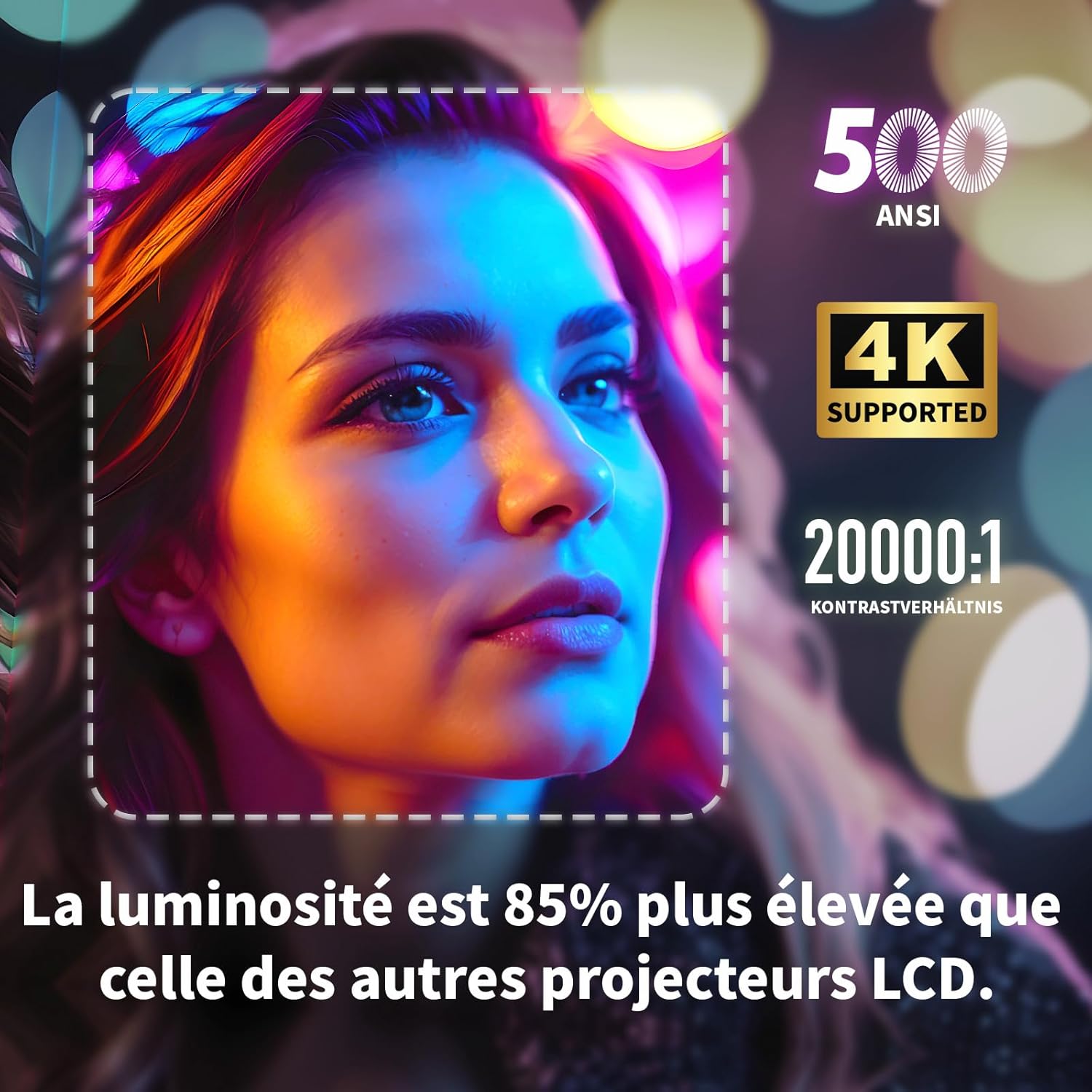
Visual highlighting key specifications: 500 ANSI lumens, 4K support, and 20000:1 contrast ratio, indicating 85% higher brightness than other LCD projectors.
| Feature | Specification |
|---|---|
| Brand | WEWATCH |
| Model Number | S3 |
| Color | Grey |
| Display Resolution | 3840 x 2160 (4K Ultra HD) |
| Brightness | 500 ANSI Lumens |
| Contrast Ratio | 20000:1 |
| Operating System | Android OS (with built-in Netflix, YouTube, Prime Video, Disney+, KODI) |
| Connectivity Technology | Bluetooth, Ethernet, HDMI, Wi-Fi (2.4G+5G dual-band) |
| Special Features | Electronic Focus, 4-Point Keystone Correction, Automatic Vertical Correction, Zoom (80%-100%), Built-in Speakers, Dust-proof Design |
| Screen Size | Up to 300 inches |
| Audio | Integrated HiFi 5W Speaker, Bluetooth Speaker Mode |
| Dimensions | 24.3L x 24.9W x 10.5H cm |
| USB Ports | 2 |
10. Warranty and Support
WEWATCH products come with a standard manufacturer's warranty. For detailed warranty information, technical support, or service inquiries, please refer to the warranty card included in your package or visit the official WEWATCH website. Please have your product model number (S3) and purchase information ready when contacting support.
Ask a question about this manual
Ask about setup, troubleshooting, compatibility, parts, safety, or missing instructions. Manuals+ will review the question and use this page’s manual context to help answer it.