
Insta360 CINSAAJA
Insta360 Ace Pro Action Camera User Manual
Brand: Insta360 | Model: CINSAAJA
Introduction
The Insta360 Ace Pro is a state-of-the-art waterproof action camera co-engineered with Leica, featuring a flagship 1/1.3" sensor and a powerful 5nm AI chip. Designed for capturing stunning visuals in various conditions, from bright daylight to challenging low-light environments, it offers advanced features like 4K120fps video, Active HDR, PureVideo mode, and a versatile 2.4" flip touchscreen. This manual provides essential information for setting up, operating, maintaining, and troubleshooting your Insta360 Ace Pro camera.

Figure 1: Insta360 Ace Pro Action Camera with its flip screen.
Package Contents
The standard bundle for the Insta360 Ace Pro includes the following items:
- 1x Insta360 Ace Pro Camera
- 1x 1650mAh Battery
- 1x Standard Mount
- 1x Flexible Adhesive Mount
- 1x Type-C to C Cable
Setup Guide
1. Charging the Battery
Before first use, fully charge the included 1650mAh battery. Connect the camera to a power source using the provided Type-C to C cable. The camera supports fast charging, reaching 80% in approximately 22 minutes.

Figure 2: Fast charging the Insta360 Ace Pro battery.
2. Inserting a MicroSD Card
The Insta360 Ace Pro requires a MicroSD card (not included) for storing photos and videos. Locate the MicroSD card slot, typically near the battery compartment. Insert the card with the contacts facing the correct direction until it clicks into place. Ensure the card is formatted within the camera settings for optimal performance.
3. Powering On/Off
Press and hold the Power button (usually located on the side or top) to turn the camera on or off. The flip touchscreen will illuminate upon startup.
4. Connecting to a Mobile Phone
To connect your Insta360 Ace Pro to a mobile phone, download the official Insta360 app from your device's app store. Follow the in-app instructions to pair your camera via Bluetooth and Wi-Fi. This allows for remote control, live preview, and easy transfer/editing of footage.
Video 1: This video demonstrates the process of connecting the Insta360 Ace Pro camera to a mobile phone for seamless control and media management.
Operating Instructions
1. Using the Flip Touchscreen
The 2.4" flip touchscreen provides intuitive control over camera settings and live preview. Swipe across the screen to navigate menus, tap to select options, and use pinch-to-zoom gestures where applicable. The flip design allows for easy self-recording and framing from various angles.

Figure 3: The flexible 2.4" flip touchscreen provides effortless control and previews from any angle.
2. Recording Video and Capturing Photos
Press the Shutter button to start or stop video recording, or to capture a photo. The camera supports various resolutions and frame rates, including 4K120fps for smooth slow-motion and 8K video for incredible detail. Utilize Active HDR for vibrant shots in challenging lighting conditions.

Figure 4: Comparison of image quality with and without Active HDR, highlighting vibrant shots.
3. Low Light Performance with PureVideo
The Insta360 Ace Pro features a new PureVideo mode, which utilizes the 1/1.3" sensor and 5nm AI chip for innovative AI noise reduction and improved dynamic range in low-light conditions. This allows for clearer and brighter night shots.

Figure 5: Enhanced night shots with PureVideo mode and the 5nm AI chip.
4. FlowState Stabilization and Horizon Lock
The camera incorporates FlowState Stabilization to keep your footage smooth and steady, even during intense action. Additionally, 360° Horizon Lock ensures your videos remain perfectly level, regardless of camera orientation.

Figure 6: Stable shots with FlowState Stabilization, even in dynamic environments.
5. AI Features and Controls
- AI Highlights Assistant: The camera can automatically generate highlights from your footage, pushing a ready-to-share video to your Insta360 app.
- Gesture Control: Use specific hand gestures to start/stop recording or take photos, useful when your hands are busy or in noisy environments.
- Voice Control 2.0: Control the camera with voice commands for hands-free operation.
- Clarity Zoom: Double-tap the screen to zoom in 2x without compromising 4K image quality.
- Pause Recording: Pause and resume recording within the same file for seamless clips.
- Cancel Recording: Instantly cancel and delete unwanted recordings to manage storage.
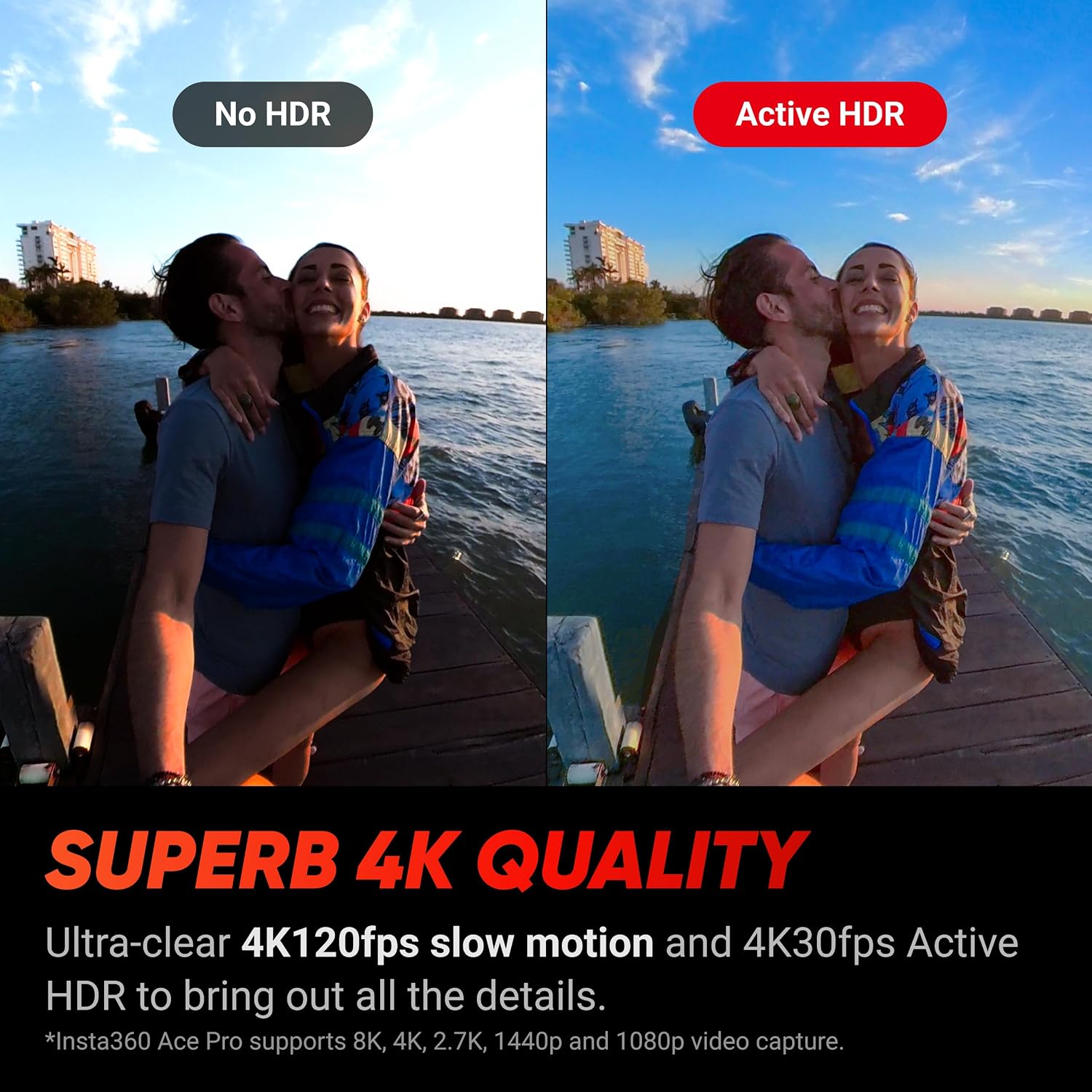
Figure 7: 4K Clarity Zoom maintains image quality even when magnified.
6. Waterproofing and Mounting
The Insta360 Ace Pro is waterproof to 33ft (10m) without a case, making it suitable for various water activities. It features a magnetic mounting system for effortless attachment and quick switching between accessories.
Maintenance
1. Cleaning Your Camera
Regularly clean the camera body and lens using a soft, lint-free cloth. For the lens, use a specialized lens cleaning solution if necessary. Ensure the camera is dry before closing any ports or compartments, especially after exposure to water.
2. Battery Care
To prolong battery life, avoid exposing the battery to extreme temperatures. Store the battery in a cool, dry place when not in use. Fully charge the battery before extended storage and recharge it every few months to prevent deep discharge.
3. Firmware Updates
Insta360 regularly releases firmware updates to improve camera performance and add new features. Connect your camera to the Insta360 app, which will notify you of available updates. Follow the in-app instructions to perform firmware updates, which are typically fast and do not require an SD card for the process.
Troubleshooting
1. Camera Overheating
Under certain conditions, especially during prolonged high-resolution recording or in hot environments, the camera may become warm or display an overheating warning. If this occurs, stop recording and allow the camera to cool down. Ensure adequate airflow around the device. The Insta360 Ace Pro is designed to manage heat effectively, but extreme conditions can still impact performance.
2. Connectivity Issues
If you experience difficulty connecting the camera to your phone or other devices:
- Ensure Bluetooth and Wi-Fi are enabled on both the camera and your mobile device.
- Restart both the camera and your phone.
- Forget the device in your phone's Bluetooth/Wi-Fi settings and re-pair.
- Ensure the Insta360 app is updated to the latest version.
3. Footage Playback/Editing Issues
For issues with playback or editing, especially with 8K footage:
- Ensure your device or computer meets the minimum system requirements for playing back high-resolution video.
- For 8K video, editing may require the Insta360 Studio desktop software, as mobile apps might only support playback.
- Check your MicroSD card for errors or try a different card.
Specifications
| Feature | Detail |
|---|---|
| Brand Name | Insta360 |
| Model Number | CINSAAJA |
| Item Weight | 1.14 pounds |
| Product Dimensions | 8.94 x 5.39 x 3.43 inches |
| Batteries | 1 AAA batteries required (included) |
| Color | Black |
| Video Capture Resolution | 4K (supports up to 8K) |
| Maximum Aperture | 2.6 f |
| Flash Memory Type | SD |
| Screen Size | 2.4 Inches |
| Waterproof Depth | 33ft (10m) |
Warranty and Support
For warranty information and technical support, please refer to the official Insta360 website or contact the Insta360 Official Store where you purchased the product. Additional protection plans may be available for extended coverage.
A comprehensive User Manual in PDF format is also available for download: Insta360 Ace Pro User Manual (PDF).
Related documentsCINSAAJA


Ask a question about this manual
Ask about setup, troubleshooting, compatibility, parts, safety, or missing instructions. Manuals+ will review the question and use this page’s manual context to help answer it.