
1. Introduction
The MTAKYA Car TV Mate Pro is an innovative 2-in-1 device designed to transform your in-car entertainment experience. It functions as both a wireless CarPlay adapter, converting your wired CarPlay system into a wireless one, and an HDMI multimedia adapter, allowing you to connect various external devices like TV sticks, game consoles, and screen mirroring devices directly to your car's display via HDMI. This manual provides detailed instructions for setup, operation, and troubleshooting to help you maximize the utility of your Car TV Mate Pro.

Image 1.1: The Car TV Mate Pro highlighting its dual functionality for Wireless CarPlay and HDMI Multimedia. Note: This device is designed for cars already equipped with wired CarPlay.
2. Key Features
- 2-in-1 Functionality: Seamlessly switch between wireless CarPlay and HDMI multimedia modes, offering versatile entertainment options on the go.
- Wireless CarPlay: Converts your existing wired CarPlay into a wireless experience, supporting navigation, music, Siri voice commands, and hands-free calling while retaining original car controls.
- Stable & Lag-Free Connection: Equipped with powerful Bluetooth 4.2 and 5.8GHz Wi-Fi modules for a reliable and smooth connection, minimizing delays.
- Easy Installation: Simple plug-and-play setup via your car's USB port, requiring no additional software downloads.
- Unrivalled Versatility: Compatible with a wide range of devices including popular TV sticks (e.g., Apple TV, Google TV, Roku TV), gaming consoles (e.g., PS4, PS5), and screen mirroring devices.
- Retains Original Car Controls: Fully compatible with your car's steering wheel, touchscreen, and knob operations for a familiar user experience.
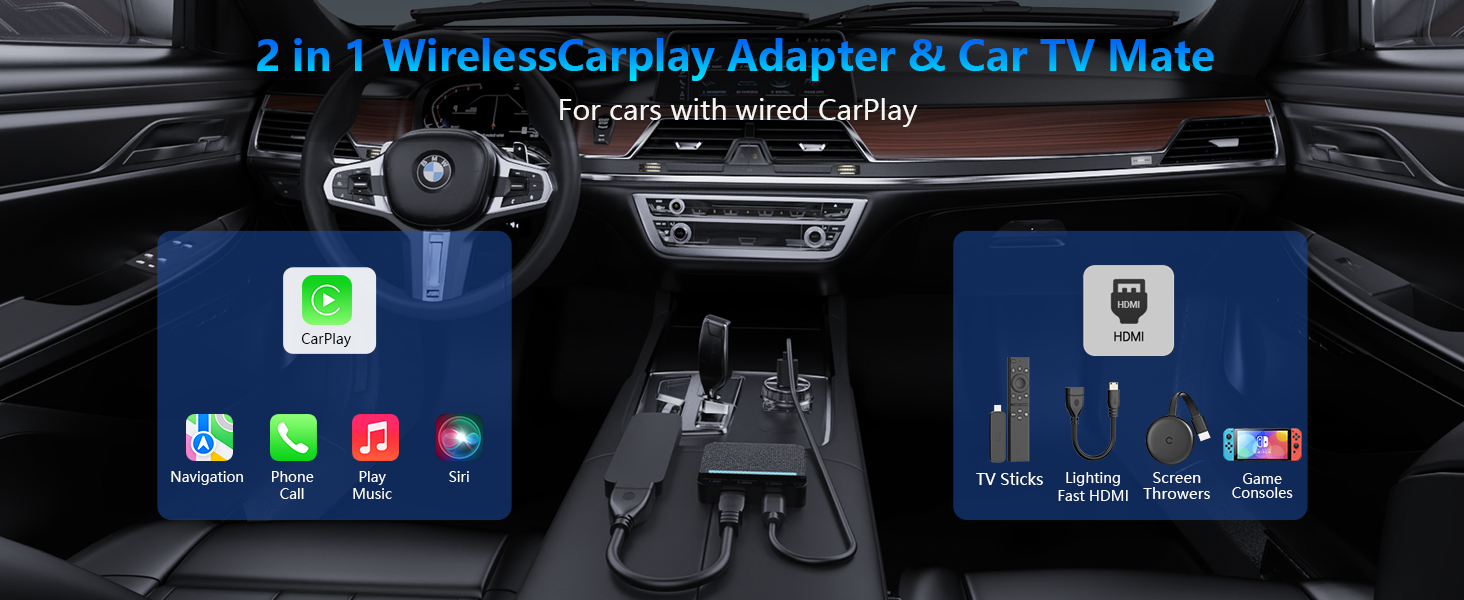
Image 2.1: Visual representation of the Car TV Mate Pro's dual functionality within a car's interior, showcasing both CarPlay features and HDMI multimedia capabilities.
3. Package Contents
Please verify that all items are present in your package:
- CarPlay AI Box (Car TV Mate Pro device)
- USB-A to USB-C Cable
- USB-C to USB-C Cable
- HDMI Mini Adapter Cable
- User Manual (This document)
- Exquisite Gift Box
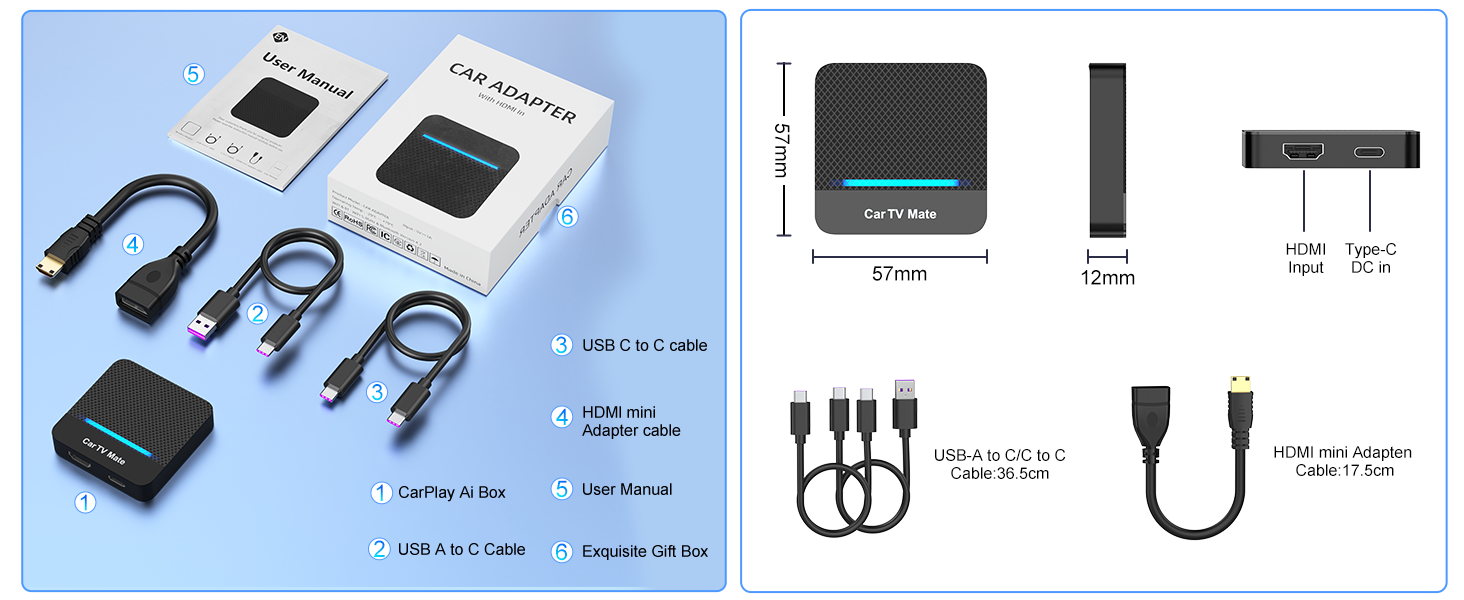
Image 3.1: Contents of the Car TV Mate Pro package, including the main unit, various adapter cables, and the user manual. Product dimensions are also shown.
4. Setup and Installation
Follow these steps to set up your Car TV Mate Pro:
4.1 Connecting the Car TV Mate Pro
- Locate your car's USB port that supports wired CarPlay.
- Connect the Car TV Mate Pro to this USB port using the provided USB-A to USB-C or USB-C to USB-C cable, depending on your car's port type.
- Once connected, the device will power on, and an indicator light will illuminate.
4.2 Setting up Wireless CarPlay
- On your mobile phone, enable Bluetooth and Wi-Fi.
- Search for available Bluetooth devices and select the Car TV Mate Pro (usually appears as 'CarPlay Box' or similar).
- Confirm the pairing request on both your phone and the car's screen.
- Once paired, your car's screen will automatically switch to the wireless CarPlay interface.
4.3 Setting up HDMI Multimedia
To use the HDMI multimedia feature, you will need an external device with an HDMI output (e.g., TV Stick, game console).
- Connect your HDMI multimedia device (e.g., TV Stick) to the HDMI input port on the Car TV Mate Pro using the provided HDMI mini adapter cable.
- Ensure your HDMI device receives power. For TV sticks, you can often power them via a car USB port or a separate power adapter if needed.
- Switch the Car TV Mate Pro to HDMI mode (refer to Section 5.1 for system switching).
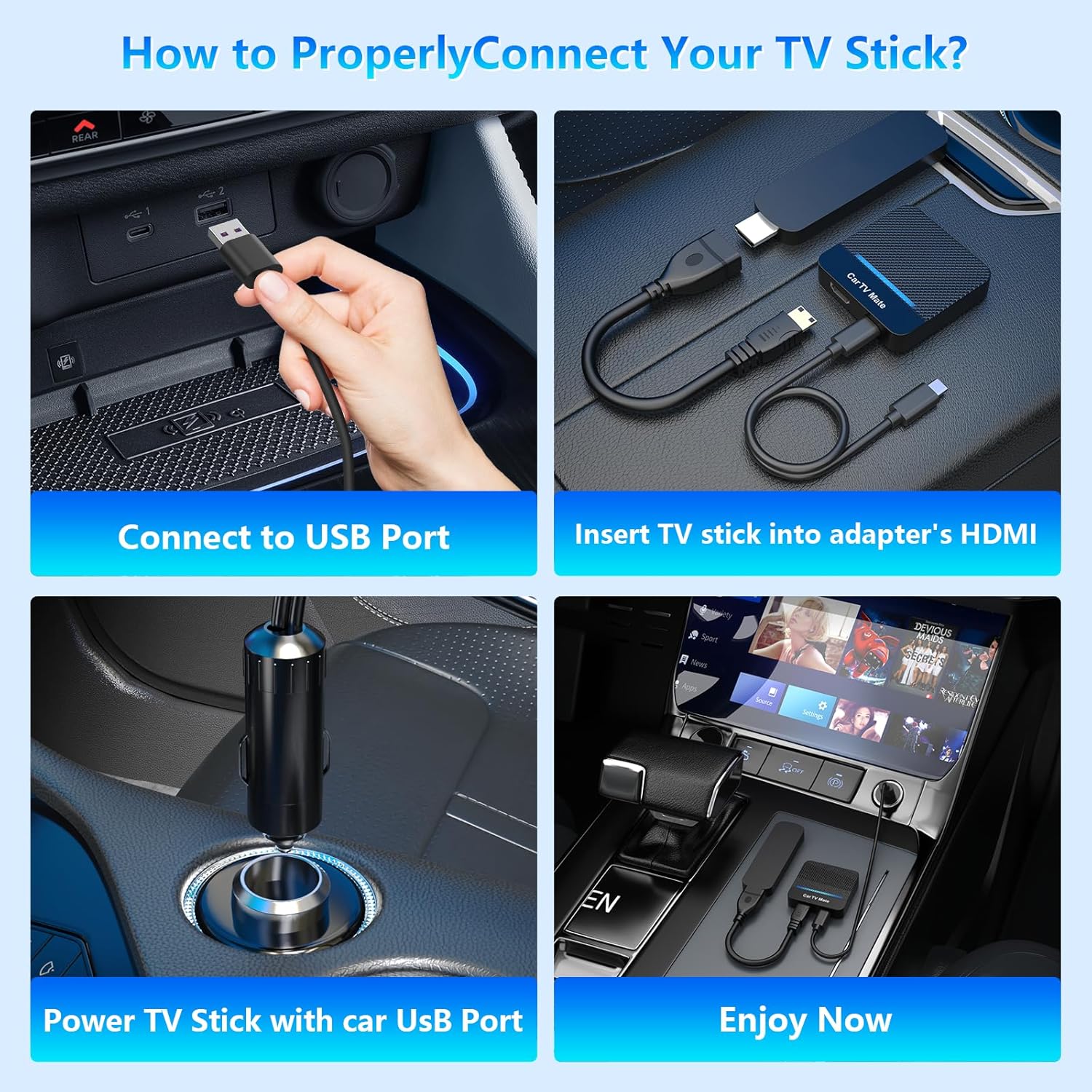
Image 4.1: Step-by-step visual guide for connecting an external TV stick to the Car TV Mate Pro for multimedia playback.
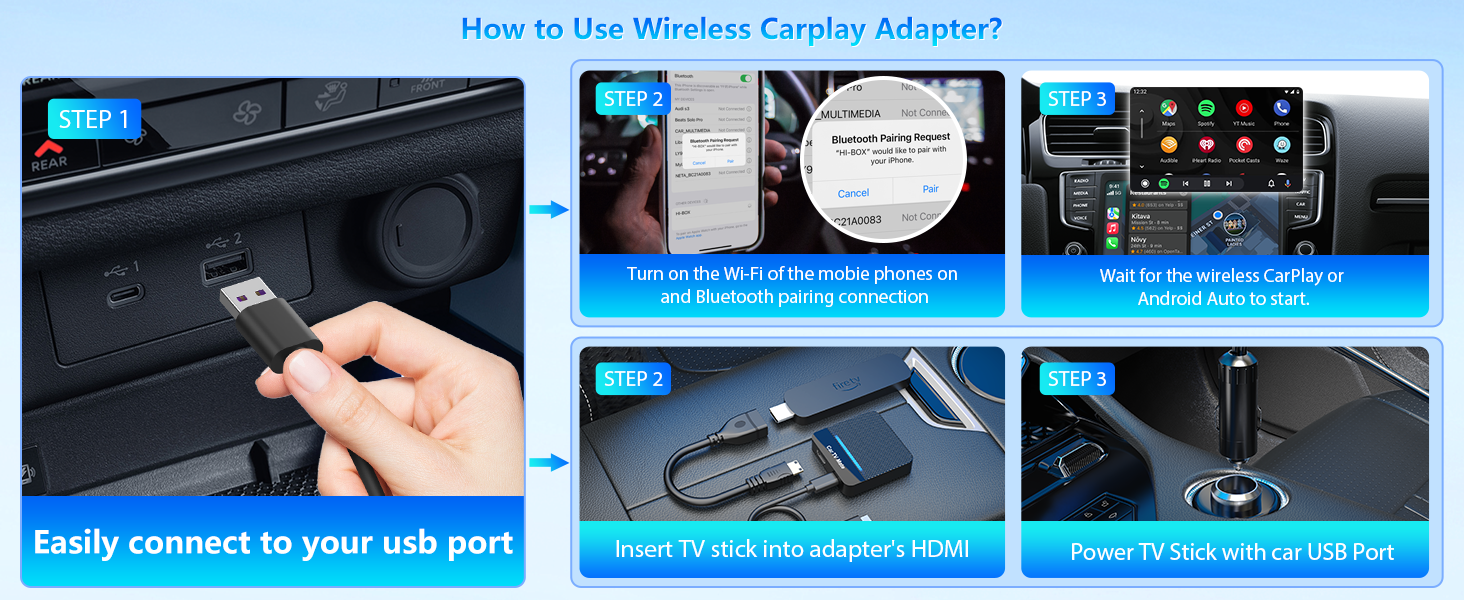
Image 4.2: Comprehensive setup guide illustrating both wireless CarPlay connection via USB and Bluetooth, and HDMI multimedia setup.
5. Operating Instructions
5.1 Switching Between Systems
The Car TV Mate Pro allows for quick switching between Wireless CarPlay and HDMI Multimedia modes. Simply click the "Home" button on the main interface of the Car TV Mate Pro to toggle between the two systems.
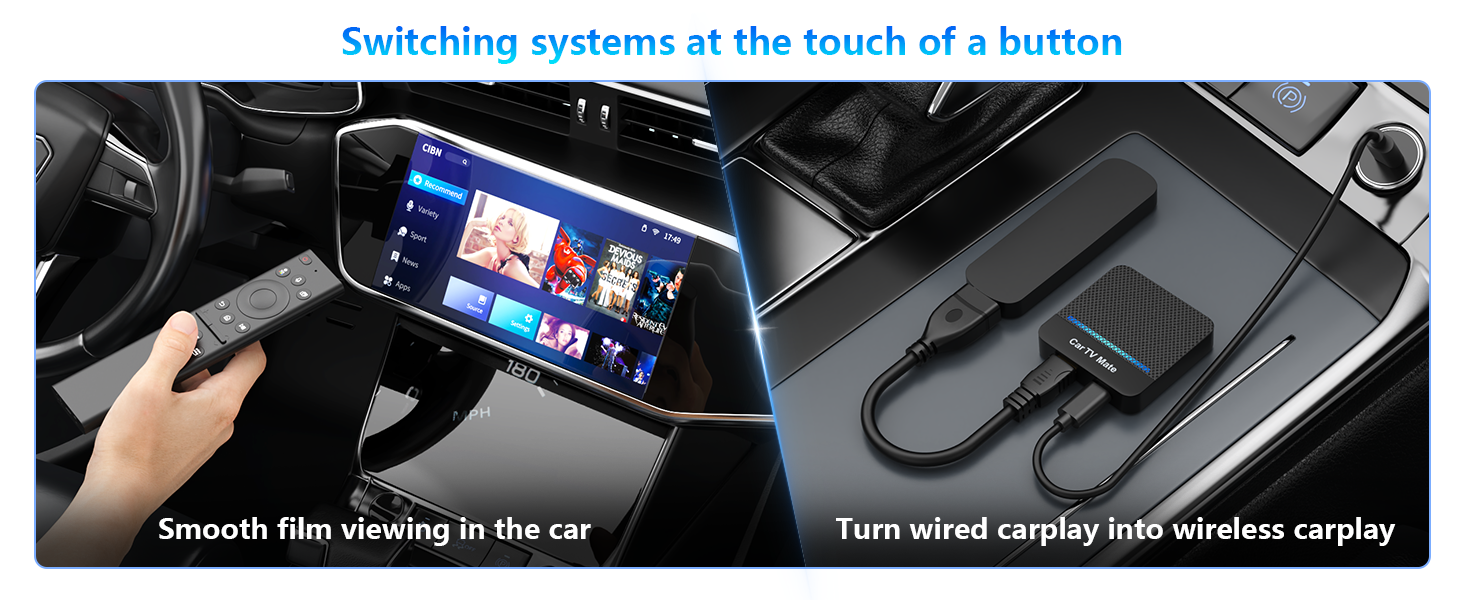
Image 5.1: The Car TV Mate Pro enabling seamless system switching for both entertainment and wireless CarPlay.
5.2 Using Wireless CarPlay
Once connected, Wireless CarPlay provides access to your iPhone's key features directly on your car's display. You can:
- Navigation: Use Apple Maps or other compatible navigation apps for turn-by-turn directions.
- Music & Audio: Play music, podcasts, and audiobooks from your phone's library or streaming services.
- Siri Voice Commands: Activate Siri for hands-free control, making calls, sending messages, and more.
- Hands-Free Calling: Make and receive calls safely through your car's audio system.

Image 5.2: The Car TV Mate Pro enabling a seamless transition from wired to wireless CarPlay, displaying various compatible applications.
5.3 Using HDMI Multimedia
In HDMI mode, the Car TV Mate Pro acts as a bridge between your external HDMI devices and your car's screen. This allows for:
- Streaming Content: Connect TV sticks (e.g., Roku, Fire TV, Google TV) to watch movies, TV shows, and other streaming content.
- Gaming: Connect gaming consoles (e.g., Nintendo Switch, PlayStation, Xbox) for in-car gaming.
- Screen Mirroring: Use screen mirroring devices to project content from your smartphone or tablet.

Image 5.3: Examples of how the Car TV Mate Pro redefines in-car possibilities, including gaming, TV stick usage, and screen mirroring.
5.4 Retaining Original Car Controls
The Car TV Mate Pro is designed to integrate seamlessly with your vehicle's existing control systems. You can continue to use:
- Touchscreen: Interact directly with the car's display.
- OEM Knob: Navigate menus and control functions using your car's original control knob.
- Steering Wheel Controls: Manage audio, calls, and other features directly from your steering wheel.
- Voice Control: Utilize your car's built-in voice assistant or Siri for hands-free operation.
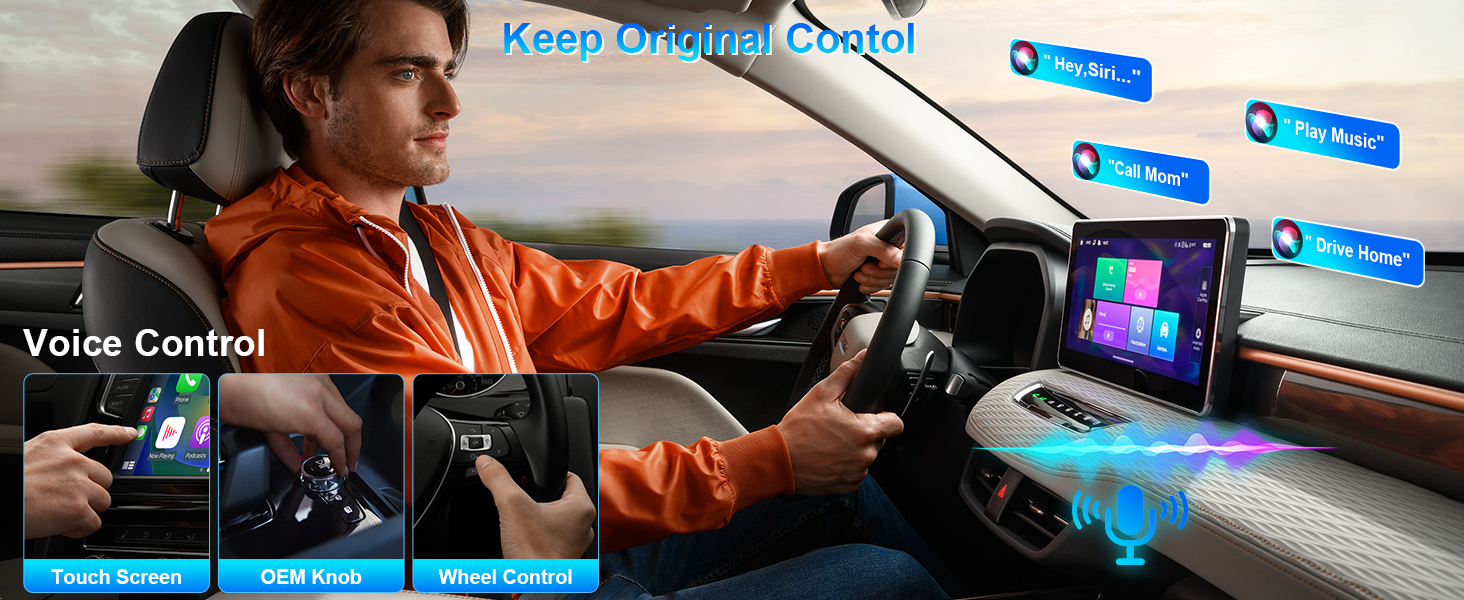
Image 5.4: The Car TV Mate Pro ensures full compatibility with your car's original control methods, including voice, touchscreen, knob, and steering wheel controls.
6. Compatibility
The Car TV Mate Pro is compatible with a wide range of vehicles and devices:
6.1 Car Compatibility
The wireless CarPlay adapter supports over 800 models with factory-installed wired CarPlay. This includes popular brands such as:
- Audi
- Volvo
- Mercedes
- Land Rover
- Toyota
- Hyundai
- Porsche
- BMW
To check specific model availability, please refer to the official CarPlay compatibility lists:
- Apple CarPlay: https://www.apple.com/ios/carplay/available-models/
- Android Auto: https://www.android.com/auto/compatibility-vehicles

Image 6.1: The Car TV Mate Pro is compatible with over 800 car models that feature factory-installed wired CarPlay.
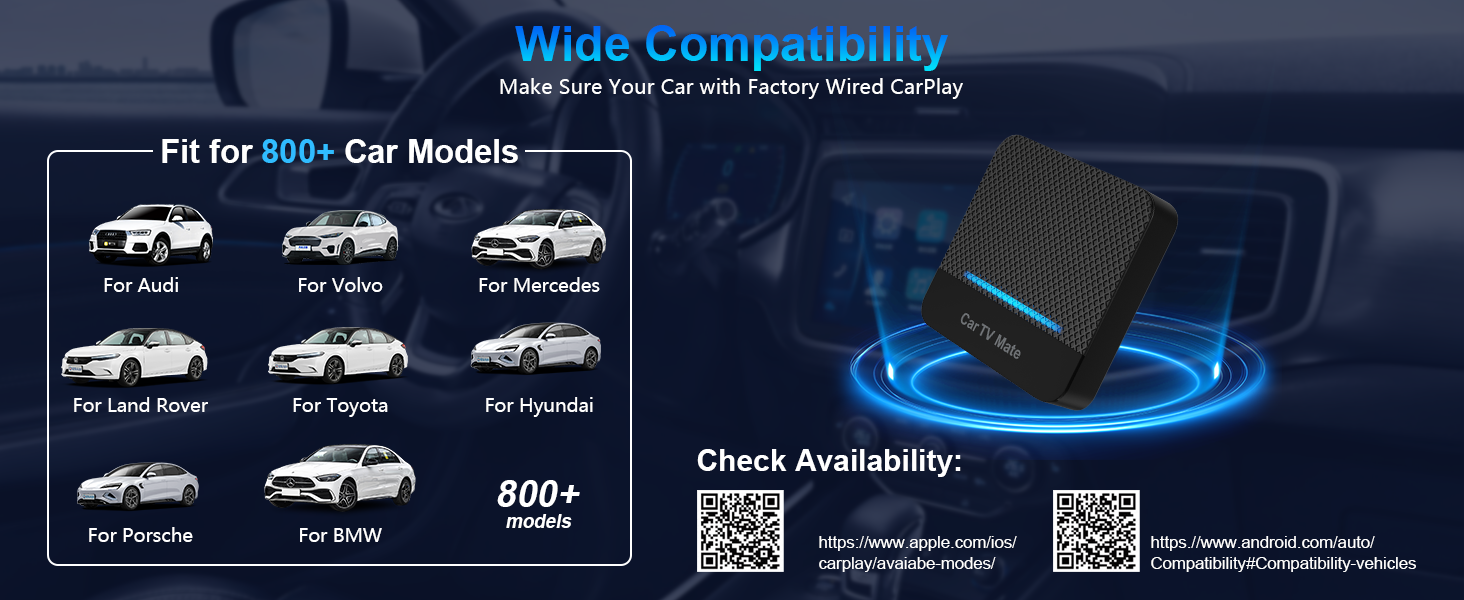
Image 6.2: Further illustration of wide car compatibility, with QR codes provided for quick access to official compatibility lists for Apple CarPlay and Android Auto.
6.2 Device Compatibility (HDMI Multimedia)
The HDMI multimedia feature is compatible with a broad range of devices, including:
- Television (as a display output)
- Smartphones (for screen mirroring via appropriate cables)
- Personal Computers / Laptops
- Tablets
- TV Sticks (e.g., Amazon Fire TV Stick, Apple TV, Google TV, Roku TV)
- Gaming Consoles (e.g., PS4, PS5, Nintendo Switch)
- Set-Top Boxes
- Screen Throwers / Casting Devices

Image 6.3: The Car TV Mate Pro offers unlimited HDMI capabilities, supporting a wide array of multimedia devices.
7. Troubleshooting
Here are some important notes and troubleshooting tips:
- TV Stick Network Connection: When using a TV Stick, you must go to its Settings > Network and connect to a mobile hotspot or car Wi-Fi to provide a data network for streaming content.
- iPhone Compatibility: For Wireless CarPlay, iPhones must run iOS 10 or higher. Ensure your device is updated.
- System Switching: If you need to quickly switch between Wireless CarPlay and HDMI Multimedia systems, simply click the "Home" button on the main interface of the Car TV Mate Pro.
- No Signal/Black Screen: Ensure all cables are securely connected. Verify that the Car TV Mate Pro is powered on and the correct input mode is selected.
- Audio Issues: Check your car's audio settings and ensure the volume is up. For HDMI devices, verify audio output settings on the connected device.
8. Specifications
| Feature | Detail |
|---|---|
| Brand Name | MTAKYA |
| Model Name | Car TV Mate Pro |
| Item Weight | 20 Grams (0.705 ounces) |
| Package Dimensions | 2.36 x 1.57 x 0.79 inches |
| Connectivity Technology | USB |
| Connector Type | HDMI |
| Special Feature | Bluetooth |
| Resolution | 1080p |
| Video Codec Support | H.264, H.265/HEVC, VP9, AV1 |
| First Available Date | July 7, 2025 |
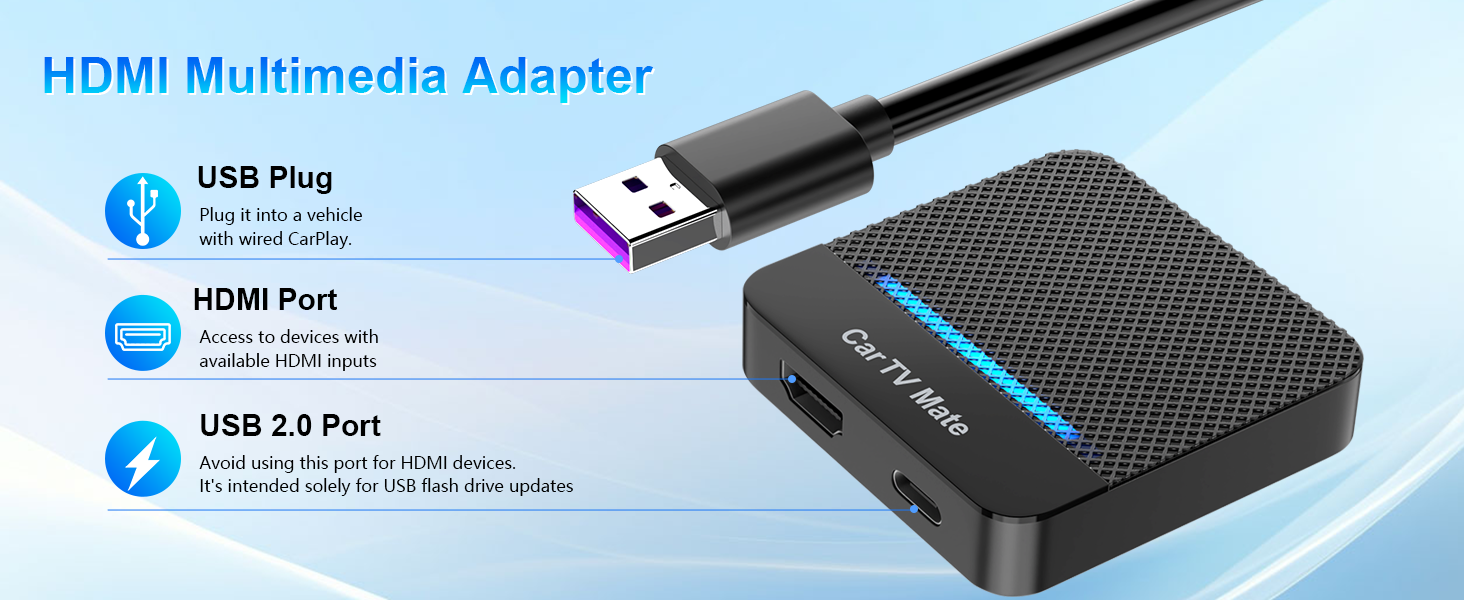
Image 8.1: Detailed view of the Car TV Mate Pro's ports and their respective functions.
9. Maintenance
To ensure the longevity and optimal performance of your Car TV Mate Pro, please follow these general maintenance guidelines:
- Cleaning: Use a soft, dry cloth to wipe the device. Avoid using liquid cleaners or abrasive materials.
- Storage: When not in use for extended periods, store the device in a cool, dry place away from direct sunlight and extreme temperatures.
- Handling: Handle the device with care to prevent physical damage. Avoid dropping or subjecting it to strong impacts.
- Cable Management: Ensure cables are not kinked or strained, which can lead to damage over time.
10. Warranty and Support
The Car TV Mate Pro comes with a 24-month worry-free after-sales customer service. If you encounter any questions or issues with your device, please do not hesitate to contact us through Amazon. We are committed to replying and providing a satisfactory solution within 24 hours.