
DJI Mini 4 Pro
DJI Mini 4 Pro Practice Manual: Color Version
Comprehensive Guide for Operating and Maintaining Your DJI Mini 4 Pro Drone
1. Introduction to DJI Mini 4 Pro
The DJI Mini 4 Pro is a compact and advanced drone designed for ease of use and high-quality aerial photography and videography. This manual provides detailed instructions on its features, functionality, and safe operation.
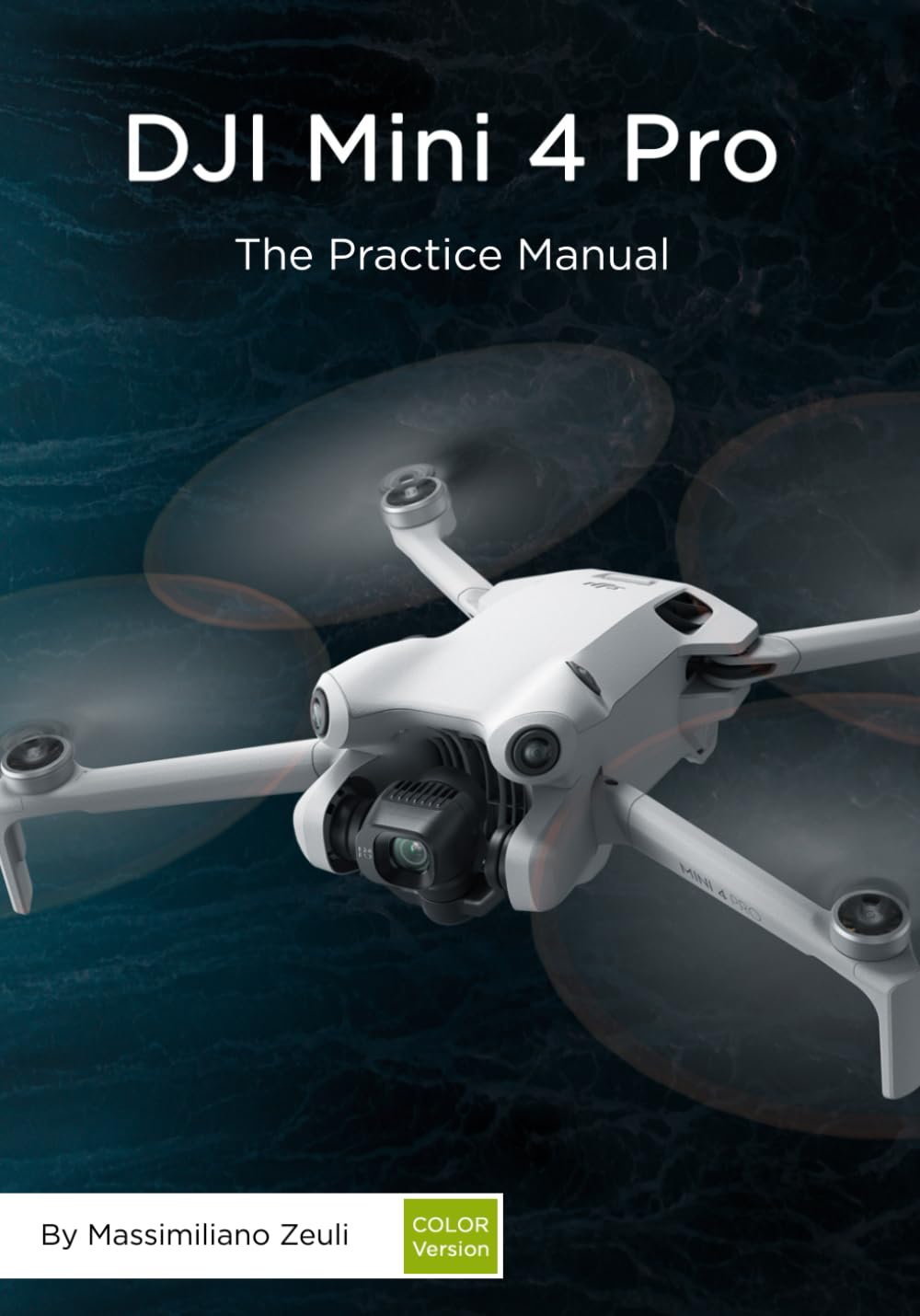
Image: Front cover of the DJI Mini 4 Pro Practice Manual, featuring the drone against a dark, textured background. This manual serves as a comprehensive guide for users.
1.1 General Features
The DJI Mini 4 Pro offers a range of features including advanced obstacle sensing, extended battery life, and high-resolution camera capabilities. It is designed for both beginners and experienced pilots.
1.2 Drone Preparation and Product Activation
Before first flight, ensure the drone and remote controller are fully charged. Follow the on-screen prompts in the DJI Fly app to activate the product. Activation is required for full functionality and warranty registration.
1.3 Product Activation
Connect your mobile device to the remote controller and launch the DJI Fly app. Power on the drone and remote controller. The app will guide you through the activation process, which includes linking your DJI account.
2. Setup and Initial Configuration
This section covers the initial setup steps to prepare your DJI Mini 4 Pro for flight, including battery installation, propeller attachment, and linking the remote controller.
2.1 Battery Installation
Insert the Intelligent Flight Battery into the battery compartment at the rear of the drone until it clicks securely into place. Ensure the battery is fully charged before each flight.
2.2 Propeller Attachment
Attach the propellers according to the markings on the propellers and motor arms. Match the propellers with grey marks to the motors with grey marks, and unmarked propellers to unmarked motors. Press down and twist to secure.
2.3 Linking Remote Controller
If the remote controller is not already linked, power on both the drone and the remote controller. Press and hold the power button on the drone for four seconds until it beeps. The remote controller will automatically link.
3. Operating the DJI Mini 4 Pro
This section details the various flight modes, control methods, and camera operations for the DJI Mini 4 Pro.
3.1 The Remote Controller (RC-N2 and DJI RC 2)
Familiarize yourself with the controls on your specific remote controller model. The RC-N2 requires a connected mobile device, while the DJI RC 2 features a built-in screen. Both offer precise control over the drone's movements and camera functions.
3.2 Flight Modes
The DJI Mini 4 Pro offers several flight modes: Normal, Sport, and Cine. Each mode adjusts the drone's responsiveness and speed for different flying scenarios. Select the appropriate mode based on your environment and desired flight characteristics.
3.3 Controlling the Aircraft
Use the control sticks on the remote controller to maneuver the drone. The left stick typically controls altitude and yaw (rotation), while the right stick controls forward/backward and left/right movement. Practice in an open area before attempting complex maneuvers.
3.4 DJI Fly App Interface
The DJI Fly app provides a real-time view from the drone's camera, flight telemetry, and access to all drone settings. Monitor battery levels, GPS signal, and obstacle avoidance status through the app interface.
3.5 Camera and Gimbal Operation
The integrated camera and 3-axis gimbal allow for stable and high-quality imaging. Adjust camera settings such as resolution, frame rate, ISO, and shutter speed via the DJI Fly app. Use the gimbal dial on the remote controller to control the camera's tilt.
3.6 Advanced Flight Features
- APAS 5.0: Advanced Pilot Assistance Systems help the drone automatically plan a flight path to avoid obstacles.
- QuickShots: Automated flight patterns for cinematic video clips (e.g., Dronie, Rocket, Circle, Helix, Boomerang, Asteroid).
- MasterShots: Creates professional-looking videos with a series of automated maneuvers and music.
- Hyperlapse: Captures stable time-lapse videos with various flight paths.
- Pano: Automatically stitches multiple photos into a panoramic image.
- FocusTrack: Keeps a subject in the frame automatically using Spotlight, Point of Interest, or ActiveTrack.
- Waypoint Flight: Plans and executes flight routes based on predefined waypoints.
- Cruise Control: Maintains the drone's current speed and direction without continuous stick input.
4. Advanced Safety Functions and Regulations
Understanding and utilizing the safety features of your DJI Mini 4 Pro is crucial for responsible and secure flight. Adherence to local regulations is also paramount.
4.1 Return To Home (RTH)
RTH is a critical safety feature that automatically brings the drone back to its recorded home point. It can be triggered manually, by low battery, or by signal loss. Ensure your home point is accurately recorded before takeoff.
4.2 Vision System
The drone is equipped with advanced vision sensors that assist with precise hovering, obstacle detection, and safe landing. Keep the vision sensors clean and unobstructed for optimal performance.
4.3 Flight Limits and Rules (EU/UK/US)
Always comply with local aviation regulations. This includes, but is not limited to, altitude limits, no-fly zones, and requirements for pilot registration or certification. Consult official aviation authorities in your region (e.g., FAA in the US, EASA in EU, CAA in UK) for the most current rules.
- EU/UK Rules: Adhere to the specific drone categories (Open, Specific, Certified) and their operational requirements.
- US Rules: Familiarize yourself with Part 107 for commercial operations or recreational rules for hobbyists.
5. Maintenance and Care
Regular maintenance ensures the longevity and optimal performance of your DJI Mini 4 Pro.
5.1 Firmware Update
Periodically check for and install firmware updates via the DJI Fly app. Updates often include performance enhancements, new features, and bug fixes. Ensure the drone and remote controller are fully charged before updating.
5.2 Intelligent Flight Battery Care
Store batteries at approximately 50-60% charge for long-term storage. Avoid overcharging or completely discharging the battery. Operate within recommended temperature ranges. Replace batteries showing signs of swelling or damage.
5.3 Calibration (Compass and IMU) and System Status LEDs
Calibrate the compass when prompted by the app or when flying in a new location. Calibrate the IMU (Inertial Measurement Unit) if flight performance is unstable. Monitor the system status LEDs on the drone for indications of its current status or warnings.
5.4 Attaching and Detaching the Propellers
Regularly inspect propellers for cracks, bends, or damage. Replace damaged propellers immediately. When attaching, ensure they are securely fastened. To detach, press down on the propeller and twist in the opposite direction of attachment.
6. Product Specifications
Key technical specifications for the DJI Mini 4 Pro and this practice manual.
| Specification | Detail |
|---|---|
| ASIN | B0CKLZ6GSZ |
| Publisher | Independently published |
| Publication date | October 6, 2023 |
| Language | English |
| Print length | 234 pages |
| ISBN-13 | 979-8863475219 |
| Item Weight | 1.16 pounds |
| Dimensions | 7 x 0.53 x 10 inches |
7. Troubleshooting Common Issues
This section provides guidance on resolving common operational issues you might encounter with your DJI Mini 4 Pro.
7.1 Drone Not Connecting to Remote Controller
Ensure both devices are powered on and fully charged. Try re-linking the remote controller as described in the setup section. Check for firmware updates for both the drone and controller.
7.2 Poor GPS Signal
Fly in an open area away from tall buildings or strong magnetic interference. Wait for the drone to acquire sufficient GPS satellites before takeoff (indicated by green GPS icon in DJI Fly app).
7.3 Camera Feed Issues
Check the connection between your mobile device and the remote controller. Ensure the DJI Fly app is up to date. Restart both the drone and the app. Clean the camera lens.
8. Warranty and Support
Information regarding product warranty and how to obtain support for your DJI Mini 4 Pro.
8.1 Product Warranty
The DJI Mini 4 Pro comes with a standard manufacturer's warranty. Please refer to the official DJI website or the warranty card included with your product for specific terms, conditions, and duration. Keep your proof of purchase for warranty claims.
8.2 DJI Care Refresh
DJI Care Refresh is an optional service plan that provides comprehensive protection for your DJI product, offering replacement services for accidental damage. Details on purchasing and activating DJI Care Refresh can be found on the official DJI website.
8.3 Customer Support
For technical assistance, troubleshooting, or service requests, please visit the official DJI Support website or contact their customer service hotline. Online resources, FAQs, and forums are also available for common inquiries.
Related documentsMini 4 Pro


Ask a question about this manual
Ask about setup, troubleshooting, compatibility, parts, safety, or missing instructions. Manuals+ will review the question and use this page’s manual context to help answer it.