
Ampire CPM 101
AMPIRE CPM 101 Smartphone Monitor User Manual
Model: CPM 101
1. Introduction
This user manual provides comprehensive instructions for the installation, operation, and maintenance of your AMPIRE CPM 101 Smartphone Monitor. Please read this manual thoroughly before using the device to ensure proper functionality and safety.
2. Safety Information
Always observe the following safety precautions to prevent damage to the device or injury to yourself:
- Do not attempt to disassemble or modify the device.
- Ensure all connections are secure before powering on.
- Avoid exposing the device to extreme temperatures, direct sunlight, or moisture.
- Install the monitor in a location that does not obstruct the driver's view or interfere with vehicle safety systems.
- Only use the provided cables and accessories.
3. Product Overview
The AMPIRE CPM 101 is a 10-inch high-resolution touchscreen monitor designed to integrate smartphone functionalities like Apple CarPlay and Android Auto into your vehicle. It also supports the display of an optional rearview camera.
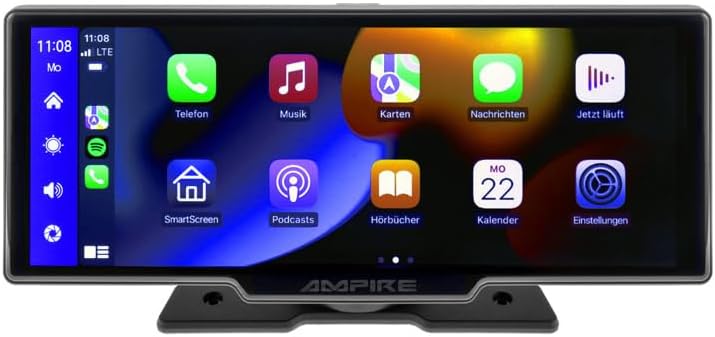
Figure 3.1: Front view of the AMPIRE CPM 101 monitor showing the user interface with various app icons.

Figure 3.2: The AMPIRE CPM 101 monitor with its base, highlighting key features such as Bluetooth, Apple CarPlay, Android Auto, 1080p Full HD, Wi-Fi, and 10-inch display.

Figure 3.3: Contents of the AMPIRE CPM 101 package, including the monitor, rearview camera, and various connection cables.

Figure 3.4: The AMPIRE CPM 101 monitor displaying a split screen with navigation on one side and a rearview camera feed on the other.
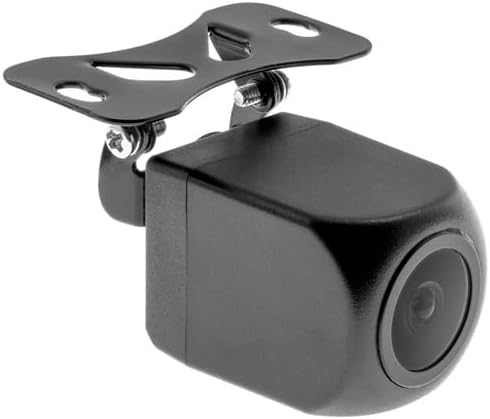
Figure 3.5: Close-up view of the compact rearview camera with its mounting bracket.
4. Setup and Installation
The AMPIRE CPM 101 is designed for easy integration into most vehicles. Professional installation is recommended for optimal performance and safety.
4.1. Package Contents
Before beginning installation, verify that all components are present:
- AMPIRE CPM 101 Monitor
- Power Cable Set
- Rearview Camera (optional, if included in your package)
- Camera Connection Cable
- Mounting Bracket
- User Manual
4.2. Mounting the Monitor
- Choose a suitable location on your dashboard that does not obstruct your view or interfere with airbags.
- Clean the mounting surface thoroughly.
- Attach the mounting bracket to the monitor.
- Securely mount the monitor to the dashboard using the provided adhesive or screws, ensuring it is stable.
4.3. Wiring Connections
Connect the power cable set to your vehicle's power source (ACC, B+, GND). If installing a rearview camera, connect its video cable to the monitor's camera input and its power cable to the vehicle's reverse light circuit for automatic activation.
- Red Wire: Connect to ACC (Accessory Power).
- Yellow Wire: Connect to B+ (Constant Power).
- Black Wire: Connect to GND (Ground).
- Reverse Trigger Wire (if applicable): Connect to the vehicle's reverse light positive wire.
5. Operating Instructions
5.1. Powering On/Off
The monitor will power on automatically when the vehicle's ignition is turned on (ACC power). To manually turn off, press and hold the power button (if available) or turn off the vehicle's ignition.
5.2. Connecting to Apple CarPlay / Android Auto
The CPM 101 supports wireless connection to Apple CarPlay and Android Auto. Note: Devices with only 2.4 GHz Wi-Fi are not supported. iPhone 5 or newer is required for Apple CarPlay.
- Ensure your smartphone's Bluetooth and Wi-Fi are enabled.
- On the CPM 101 monitor, navigate to the "Phone" or "Connect" menu.
- Select "Pair New Device" or similar option.
- On your smartphone, search for and select the CPM 101 in the Bluetooth device list.
- Confirm the pairing code on both devices.
- Once paired via Bluetooth, the monitor will automatically establish a Wi-Fi connection for CarPlay or Android Auto.
5.3. Using the Rearview Camera
If a rearview camera is connected, the monitor will automatically switch to the camera view when the vehicle is put into reverse gear. The image will revert to the previous screen when taken out of reverse.
5.4. System Settings
Access the system settings menu on the monitor to adjust display brightness, audio output, language, and other preferences. Refer to the on-screen prompts for specific setting options.
6. Maintenance
To ensure the longevity and optimal performance of your AMPIRE CPM 101 monitor, follow these maintenance guidelines:
- Cleaning the Screen: Use a soft, lint-free cloth to gently wipe the screen. For stubborn smudges, slightly dampen the cloth with water or a screen-cleaning solution. Do not use abrasive cleaners or solvents.
- General Cleaning: Keep the monitor and its surroundings free from dust and debris. Use a soft brush or compressed air to clean vents and connectors.
- Temperature: Avoid exposing the device to extreme hot or cold temperatures for prolonged periods.
- Storage: If storing the vehicle for an extended period, consider disconnecting the monitor's power to prevent battery drain.
7. Troubleshooting
If you encounter issues with your AMPIRE CPM 101 monitor, refer to the following common problems and solutions:
| Problem | Possible Cause | Solution |
|---|---|---|
| Monitor does not power on. | No power supply; loose connection; blown fuse. | Check power cable connections. Verify vehicle's fuse box. Ensure ignition is on. |
| Cannot connect to Apple CarPlay/Android Auto. | Smartphone Wi-Fi/Bluetooth off; incompatible phone; 2.4 GHz Wi-Fi only. | Ensure Bluetooth and Wi-Fi are on. Check phone compatibility (iPhone 5+). Confirm phone supports 5 GHz Wi-Fi. Re-pair device. |
| Rearview camera not displaying. | Camera not connected; reverse trigger wire not connected; faulty camera. | Check camera video and power connections. Ensure vehicle is in reverse. Test camera if possible. |
| No audio. | Volume too low; incorrect audio output setting; Bluetooth not connected. | Increase volume. Check audio output settings on monitor. Ensure Bluetooth is connected to your vehicle's audio system. |
If the problem persists after trying these solutions, please contact customer support.
8. Specifications
Below are the technical specifications for the AMPIRE CPM 101 Smartphone Monitor:
| Feature | Specification |
|---|---|
| Brand | Ampire |
| Display Size | 10 Inches |
| Display Type | LCD, Color Screen |
| Connectivity Technology | Bluetooth, Wi-Fi |
| Compatible Devices | Smartphones with Apple CarPlay or Android Auto (wireless connection) |
| Special Features | Wireless Apple CarPlay & Android Auto, Optional Rearview Camera Display |
| Audio Output Mode | Stereo |
| Output Power | 50 Watts |
| Product Dimensions | 29 x 15 x 10 cm |
| ASIN | B0CKLSWGY7 |
| First Available Date | October 6, 2023 |
9. Warranty and Support
For warranty information and technical support, please refer to the documentation included with your purchase or visit the official Ampire website. Keep your proof of purchase for warranty claims.
Online Support: www.ampire.de
Related documentsCPM 101


Ask a question about this manual
Ask about setup, troubleshooting, compatibility, parts, safety, or missing instructions. Manuals+ will review the question and use this page’s manual context to help answer it.