
1. Overview
This manual provides instructions for the Sungale 21.5-inch Commercial Digital Signage (Model CPF1909). This device is designed for displaying digital content in various commercial environments, offering features such as Full HD IPS display, automatic screen rotation, and remote content management.
Key Features:
- Enhanced Full HD IPS Screen: 21.5-inch Anti-Glare wide-angle screen for detailed content display.
- Auto-Rotate Function: Seamlessly rotates content between landscape and portrait modes.
- Optional Weather Panel: Integrate time and weather information with advertising content via the web portal.
- Remote Content Management: Upload and send content to devices from anywhere, assigning unique content to each unit.
- Central Management: Manage multiple signage units (1 to 100) from a single central location.

Figure 1.1: Sungale 21.5-inch Commercial Digital Signage device.
2. Package Contents
The standard package typically includes:
- Sungale 21.5-inch Digital Signage Unit
- Power Adapter
- Remote Control
- User Manual (this document)
- Mounting Hardware (for wall-hanging option)
Note: Specific contents may vary. Please check the product packaging for a complete list.
3. Safety Information
Please read and follow these safety guidelines to ensure proper operation and prevent damage to the device or injury:
- Do not expose the device to water or excessive moisture.
- Avoid placing the device near heat sources or in direct sunlight.
- Use only the provided power adapter.
- Ensure proper ventilation around the device.
- Do not attempt to open or repair the device yourself. Refer to qualified service personnel.
- Keep out of reach of children.
4. Setup
4.1 Physical Setup
The Sungale Digital Signage can be used as a desktop unit or mounted on a wall. Ensure the device is placed on a stable surface or securely mounted using appropriate hardware.

Figure 4.1: Simple setup with power connection and remote control.
4.2 Network Connection
To enable remote content management, the digital signage unit requires an internet connection via Wi-Fi.
- Power up your digital signage device. A registration instruction message will appear on the screen.
- Click the "Setting" button on the screen. You will be taken to the Wi-Fi setup screen.
- Choose your Wi-Fi network from the list and enter your password.
- Wait for the Wi-Fi status to show "Connected".
- Go back to the home screen. Your cloud contents will show up shortly after successful connection.
Video 4.1: Sungale Digital Signage Device Setup Instruction. This video demonstrates the steps to connect your device to a Wi-Fi network.
4.3 Account Registration
To manage your digital signage content remotely, you need to register an account on the Sungale Digital Signage web portal.
- Visit https://digitalsignage.sungale.com in your web browser.
- Click on the "Sign Up" link.
- Fill in the required company and contact person information.
- You will receive an activation code in your email. Enter this code to activate your account.
- After registration, enter the serial number(s) of your digital signage device(s). The serial number is displayed on the device screen after power-on.
- Save the serial number(s) to link your device(s) to your account.
Video 4.2: Sungale Digital Signage Account Registration Demo. This video guides you through the process of registering your account and adding devices.
5. Operating Instructions
5.1 Content Management System Overview
The Sungale Digital Signage system utilizes a cloud-based content management platform, allowing you to control and update your display content remotely from any computer with internet access.
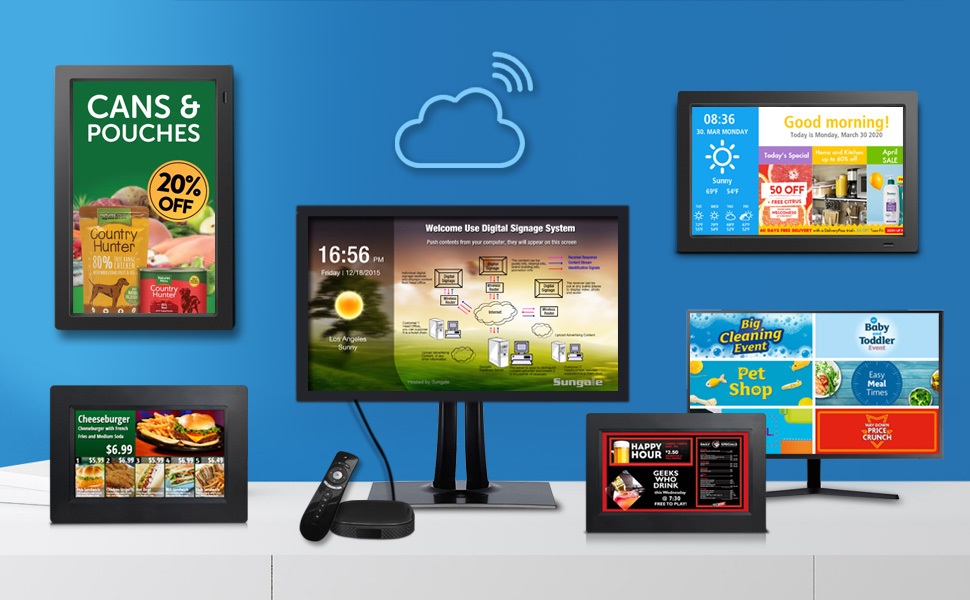
Figure 5.1: Overview of the Sungale Digital Signage System architecture.
5.2 Uploading and Managing Content
To display content on your digital signage, you must upload it to your account on the web portal and assign it to your devices.
- Log in to your Sungale Digital Signage account at https://digitalsignage.sungale.com.
- Navigate to the "Manage Content" section.
- Create a new folder to organize your content. Each folder can contain up to 250MB of content (photos, videos, audio).
- Inside the folder, click "Add New Contents" to upload your media files (JPG, PNG, GIF, MP3, MP4 formats supported).
- Set the desired play time for each content item.
- Once content is uploaded, go back to the folder list and select "Select Signage" for the desired folder.
- Choose the digital signage unit(s) to which you want to push the content and click "Submit".
- The content will be downloaded to the selected device(s) and begin playing.
Video 5.1: Sungale Digital Signage How to Add Content & Send to Devices. This video demonstrates the process of uploading and deploying content.
5.3 Auto-Rotate Function
The CPF1909 model features an auto-rotate function that automatically adjusts the content orientation (landscape or portrait) when the device is physically rotated.

Figure 5.2: Automatic content rotation between landscape and portrait orientations.
5.4 Offline Content Playback
The device supports playing content even without a continuous Wi-Fi connection, provided the content has been previously downloaded to the device's internal memory or an inserted SD card/USB drive.

Figure 5.3: The device can play content without an active Wi-Fi signal.
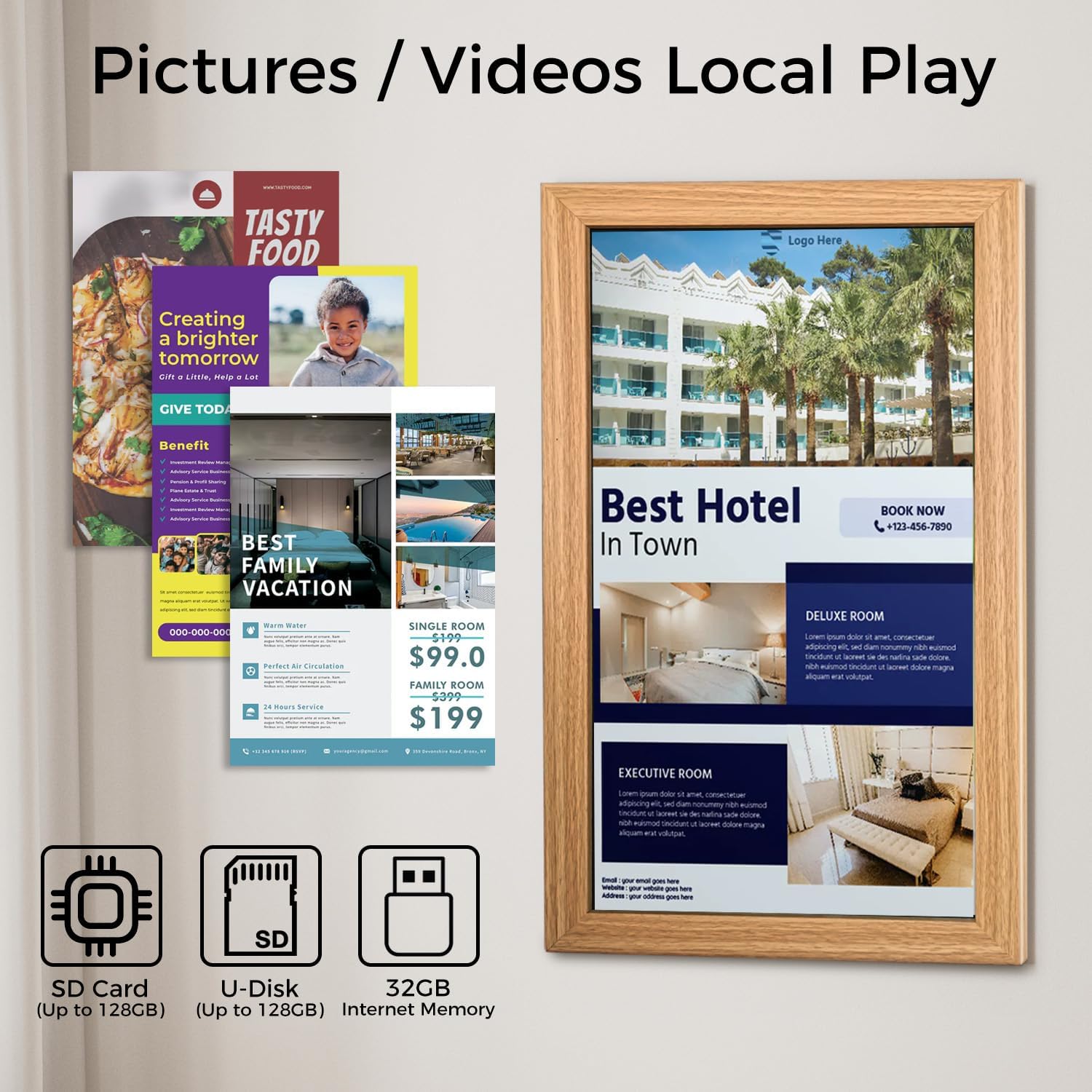
Figure 5.4: Local playback options using SD card, U-Disk, or internal memory.
5.5 Optional Weather Panel
You can enable or disable a time and weather panel to be displayed alongside your advertising content through the Sungale digital signage web portal settings.
6. Features
The Sungale CPF1909 Digital Signage offers a range of features designed for commercial display applications:
- Full HD IPS Display: Provides clear, vibrant images with wide viewing angles (1920x1080 resolution).
- Anti-Glare Screen: Reduces reflections for better visibility in various lighting conditions.
- Automatic Content Rotation: Adapts display orientation based on physical device position.
- Cloud-Based Content Management: Centralized control for content upload, scheduling, and deployment to multiple devices.
- Local Playback Support: Ability to play content from SD cards or USB drives, or internal memory, for offline operation.
- Versatile Applications: Suitable for various business environments such as retail, restaurants, hotels, and offices.
Video 6.1: Sungale Digital Signage Main Features. This video highlights the primary functionalities of the digital signage system.
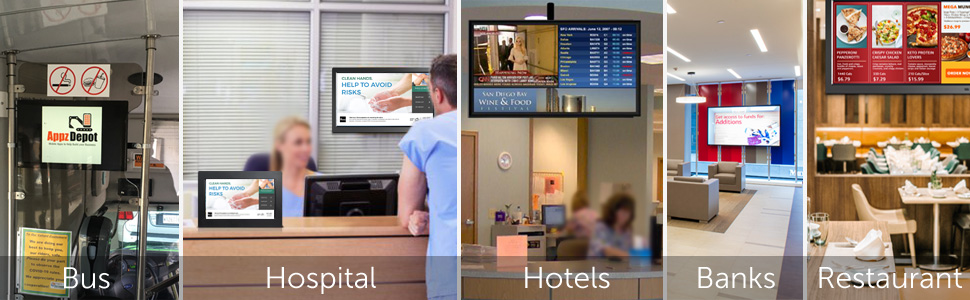
Figure 6.1: Examples of digital signage applications in different settings.
7. Maintenance
To ensure the longevity and optimal performance of your Sungale Digital Signage, follow these maintenance guidelines:
- Cleaning: Gently wipe the screen with a soft, lint-free cloth. For stubborn marks, use a screen-cleaning solution specifically designed for electronic displays. Do not use harsh chemicals or abrasive materials.
- Dust Removal: Regularly dust the device's casing and ventilation openings to prevent dust buildup, which can affect performance and lead to overheating.
- Software Updates: Periodically check the Sungale Digital Signage web portal or device settings for available firmware updates. Keeping the software updated ensures access to the latest features and security enhancements.
- Environmental Conditions: Operate the device within its specified temperature and humidity ranges to prevent damage.
8. Troubleshooting
If you encounter issues with your Sungale Digital Signage, refer to the following common troubleshooting steps:
- Device Not Powering On: Ensure the power adapter is securely connected to both the device and a working power outlet. Try a different outlet if necessary.
- No Content Displayed:
- Verify the device is connected to the internet (check Wi-Fi status).
- Confirm that content has been uploaded to your account and assigned to the specific device via the web portal.
- Check the content folder for any errors or unsupported file types.
- Content Not Updating: Ensure the device has a stable internet connection. Content updates may take some time to download depending on file size and network speed.
- Remote Control Not Working: Check the batteries in the remote control. Ensure there are no obstructions between the remote and the device's IR receiver.
- Screen Orientation Issues: If auto-rotate is not functioning, ensure the device is positioned correctly and the feature is enabled in settings (if applicable).
- Poor Image/Video Quality: Ensure the uploaded content is of high resolution and appropriate format. Check network speed if streaming content.
For further assistance, please visit the support section on the Sungale Digital Signage web portal or contact customer support.
9. Specifications
| Feature | Detail |
|---|---|
| Brand | Sungale |
| Model Number | CPF1909 |
| Screen Size | 21.5 Inches |
| Resolution | FHD 1080p (1920 x 1080) |
| Aspect Ratio | 16:9 |
| Screen Surface Description | Glossy, Anti Glare Screen |
| Display Type | LCD (IPS Technology) |
| Connectivity Technology | Wi-Fi |
| Total Number of HDMI Ports | 1 |
| Total USB Ports | 1 |
| Mounting Type | Desktop stand or Wall mount |
| Compatible Devices | Computers, laptops, and other devices with HDMI, VGA, or wireless display capabilities |
| Specific Uses For Product | Digital signage displays in business environments |
10. Warranty and Support
For warranty information, please refer to the documentation included with your purchase or visit the official Sungale website. For technical support, frequently asked questions (FAQ), or to contact customer service, please visit the support section of the Sungale Digital Signage web portal at https://digitalsignage.sungale.com/support.htm.
The support page provides answers to common questions regarding account management, device setup, content display, and more.