
1. Introduction
The Plugable UD-MSTH2 USB-C Docking Station is a versatile solution designed to expand the connectivity of your USB-C, USB4, or Thunderbolt-enabled laptop. This driverless docking station provides dual 4K 60Hz HDMI display outputs, 65W power delivery to your host device, Gigabit Ethernet, and a variety of essential USB and audio ports. It is engineered for seamless integration with Windows 10+ and ChromeOS 100+ systems, enhancing productivity for professionals and remote workers.
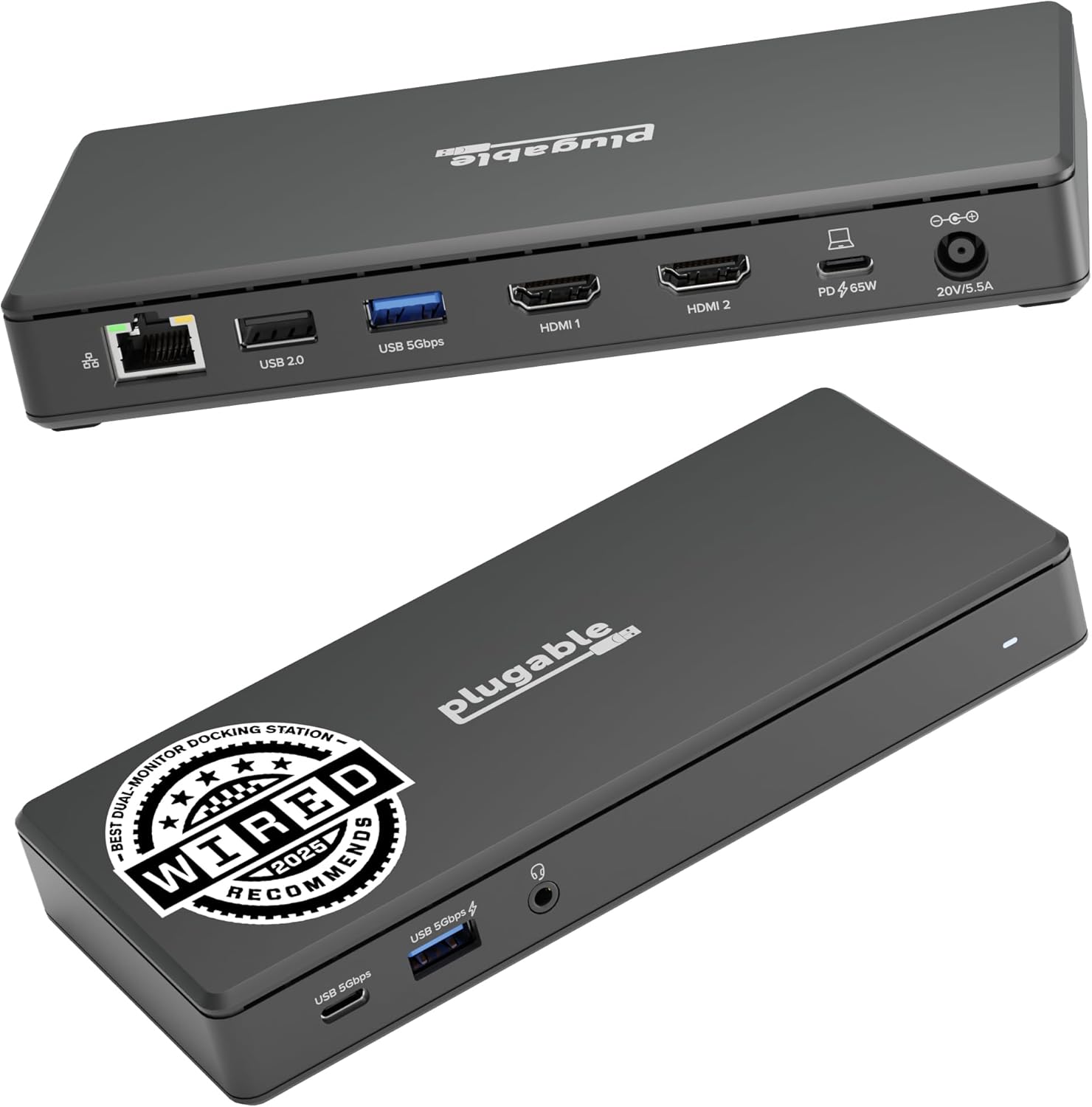
Image: The Plugable UD-MSTH2 USB-C Docking Station, showcasing its compact design and various ports on the front and rear.
2. Package Contents
Before setup, please ensure all items are present in the package:
- Plugable UD-MSTH2 Docking Station
- Power Cord and Adapter
- 1m USB-C to USB-C Cable

Image: The contents of the UD-MSTH2 package, showing the docking station, its power supply, and the included USB-C cable.
3. Setup Instructions
Follow these steps to set up your Plugable UD-MSTH2 Docking Station:
- Connect Power: Connect the included power adapter to the "20V/3.5A" power input port on the rear of the docking station, then plug the power cord into a wall outlet.
- Connect to Host Device: Use the provided 1m USB-C to USB-C cable to connect the docking station's "To Host 65W Charging" USB-C port to a compatible USB-C, USB4, or Thunderbolt port on your laptop. Ensure your host device supports USB-C DisplayPort Alternate Mode (DP Alt Mode) for video output.
- Connect Displays: Connect your HDMI monitors to the "HDMI 1" and "HDMI 2" ports on the rear of the docking station using HDMI cables. The docking station supports dual 4K 60Hz displays. For dual 4K 60Hz, your host device requires DP 1.4 with DSC.
- Connect Peripherals:
- Ethernet: Connect an Ethernet cable from your router or network switch to the Gigabit Ethernet port on the rear.
- USB Devices: Connect USB peripherals (keyboard, mouse, external drives) to the available USB ports: one USB-C (5Gbps) and two USB-A 3.0 (5Gbps) on the front, and one USB 2.0 (480Mbps) on the rear.
- Audio: Connect headphones or speakers to the 3.5mm audio in/out port on the front.
- Power On: Press the power button on the front of the docking station to turn it on. The docking station is plug-and-play and driverless for supported Windows and ChromeOS systems.
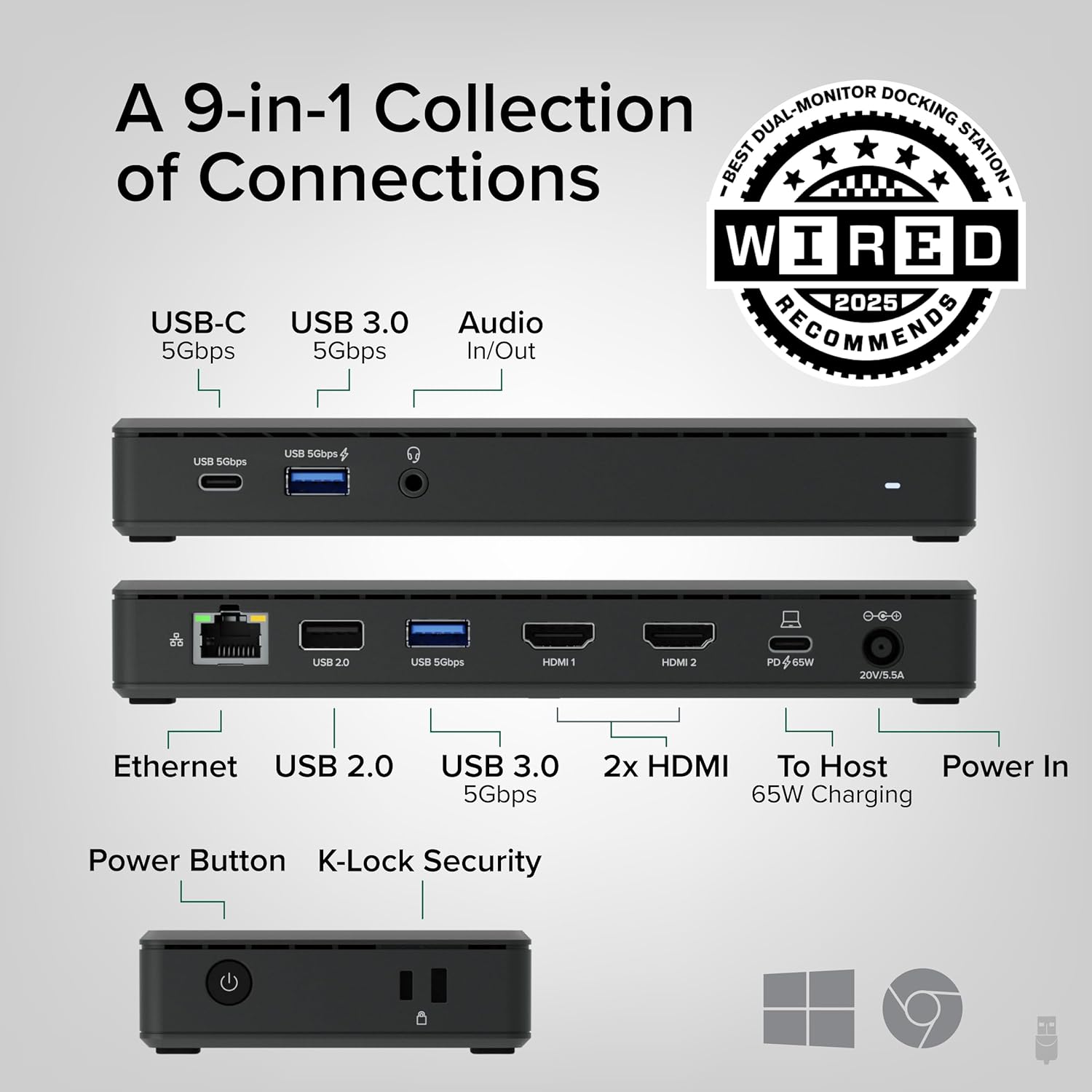
Image: A detailed diagram illustrating the 9-in-1 collection of connections available on the UD-MSTH2 docking station, including USB-C, USB-A, HDMI, Ethernet, and audio ports.

Image: A setup demonstrating the plug-and-play functionality, with a laptop connected to the docking station and two external monitors displaying an extended desktop environment.
4. Operating the Docking Station
Once connected, the Plugable UD-MSTH2 operates automatically with compatible systems. Here are key functionalities:
- Dual 4K Display Output: The docking station supports extending your desktop across two external monitors at up to 4K resolution and 60Hz refresh rate per display. This allows for an expanded workspace, ideal for multitasking.
- 65W Power Delivery: The docking station provides up to 65W of power to your connected laptop through the USB-C cable, allowing you to charge your laptop while using the dock, reducing cable clutter.
- High-Speed Data Transfer: Utilize the USB-C (5Gbps) and USB-A 3.0 (5Gbps) ports for fast data transfer with external storage devices, cameras, or other high-bandwidth peripherals. The USB 2.0 port is suitable for keyboards, mice, and other low-bandwidth devices.
- Gigabit Ethernet: Enjoy stable and high-speed wired network connectivity for reliable internet access and faster file transfers compared to Wi-Fi.
- Audio Connectivity: The 3.5mm audio jack allows you to connect headphones, speakers, or a microphone for audio input and output.
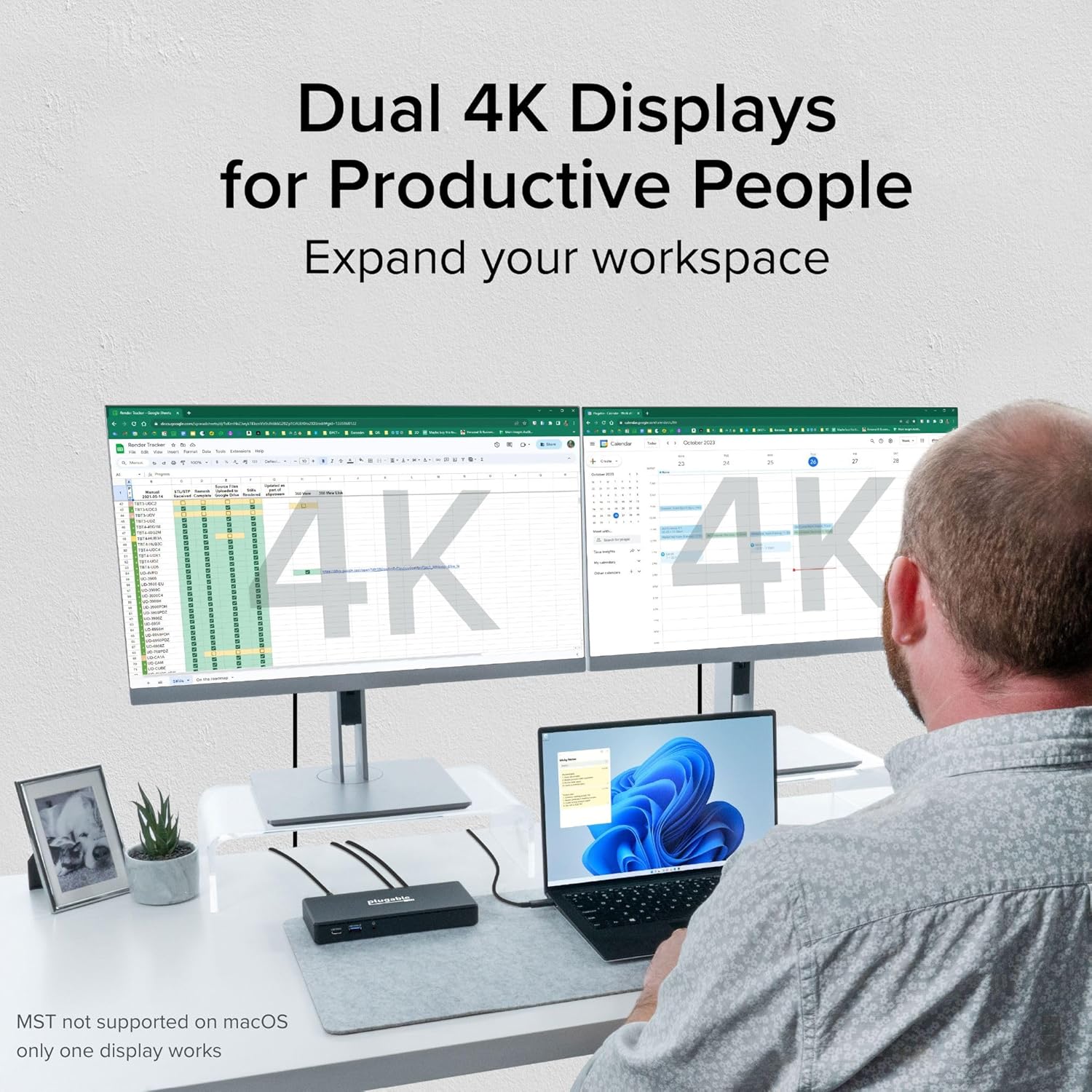
Image: A user demonstrating a productive workspace with dual 4K displays connected via the docking station, showing spreadsheets and calendars across multiple screens.

Image: A laptop connected to the UD-MSTH2 docking station, with a prominent battery charging icon displayed on its screen, indicating the 65W power delivery feature.
5. Compatibility
The Plugable UD-MSTH2 Docking Station is designed for broad compatibility with specific operating systems and host device types:
- Operating Systems:
- Windows 10 and newer
- ChromeOS 100 and newer
- Host Connection:
- USB-C ports with DisplayPort Alternate Mode (DP Alt Mode) support
- USB4 ports
- Thunderbolt 3 / Thunderbolt 4 ports
- Note on macOS: This docking station is not recommended for macOS due to a lack of Multi-Stream Transport (MST) support and display limitations inherent to macOS. Only one external display may function, or none, depending on the macOS version and specific Mac model.
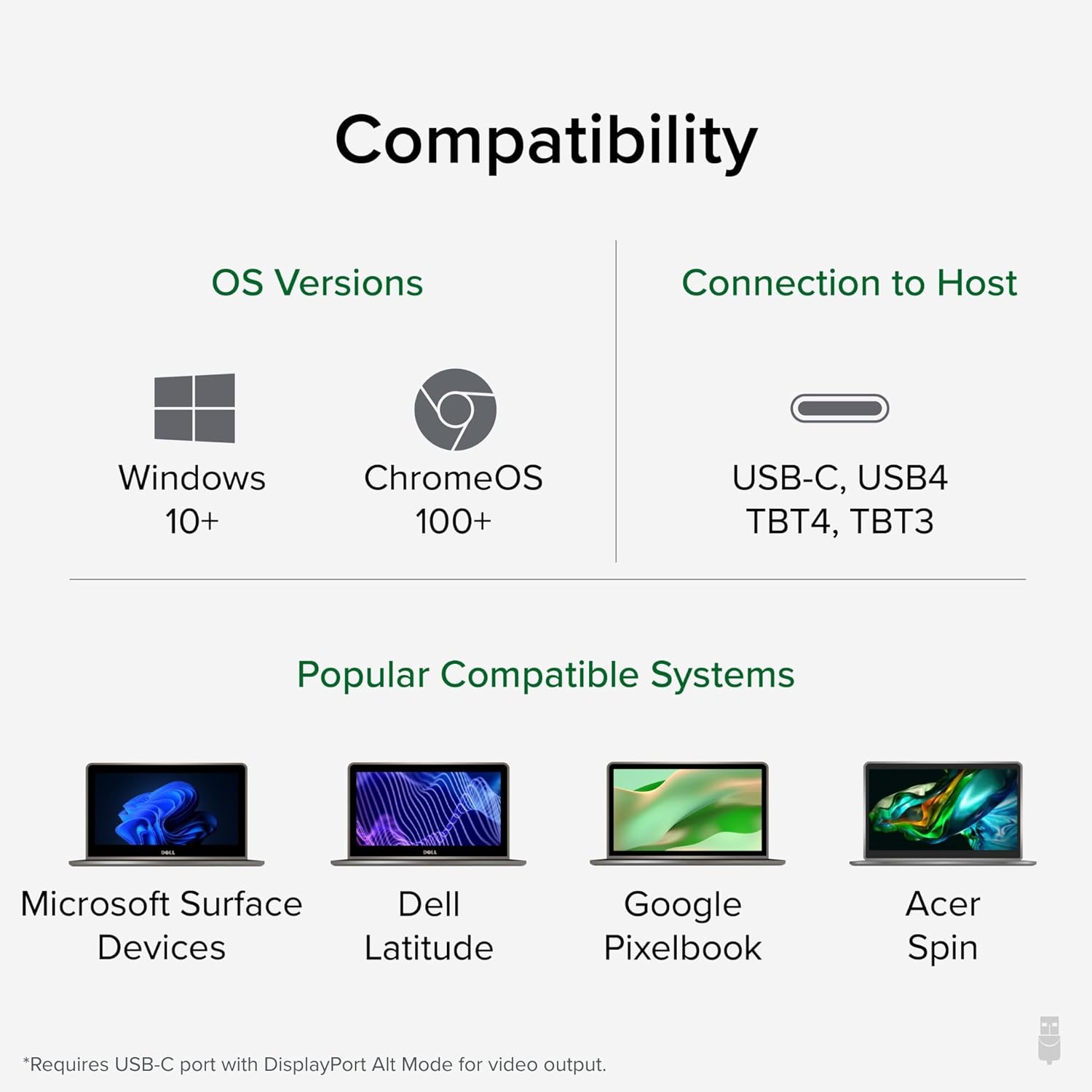
Image: A visual guide to the UD-MSTH2's compatibility, highlighting supported OS versions (Windows 10+, ChromeOS 100+) and connection types (USB-C, USB4, TBT4, TBT3), alongside examples of compatible systems like Microsoft Surface, Dell Latitude, Google Pixelbook, and Acer Spin.
6. Maintenance
To ensure the longevity and optimal performance of your Plugable UD-MSTH2 Docking Station, follow these maintenance guidelines:
- Cleaning: Use a soft, dry, lint-free cloth to gently wipe the exterior of the docking station. Avoid using liquid cleaners, aerosols, or solvents, as these can damage the device.
- Environment: Operate and store the docking station in a clean, dry environment, away from extreme temperatures, direct sunlight, and excessive humidity. Ensure proper ventilation around the device to prevent overheating.
- Handling: Handle the docking station and its cables with care. Avoid dropping the device or subjecting it to strong impacts. Do not pull on cables to disconnect them; always grasp the connector.
- Storage: If storing the device for an extended period, disconnect all cables and store it in its original packaging or a protective case to prevent dust accumulation and physical damage.
7. Troubleshooting
If you encounter issues with your Plugable UD-MSTH2 Docking Station, refer to the following common problems and solutions:
| Problem | Possible Cause / Solution |
|---|---|
| No Display Output |
|
| Laptop Not Charging |
|
| USB Devices Not Recognized |
|
| Ethernet Connection Issues |
|
8. Specifications
| Feature | Detail |
|---|---|
| Model Number | UD-MSTH2 |
| Product Dimensions | 9.25"L x 5.71"W x 3"H (23.5 x 14.5 x 7.6 cm) |
| Item Weight | 8.1 ounces (230 grams) |
| Color | Black |
| Hardware Interface | USB 3.0 Type C, USB Docking Station |
| Total USB Ports | 4 (1x USB-C 5Gbps, 2x USB-A 3.0 5Gbps, 1x USB 2.0 480Mbps) |
| Total HDMI Ports | 2 (Dual 4K 60Hz) |
| Wattage (Power Delivery) | 65W to host laptop |
| Ethernet | Gigabit Ethernet |
| Audio | 3.5mm Audio In/Out |
| Compatible Operating Systems | Windows 10+, ChromeOS 100+ |
| Host Connection | USB-C with DP Alt Mode, USB4, Thunderbolt 3/4 |
9. Warranty and Support
Plugable is committed to providing reliable products and excellent customer service. The UD-MSTH2 Docking Station includes lifetime support from our North American team of connectivity experts. Should you encounter any issues or have questions regarding the product, please contact Plugable support for assistance.
For further assistance, visit the official Plugable support website or contact their customer service directly.
Note: Specific warranty terms and conditions may vary. Please refer to the official Plugable website or product packaging for the most up-to-date warranty information.


