
1. Introduction
This manual provides essential information for the safe and efficient use of your OPPO A18 smartphone. Please read it thoroughly before operating your device.
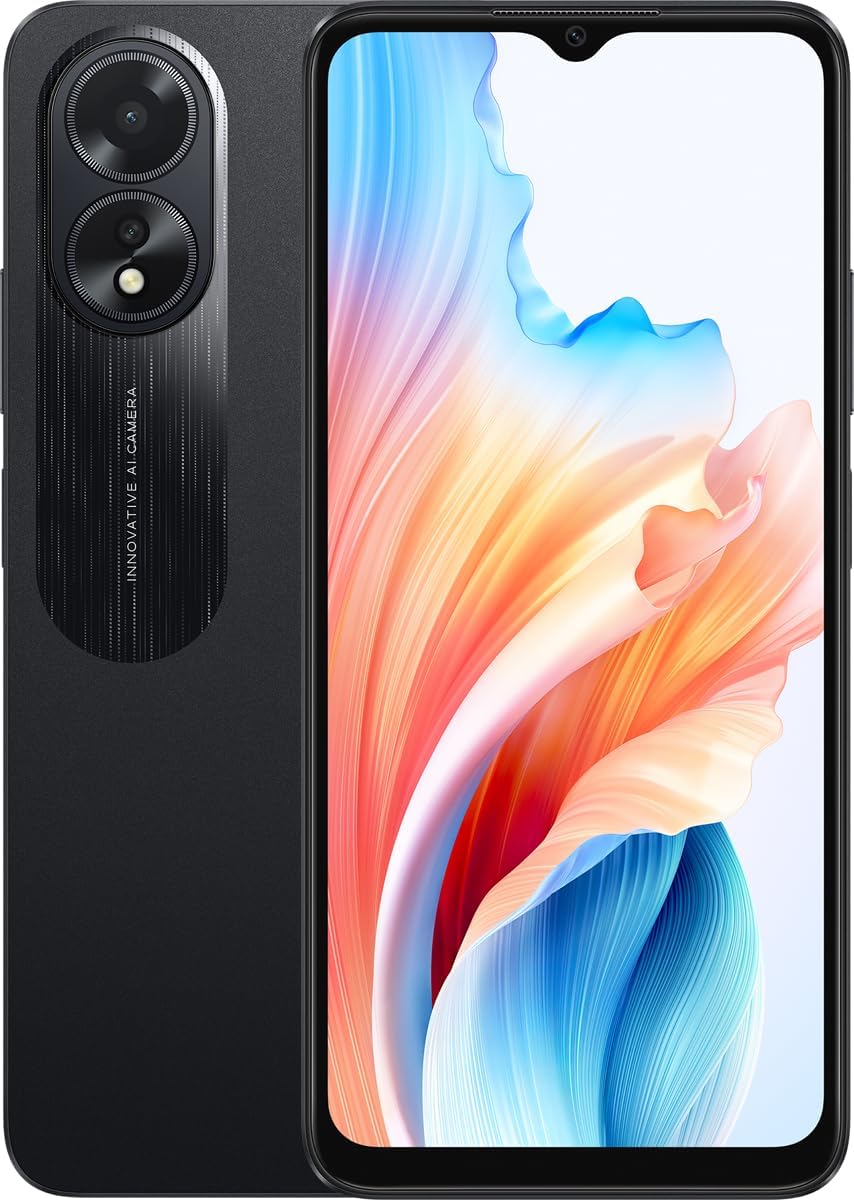
Image 1.1: Front and back view of the OPPO A18 smartphone.
2. Device Overview
Familiarize yourself with the physical components of your OPPO A18.
2.1 Physical Components
- Front Display: 6.56-inch screen.
- Power Button: Located on the side, also integrates the fingerprint sensor.
- Volume Buttons: Located on the side.
- USB Port: For charging and data transfer.
- Headphone Jack: Standard 3.5mm audio port.
- Camera Module: Rear cameras with LED flash, and front camera.
- SIM/MicroSD Tray: For inserting SIM cards and a microSDXC card.

Image 2.1: Side view of the OPPO A18, highlighting the power button, volume controls, and camera array.

Image 2.2: Bottom view of the OPPO A18, illustrating the USB charging port and 3.5mm headphone jack.
3. Setup
3.1 Inserting SIM and MicroSD Cards
- Locate the SIM tray on the side of your device.
- Insert the SIM ejector tool into the small hole next to the tray and push gently until the tray pops out.
- Place your Nano-SIM cards (up to two) and/or a microSDXC card into the designated slots on the tray. Ensure the gold contacts face downwards.
- Carefully push the tray back into the device until it is flush with the side.
3.2 Initial Power On and Basic Configuration
- Press and hold the Power button (side-mounted) until the OPPO logo appears.
- Follow the on-screen prompts to select your language, region, and connect to a Wi-Fi network.
- Sign in with your Google account or create a new one.
- Set up your screen lock method (PIN, pattern, password).
3.3 Fingerprint Sensor Setup
- Navigate to Settings > Password & security > Fingerprint.
- Follow the instructions to register your fingerprint by repeatedly touching the side-mounted power button.
- Ensure your finger covers the entire sensor area during registration for optimal performance.
4. Operating Your Device
4.1 User Interface and Navigation
Your OPPO A18 runs on Android 13 with ColorOS 13.1. Navigation is primarily touch-based:
- Tap: To select items or open applications.
- Swipe: To scroll through screens or lists.
- Pinch: To zoom in or out on images and web pages.
- Long Press: To access contextual menus or move icons.
4.2 Camera Usage
The OPPO A18 features a rear camera system with LED flash and panorama capabilities.
- Open the Camera application.
- Select your desired mode (Photo, Video, Portrait, Panorama, etc.).
- Tap the shutter button to capture an image or start/stop video recording.
- Use the LED flash for low-light conditions.
4.3 Connectivity
- Wi-Fi: Connect to wireless networks via Settings > Wi-Fi.
- Bluetooth: Pair with other Bluetooth devices via Settings > Bluetooth.
- Mobile Data: Enable or disable mobile data via Settings > Mobile network.
4.4 Battery Management
To optimize battery life:
- Adjust screen brightness.
- Close unused applications running in the background.
- Enable power saving modes in Settings > Battery.
- Avoid extreme temperatures.
5. Maintenance
5.1 Cleaning Your Device
Use a soft, lint-free cloth to clean the screen and body of your phone. Avoid harsh chemicals or abrasive materials.
5.2 Software Updates
Regularly check for and install software updates to ensure optimal performance and security. Go to Settings > About device > Up to date.
5.3 Storage Management
Your device has 128GB of internal storage. To manage storage:
- Delete unnecessary files and applications.
- Move large files to a microSD card (if installed).
- Utilize cloud storage services.
6. Troubleshooting
6.1 Common Issues and Solutions
- Device not turning on: Ensure the battery is charged. Connect to a charger for at least 15 minutes, then try powering on again.
- Apps crashing or freezing: Close and restart the app. If the issue persists, clear the app's cache (Settings > Apps > App management > [App Name] > Storage usage > Clear cache).
- Network connectivity issues: Toggle Airplane Mode on and off. Restart your device. Check your SIM card insertion.
- Fingerprint sensor not working: Ensure your finger is clean and dry. Re-register your fingerprint if necessary.
6.2 Factory Reset
If persistent issues occur, a factory reset may be necessary. This will erase all data on your device. Back up important data before proceeding. Go to Settings > System settings > Back up and reset > Reset phone > Erase all data.
7. Specifications
Detailed technical specifications for the OPPO A18 smartphone.
| Feature | Specification |
|---|---|
| Operating System | Android 13, ColorOS 13.1 |
| RAM Memory | 4 GB |
| Internal Storage | 128 GB |
| CPU Model | Snapdragon |
| CPU Speed | 1.8 GHz |
| Screen Size | 6.56 Inches |
| Resolution | 720 x 1612 pixels (~269 ppi density) |
| Refresh Rate | 90 Hz |
| Sensors | Fingerprint (side-mounted), accelerometer, proximity, compass |
| Camera Features | LED flash, panorama |
| SIM Card | Dual SIM (Nano-SIM, dual stand-by) |
| Card Slot | microSDXC |
| Product Dimensions | 12.7 x 7.62 x 8.64 cm |
| Weight | 480 g |
| Manufacturer | OPPO |
8. Warranty and Support
For warranty information and customer support, please refer to the documentation included with your purchase or visit the official OPPO website. Specific warranty terms may vary by region.


