
Twisted Minds TM32 FHD 240Hz VA
Twisted Minds 32 FHD 240Hz VA Gaming Monitor User Manual
Model: TM32 FHD 240Hz VA
Introduction
Thank you for choosing the Twisted Minds 32 FHD 240Hz VA Gaming Monitor. This manual provides essential information for setting up, operating, maintaining, and troubleshooting your new monitor. Please read this manual thoroughly before use to ensure proper operation and to maximize your viewing experience.
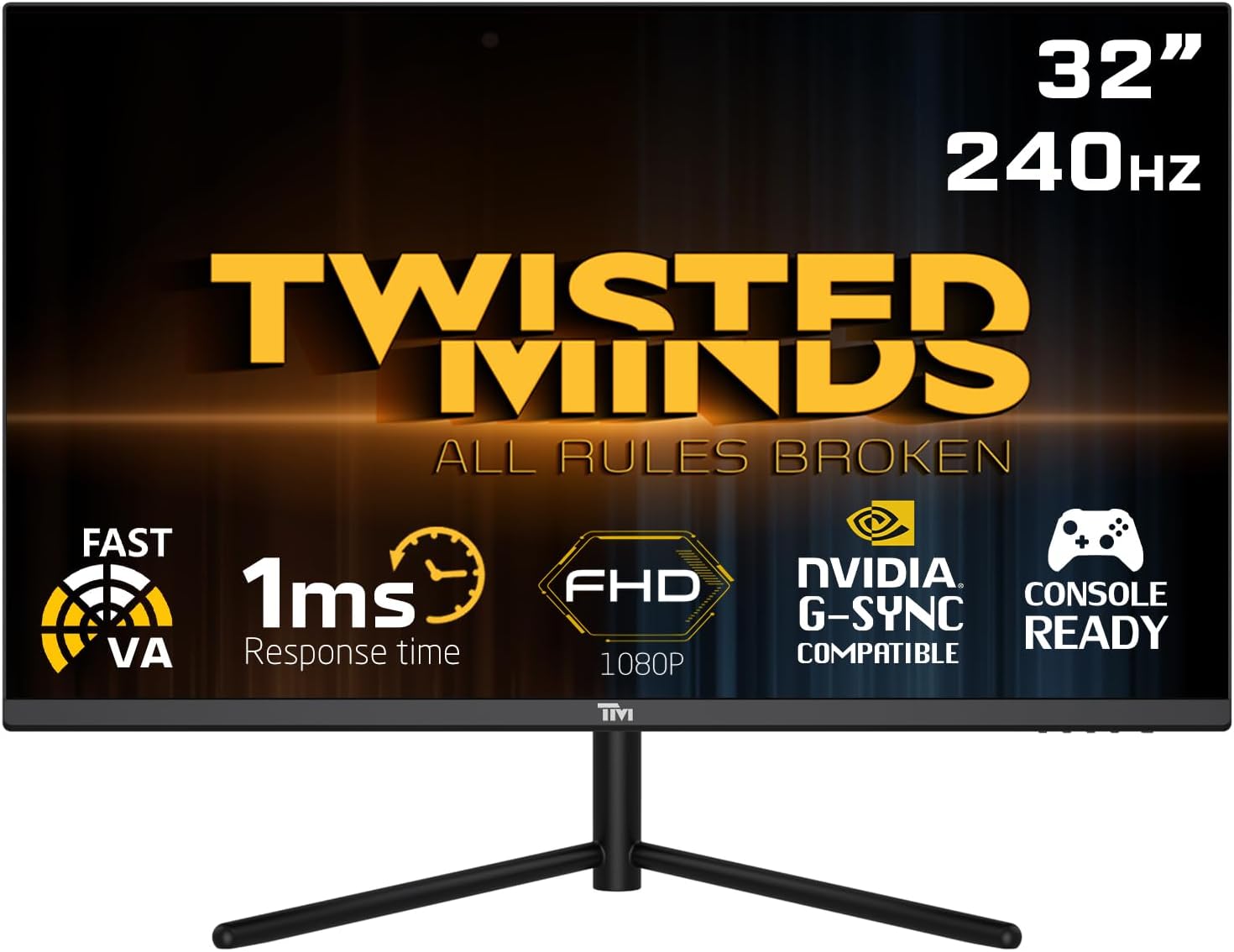
Front view of the Twisted Minds 32-inch Gaming Monitor, highlighting its 32-inch display, 240Hz refresh rate, 1ms MPRT response time, FHD 1080p resolution, NVIDIA G-SYNC compatibility, and console readiness.
Setup Guide
1. Unboxing and Package Contents
Carefully remove all components from the packaging. Ensure all items listed below are present:
- Twisted Minds 32-inch Gaming Monitor
- Monitor Stand (Base and Neck)
- Power Adapter and Cable
- HDMI Cable
- DisplayPort Cable
- User Manual (this document)
2. Assembling the Stand
- Place the monitor face down on a soft, clean surface to prevent scratches.
- Attach the stand neck to the back of the monitor, aligning the mounting holes. Secure with screws if provided.
- Connect the stand base to the stand neck and tighten the thumb screw or screws from the bottom of the base.
3. Connecting the Monitor
The monitor supports multiple input options. Choose the appropriate cable for your device.

Rear view of the monitor displaying its various input/output ports, including DC power, HDMI 2.1 (x2), DisplayPort 1.4 (x2), and Audio Out, along with menu buttons and a quick release base.
- Power Connection: Connect the power adapter to the monitor's DC input port, then plug the power cable into a wall outlet.
- Video Connection:
- For PC: Connect one end of the DisplayPort cable to your computer's graphics card and the other end to a DisplayPort 1.4 input on the monitor.
- For PC/Console: Connect one end of the HDMI cable to your computer's graphics card or game console and the other end to an HDMI 2.1 input on the monitor.
- Audio Output: If desired, connect external speakers or headphones to the Audio Out port on the monitor.
4. Initial Power On
After all connections are made, press the power button on the monitor. The power indicator light will illuminate, and the display will turn on. If no signal is detected, ensure your source device is powered on and correctly configured.
Operating Instructions
1. Basic Operation
- Power On/Off: Press the power button located on the monitor to turn it on or off.
- Input Selection: Use the OSD (On-Screen Display) menu buttons to navigate and select the desired input source (HDMI 1, HDMI 2, DP 1, DP 2).
2. On-Screen Display (OSD) Menu
The OSD menu allows you to adjust various display settings. Use the menu buttons (typically located on the back or bottom of the monitor) to navigate.
- Brightness/Contrast: Adjust the overall luminance and contrast of the display.
- Color Settings: Modify color temperature, gamma, and individual RGB levels.
- Picture Mode: Select from preset modes (e.g., Standard, Game, Movie, Text) optimized for different content.
- Response Time/Overdrive: Adjust the pixel response time for reduced ghosting in fast-paced content. This monitor features a 1ms MPRT response time for smooth visuals.
- Refresh Rate: The monitor supports up to 240Hz refresh rate. Ensure your graphics card settings are configured to utilize this high refresh rate for optimal gaming performance.
- HDR (High Dynamic Range): Enable or disable HDR for enhanced contrast and color depth with compatible content.
- FreeSync/G-SYNC Compatibility: This monitor is compatible with adaptive sync technologies. Enable this feature in the OSD and your graphics card control panel for tear-free gaming.

Illustration demonstrating the 1ms quick response time of the monitor, showing a fast-paced gaming scene with reduced motion blur and low input lag.

Image showcasing the monitor's frameless design, ideal for multi-monitor setups, with a wide 178-degree viewing angle.

A user engaged in gaming on the Twisted Minds monitor, emphasizing the immersive experience provided by the 1920x1080 resolution, 300 nits brightness, 4000:1 contrast ratio, and 240Hz refresh rate.
3. Ergonomic Adjustments
The monitor stand allows for tilt adjustment to optimize your viewing angle and reduce strain.

Diagram illustrating the ergonomic tilt adjustment range of the monitor stand (-5 to 15 degrees) for optimal viewing comfort, and highlighting VESA wall-mount compatibility (100x100mm).
- Tilt: Gently tilt the monitor screen forward or backward to find your preferred viewing angle. The tilt range is typically -5° to 15°.
- VESA Mount: For alternative mounting solutions, the monitor is VESA compatible (100x100mm). Remove the stand and attach a compatible VESA mount (sold separately).
Maintenance
Proper care and maintenance will extend the life of your monitor.
- Cleaning the Screen: Gently wipe the screen with a soft, lint-free cloth. For stubborn marks, dampen the cloth slightly with water or a non-ammonia, non-alcohol based screen cleaner. Never spray liquid directly onto the screen.
- Cleaning the Casing: Use a soft, dry cloth to wipe the monitor casing. Avoid using abrasive cleaners or solvents.
- Ventilation: Ensure the ventilation openings on the monitor are not blocked. Do not place the monitor in an enclosed space without adequate airflow.
- Power Off When Not in Use: Turn off the monitor when not in use for extended periods to save energy and prolong its lifespan.
Troubleshooting
If you encounter issues with your monitor, refer to the following common problems and solutions.
| Problem | Possible Cause | Solution |
|---|---|---|
| No image on screen | Monitor not powered on; Incorrect input selected; Loose video cable. | Ensure power cable is connected and monitor is on. Select correct input source. Check video cable connections. |
| Image is blurry or distorted | Incorrect resolution; Graphics driver issue. | Set display resolution to 1920x1080. Update graphics card drivers. |
| No sound from speakers/headphones | Audio cable not connected; Volume too low; Incorrect audio output selected on PC. | Ensure audio cable is connected to the monitor's audio out port. Adjust volume. Select monitor as audio output device in PC settings. |
| Screen flickering | Refresh rate mismatch; Faulty cable. | Ensure refresh rate is set correctly (e.g., 240Hz). Try a different video cable. |
| Buttons not responding | OSD lock enabled. | Refer to OSD menu section for unlocking button functions (if applicable). Power cycle the monitor. |
If the problem persists after trying these solutions, please contact customer support.
Specifications
Detailed technical specifications for the Twisted Minds 32 FHD 240Hz VA Gaming Monitor.
| Feature | Specification |
|---|---|
| Brand | Twisted Minds |
| Model Number | TM32 FHD 240Hz VA |
| Display Size | 32 Inches |
| Screen Resolution | 1920 x 1080 (FHD 1080p) |
| Refresh Rate | 240Hz |
| Response Time | 1ms MPRT |
| Panel Type | VA |
| Aspect Ratio | 16:9 |
| Brightness | 300 nits |
| Contrast Ratio | 4000:1 |
| Color Gamut | 77.29% NTSC |
| Connectivity | 2 x HDMI 2.1, 2 x DisplayPort 1.4, Audio Out |
| VESA Compatibility | 100 x 100 mm |
| Product Dimensions | 10 x 63 x 44 cm |
| Item Weight | 8.8 Kilograms |
| Color | Black |
Warranty and Support
Warranty Information
Twisted Minds products are manufactured to the highest quality standards. This monitor comes with a standard manufacturer's warranty. Please refer to the warranty card included in your package or visit the official Twisted Minds website for detailed warranty terms and conditions specific to your region.
Customer Support
If you require technical assistance or have questions regarding your monitor, please contact Twisted Minds customer support. Have your model number (TM32 FHD 240Hz VA) and purchase information ready when contacting support.
For the most up-to-date contact information, please visit the official Twisted Minds website or the retailer's support page where you purchased the product.
Ask a question about this manual
Ask about setup, troubleshooting, compatibility, parts, safety, or missing instructions. Manuals+ will review the question and use this page’s manual context to help answer it.