
Introduction
The Hercules Stream 100 is an intuitive audio controller designed for content creators, streamers, and gamers. It simplifies audio management during live sessions, allowing real-time control over various sound sources. With its built-in LCD screen, you can monitor and adjust up to 8 audio tracks simultaneously, ensuring quick reactions to your audio environment. The device also features 4 assignable action buttons for customized controls and a fully customizable interface to match your personal setup.
Package Contents
- Hercules Stream 100 Audio Mixer
- USB Connection Cable
- Instruction Manual (this document)

Image: Hercules Stream 100 Audio Mixer, front view.
Product Overview
The Hercules Stream 100 features a compact design with an integrated LCD screen, four rotary encoders, and four action buttons. The device is designed for easy integration into your Windows PC setup.
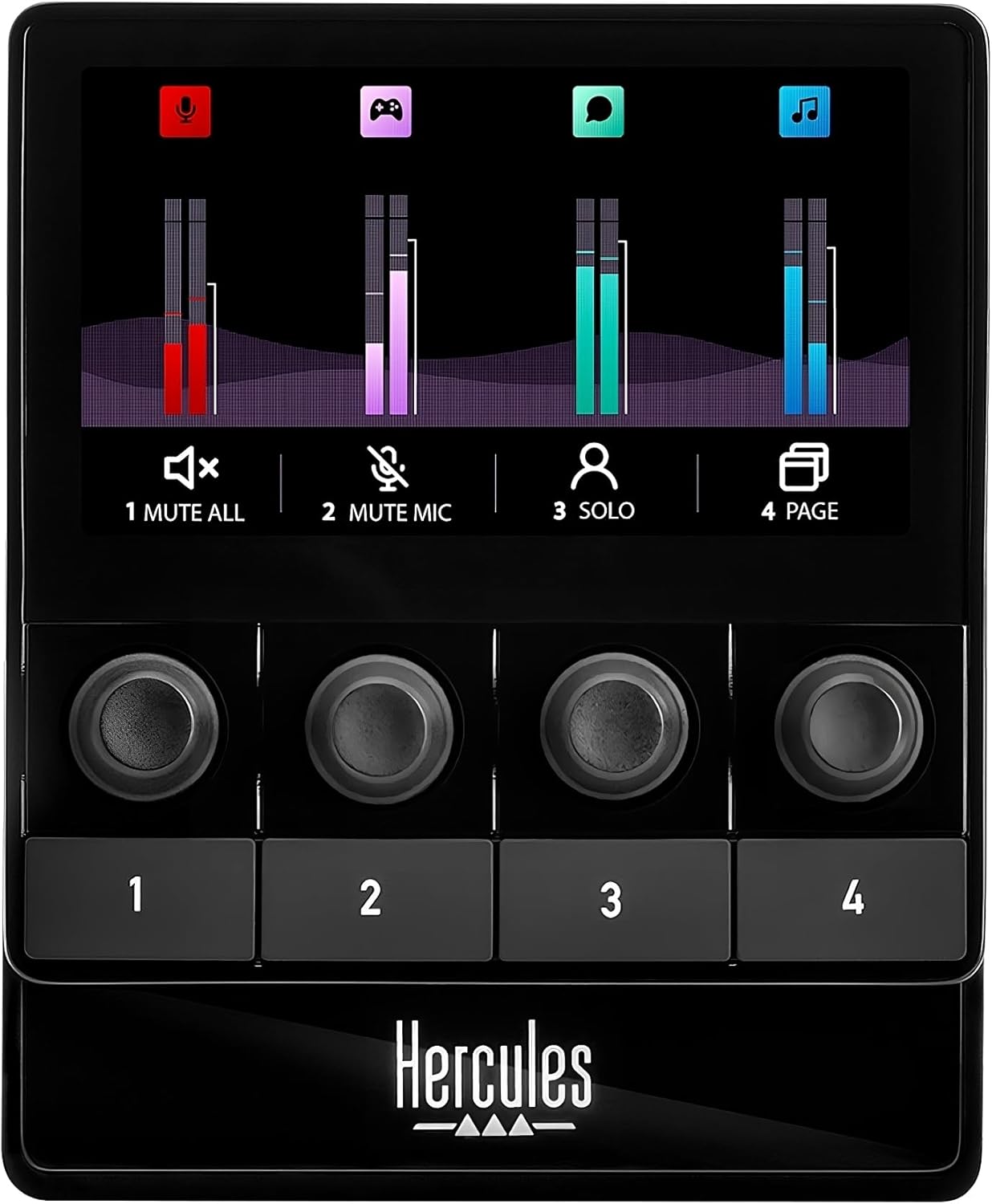
Image: Front view of the Hercules Stream 100, showing the LCD screen, four rotary encoders, and four action buttons.

Image: Side view of the Hercules Stream 100, highlighting its ergonomic angle.

Image: Back view of the Hercules Stream 100, showing the USB-C port for connectivity.
Setup
System Requirements
- Compatible with Windows PC only.
Connecting the Device
Connect the Hercules Stream 100 to your Windows PC using the provided USB cable. The device is powered via USB.

Image: Hercules Stream 100 connected to a PC setup, demonstrating typical use.
Software Installation
Download and install the Hercules Stream Control app from the official Hercules website. This software is essential for configuring your audio sources, customizing buttons, and managing profiles. The app includes built-in guidance for setup assistance and features a drag-and-drop interface. Core streaming applications like OBS and Streamlabs are pre-integrated.
Operation
Audio Source Management
The Hercules Stream 100 allows complete management of your audio. Configure up to 8 tracks simultaneously across 2 pages of 4 tracks each. Use the 4 volume level management encoders to adjust sound levels and mute/unmute tracks. The device is compatible with USB microphones.

Image: Illustration of centralized gaming audio control with up to 32 tracks across 8 pages, 4 rotary buttons, and USB mic compatibility.
Real-time Monitoring
Monitor all streaming volume levels in real-time on the high-brightness LCD screen. The screen displays 4 dynamic VU meters, providing visual feedback on your audio. A dedicated button allows you to turn the screen ON/OFF.

Image: User interacting with the Hercules Stream 100, adjusting audio levels on the LCD screen.
Customizable Actions and Interface
Utilize the 4 assignable action buttons for various streaming controls, such as multiple mute, URL launcher, or scene changes. The interface is completely customizable, allowing you to choose colors and styles for VU meters, set custom backgrounds and icons, and manage up to 12 profiles.

Image: Illustration of the fully customizable interface, showing options for action buttons, VU meter styles, backgrounds, icons, and profile management.

Image: Screenshot of the Hercules Stream Control app interface, highlighting pre-integrated streaming apps and built-in guidance.
Maintenance
To ensure the longevity and optimal performance of your Hercules Stream 100, follow these maintenance guidelines:
- Cleaning: Use a soft, dry cloth to clean the device. Avoid abrasive cleaners or solvents that could damage the surface.
- Storage: Store the device in a cool, dry place away from direct sunlight and extreme temperatures when not in use.
- Software Updates: Regularly check the official Hercules website for firmware and software updates to ensure you have the latest features and bug fixes.
Troubleshooting
If you encounter issues with your Hercules Stream 100, consider the following common troubleshooting steps:
- No Audio Output: Ensure the device is properly connected via USB and the Hercules Stream Control app is running. Check your PC's audio settings to confirm the Stream 100 is selected as the output device. Restarting your system and reinstalling the software may resolve persistent issues.
- Software Freezing/Bugs: Ensure your Hercules Stream Control app and device firmware are up to date. If the software becomes unresponsive, try restarting the application or your computer.
- Buttons/Encoders Unresponsive: Verify the USB connection. If the issue persists, restart the device and the software.
Specifications
| Feature | Detail |
|---|---|
| Item Weight | 1.19 pounds |
| Product Dimensions | 7.48 x 6.89 x 4.33 inches |
| Item Model Number | 4780933 |
| Number of Channels | 8 |
| Connectivity Technology | USB |
| Material Type | Plastic |
| Color Name | Black |
| Power Source | Corded Electric |
Warranty and Support
For warranty information and technical support, please refer to the documentation provided with your purchase or visit the official Hercules website. Protection plans are available for extended coverage.


