
1. Introduction
Thank you for choosing the CHIQ L40G7V 40-inch Google TV. This manual provides essential information for setting up, operating, maintaining, and troubleshooting your new television. Please read it thoroughly before use and retain it for future reference.
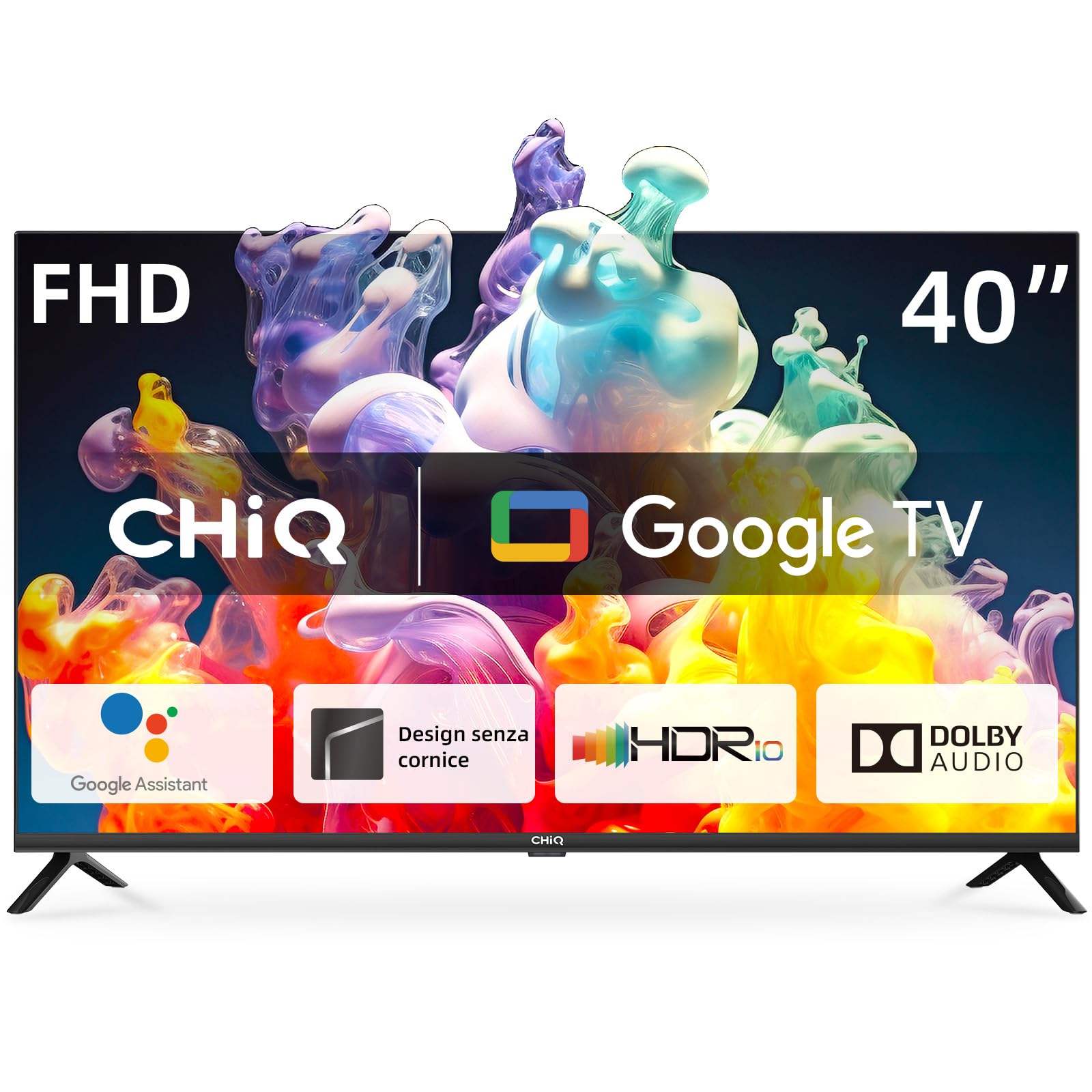
Image 1.1: The CHIQ L40G7V 40-inch Google TV.
2. Safety Information
Always follow basic safety precautions when using this television to reduce the risk of fire, electric shock, and injury. Keep this manual near the TV for quick reference.
- Do not expose the TV to rain or moisture.
- Do not open the TV casing; refer all servicing to qualified personnel.
- Ensure proper ventilation around the TV.
- Use only the power cord supplied with the TV.
- Keep the TV away from direct sunlight and heat sources.
- Clean the TV with a soft, dry cloth only.
3. Package Contents
Verify that all items are present in the package:
- CHIQ L40G7V 40-inch Google TV
- Bluetooth Remote Control
- AAA Batteries (2x)
- TV Stand (2 pieces)
- Screws for Stand Assembly
- Power Cable
- User Manual (this document)
- Warranty Card

Image 3.1: Overview of the CHIQ L40G7V TV and its remote control, with key specifications.
4. Physical Setup
4.1 Assembling the Stand
Carefully place the TV face down on a soft, flat surface to prevent screen damage. Attach the two stand pieces to the bottom of the TV using the provided screws. Ensure they are securely fastened.

Image 4.1: Detail of the TV stand securely attached to the television base.
4.2 Wall Mounting (Optional)
If you choose to wall mount your TV, ensure you use a VESA compatible mount (200x200 mm) and follow the instructions provided with your wall mount kit. Remove the stand before mounting.
4.3 Connecting External Devices
The TV features various ports for connecting external devices:
- HDMI Ports (x2): For connecting Blu-ray players, game consoles, set-top boxes, etc. One port supports HDMI ARC.
- USB 2.0 Port (x1): For connecting USB storage devices to play media.
- Antenna Inputs (x2): For connecting terrestrial (DVB-T2) or satellite (DVB-S2) antennas.
- LAN Port (x1): For a wired internet connection.
- CI+ Slot (x1): For Conditional Access Modules (CAM) to decrypt pay-TV channels.
- AV Input (x1): For older devices using composite video and stereo audio.
- Digital Audio Output (x1): For connecting to external audio systems.

Image 4.2: Rear view of the TV, highlighting the various input and output ports.
4.4 Power Connection
Connect the power cable to the TV and then to a suitable wall outlet. The TV operates on 220 VAC 50 Hz.
5. Initial Setup
5.1 First Power-On
After connecting the power, press the power button on the remote control or the TV. The TV will guide you through the initial setup process.
5.2 Google TV Setup
Follow the on-screen instructions to set up Google TV. This includes:
- Selecting your language and region.
- Connecting to a network (Wi-Fi or LAN). The TV supports 5G WLAN.
- Signing in with your Google account to access Google Play Store, Google Assistant, and personalized recommendations.
- Scanning for available TV channels (DVB-T2/S2/C).
5.3 Remote Control Pairing
The included remote control uses Bluetooth. During initial setup, you will be prompted to pair it with the TV. Follow the on-screen instructions, typically involving holding down specific buttons on the remote.
6. Operating Instructions
6.1 Google TV Interface
Google TV organizes your entertainment from various apps and subscriptions into a single, personalized interface. You can browse movies, shows, and live TV, or discover new content based on your viewing habits.
6.2 Accessing Applications
Access popular streaming services like YouTube, Netflix, Disney+, and Amazon Prime Video directly from the Google TV home screen. More applications can be downloaded from the Google Play Store.

Image 6.1: The Google TV home screen displaying a selection of available streaming applications.
6.3 Voice Control with Google Assistant
Press the Google Assistant button on your remote control and speak into the microphone to search for content, control smart home devices, get answers, and more.
6.4 Chromecast Built-in
Use Chromecast Built-in to cast movies, shows, photos, and more from your phone, tablet, or laptop directly to your TV screen.
6.5 Picture and Sound Settings
Navigate to the settings menu to adjust picture and sound preferences. The TV supports Dolby Audio and offers four sound modes: News, Movie, Night, and Music.
7. Maintenance
7.1 Cleaning the TV
Always unplug the TV before cleaning. Use a soft, dry cloth to wipe the screen and exterior surfaces. Do not use liquid cleaners or aerosol sprays directly on the TV.
7.2 Software Updates
The TV may receive automatic software updates via the internet. Ensure your TV is connected to the internet to receive the latest features and security patches.
8. Troubleshooting
If you encounter issues with your TV, refer to the following common problems and solutions:
| Problem | Possible Solution |
|---|---|
| No Power | Check if the power cable is securely connected to both the TV and the wall outlet. Ensure the outlet has power. Try a different outlet. |
| No Picture, but Sound is Present | Check the input source. Ensure external devices are powered on and connected correctly. Try restarting the TV. |
| No Sound, but Picture is Present | Check the volume level and mute status. Ensure external audio systems are connected correctly and powered on. Check audio output settings. |
| Remote Control Not Working | Replace the batteries. Ensure there are no obstructions between the remote and the TV. Re-pair the Bluetooth remote if necessary. |
| Network Connection Issues | Check your router and modem. Restart them if needed. Ensure Wi-Fi password is correct. For wired connections, check the LAN cable. |
9. Specifications
Detailed technical specifications for the CHIQ L40G7V TV:
| Feature | Specification |
|---|---|
| Model Name | L40G7V |
| Screen Size | 40 inches |
| Display Technology | LED |
| Resolution | 1080p (1920 x 1080 pixels) |
| Refresh Rate | 60 Hz |
| Operating System | Google TV |
| Special Features | Google Assistant, Play Store, Netflix, YouTube, Amazon Prime Video, Dolby Audio, Chromecast Built-in, Bluetooth 5.0, Frameless Design, AI Pont, HbbTV2.0, Google Smart Home, LAN, Wi-Fi (5G WLAN) |
| Audio Output Mode | Dolby Audio (2 x 8W speakers) |
| Connectivity | 2x HDMI 1.4 (1x ARC), 1x USB 2.0, 1x AV, 1x Digital Audio Out, 2x ANT, 1x LAN, CI+ Slot, Bluetooth 5.0, Wi-Fi |
| Dimensions (with stand) | 89.8 x 18.0 x 56.0 cm (W x D x H) |
| Dimensions (without stand) | 89.8 x 8.7 x 51.5 cm (W x D x H) |
| Item Weight | 5.8 kg |
| VESA Standard | 200x200 mm |
| Energy Efficiency Class | F |
| Power Consumption | 39 kWh/1000h (SDR) |

Image 9.1: EU Energy Label for the CHIQ L40G7V TV. For more details, visit the official EPREL database: https://eprel.ec.europa.eu/qr/1519620

Image 9.2: Detailed dimensions of the CHIQ L40G7V television, including width, height, and depth with the stand.
10. Warranty and Support
10.1 Product Warranty
The CHIQ L40G7V television comes with a 2-year limited warranty. Please refer to the included warranty card for specific terms and conditions.
10.2 Customer Support
For technical assistance, troubleshooting beyond this manual, or warranty claims, please contact CHIQ customer support. Contact details can typically be found on the CHIQ official website or on your warranty card.


