
1. Introduction
This manual provides instructions for the Sanwa Supply SLIMO MA-BBS310BK Silent Bluetooth Blue LED Mouse. It covers product features, setup, operation, maintenance, troubleshooting, and specifications to ensure optimal use of your device. The SLIMO mouse is an ultra-compact, rechargeable wireless mouse designed for portability and quiet operation.

Figure 1: Top view of the Sanwa Supply SLIMO MA-BBS310BK mouse.
2. Product Overview
2.1 Key Features
- Integrated Type-C Charging Cable: A Type-C charging cable is built directly into the mouse, eliminating the need to carry a separate cable. The cable can be stored when not in use.
- Ultra-Compact Design: An ultra-compact wireless mouse that fits comfortably in your fingertips, ideal for portability.
- Ambidextrous Shape: Its symmetrical design allows comfortable use for both right-handed and left-handed users.
- Wireless Connectivity: Operates wirelessly, providing freedom of movement without cable clutter.
- Bluetooth Ver. 5.0: Compatible with Bluetooth Ver. 5.0 standard, allowing direct connection to Bluetooth-enabled computers, smartphones, and tablets without a dedicated receiver.
- Wide Communication Range: Stable data communication is possible over a range of approximately 10 meters (non-magnetic surfaces).
- Silent Operation: Designed for quiet clicks, suitable for various environments such as meetings, telework, or late-night use.
- Blue LED Sensor: Utilizes a highly sensitive Blue LED optical sensor for precise tracking.
- Power Switch: Equipped with a power switch to conserve battery when not in use.
2.2 Components
The package includes the Sanwa Supply SLIMO MA-BBS310BK mouse and an instruction manual with warranty information.

Figure 2: Key features of the SLIMO mouse, including Bluetooth 5.0 and integrated charging cable.

Figure 3: Bottom of the mouse, indicating the optical sensor (Blue LED) and power switch.
3. Setup
3.1 Charging the Mouse
The MA-BBS310BK mouse features a built-in Type-C charging cable. To charge the mouse:
- Locate the integrated Type-C charging cable at the front of the mouse.
- Gently pull out the Type-C connector from its storage slot.
- Connect the Type-C connector to a compatible USB charging port on your computer or a USB power adapter.
- The mouse will begin charging. Ensure the mouse is fully charged before first use for optimal battery life.

Figure 4: Integrated Type-C charging cable being pulled out from the mouse.

Figure 5: Mouse charging from a laptop.
3.2 Bluetooth Pairing
To connect the mouse to your device via Bluetooth:
- Ensure the mouse is charged and the power switch on the bottom of the mouse is in the 'ON' position.
- Activate Bluetooth on your computer, smartphone, or tablet.
- Go to your device's Bluetooth settings and search for available devices.
- Select "MA-BBS310BK" or a similar name from the list of found devices to initiate pairing.
- Once paired, the mouse is ready for use.
Note: Some Android OS devices may not support Bluetooth mice. Please verify your device's specifications for Bluetooth mouse compatibility.
4. Operating Instructions
4.1 Power On/Off
To turn the mouse on or off, use the power switch located on the bottom of the mouse. Set it to 'ON' for operation and 'OFF' to conserve battery when not in use.
4.2 Basic Operation
The SLIMO mouse features three standard buttons:
- Left Button: Primary click function.
- Right Button: Secondary click function (context menu).
- Scroll Wheel Button: For scrolling content vertically. Can also be pressed for a middle-click function.

Figure 6: Proper hand placement for using the SLIMO mouse.

Figure 7: Mouse in use with a laptop.
5. Maintenance
5.1 Cleaning
To maintain the performance and appearance of your mouse:
- Wipe the exterior of the mouse with a soft, dry cloth.
- Avoid using harsh chemicals, solvents, or abrasive materials, as these can damage the surface.
- Keep the optical sensor area on the bottom of the mouse clean and free from dust or debris for accurate tracking.
5.2 Battery Care
The mouse is equipped with a rechargeable battery. For optimal battery life:
- Charge the mouse fully before its first use.
- Avoid completely draining the battery frequently.
- Store the mouse in a cool, dry place when not in use for extended periods.
Note: The performance of rechargeable batteries will gradually decrease over time and with repeated charging cycles. This is a normal characteristic of rechargeable batteries.
6. Troubleshooting
If you encounter issues with your Sanwa Supply SLIMO MA-BBS310BK mouse, refer to the following common solutions:
- Mouse is unresponsive:
- Ensure the mouse is powered on using the switch on the bottom.
- Check the battery level and charge the mouse if necessary.
- Verify that the mouse is properly paired with your device via Bluetooth. Try re-pairing if the connection is unstable.
- Connection issues:
- Ensure your device's Bluetooth is enabled and functioning correctly.
- Move the mouse closer to your device to ensure it's within the 10-meter communication range. Obstacles or other wireless devices can interfere with the signal.
- Restart both the mouse (turn off and on) and your device's Bluetooth.
- Inaccurate tracking:
- Clean the optical sensor on the bottom of the mouse.
- Ensure you are using the mouse on a suitable surface. Blue LED sensors generally work well on various surfaces, but highly reflective or transparent surfaces may cause issues.
- Charging cable issues:
- If the integrated charging cable appears damaged or is not charging, ensure it is fully extended and properly connected to a working USB port.
7. Specifications
| Feature | Specification |
|---|---|
| Model Number | MA-BBS310BK |
| Color | Black |
| Connection Method | Bluetooth |
| Radio Frequency | 2.402GHz ~ 2.480GHz |
| Compatible Standard | Bluetooth Ver. 5.0 (BLE) Class 2 |
| Reading Method | Optical Sensor (Blue LED) |
| Communication Range | Approx. 10m (wooden desk/non-magnetic), Approx. 2m (steel desk/magnetic) |
| Number of Buttons | 3 buttons |
| Buttons | Left button, Right button, Wheel (scroll) button |
| Resolution | 1200 counts/inch |
| Battery Type | Rechargeable battery |
| Charging Connector Shape | USB Type-C |
| Charging Cable Length | Approx. 1.5cm (built-in) |
| Continuous Operation Time | 36 hours |
| Continuous Standby Time | 4000 hours |
| Usable Days | 18 days (Calculated based on 8 hours PC use/day, 5% mouse operation) |
| Size Classification | Small |
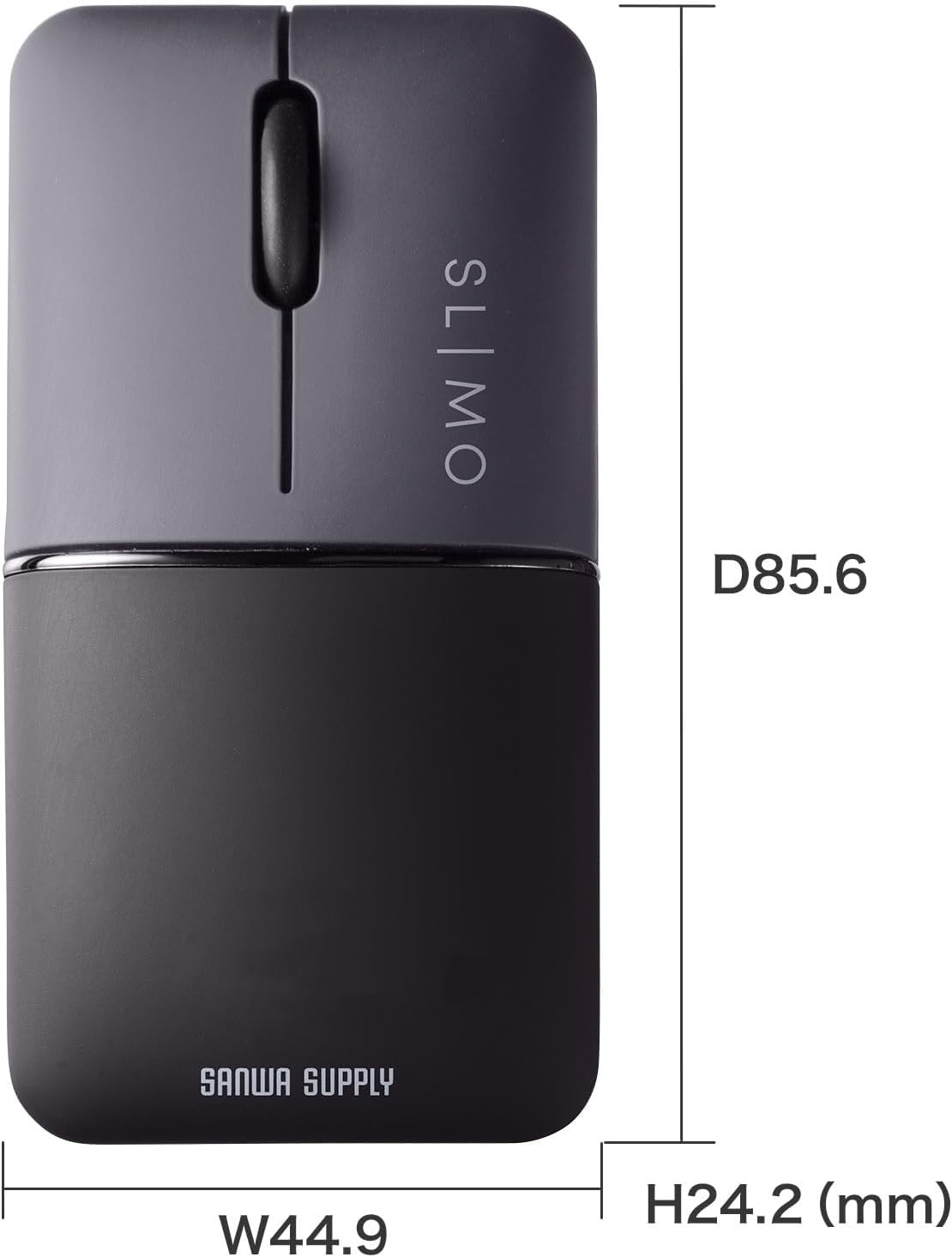
| Dimensions (W×D×H) | Approx. 44.9 × 85.6 × 24.2 mm |
| Weight | Approx. 42g |
| Compatible OS | Windows, macOS, Linux |
| Compatible Devices | Tablets, PCs |
Figure 8: Dimensions of the SLIMO mouse.
8. Warranty and Support
The Sanwa Supply SLIMO MA-BBS310BK mouse comes with an instruction manual that includes warranty information. Please refer to the warranty card provided in the product packaging for details regarding warranty coverage, terms, and conditions.
For technical support or inquiries, please contact Sanwa Supply customer service through their official website or the contact information provided in your product documentation.


